10 Hidden Apple Watch Features That Most Users Never Discover
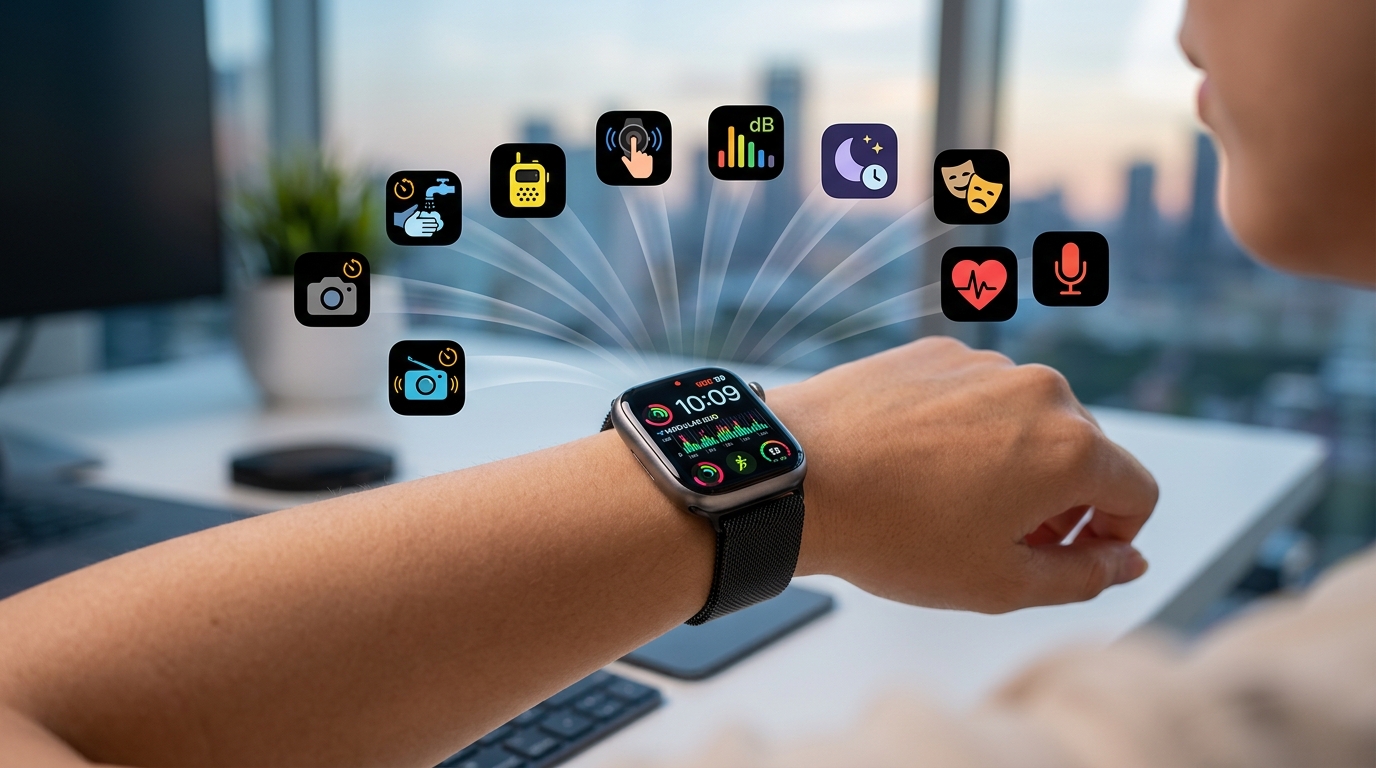
You’ve been wearing your Apple Watch for months, maybe even years. You check notifications, track workouts, and pay for coffee. But you’re barely scratching the surface.
Most Apple Watch owners never venture beyond the basics. They miss powerful tools buried in settings menus and gesture controls that Apple doesn’t advertise. These hidden features can transform your watch from a notification buzzer into a genuinely useful health monitor, productivity tool, and safety device.
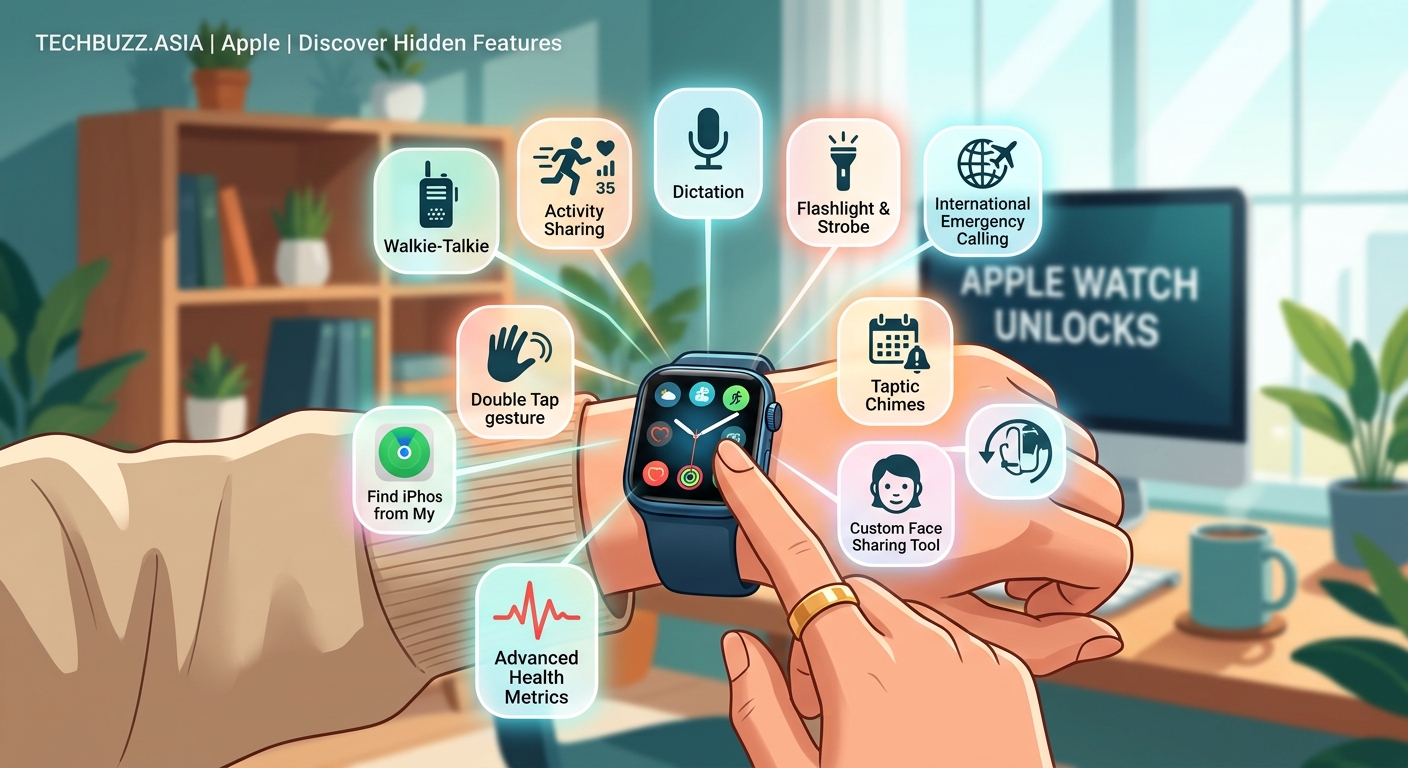
Your Apple Watch contains dozens of overlooked features that most users never activate. From AssistiveTouch gestures and noise monitoring to medication reminders and backtrack navigation, these capabilities can significantly improve your health tracking, productivity, and safety. Many require just seconds to enable but deliver ongoing value for years.
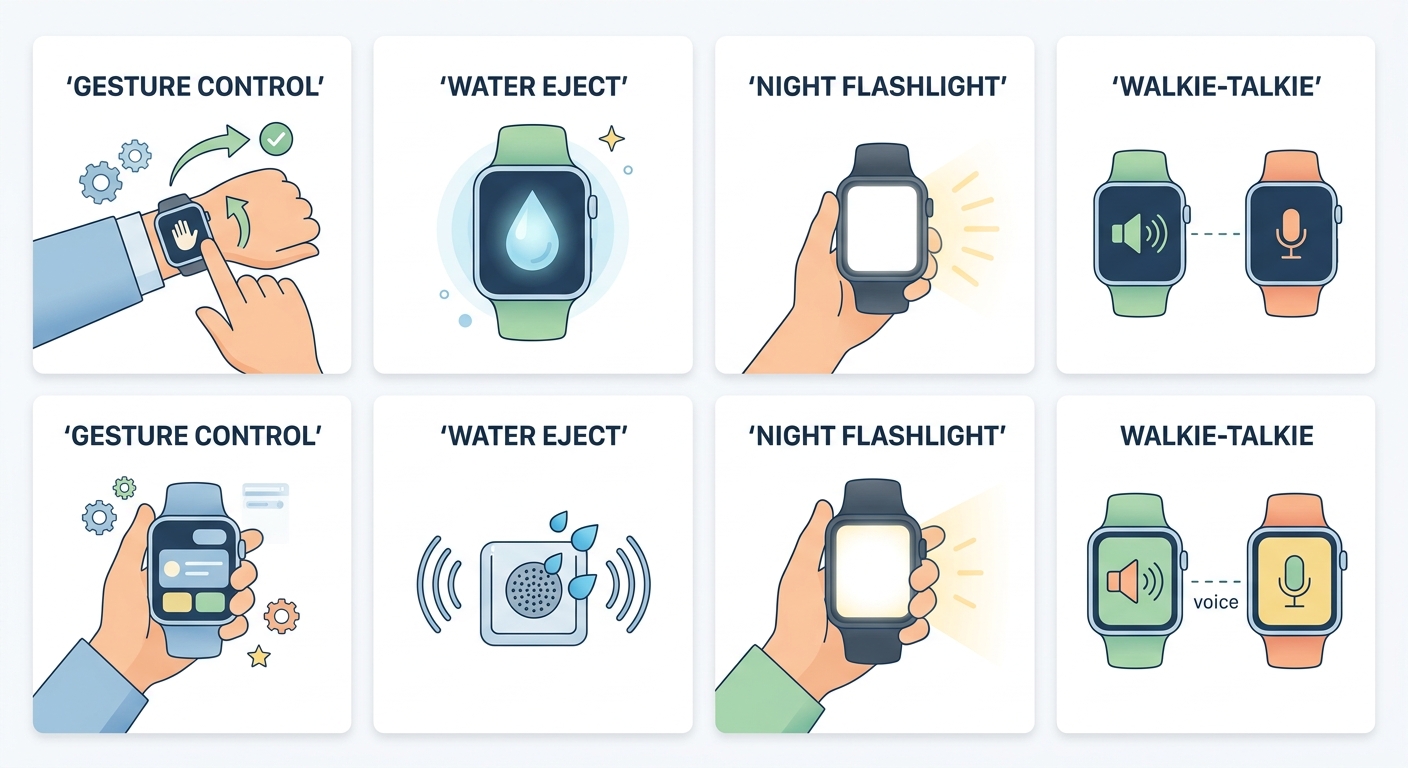
Use hand gestures without touching the screen
AssistiveTouch lets you control your Apple Watch with hand gestures. No screen contact required.
Clench your fist twice to answer calls. Pinch your fingers together to pause music. These gestures work even when your other hand is full or wet.
To enable this feature:
- Open the Watch app on your iPhone
- Tap Accessibility, then AssistiveTouch
- Toggle AssistiveTouch on
- Customize which gestures trigger which actions
The feature uses motion sensors and heart rate data to detect your hand movements. It’s designed for accessibility but proves useful for anyone who needs hands-free control.
You can assign different actions to double clench, double pinch, and other gestures. Most people set double clench to answer calls and double pinch to control media playback.
Track your environmental noise exposure
Your Apple Watch constantly monitors ambient sound levels. It can warn you when noise reaches levels that damage hearing.
The Noise app measures decibel levels in real time. When sound exceeds 90 decibels for extended periods, you get a tap on the wrist. Prolonged exposure at this level causes permanent hearing damage.
Open the Noise app to see current sound levels. The app also logs historical data, showing when and where you encountered loud environments. This information appears in the Health app on your iPhone.
To enable noise notifications:
- Open Settings on your Apple Watch
- Scroll to Noise
- Toggle Noise Notifications on
- Set your threshold (80, 85, 90, or 95 decibels)
The watch measures environmental noise, not audio from headphones. It doesn’t record or save actual sounds, just decibel measurements.
Concert venues, construction sites, and busy restaurants often exceed safe levels. The feature helps you recognize when to use hearing protection or leave loud environments.
Set medication reminders with tracking
The Medications app does more than remind you to take pills. It tracks your adherence, warns about interactions, and logs every dose.
Add any medication by name, strength, and schedule. The watch will tap your wrist at the right time. You can mark doses as taken or skipped directly from the notification.
The app checks for potential interactions between medications. If you add a new prescription that conflicts with existing ones, you’ll see a warning. This feature uses a comprehensive drug interaction database.
To set up medication tracking:
- Open the Health app on iPhone
- Tap Browse, then Medications
- Add your medications with schedules
- Enable Critical Alerts so reminders break through Do Not Disturb
Your medication history syncs across devices. Doctors can review your adherence patterns during appointments. The data shows which medications you take consistently and which you often skip.
The feature also reminds you when prescriptions need refills. You can set custom schedules for medications taken as needed rather than daily.
Enable fall detection for any age
Fall detection isn’t just for seniors. Anyone can activate this safety feature, regardless of age.
If the watch detects a hard fall, it taps your wrist and sounds an alarm. You can dismiss the alert or call emergency services. If you don’t respond within 60 seconds, the watch automatically calls for help and messages your emergency contacts with your location.
The feature uses accelerometer and gyroscope data to identify fall patterns. It distinguishes between actual falls and activities like jumping or quick movements.
To turn on fall detection:
- Open the Watch app on iPhone
- Tap Emergency SOS
- Toggle Fall Detection on
If you’re under 55, fall detection is off by default. You need to manually enable it. For users 55 and older, it activates automatically.
The feature works during workouts, daily activities, and sleep. It’s particularly valuable for solo hikers, cyclists, and anyone working in potentially dangerous environments.
Just like understanding why your smartphone battery degrades faster than it should helps preserve device longevity, knowing about fall detection can literally save your life.
Use your watch as a walkie talkie
The Walkie Talkie app turns your Apple Watch into a push-to-talk device. It works over WiFi or cellular, with unlimited range.
Add friends who also have Apple Watches. Tap their name, hold the talk button, and speak. They hear your message instantly through their watch speaker.
The feature works even when their phone is in another room. No phone calls, no dialing, no waiting for someone to pick up.
To set up Walkie Talkie:
- Open the Walkie Talkie app on your watch
- Tap Add Friends
- Choose contacts from your list
- Wait for them to accept your invitation
Recipients must accept your invitation before you can communicate. They can mute you temporarily or remove you entirely if they want.
The app announces incoming messages with a chirp sound. You can set yourself as available or unavailable. When unavailable, incoming messages don’t make noise.
This feature shines during group activities. Hiking groups, event coordinators, and parents watching kids at playgrounds use it constantly. It’s faster than texting and more discreet than phone calls.
Navigate back to your starting point
The Backtrack feature creates a breadcrumb trail as you walk. When you need to return, it shows you the path back to where you started.
This feature saves you when hiking unfamiliar trails, parking in massive lots, or wandering through new cities. The watch records your route using GPS data.
To use Backtrack:
- Swipe up on your watch face to open Control Center
- Tap the Backtrack icon (it looks like footprints)
- Tap Start to begin recording your route
The watch displays your current location and the path you’ve traveled. When you’re ready to return, tap Retrace Steps. The watch shows turn-by-turn directions back to your starting point.
The feature works without cellular connection. It relies solely on GPS, making it valuable in remote areas without coverage. Battery impact is minimal since the watch already uses GPS for location services.
Backtrack automatically pauses when you stop moving and resumes when you start again. You can manually stop tracking at any time.
Monitor your heart rate variability
Heart rate variability (HRV) measures the time between heartbeats. Higher variability generally indicates better cardiovascular fitness and stress resilience.
Your Apple Watch measures HRV throughout the day, particularly during sleep. The data appears in the Health app under Heart.
Low HRV often signals stress, illness, or overtraining. Athletes use HRV to determine whether they’re ready for intense workouts or need recovery time.
To view your HRV data:
- Open the Health app on iPhone
- Tap Browse, then Heart
- Select Heart Rate Variability
- Review daily, weekly, and monthly trends
The watch calculates HRV using the SDNN method (standard deviation of beat-to-beat intervals). Normal ranges vary by age, fitness level, and individual baseline.
Track your personal trends rather than comparing to others. Your baseline HRV matters more than absolute numbers. Notice patterns around sleep quality, stress, exercise, and illness.
Some users check HRV each morning to decide workout intensity. A significant drop from baseline suggests taking an easy day or resting completely.
Create custom watch faces with photos and complications
Watch faces do more than show time. They provide instant access to information you check constantly.
You can create multiple faces for different contexts. One for work with calendar and email complications. Another for workouts with activity rings and heart rate. A third for weekends with weather and music controls.
To customize a watch face:
- Press and hold the current watch face
- Swipe left to browse options or tap Add New
- Select a face style
- Tap Edit to customize colors and complications
- Rotate the Digital Crown to choose different complication slots
- Tap each complication to select which data it displays
Complications are the small widgets on your watch face. They show information from apps without opening them. You can display upcoming calendar events, current temperature, activity progress, stock prices, or dozens of other data points.
The Photos watch face displays pictures from albums you choose. Set it to shuffle through favorite memories, recent photos, or specific albums. The watch intelligently crops images to fit the screen.
Some watch faces support up to eight complications. Others prioritize larger time displays with fewer data widgets. Choose based on what information you need most often.
| Watch Face Style | Best For | Complication Slots |
|---|---|---|
| Infograph | Maximum information density | 8 complications |
| Modular | Clear readability | 5 large complications |
| Photos | Personal touch with data | 2-4 complications |
| California | Classic look | 4 corner complications |
Use theater mode to prevent accidental wakes
Theater mode keeps your screen dark until you tap it. The watch won’t light up when you raise your wrist or receive notifications.
This feature prevents your watch from illuminating during movies, meetings, or sleep. Notifications still arrive silently. You feel the haptic tap but see no light.
To enable theater mode:
- Swipe up to open Control Center
- Tap the theater masks icon
- The icon turns orange when active
Theater mode also mutes all sounds. Your watch vibrates for notifications but makes no noise. The feature stays active until you manually turn it off.
Unlike Do Not Disturb, theater mode doesn’t block notifications. You still receive all alerts. They just arrive silently and invisibly.
Many users combine theater mode with sleep focus. This prevents the screen from lighting up when you move during sleep while still allowing emergency calls to break through.
Similar to how hidden features in your router can improve connectivity, theater mode improves your watch experience in specific contexts.
Track your sleep stages automatically
Your Apple Watch monitors sleep stages without any input from you. It identifies when you’re in REM, Core, or Deep sleep.
The watch uses motion sensors, heart rate data, and respiratory rate to determine sleep stages. Each morning, you see a breakdown of how long you spent in each stage.
To enable sleep tracking:
- Open the Health app on iPhone
- Tap Browse, then Sleep
- Set up your sleep schedule
- Enable Track Sleep with Apple Watch
The watch needs at least 30% battery to track sleep through the night. Charge it while getting ready for bed or during your morning routine.
Sleep stage data helps identify patterns affecting rest quality. You might notice less deep sleep after caffeine, alcohol, or late meals. Or more REM sleep on nights you exercise.
“Consistent sleep schedules produce better sleep stage distribution than irregular bedtimes, even when total sleep duration stays the same. Your body optimizes rest when it knows what to expect.”
The watch also tracks respiratory rate during sleep. Significant changes can indicate illness, stress, or sleep disorders. Long-term trends provide valuable health insights.
Common mistakes that limit your watch’s potential
Many users never enable features that would benefit them daily. They stick with default settings and miss powerful capabilities.
Here are the most common oversights:
- Leaving raise to wake enabled during sleep, causing bright screens at night
- Never customizing complications, missing instant access to important data
- Ignoring noise monitoring in loud work environments
- Skipping medication tracking despite taking daily prescriptions
- Not setting up emergency contacts for fall detection and SOS features
Another frequent mistake is disabling useful notifications to reduce wrist taps. Instead of turning off all alerts, customize which apps can interrupt you. Keep important notifications and silence trivial ones.
Some users never update their watch software. They miss new features, security patches, and performance improvements. Enable automatic updates in the Watch app under General > Software Update.
Battery anxiety leads people to disable features they’d actually use. Sleep tracking, always-on display, and background heart rate monitoring consume minimal power on recent models. The trade-off is usually worth it.
Getting the most from your Apple Watch
These hidden features represent just a fraction of what your watch can do. The difference between basic use and advanced mastery comes down to spending 15 minutes in settings.
Start with one or two features that address your specific needs. If you work in loud environments, enable noise monitoring today. If you take medications, set up tracking this week. If you hike or travel, try Backtrack on your next adventure.
Your Apple Watch becomes more valuable the more you personalize it. Default settings serve everyone adequately but no one perfectly. Take control of notifications, complications, and features to match your actual life.
The watch on your wrist contains capabilities that most owners never activate. You paid for these features. You might as well use them.

Post Comment