10 Hidden Steam Features Every PC Gamer Should Be Using Right Now
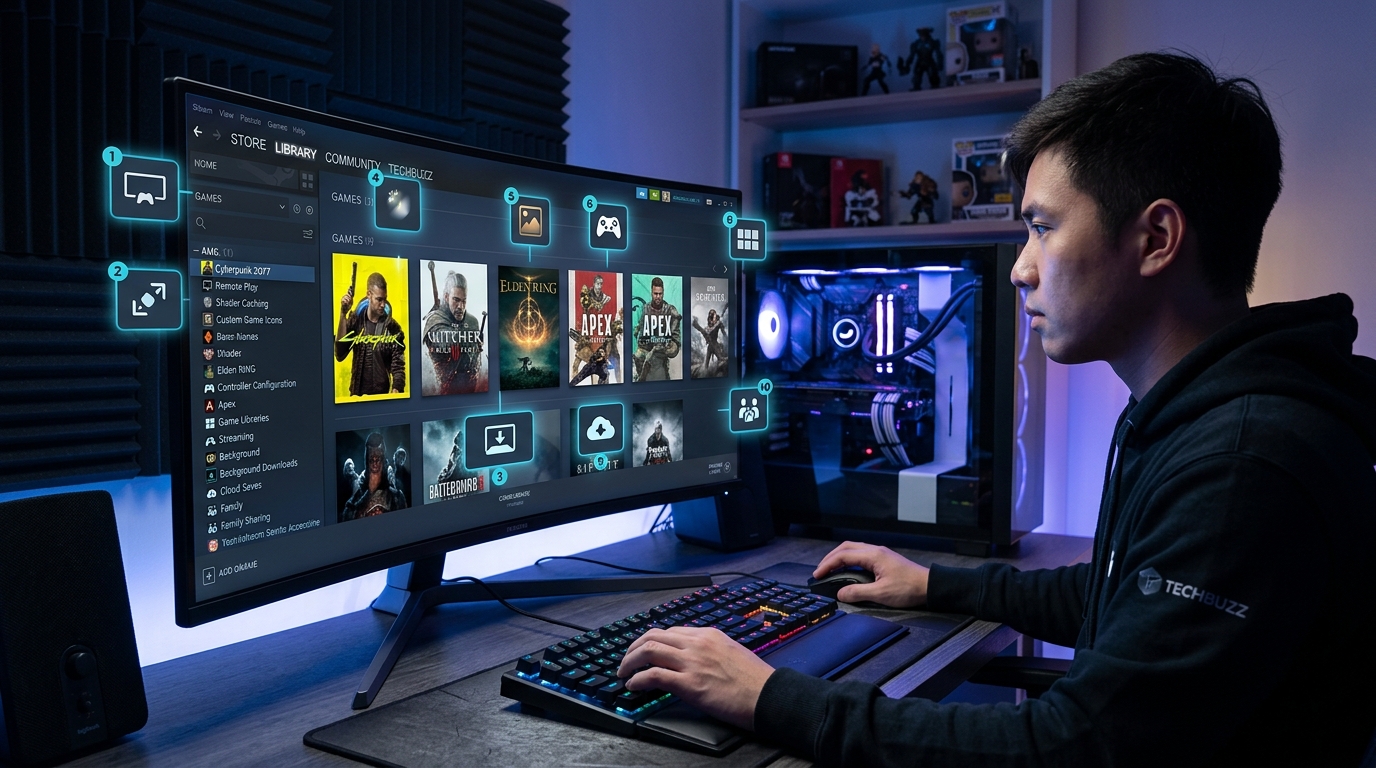
You’ve been using Steam for years, but chances are you’re only scratching the surface. Most gamers stick to the basics: buy game, install game, play game. But buried in Steam’s interface are dozens of powerful features that can save you bandwidth, protect your wallet, and dramatically improve your gaming sessions.
These aren’t complicated tweaks or console commands. They’re built-in tools that Valve has quietly added over the years, and most users have no idea they exist.
Steam includes powerful hidden features that most gamers never activate. From bandwidth scheduling and remote downloads to family sharing and beta access, these tools can save money, improve performance, and give you more control over your gaming library. Enabling them takes minutes but transforms how you use the platform daily.
Control Your Bandwidth Like a Pro
Steam’s download scheduler lets you set specific times when the client can download updates. This matters if you share internet with roommates, stream during the day, or have data caps.
Open Settings, then Downloads. You’ll see “Download Restrictions” with time slots you can block out. Set Steam to download only between 2 AM and 8 AM, and your games will update while you sleep instead of ruining your Zoom calls.
The bandwidth limiter sits right below this. Cap Steam at 5 Mbps if you need to browse while downloading a 100 GB game. Your download takes longer, but your connection stays usable.
Here’s the part most people miss: you can throttle downloads per game. Right-click any game in your library, go to Properties, then Downloads. Override the global limit for specific titles. Let indie games download at full speed while capping that massive AAA update.
Remote Downloads Save You Hours
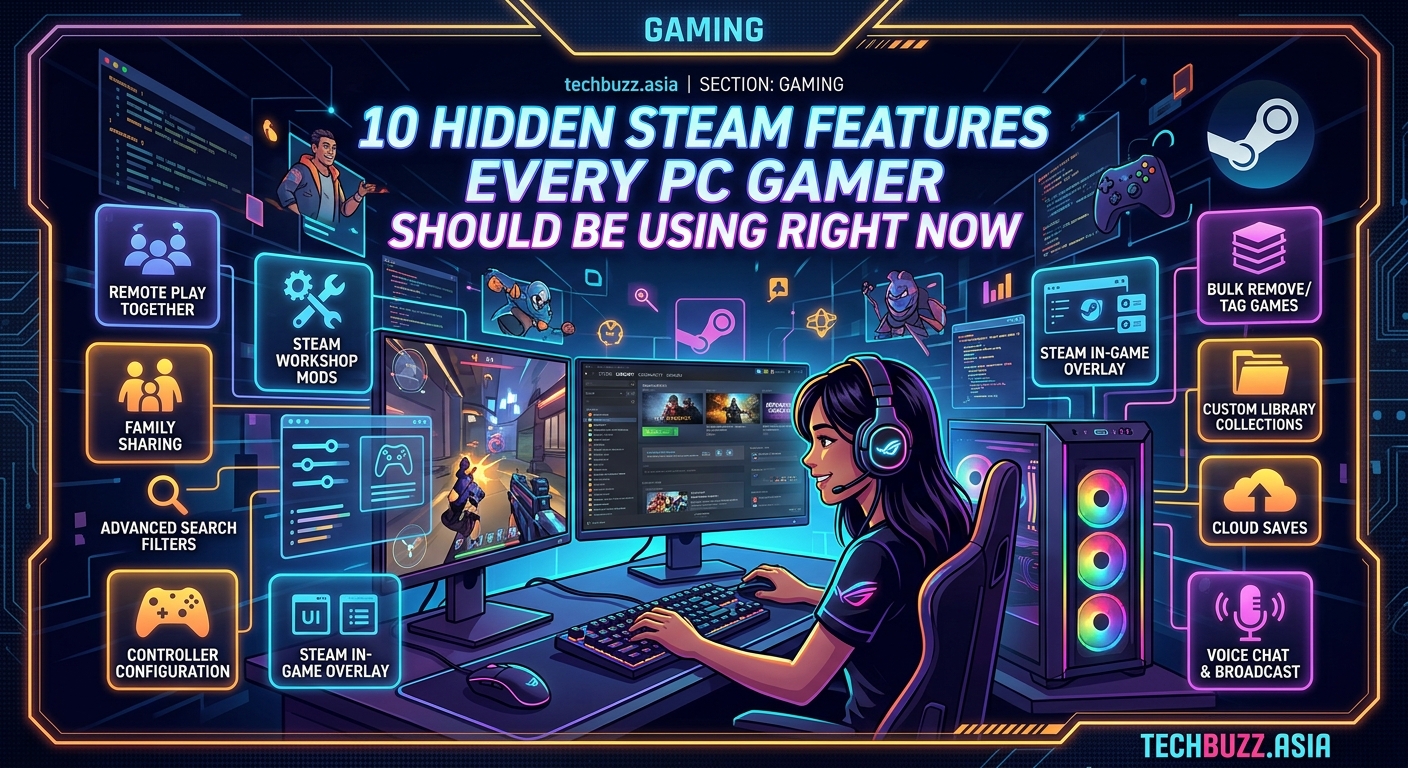
You can trigger Steam downloads from anywhere using the mobile app or web browser. Spot a sale at work? Add the game to your library and start the download remotely. It’ll be ready when you get home.
This requires two setup steps:
- Enable Steam Cloud in Settings under Cloud
- Keep your gaming PC in sleep mode instead of shutting it down completely
Steam will wake your PC, download the game, and put it back to sleep. Works with Windows 10, Windows 11, and most modern motherboards that support Wake-on-LAN.
The mobile app also lets you browse your library, check playtime, and read reviews. But the remote download feature is the real winner here.
Family Sharing Multiplies Your Library
Family Library Sharing lets up to five accounts access your games on up to ten devices. Your sibling can play your single-player games while you’re at work or playing something else.
Enable it in Settings under Family. Authorize the devices you want to share with. Each person logs into their own Steam account on that device, and your library appears in their client.
The catch: only one person can play games from your library at a time. If you start playing anything, it kicks them off after a few minutes. But for households with multiple gamers, this feature is massive.
Some games don’t support Family Sharing due to third-party DRM or technical restrictions. Check the store page before buying if sharing is important to you.
“Family Sharing turned my 200-game library into a resource for my whole household. My partner plays story games during the day while I’m working, and I take over in the evening for multiplayer. We’ve saved hundreds of dollars by not buying duplicate copies.” – Reddit user in r/Steam
Beta Access Gives You Early Updates
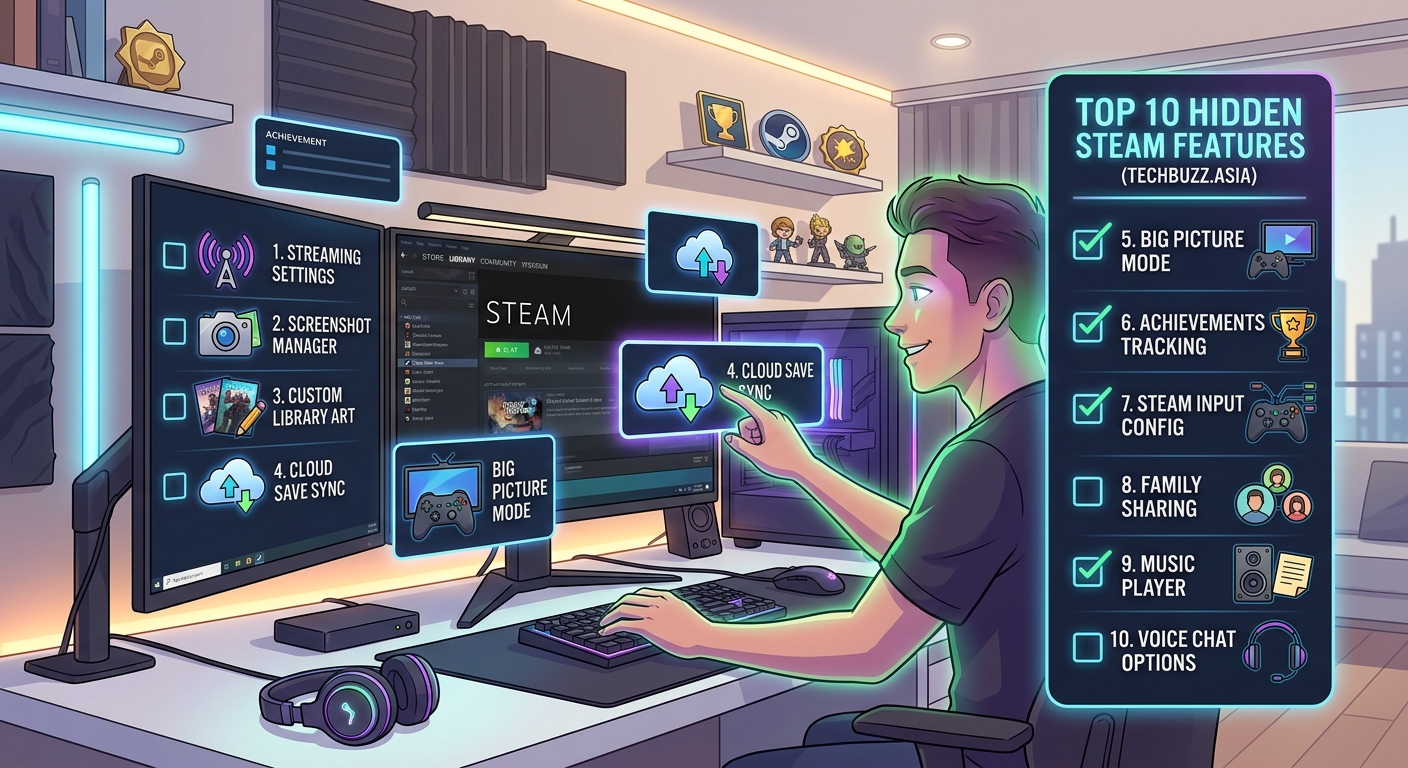
Most Steam games offer beta branches where developers test new features before public release. You get early access to patches, experimental content, and sometimes entirely new game modes.
Right-click any game, select Properties, then Betas. You’ll see a dropdown with available branches. Some are password-protected (developers share codes with testers), but many are open to everyone.
This is huge for competitive games. Getting patch notes and balance changes a week early lets you adapt your strategy before the official release. Just remember: beta builds can be unstable.
Collections Organize Your Massive Library
If you own more than 50 games, your library is probably chaos. Steam Collections fix this by letting you create custom categories that sync across all your devices.
Click the “Collections” dropdown in your library and select “Create New Collection.” Name it whatever you want: “Cozy Games,” “Multiplayer with Friends,” “Games I Actually Finish.”
Drag games into collections. One game can live in multiple collections. I have overlapping categories like “Controller Support,” “Steam Deck Verified,” and “Short Games Under 10 Hours.”
Collections appear in Big Picture Mode and on Steam Deck, making them perfect for couch gaming. You can also hide games from your main library without uninstalling them.
Dynamic Collections Use Smart Filters
Beyond manual collections, Steam offers dynamic collections that auto-populate based on rules you set. Create a collection that automatically includes all installed games, or all games you haven’t played yet.
The filters are powerful:
- Play state (unplayed, completed, in progress)
- Features (controller support, cloud saves, achievements)
- Store tags (roguelike, puzzle, horror)
- Installation status
- Recent activity
Combine multiple filters to create ultra-specific collections. “Installed roguelikes with controller support that I haven’t finished” becomes a single click away.
Screenshot Manager Has Hidden Tools
Steam’s screenshot tool captures images with F12 by default, but the manager has editing features most people never touch.
Open your screenshots from View > Screenshots. Select any image and click “Show on Disk” to find the original file. Steam stores them in your userdata folder, organized by game.
The manager lets you:
- Upload to Steam Cloud for sharing
- Mark screenshots as private or public
- Add captions and spoiler tags
- Create showcases for your profile
For content creators, there’s a “Show uncompressed copy” option. Steam compresses screenshots by default, but keeping the originals gives you better quality for thumbnails and social posts.
Steam Input Revolutionizes Controller Support
Steam Input is a controller remapping system that works with any game, even ones without native controller support. It supports PlayStation, Xbox, Switch Pro, and generic controllers.
Enable it in Settings under Controller. Steam will detect your hardware and load appropriate configurations. But the real power is in community layouts.
Launch any game with a controller connected. Press the Steam button (or guide button) and select “Controller Configuration.” You’ll see dozens of community-created layouts ranked by popularity.
Someone has already optimized controls for that weird indie game with keyboard-only support. Download their layout and start playing immediately. You can tweak any binding and share your own configurations.
| Feature | Benefit | Common Mistake |
|---|---|---|
| Bandwidth scheduling | Downloads don’t interfere with streaming or work | Not setting overnight windows |
| Remote downloads | Games ready when you arrive home | Forgetting to enable Steam Cloud |
| Family Sharing | Multiple people access one library | Not checking which games support it |
| Beta branches | Early access to patches and content | Staying on unstable builds too long |
| Dynamic collections | Library auto-organizes by your rules | Creating too many overlapping filters |
Steam Workshop Subscriptions Auto-Update
Many games support Steam Workshop for mods, maps, and custom content. But you don’t need to manually check for updates.
Subscribe to Workshop items through the community hub. Steam automatically downloads and updates them. When you launch the game, the latest versions load automatically.
This is particularly useful for games like Cities: Skylines or Garry’s Mod where you might subscribe to hundreds of items. Manual updates would be impossible.
Unsubscribe from items you no longer want. Steam removes them and stops wasting disk space. You can also view all your subscriptions in one place through your Workshop items page.
Curator Connect Gives You Free Games
If you write reviews, stream, or create gaming content, Steam Curator Connect can get you free review copies. You need a modest following, but the bar is lower than most people think.
Set up a curator page through your profile. Connect your YouTube channel, Twitch account, or review blog. Once you have around 1,000 followers across platforms, developers can offer you keys.
You’re not guaranteed anything, and you should only request games you’ll actually cover. But for hobbyist content creators, it’s a legitimate way to build your library while growing your audience.
Steam’s FPS Counter Beats Third-Party Tools
Steam has a built-in FPS counter that works in every game without impacting performance. No need for MSI Afterburner or Fraps.
Go to Settings > In-Game and enable the FPS counter. Choose which corner of the screen it appears in. That’s it.
The counter is lightweight and doesn’t interfere with overlays from Discord or OBS. It also shows frame time variance if you enable the high contrast color option, helping you spot stuttering issues.
For deeper metrics, you can combine this with hidden features in your router to optimize your network performance during online gaming.
Steam Cloud Sync Needs Manual Tweaks
Steam Cloud automatically backs up your saves, but not all games support it. And some games that do support it have cloud sync disabled by default.
Check each game’s Properties under the Updates tab. You’ll see a checkbox for “Enable Steam Cloud synchronization.” Turn it on for games you want backed up.
This matters most for roguelikes, strategy games, and anything with long campaigns. Losing 50 hours of progress because your hard drive failed is preventable.
Some games store saves in multiple locations. Steam might sync your settings but not your actual save files. Check PCGamingWiki if you’re unsure whether a specific game is fully protected.
Hidden Library Filters Speed Up Game Selection
Your library has search filters that go beyond the basic search bar. Click the filter icon next to the search box to access them.
Filter by:
- VR support
- Steam Deck compatibility
- Operating system
- Features like achievements or trading cards
- Store tags
Combine filters to answer questions like “Which of my installed games work on Steam Deck?” or “What VR games do I own that support motion controls?”
These filters also work in the store, helping you find games that match specific criteria before you buy.
Performance Overlay Shows Real-Time Stats
Steam’s performance overlay displays detailed metrics while you play. It’s more comprehensive than the simple FPS counter.
Enable it in Settings > In-Game > Performance Overlay. Choose from four detail levels:
- FPS only
- FPS + basic GPU stats
- FPS + detailed GPU and CPU stats
- Full metrics including frame time graphs
Level 3 and 4 show GPU temperature, CPU usage per core, RAM usage, and frame pacing. This helps diagnose performance issues without alt-tabbing to monitoring software.
The overlay updates in real time, so you can see exactly when your GPU hits thermal throttling or when a specific CPU core maxes out.
Steam Guard Mobile Authenticator Unlocks Perks
Beyond security, the mobile authenticator reduces trade holds and gives instant access to the Community Market. Without it, trades and market transactions have 15-day holds.
Install the Steam Mobile App and enable Steam Guard. You’ll need to confirm trades and market listings through the app, but they process immediately instead of sitting in limbo for two weeks.
This matters if you trade items in CS2, Dota 2, or TF2. The 15-day delay makes trading frustrating without the authenticator.
Putting These Features to Work
Steam’s hidden features aren’t just neat tricks. They solve real problems: slow downloads during work hours, disorganized libraries with hundreds of games, controller support for keyboard-only titles, and lost save files.
Start with three features today. Set up bandwidth scheduling if you share internet. Create a few collections to organize your library. Enable Steam Cloud for your current games.
These tools are already installed and waiting. You paid for Steam’s ecosystem with every game purchase. You might as well use everything it offers. Similar to how hidden Android features can transform your phone experience, these Steam features will change how you interact with your gaming library every single day.

Post Comment