10 Hidden Windows Features That Will Change How You Work
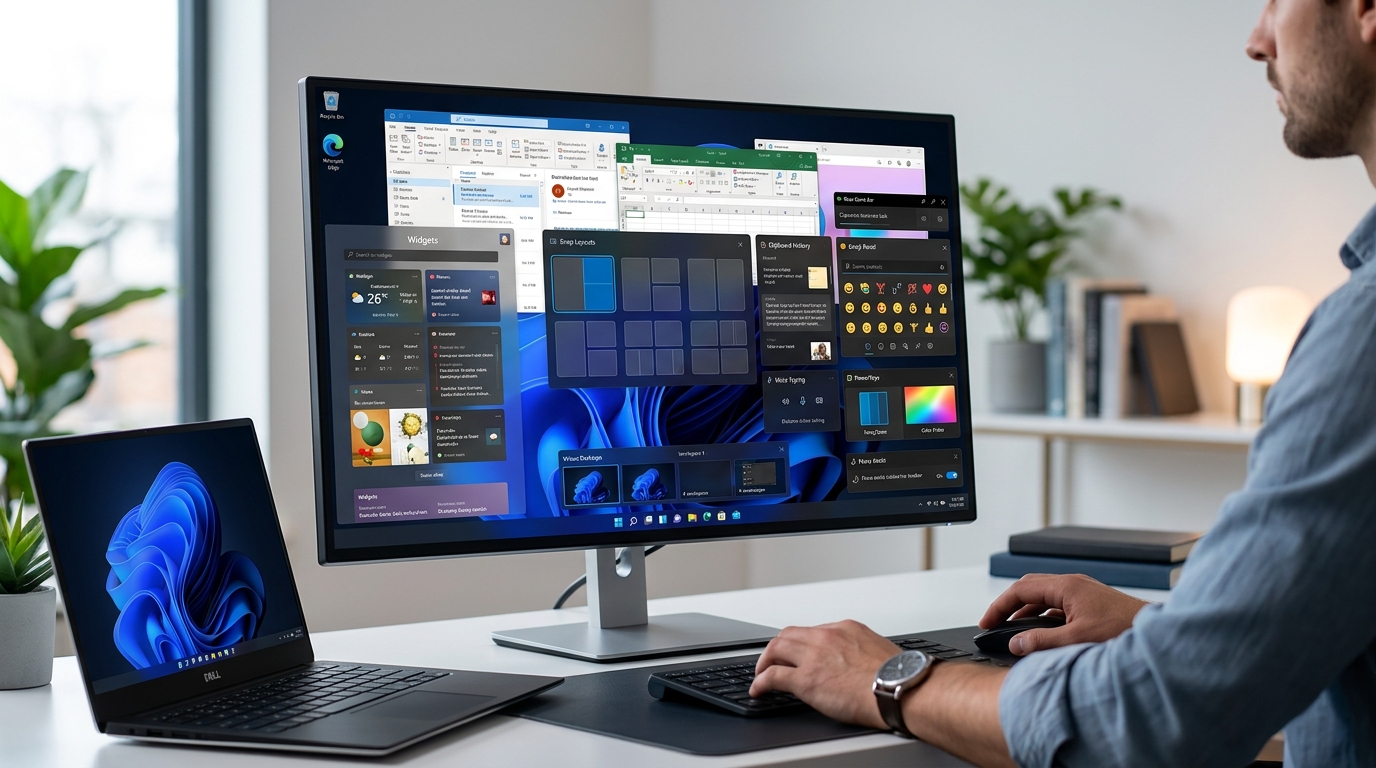
You’ve been using Windows for years, maybe even decades. You know where the Start menu lives, you’ve mastered copy and paste, and you can navigate File Explorer without getting lost.
But here’s the thing: Windows is hiding dozens of productivity tools right under your nose. Most of them don’t require downloads, special permissions, or technical knowledge. They’re just sitting there, waiting for you to stumble across them.
Windows includes powerful hidden features like Clipboard History, God Mode, Focus Assist, and Virtual Desktops that can dramatically improve your workflow. These built-in tools eliminate the need for third-party apps while saving you hours each week. Most users never discover them because they’re tucked away in settings or activated through keyboard shortcuts rather than obvious menu options.
Clipboard History Remembers Everything You Copy
The standard clipboard only holds one item at a time. Copy something new, and your previous content vanishes.
Windows 10 and 11 include a clipboard manager that stores up to 25 items. Press Windows + V to see everything you’ve recently copied.
Here’s how to activate it:
- Open Settings and navigate to System
- Select Clipboard from the left sidebar
- Toggle on Clipboard History
Now you can copy multiple email addresses, snippets of text, or file paths without losing anything. The history persists even after you restart your computer if you pin important items.
This feature alone eliminates countless trips back to source documents. No more copying one thing, pasting it, then returning to copy the next item.
God Mode Unlocks Every Control Panel Setting
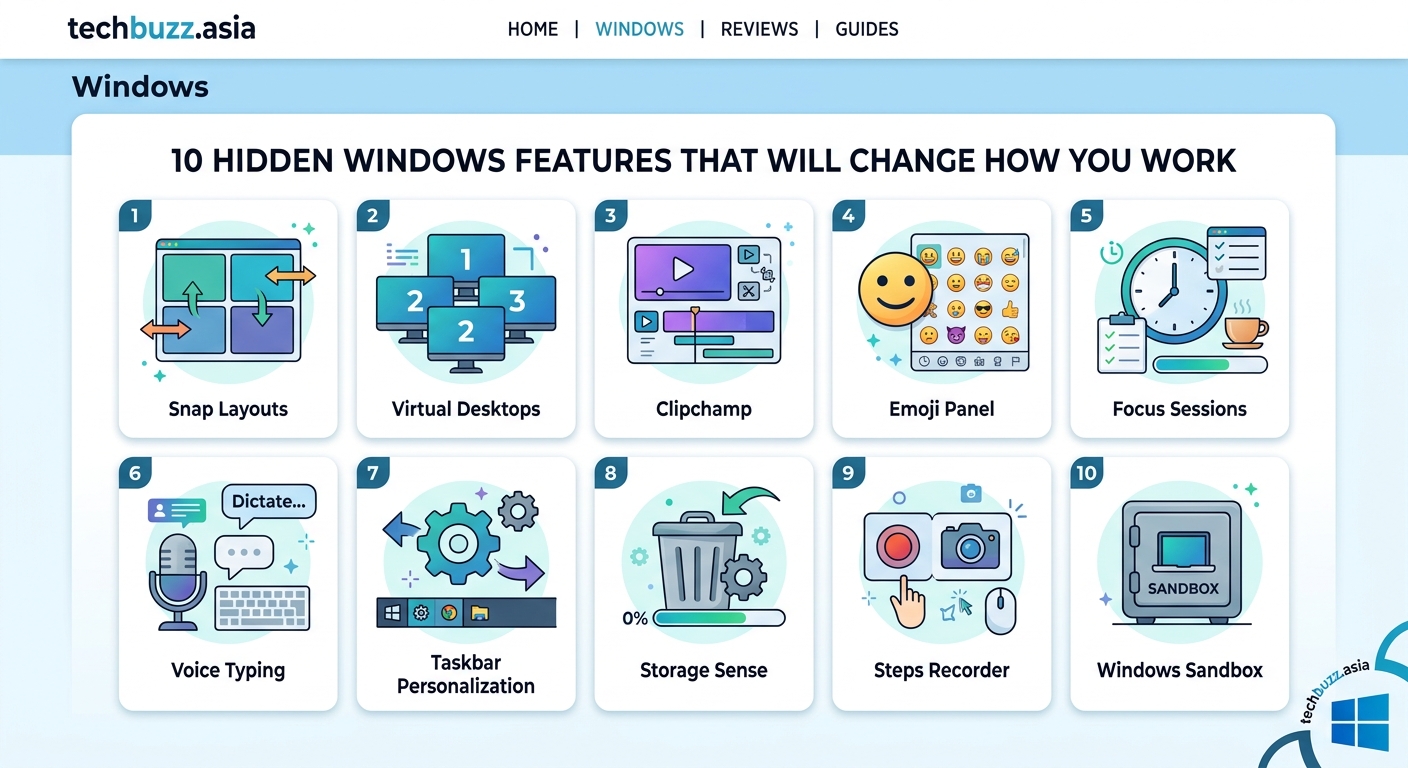
Windows scatters settings across multiple locations. Some live in the modern Settings app, others hide in the classic Control Panel, and a few require registry edits to find.
God Mode consolidates everything into one folder. You get access to over 200 administrative tools and settings without hunting through menus.
Creating it takes seconds:
- Right-click on your desktop and select New > Folder
- Name the folder exactly this:
GodMode.{ED7BA470-8E54-465E-825C-99712043E01C} - Press Enter
The folder icon changes to a Control Panel symbol. Double-click it to see every Windows setting organized by category.
Need to adjust power settings, manage user accounts, or configure network adapters? It’s all there. This works especially well if you support computers for family members or colleagues, since you can find any setting without memorizing where Microsoft moved it in the latest update.
Focus Assist Silences Distractions on Your Schedule
Notifications destroy concentration. A Teams message pops up, then an email alert, then a calendar reminder.
Focus Assist blocks notifications during specific times or activities. You can set it to activate automatically during presentations, when you’re duplicating your display, or during set hours.
Here’s how to configure it:
- Open Settings and go to System > Focus Assist
- Choose your default level (Priority only, Alarms only, or Off)
- Click Automatic Rules to set schedules
The Priority Only mode lets through calls from favorite contacts while blocking everything else. Perfect for deep work sessions where you need to stay reachable for emergencies but want to ignore routine interruptions.
You can also enable it manually from the Action Center. Just click the notification icon in the taskbar and toggle Focus Assist on.
“The ability to control when notifications appear has been the single biggest productivity improvement for our team. We set Focus Assist to activate during morning work blocks, and meeting productivity jumped 40% in the first month.” – Sarah Chen, Operations Manager
Virtual Desktops Organize Different Projects
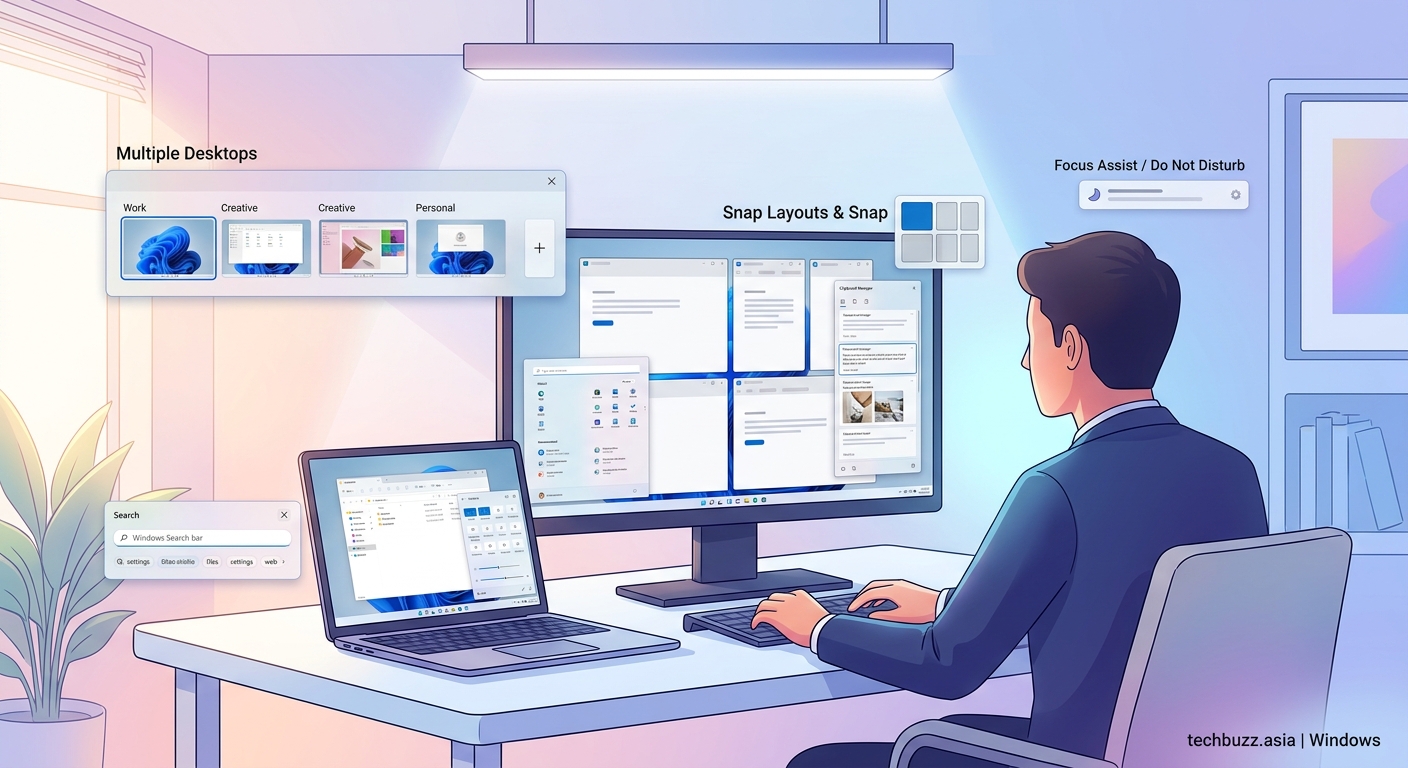
Switching between projects means closing dozens of windows, then reopening them later. Email for Client A gets mixed with spreadsheets for Project B.
Virtual Desktops let you create separate workspaces. One desktop for email and communication tools, another for creative work, a third for research.
Press Windows + Tab to see all your desktops. Click New Desktop at the top to add one.
Switch between them using Windows + Ctrl + Left/Right Arrow. Each desktop maintains its own set of open windows and arrangements.
This becomes powerful when you’re juggling multiple clients or projects. Close your laptop at the end of the day, and tomorrow everything reopens exactly where you left it. No more “which window was I working in?” confusion.
PowerToys Adds Features Microsoft Should Have Included
Microsoft releases PowerToys as a free utility collection that adds genuinely useful features. It’s official software, not a third-party hack.
Download it from the Microsoft Store or GitHub. Once installed, you get access to tools like:
- FancyZones: Create custom window layouts and snap zones
- PowerRename: Batch rename files using search and replace
- Color Picker: Grab hex codes from anywhere on screen with Win + Shift + C
- Keyboard Manager: Remap keys or create custom shortcuts
- Image Resizer: Right-click photos to resize them instantly
The FancyZones feature alone transforms how you arrange windows. Define a layout once, then snap windows into position with a single drag.
These tools integrate seamlessly with Windows. They don’t slow down your system or require constant updates.
Storage Sense Automatically Cleans Up Junk Files
Hard drives fill up with temporary files, old downloads, and forgotten cache data. Most people only notice when they run out of space.
Storage Sense monitors your drive and automatically removes files you don’t need. It targets temporary files, items in your Recycle Bin older than 30 days, and previous Windows versions.
Enable it through Settings > System > Storage. Toggle on Storage Sense, then click Configure Storage Sense to set how aggressively it cleans.
You can schedule it to run weekly, monthly, or only when disk space runs low. The feature also identifies large files and unused apps so you can make informed decisions about what to delete.
This prevents the “your disk is almost full” panic that always seems to happen right before an important deadline.
Snap Layouts Speed Up Window Management
Windows 11 introduced Snap Layouts, but many users still drag windows around manually or use the old snap-to-side feature.
Hover your mouse over the maximize button on any window. A grid appears showing different layout options: side by side, three columns, or a main window with smaller supporting windows.
Click the layout you want, and Windows prompts you to fill the remaining spaces with other open windows.
This beats the old method of dragging windows to screen edges. You can create complex layouts in seconds instead of minutes. Particularly useful when comparing documents, referencing research while writing, or monitoring multiple data sources.
The feature works with any combination of apps. Email on the left, browser on the right, with a chat window docked below.
Voice Typing Beats Keyboard Speed
Most people type between 40 and 60 words per minute. You can speak 150 to 200 words per minute.
Windows includes voice typing that works anywhere you can enter text. Press Windows + H to activate it.
The accuracy rivals paid transcription services. It handles punctuation commands (“period,” “comma,” “new line”) and even basic formatting (“delete that,” “select previous word”).
This feature shines for:
- Drafting long emails when your wrists are tired
- Taking meeting notes without looking away from the speaker
- Writing first drafts of reports or articles
- Filling out forms faster than typing
The voice engine improves over time as it learns your speech patterns. It works offline after the initial setup, so you’re not dependent on internet connectivity.
Just speak naturally. The system handles the rest.
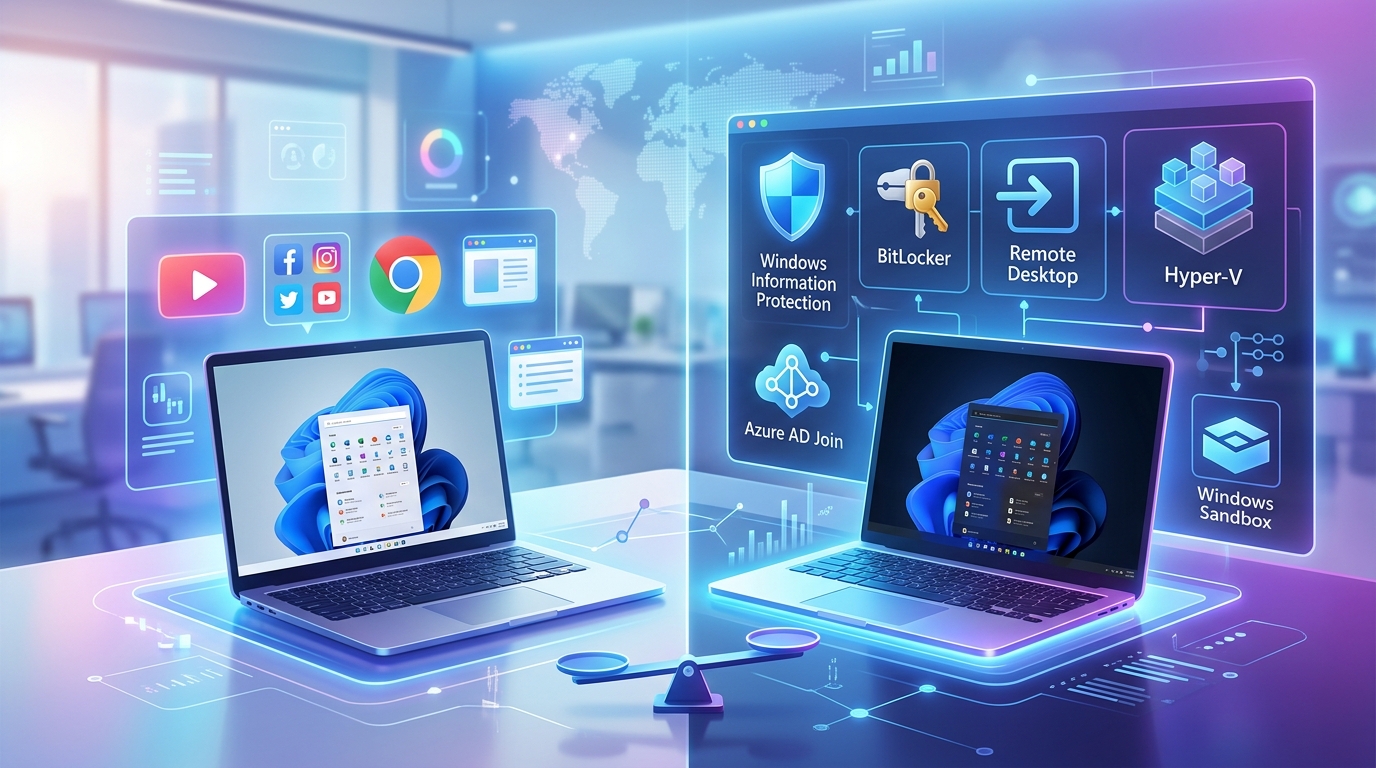
Windows Sandbox Lets You Test Risky Files Safely
Downloaded a file but not sure if it’s safe? Opening it on your main system risks malware infection.
Windows Sandbox creates a temporary, isolated Windows environment. Anything you do inside the sandbox disappears when you close it.
Professional and Enterprise editions include this feature by default. Enable it through Windows Features:
- Search for “Windows Features” in the Start menu
- Check the box next to Windows Sandbox
- Restart your computer
Launch it from the Start menu like any other app. You get a clean Windows installation that shares nothing with your main system.
Test suspicious downloads, try unfamiliar software, or experiment with system settings without consequences. Close the sandbox, and everything vanishes. Your main system stays protected.
This eliminates the need for separate testing computers or virtual machine software for basic security checks.
Dynamic Lock Secures Your Computer Automatically
You walk away from your desk for coffee. Your computer sits unlocked, displaying confidential information.
Dynamic Lock pairs your phone with your PC via Bluetooth. When you walk away with your phone, Windows locks automatically.
Set it up through Settings > Accounts > Sign-in Options. Enable “Allow Windows to automatically lock your device when you’re away.”
Pair your phone through Bluetooth settings first. Once connected, Windows monitors the signal strength. Move more than a few feet away, and your screen locks within 30 seconds.
Return to your desk, and you just need to enter your password or PIN. No more remembering to lock your screen manually or worrying about security when you step away.
This works particularly well in open office environments where emerging technologies that will change how we work by 2026 are making security more important than ever.
Quick Accent Characters Without Memorizing Codes
Need to type café, résumé, or naïve? Most people either skip the accent marks or search online to copy and paste them.
Hold down any letter key for a second. A small menu appears showing all accent variations for that letter.
Press the corresponding number or click the character you want. Works with e, a, o, u, i, c, n, and several other letters.
This beats memorizing Alt codes or keeping a character map open. It’s faster than changing keyboard layouts or using autocorrect workarounds.
Particularly helpful for:
- Writing professional documents with proper formatting
- Typing names correctly in emails
- Including foreign words without switching languages
- Creating social media posts with proper spelling
The feature works in any application that accepts text input. No special setup required.
Night Light Reduces Eye Strain After Dark
Blue light from screens interferes with sleep and causes eye fatigue during evening work sessions.
Night Light shifts your display to warmer colors after sunset. The change is gradual and automatic, so you barely notice it happening.
Enable it through Settings > System > Display > Night Light. Click Night Light Settings to choose your schedule and color temperature.
You can set it to activate at sunset and disable at sunrise based on your location. Or create a custom schedule that matches your work hours.
The warmer tones reduce eye strain without making your screen look orange. Most users adjust within minutes and find they can work comfortably much later without headaches.
This built-in feature eliminates the need for third-party apps like f.lux, though both work on similar principles.
Common Mistakes That Limit Your Productivity
Understanding hidden windows features is one thing. Using them effectively requires avoiding these pitfalls:
| Mistake | Why It Hurts | Better Approach |
|---|---|---|
| Ignoring keyboard shortcuts | Reaching for the mouse breaks focus and slows you down | Learn one new shortcut per week until they become automatic |
| Keeping all notifications enabled | Constant interruptions fragment your attention and reduce work quality | Use Focus Assist during deep work blocks |
| Working in a single desktop | Switching between projects means closing and reopening dozens of windows | Create separate Virtual Desktops for different projects or clients |
| Manually cleaning disk space | Waiting until you run out of storage creates unnecessary stress | Enable Storage Sense to handle cleanup automatically |
| Typing everything manually | Keyboard input is slower than speech and causes repetitive strain | Use Voice Typing for long-form content and drafts |
The Settings You Should Check Right Now
Some hidden windows features require a one-time setup. Others work better after you customize them to match your workflow.
Start with these high-impact changes:
- Enable Clipboard History (Windows + V) and pin frequently used snippets
- Create a God Mode folder on your desktop for faster access to settings
- Set up Focus Assist to block notifications during your most productive hours
- Configure Storage Sense to run automatically when disk space drops below 20%
- Pair your phone for Dynamic Lock if you work in a shared space
These five adjustments take less than 10 minutes total but save hours every week.
The key is making these tools part of your routine. Use Virtual Desktops for a week, and you’ll wonder how you managed without them. Same with Clipboard History and Snap Layouts.
Your Computer Works Harder When You Know Where to Look
Windows hides powerful features behind keyboard shortcuts and buried settings menus. Microsoft assumes most users won’t bother looking for them.
But you’re not most users. You’re someone who wants to work smarter, not harder.
These hidden windows features don’t require expensive upgrades or risky modifications. They’re sitting on your computer right now, waiting for you to activate them. Some save seconds per task, which adds up to hours per week. Others prevent security risks or reduce eye strain.
Start with one or two features that solve your biggest frustrations. Maybe that’s Clipboard History if you’re constantly copying and pasting. Or Focus Assist if notifications derail your concentration.
Master those, then add more as they become relevant. Within a month, you’ll have a workflow that feels custom-built for how you actually work, not how Microsoft thinks you should work.
Your computer can do more than you think. Now you know where to find the good stuff.

Post Comment