7 Hidden Android Features That Will Change How You Use Your Phone

Your Android phone contains dozens of powerful capabilities that never make it into the setup tutorial. Most users spend years with their device without discovering features that could save time, protect privacy, or completely change how they interact with their screen. These aren’t experimental settings or developer tricks. They’re built-in tools that manufacturers and Google simply don’t advertise.
Android phones include powerful hidden features that most users never find, including one-handed mode, advanced notification controls, emergency SOS functions, app permission management, screen pinning for security, smart text selection, and system-wide search. Enabling these settings takes minutes but transforms daily phone usage, improving productivity, privacy, and accessibility without requiring third-party apps or technical expertise.
One-Handed Mode Makes Large Screens Manageable
Modern Android phones keep getting bigger, making it nearly impossible to reach the top of the screen with your thumb. One-handed mode shrinks the entire display to a corner of your screen, letting you access everything without adjusting your grip.
To enable this feature:
- Open Settings and search for “one-handed mode”
- Toggle the feature on
- Choose your preferred activation gesture (usually swiping down on the home button area)
- Select which corner you want the screen to shrink toward
The feature works across all apps, including your keyboard. When you need to type a message while holding a coffee, swipe to activate the mode and your keyboard shifts to thumb-friendly territory. Tap outside the shrunken screen to return to normal size.
Some manufacturers call this feature different names. Samsung uses “One-handed mode” while other brands might label it “Reachability” or “Mini screen.” The functionality remains identical regardless of terminology.
Notification Channels Give You Surgical Control
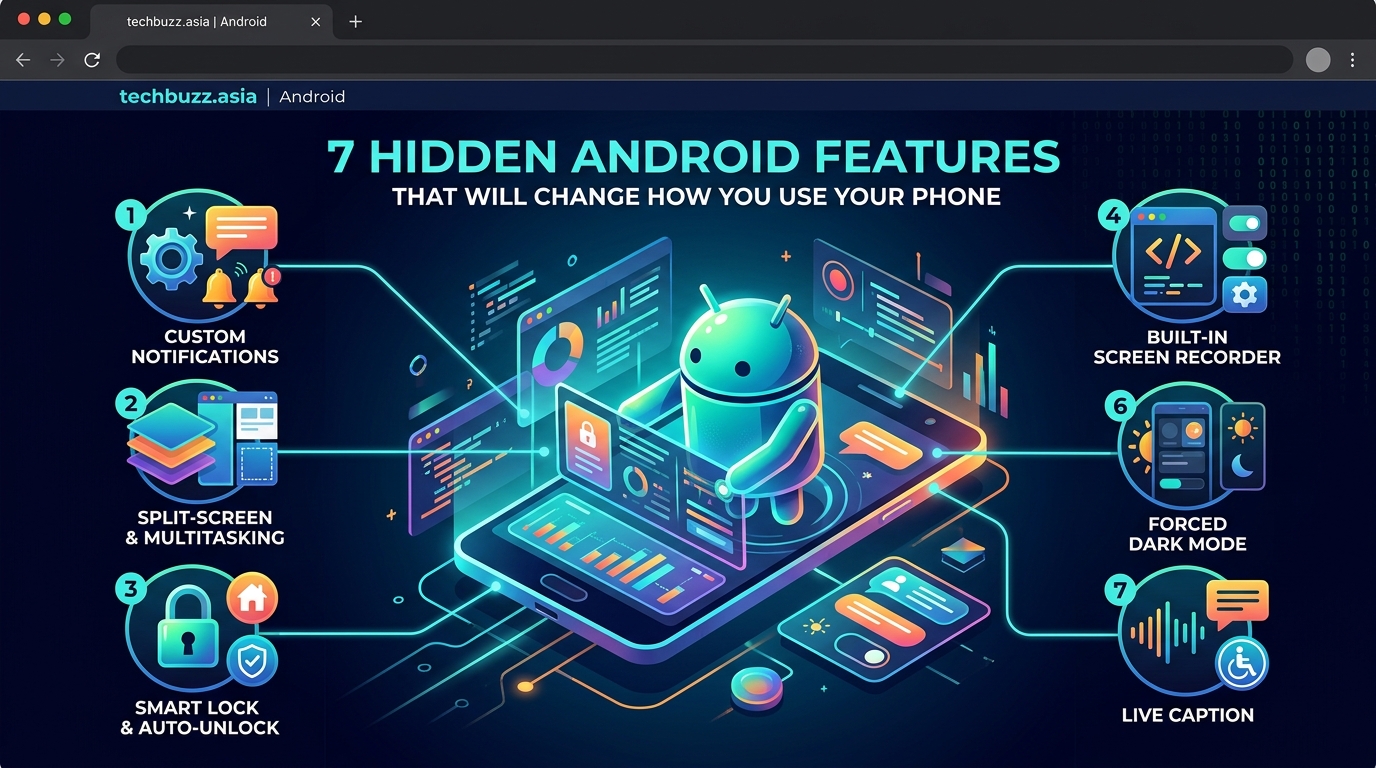
Android’s notification system includes granular controls that let you customize alerts for individual app features. Most people only know about the basic “turn off all notifications” toggle, missing the ability to silence specific types of messages while keeping others active.
Here’s how notification channels work. A messaging app might send you alerts for new messages, group chats, and promotional content. Instead of accepting all notifications or blocking everything, you can keep message alerts while silencing the promotional spam.
To access notification channels:
- Long-press any notification from an app
- Tap the settings icon or “All categories” option
- Review the list of notification types the app uses
- Toggle off specific channels you don’t want
- Adjust importance levels for channels you keep
This feature becomes invaluable for apps you need but that generate excessive alerts. Email apps often separate notifications for primary inbox, social updates, and promotional messages. Shopping apps distinguish between order updates, sales announcements, and abandoned cart reminders.
Notification channels represent Android’s most underused privacy feature. You maintain control over your attention without sacrificing useful alerts or uninstalling apps entirely.
The system also lets you change notification sounds, vibration patterns, and visual interruptions for each channel independently. Your work email can use a distinct alert while personal messages use another, all within the same email app.
Emergency SOS Activates With Your Power Button
Your phone includes a hidden emergency feature that can call for help and alert your emergency contacts without unlocking your screen or opening any apps. The Emergency SOS function triggers by pressing your power button multiple times rapidly.
| Feature | What It Does | How to Customize |
|---|---|---|
| Emergency calling | Automatically dials emergency services | Set number of power button presses required |
| Contact alerts | Sends your location to chosen contacts | Add emergency contacts in settings |
| Medical information | Displays health info for first responders | Fill out emergency information profile |
| Video recording | Starts recording automatically when triggered | Enable in Emergency SOS settings |
To set up Emergency SOS:
- Open Settings and search for “Emergency SOS”
- Enable the feature and choose your activation method
- Add emergency contacts who will receive alerts
- Fill out your medical information (blood type, allergies, medications)
- Test the feature to understand how it works
Some Android versions include an automatic video recording option that starts capturing footage when you trigger Emergency SOS. The video saves to your phone and can be sent to your emergency contacts, creating a record of the situation.
The feature works even when your phone is locked. You don’t need to remember passwords or use fingerprint sensors during an actual emergency. The power button becomes your panic button.
Battery management significantly impacts how long your device remains functional during emergencies, which is why understanding why your smartphone battery degrades faster than it should matters for emergency preparedness.
Permission Manager Shows Which Apps Access What
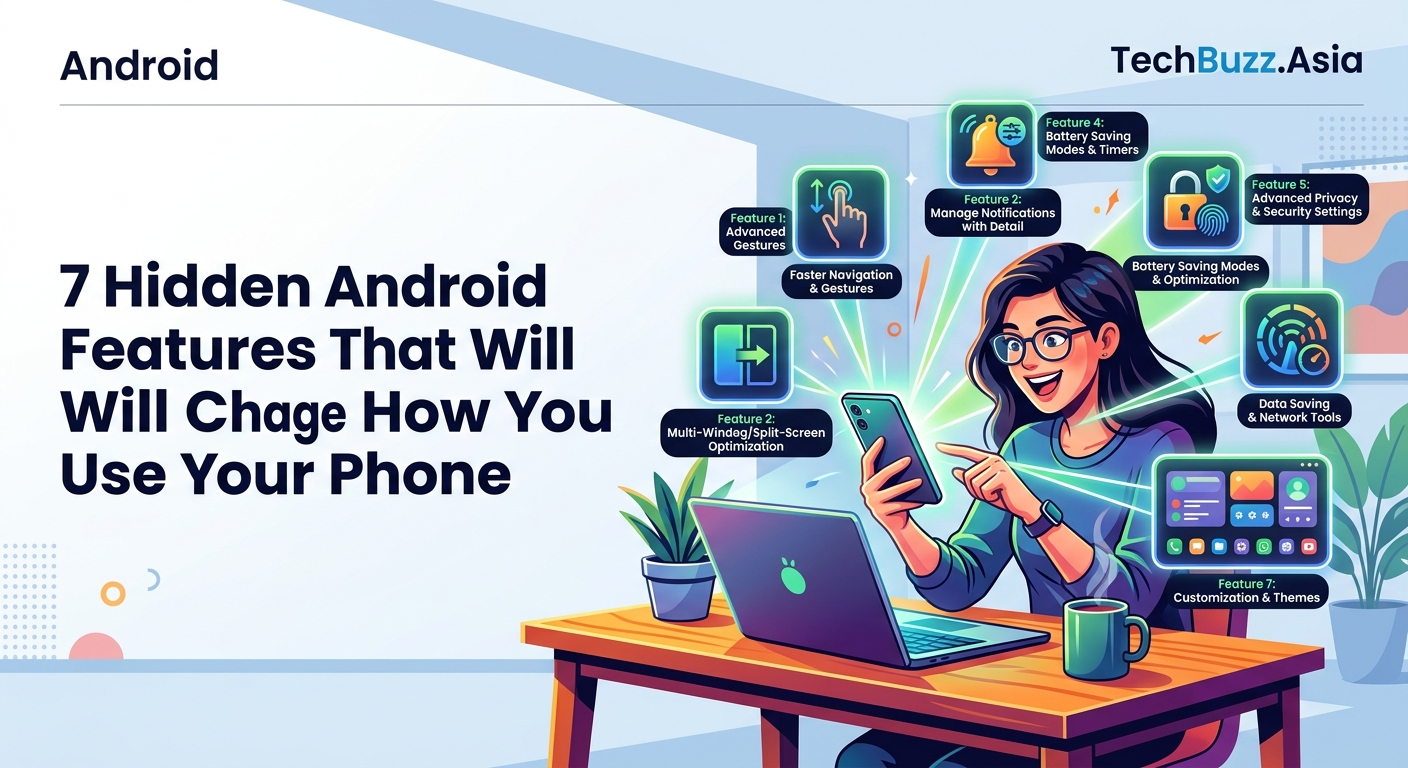
Android tracks every permission your apps use and provides a central dashboard showing which apps access your camera, microphone, location, and other sensitive data. Most users grant permissions during installation and never review them again.
The Permission Manager reveals surprising patterns. That flashlight app probably doesn’t need access to your contacts. The weather app requesting your photo library raises questions. Free games asking for microphone permissions deserve scrutiny.
Access the Permission Manager through Settings > Privacy > Permission Manager. You’ll see categories for each permission type with a list of apps that have requested access. Tap any category to see which apps use that permission and when they last accessed it.
- Location: Shows which apps track where you go and offers “only while using app” restrictions
- Camera: Lists every app that can take photos or record video
- Microphone: Reveals which apps can listen through your device
- Storage: Displays apps accessing your photos, videos, and files
- Contacts: Shows which apps can read your contact list
- Phone: Identifies apps that can make calls or read call logs
The system includes a timeline showing when apps accessed each permission. If you notice an app accessing your location at 3 AM when you weren’t using it, you’ve found suspicious behavior worth investigating.
Android also offers a “Remove permissions if app unused” feature that automatically revokes access from apps you haven’t opened in months. Enable this for every app except the few you use sporadically but need to keep functional.
Screen Pinning Locks Your Phone to One App
Handing your phone to someone to show them a photo or video creates risk. They might swipe into your messages, check your email, or browse your apps. Screen pinning solves this by locking your phone to a single app until you enter your PIN or pattern.
When screen pinning is active, the person holding your phone can only interact with the pinned app. They can’t access notifications, open other apps, or return to your home screen. You maintain complete control over what they can see.
To enable and use screen pinning:
- Go to Settings > Security > Screen pinning
- Toggle the feature on
- Choose whether to require your PIN/pattern to unpin
- Open the app you want to share
- Tap the recent apps button
- Tap the app icon at the top of the card
- Select “Pin”
The feature works perfectly for showing photos without risking someone scrolling through your entire gallery. It’s useful when letting kids play a game on your phone or when showing a colleague a specific document.
To unpin the app, hold the back and recent apps buttons simultaneously (or swipe up and hold on gesture navigation). If you enabled the security option, you’ll need to enter your PIN or pattern before the phone unpins.
Screen pinning also helps maintain focus. Pin your reading app, email client, or work tool to prevent yourself from mindlessly switching to social media. The small friction of unpinning creates enough pause to break automatic distraction habits.
Smart Text Selection Understands Context
Android’s text selection tool includes AI-powered recognition that understands what you’ve highlighted and suggests relevant actions. Select a phone number and your phone offers to call it. Highlight an address and get navigation options. Copy a tracking number and receive a link to check shipping status.
The feature extends beyond basic recognition. Select a movie title and Android suggests searching for showtimes or reviews. Highlight a flight number and get options to track the flight status. Copy a restaurant name and see options to view the menu, check hours, or make a reservation.
Smart text selection works in any app where you can highlight text:
- Phone numbers: Call, save to contacts, or send a message
- Addresses: Open in maps, start navigation, or save location
- Email addresses: Compose new message or add to contacts
- URLs: Open in browser or copy link
- Dates: Create calendar event or set reminder
- Tracking numbers: Check shipping status directly
The system learns from your behavior. If you frequently copy text and paste it into your notes app, Android will start suggesting that action directly from the selection menu. The more you use your phone, the more accurate the suggestions become.
Some apps integrate custom actions into smart text selection. Banking apps might recognize account numbers and offer to initiate transfers. Shopping apps can identify product codes and show item details. The functionality expands as developers add support.
You can also translate selected text without copying and pasting into a translation app. Highlight foreign language text and tap the translate option to see it in your preferred language instantly.
System-Wide Search Finds Everything Instantly
Android includes a powerful search function that indexes your entire phone, letting you find apps, contacts, messages, settings, and files from one search bar. Most people only use it to launch apps, missing its ability to surface buried information instantly.
The search function appears when you swipe up from the home screen or tap the search bar at the bottom. Type anything and Android searches across multiple sources simultaneously:
- Installed apps and their contents
- Contact names, phone numbers, and email addresses
- Text messages and conversation history
- Settings and system options
- Calendar events and reminders
- Files stored on your device
- Web suggestions and results
The feature saves enormous time when you need to change a specific setting but can’t remember where it lives in the Settings app. Instead of tapping through menus, search for “notification sound” or “battery percentage” and jump directly to the right screen.
Search also understands natural language queries. Type “my photos from last summer” and see pictures from June through August. Search “messages from Sarah” to pull up your conversation history. Enter “apps I haven’t used” to find candidates for deletion and free up storage space on your Android phone without deleting photos.
The system learns which results you select most often and prioritizes them in future searches. If you frequently search for a specific setting or contact, it appears at the top of results even with partial matches.
You can customize which sources the search function includes. Go to Settings > Search and disable categories you don’t want indexed. Some users prefer excluding message content for privacy while keeping app and contact search active.
Making These Features Part of Your Routine
Hidden Android features remain hidden because they require intentional discovery and setup. Take 15 minutes to enable the settings that match your usage patterns and pain points. One-handed mode helps if you have a large phone. Permission Manager matters if you care about privacy. Emergency SOS provides peace of mind for everyone.
The best hidden features are the ones you forget you enabled because they work so naturally. They fade into the background, quietly making your phone more capable, more secure, and more aligned with how you actually want to use it. Your Android device already has these tools. You just need to turn them on.


Post Comment