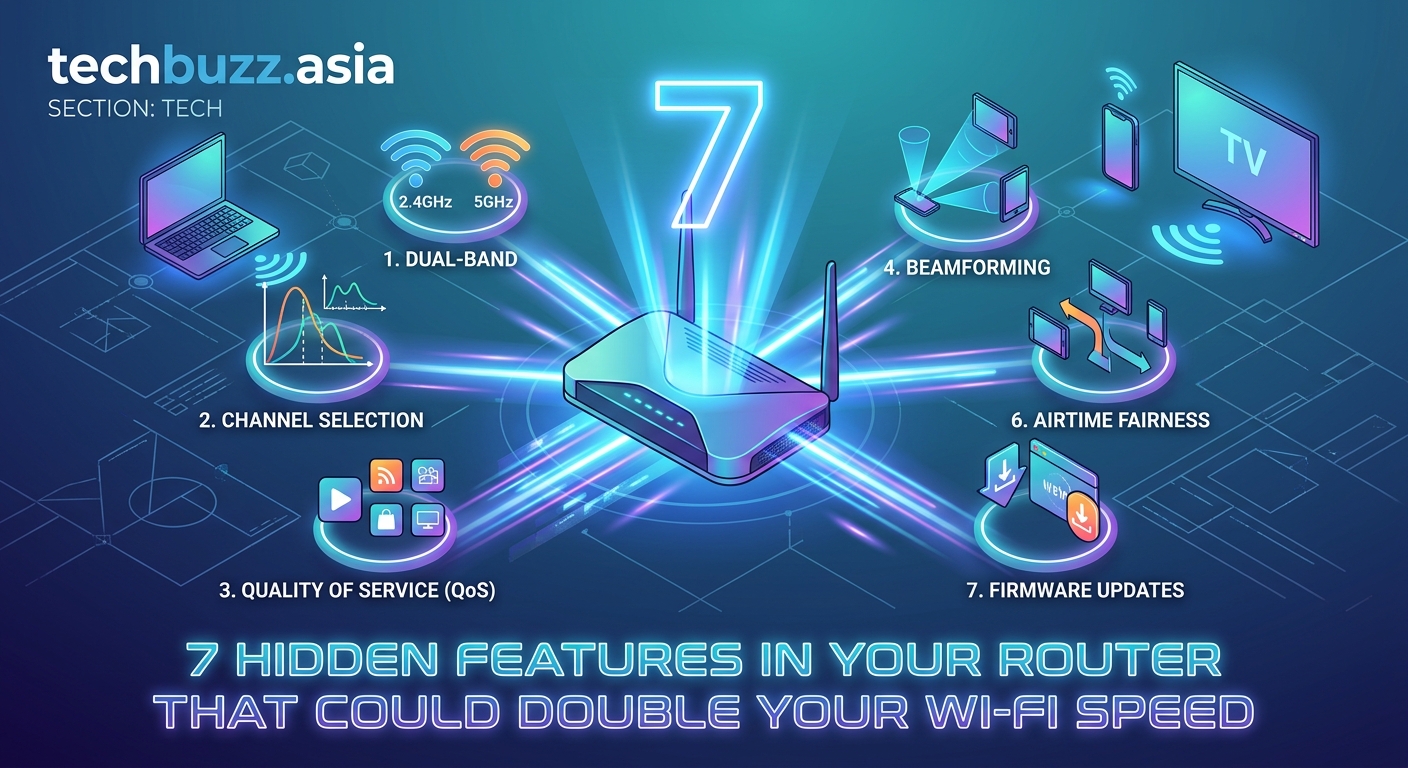
7 Hidden Features in Your Router That Could Double Your Wi-Fi Speed
Your video keeps buffering during movie night. Your laptop crawls when you’re trying to finish work. Your kids complain that their games lag constantly.
Before you spend money on a new router or call your internet provider, you should know that most slow WiFi problems aren’t caused by bad equipment or cheap plans. They’re caused by settings buried in your router that nobody ever touches.
Most WiFi slowdowns come from router settings that were never optimized for your home. Changing your channel, switching frequency bands, adjusting bandwidth settings, and repositioning your router can double your speeds without spending a cent. These tweaks work on any router and take less than 20 minutes to complete.
Why your WiFi is probably slower than it should be
Your router came with default settings designed to work everywhere, which means they’re not optimized for anywhere specific. It’s like wearing shoes that fit everyone but fit nobody well.
Most routers ship with automatic channel selection turned on. Sounds smart, right? Except your router picks a channel once when you first plug it in, then never changes it. Meanwhile, your neighbors buy new routers, move their devices around, and create interference that your router never adapts to.
The 2.4 GHz band that most devices default to is crowded. Think of it like a highway with too many cars. The 5 GHz band is wider and faster, but many people never switch their devices over because they don’t know it exists.
Your router is also probably sitting in the worst possible spot. Most people put it near their modem, which is usually tucked in a corner, closet, or basement because that’s where the cable company installed it.
Change your WiFi channel to avoid interference
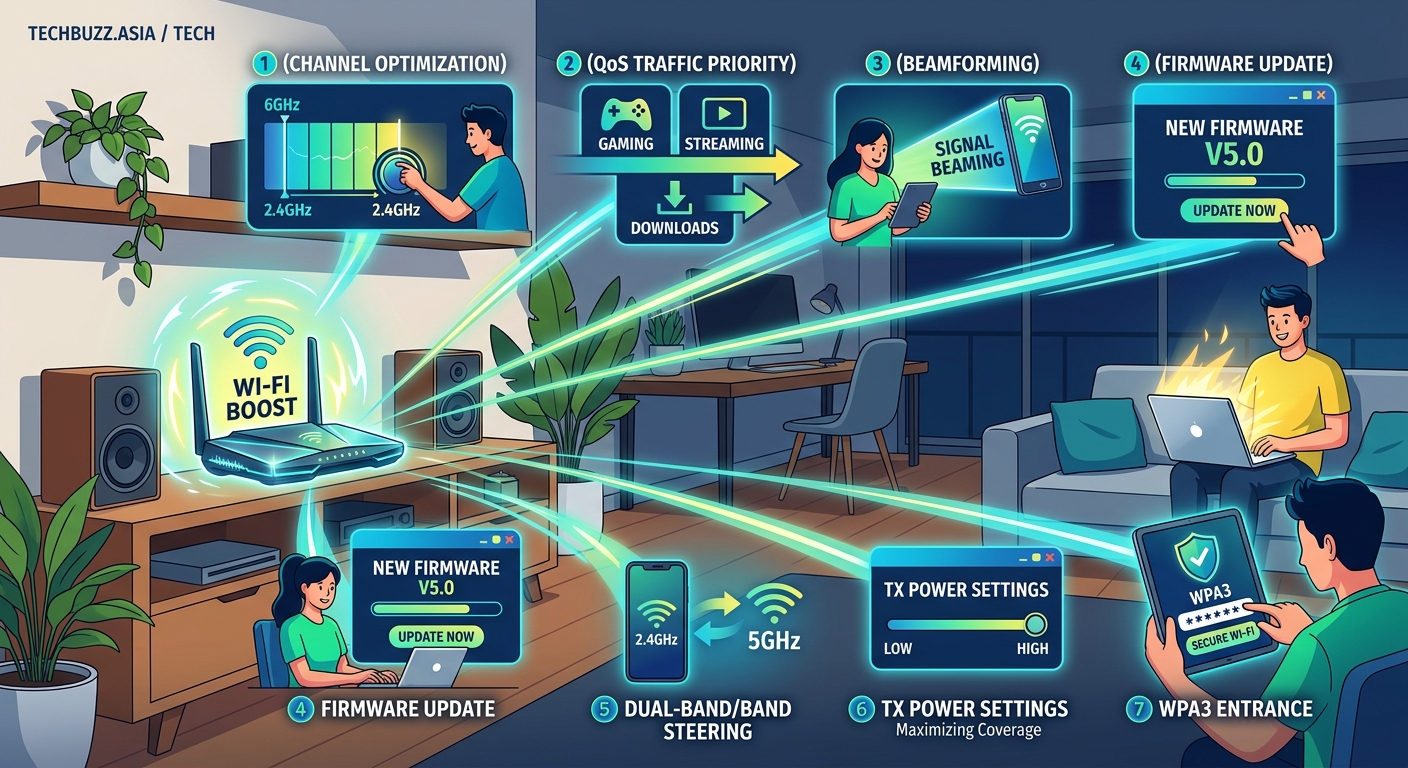
Your router broadcasts on a specific channel, just like a radio station. When multiple routers in your apartment building or neighborhood use the same channel, they interfere with each other.
Here’s how to find and switch to a better channel:
- Download a free WiFi analyzer app on your phone (WiFi Analyzer for Android or Airport Utility for iPhone).
- Open the app and look at which channels have the most networks on them.
- Log into your router by typing 192.168.1.1 or 192.168.0.1 into your web browser.
- Find the wireless settings section (usually under “Wireless” or “WiFi Settings”).
- Look for “Channel” and change it from “Auto” to a specific number that showed less traffic in your analyzer app.
- For 2.4 GHz, stick to channels 1, 6, or 11 because they don’t overlap with each other.
- For 5 GHz, any channel with low traffic works fine.
- Save your settings and restart your router.
Your devices will reconnect automatically. You should notice fewer dropouts and better speeds, especially if you live in an apartment or dense neighborhood.
Switch devices to the 5 GHz band
Most modern routers broadcast two networks: one on 2.4 GHz and one on 5 GHz. The 5 GHz band is faster and has less interference, but it doesn’t travel through walls as well.
Here’s what to connect where:
- Use 5 GHz for: Laptops, phones, tablets, and streaming devices in the same room or one room away from your router
- Use 2.4 GHz for: Smart home devices, older gadgets, and anything two or more rooms away from your router
Some routers combine both bands into one network name and switch devices automatically. This sounds convenient but often keeps devices on 2.4 GHz when they could perform better on 5 GHz.
The fix is simple. Go into your router settings and give your 5 GHz network a different name (like “YourNetwork_5G”). Then manually connect your most important devices to that faster network.
Your streaming stick, work laptop, and gaming console should all live on 5 GHz. Your smart plugs and doorbell can stay on 2.4 GHz.
Adjust your router’s bandwidth settings
Routers can broadcast at different channel widths: 20 MHz, 40 MHz, 80 MHz, or even 160 MHz. Wider channels mean faster speeds, but they also mean more interference.
| Channel Width | Best For | Avoid When |
|---|---|---|
| 20 MHz | Crowded areas, maximum range | You have few neighbors |
| 40 MHz | Suburban homes, balanced performance | You live in an apartment |
| 80 MHz | Rural areas, maximum speed | You experience frequent dropouts |
| 160 MHz | Isolated locations, cutting-edge routers | You have any neighbors at all |
For 2.4 GHz, stick with 20 MHz. The band is too crowded for anything wider.
For 5 GHz, try 40 MHz first. If your speeds improve without causing disconnections, you can test 80 MHz. Most people see the best results at 40 MHz because it balances speed with stability.
Change this in your router settings under the wireless configuration page. Look for “Channel Width” or “Bandwidth” and select your preferred option.
Move your router to a central location
WiFi signals spread out in all directions from your router. If your router sits in a corner of your home, half of its signal is wasting energy broadcasting into your yard or your neighbor’s apartment.
The ideal router placement is:
- Central to the rooms you use most
- Elevated (on a shelf, not the floor)
- Away from metal objects and appliances
- Not inside a cabinet or closet
- At least a few feet from your TV and microwave
If your modem is stuck in a corner, you have two options. You can run an ethernet cable from your modem to a better router location, or you can ask your internet provider to move the modem (some charge for this, some don’t).
Even moving your router five feet can make a noticeable difference. One person I know moved their router from behind their TV to the top of a bookshelf and saw their bedroom speeds triple.
Update your router’s firmware
Router manufacturers release firmware updates that fix bugs, patch security holes, and sometimes improve performance. Most routers don’t install these automatically.
Log into your router settings and look for a section called “Firmware Update,” “Router Update,” or “Administration.” Some routers have a “Check for Updates” button. Others require you to download a file from the manufacturer’s website and upload it manually.
The process varies by brand, but it usually takes 5 to 10 minutes. Your internet will go down briefly while the router restarts.
Newer firmware can fix interference issues, improve how your router handles multiple devices, and add support for newer WiFi standards. It’s worth doing once or twice a year.
If your router is more than five years old, firmware updates become less frequent. At that point, you’re better off looking at your router’s other settings before considering new hardware.
Enable Quality of Service settings
Quality of Service (QoS) lets you tell your router which devices and activities matter most. Without it, your router treats your work video call the same as your teenager’s game download, which means both suffer.
Most routers have basic QoS settings. Look for a section called “QoS,” “Traffic Priority,” or “Device Priority” in your router settings.
You can usually prioritize by:
- Device (give your work laptop priority over smart home gadgets)
- Application (prioritize video calls over file downloads)
- Time of day (prioritize streaming during evening hours)
Set your work devices and streaming gadgets to high priority. Set game downloads, cloud backups, and software updates to low priority. This won’t increase your total bandwidth, but it will make sure your most important activities get the speeds they need.
Some people see dramatic improvements just from this one change. Your video calls stop freezing even when someone else is watching Netflix.
Reduce interference from other devices
Your microwave, baby monitor, and cordless phone all broadcast signals that can interfere with your WiFi. The 2.4 GHz band is especially vulnerable because it’s the same frequency many household devices use.
Common interference sources:
- Microwaves (especially when running)
- Bluetooth devices
- Baby monitors
- Cordless phones
- Wireless security cameras
- USB 3.0 cables and hubs
You can’t eliminate all interference, but you can minimize it. Keep your router at least three feet away from these devices. If possible, switch interfering gadgets to wired connections or different frequencies.
USB 3.0 cables are sneaky culprits. They can interfere with 2.4 GHz WiFi when they’re transferring data. If you have a USB 3.0 hard drive or hub near your router, try moving it or using a shielded cable.
This is another reason to move as many devices as possible to 5 GHz. That band doesn’t overlap with most household electronics.
Restart your router regularly
Routers are basically small computers, and like any computer, they slow down over time as memory fills up and processes get stuck.
A simple restart clears this out. Unplug your router, wait 30 seconds, then plug it back in. Your speeds often improve noticeably afterward.
Some people set a reminder to restart their router monthly. Others plug their router into a smart plug and schedule an automatic restart at 3 AM once a week.
This is especially helpful if you notice your speeds are great right after a restart but degrade over several days. That’s a sign your router is struggling with memory management.
Check which devices are hogging bandwidth
Sometimes your WiFi is slow because one device is using all the bandwidth. A laptop running a cloud backup, a phone downloading a massive app update, or a smart TV streaming in 4K can crowd out everything else.
Most routers let you see which devices are connected and how much data they’re using. Look for “Attached Devices,” “Device List,” or “Client List” in your router settings.
If you see an unfamiliar device, it might be a neighbor using your WiFi. Change your password immediately.
If you see a familiar device using tons of bandwidth, you have options. You can pause that device temporarily, lower its priority in QoS settings, or just wait for its download to finish.
Knowing what’s happening on your network helps you make smarter decisions about when to stream, download, or make important calls.
Separate your smart home devices
Smart home gadgets like plugs, lights, and sensors don’t need much bandwidth, but they create a lot of chatter on your network. Twenty smart devices constantly checking in with their servers can slow down your entire network.
The solution is to create a separate guest network just for smart home devices. Most routers let you set up a guest network in the wireless settings.
Name it something like “Smart Home” and put all your IoT devices on it. Keep your phones, laptops, and streaming devices on your main network.
This separation does two things. First, it reduces congestion on your main network. Second, it adds a layer of security because your smart lightbulb can’t access your laptop if they’re on different networks.
You’ll need to reconnect each smart device to the new network, but it only takes a few minutes per device.
Test your actual speeds vs. what you’re paying for
Before you blame your router, make sure you’re actually getting the speeds you pay for from your internet provider.
Connect a laptop directly to your modem with an ethernet cable. Go to a speed test website and check your download and upload speeds. Compare those numbers to what your internet plan promises.
If you’re getting significantly less than you pay for, contact your provider. Sometimes the issue is on their end: a problem with your modem, issues with the line coming into your house, or network congestion in your area.
If your wired speeds match your plan but your WiFi speeds are much lower, then your router settings are definitely the problem. That’s good news because it means the fixes in this article will actually work.
Many people pay for 200 Mbps internet but only get 30 Mbps over WiFi because their router is misconfigured. Fixing the router settings gets them the speeds they’re already paying for.
Common mistakes that make WiFi slower
| Mistake | Why It Hurts | Better Approach |
|---|---|---|
| Using the same password since setup | Neighbors might be stealing bandwidth | Change it to something strong and unique |
| Leaving router on the floor | Signals get absorbed by furniture and floors | Put it on a shelf at least 3 feet high |
| Connecting everything to 2.4 GHz | That band gets overcrowded | Move compatible devices to 5 GHz |
| Never restarting the router | Memory leaks slow performance | Restart monthly or automate it |
| Ignoring firmware updates | Miss performance improvements and security fixes | Check for updates quarterly |
These mistakes are easy to make because they don’t cause immediate problems. Your WiFi works, just not as well as it could. Fixing them takes minimal effort but creates lasting improvements.
When settings aren’t enough
Sometimes you can optimize every setting and still have slow WiFi. That usually means one of three things.
Your router might be genuinely old. If it’s more than six years old and doesn’t support WiFi 5 (also called 802.11ac), no amount of tweaking will make it fast by modern standards. The hardware simply can’t keep up.
Your home might be too large for a single router. WiFi signals weaken as they pass through walls. If you live in a multi-story home or a place with thick walls, you might need a mesh system or range extender. But try all the free fixes first before spending money.
Your internet plan might be too slow for your household. If you have four people streaming 4K video simultaneously on a 50 Mbps plan, no router settings will fix that math problem. You might need to upgrade your plan.
The good news is that most people don’t have these problems. Most slow WiFi comes from fixable settings, not unfixable hardware or insufficient plans.
Your WiFi can work better starting today
You don’t need to be technical to make these changes. You don’t need to buy anything. You just need 20 minutes and access to your router settings.
Start with the easiest fixes: restart your router, move it to a better location, and switch your most important devices to 5 GHz. Those three changes alone often double your speeds.
Then tackle the settings: change your channel, adjust bandwidth, enable QoS. Each improvement builds on the last.
Your WiFi problems probably aren’t as complicated as they feel. They’re just settings that nobody ever optimized for your specific situation. Similar to how to speed up your Windows 11 PC without buying new hardware, small adjustments to existing settings create big performance gains.
Fix these settings once, and you’ll enjoy faster, more reliable WiFi for years. Your video calls will stop freezing. Your streams will stop buffering. Your family will stop complaining about the internet.
And you’ll have done it all without spending a cent.



Post Comment