7 Mac Keyboard Shortcuts That Will Transform Your Productivity
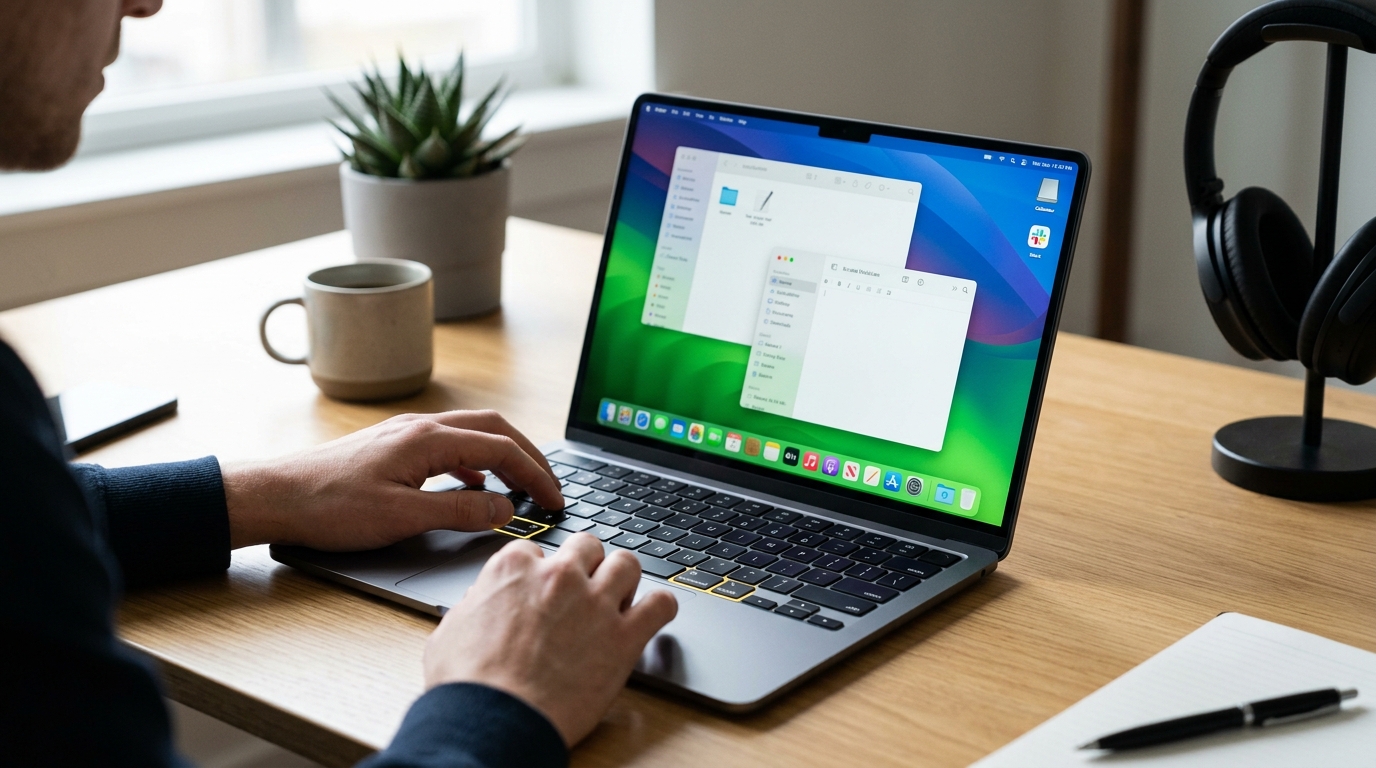
You’re clicking through menus dozens of times a day when a single keystroke could do the same job in half a second. Most Mac users barely scratch the surface of what their keyboard can do, relying on the trackpad for tasks that keyboard combinations handle instantly.
The difference between someone who knows their Mac keyboard shortcuts and someone who doesn’t is visible in real time. Watch a power user navigate their system and you’ll see windows flying open, text formatting itself, and apps switching without a cursor in sight.
Mac keyboard shortcuts eliminate repetitive mouse movements and dramatically speed up your workflow. Learning just seven essential combinations can save you hours each week by replacing common tasks like switching apps, managing windows, taking screenshots, and formatting text. These shortcuts work across all Mac applications and become second nature with minimal practice, transforming how efficiently you work on your computer daily.
Why Mac keyboard shortcuts matter for productivity
Every time you move your hand from keyboard to mouse, you lose momentum. That fraction of a second adds up across hundreds of daily actions.
Mac keyboard shortcuts keep your hands in position. Your fingers stay on the keys. Your workflow stays uninterrupted.
The productivity gains compound over time. Saving three seconds per action doesn’t sound impressive until you realize you’re performing that action fifty times per day. That’s two and a half minutes daily, which becomes over fifteen hours per year on a single task.
People who master mac keyboard shortcuts productivity techniques report finishing projects faster and feeling less mentally drained. The cognitive load of constantly switching between input methods is real, even if you don’t notice it happening.
The seven essential shortcuts every Mac user needs
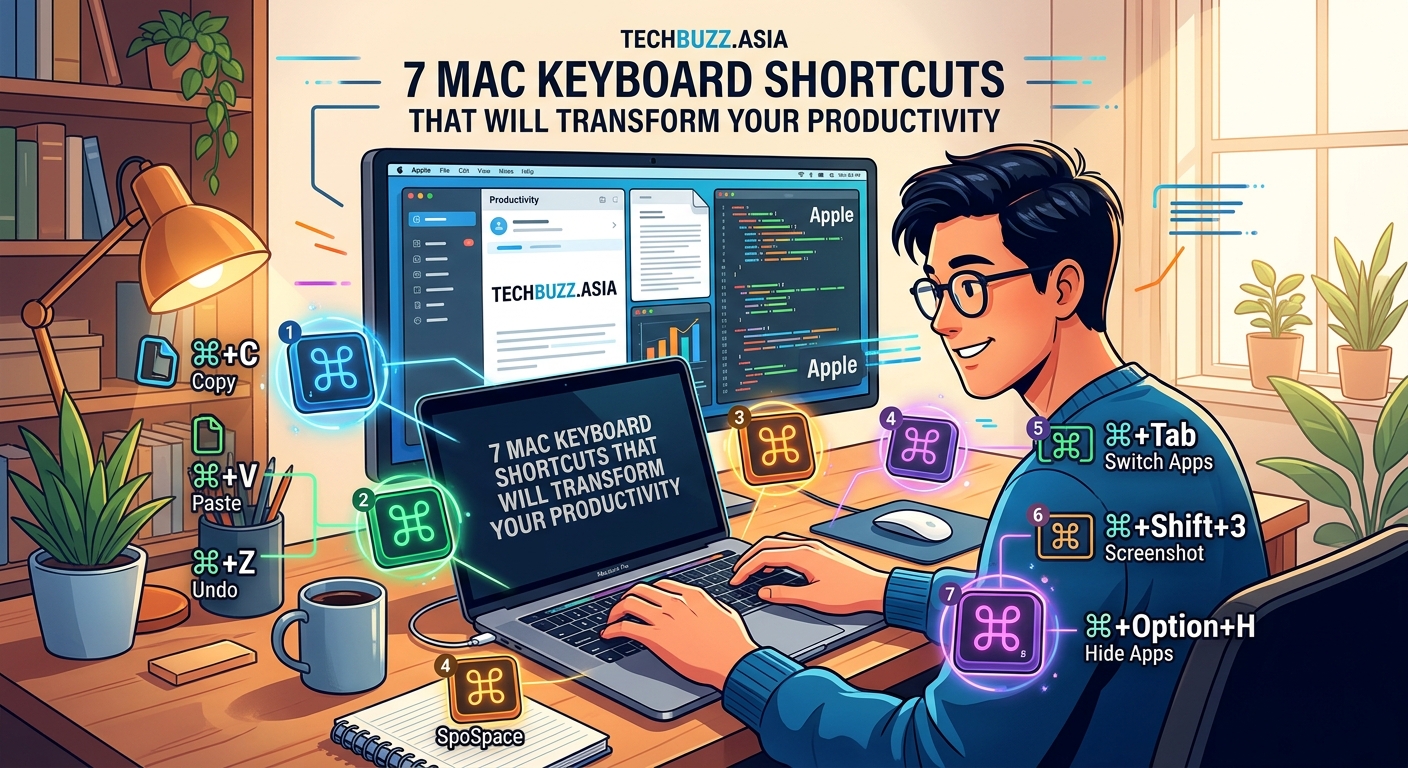
These seven combinations form the foundation of efficient Mac use. Master them and you’ll wonder how you ever worked without them.
Command + Tab for instant app switching
Holding Command and tapping Tab cycles through your open applications. Each Tab press moves you one app to the right in the switcher.
Keep holding Command and press Tab multiple times to preview each app. Release both keys when you reach your target application.
Add Shift to the combination and you’ll cycle backward through the list. Command + Shift + Tab moves left instead of right.
This shortcut eliminates the need to click the Dock or minimize windows to reach background apps. Your workflow stays fluid when switching between Safari, Mail, and your text editor happens in under a second.
Command + Space to open Spotlight instantly
Spotlight is your Mac’s universal search tool. Command + Space brings it up from anywhere, no matter what app you’re using.
Type a few letters of an app name and press Return to launch it. Search for files, folders, or even perform calculations without opening Calculator.
Spotlight handles unit conversions too. Type “50 USD to EUR” and get instant results. Type “1500 calories in kJ” and see the conversion immediately.
This shortcut replaces hunting through Finder windows or scrolling through Applications folders. If you’re interested in optimizing other aspects of your workflow, learning about 5 emerging technologies that will change how we work by 2026 can provide additional productivity insights.
Command + W to close windows without reaching for the mouse
Command + W closes the current window or tab. In browsers, it closes the active tab. In apps like Finder or Preview, it closes the frontmost window.
The app itself stays open unless you close its last window. This distinction matters when you want to clear your screen without quitting applications entirely.
Combine this with Command + Q (which quits the entire app) and you have complete control over your workspace without touching your trackpad.
Command + Shift + 4 for selective screenshots
Taking screenshots on Mac involves several shortcuts, but Command + Shift + 4 is the most versatile.
Press it and your cursor becomes a crosshair. Click and drag to select any portion of your screen. Release the mouse button and the screenshot saves to your desktop.
Add the Spacebar after pressing Command + Shift + 4 and the crosshair becomes a camera icon. Hover over any window and click to capture just that window with a clean drop shadow.
Need to copy the screenshot instead of saving it? Add Control to the combination. Command + Control + Shift + 4 copies your selection to the clipboard instead of creating a file.
Command + ` to cycle between windows of the same app
The backtick key () sits just above Tab on most keyboards. Command + cycles through multiple windows within a single application.
If you have three Safari windows open, Command + ` rotates through them without cycling through other apps. This keeps you focused within one program when managing multiple documents or browser windows.
This shortcut pairs perfectly with Command + Tab. Use Tab to switch between apps, then use ` to navigate multiple windows within your target app.
Command + H to hide applications instantly
Command + H hides the current application and all its windows. The app keeps running in the background, but disappears from view.
This differs from minimizing, which sends individual windows to the Dock. Hiding removes the entire app from sight while keeping it active and ready.
Use Command + Tab to return to a hidden app and it reappears exactly as you left it. This shortcut is perfect when you need to clear your screen temporarily without closing your work.
Command + Arrow Keys for text navigation
Command combined with arrow keys moves your cursor to strategic positions without reaching for the mouse.
- Command + Left Arrow: Jump to the beginning of the current line
- Command + Right Arrow: Jump to the end of the current line
- Command + Up Arrow: Jump to the beginning of the document
- Command + Down Arrow: Jump to the end of the document
Add Shift to any of these combinations and you’ll select all text between your starting position and your destination. Command + Shift + Up Arrow selects everything from your cursor to the document start.
These navigation shortcuts work in text editors, email clients, browsers, and nearly every app that handles text input.
How to build muscle memory for keyboard shortcuts
Knowing shortcuts intellectually differs from using them reflexively. Building muscle memory requires intentional practice.
- Pick one shortcut and force yourself to use only that shortcut for an entire day.
- Resist the urge to use your mouse for that specific action, even if the keyboard method feels slower at first.
- After mastering one shortcut, add a second to your practice routine while maintaining the first.
- Continue this pattern until all seven shortcuts feel automatic.
The first few uses will feel awkward. Your fingers will hesitate. You’ll second-guess the key combination.
By the tenth use, your hands start remembering the pattern. By the fiftieth, you won’t think about it consciously.
The fastest way to adopt new keyboard shortcuts is to make your old method impossible. Unplug your mouse for a day and force yourself to learn the keyboard alternatives. The temporary inconvenience creates permanent efficiency gains.
Common mistakes that slow down shortcut adoption
Many people learn shortcuts but fail to integrate them into daily work. These mistakes explain why.
| Mistake | Why It Happens | Better Approach |
|---|---|---|
| Learning too many at once | Trying to memorize all shortcuts simultaneously overwhelms working memory | Master one shortcut completely before adding another |
| Reverting to mouse when stressed | Deadline pressure triggers old habits | Practice shortcuts during low-stakes tasks first |
| Not customizing for personal workflow | Default shortcuts don’t match how you actually work | Adjust System Preferences to create custom combinations |
| Forgetting shortcuts between uses | Infrequent use prevents muscle memory formation | Set daily reminders to practice specific shortcuts |
| Skipping shortcuts that seem minor | Small time savings feel insignificant | Track cumulative time saved across a week |
The customization point deserves emphasis. Mac allows you to create custom keyboard shortcuts for menu items in any application.
Navigate to System Preferences, then Keyboard, then Shortcuts. Select App Shortcuts and click the plus button. Choose your target app, type the exact menu item name, and assign your preferred key combination.
This feature lets you optimize your most-used actions beyond the system defaults. If you frequently use a specific menu command in Photoshop or Final Cut, give it a keyboard shortcut that matches your workflow.
Shortcuts that work across specific Mac apps
Beyond system-wide shortcuts, individual apps have their own combinations worth learning.
In Safari, Command + L selects the address bar instantly. Type a new URL or search term without clicking.
In Finder, Command + Delete moves selected files to Trash. Command + Shift + Delete empties the Trash.
In Mail, Command + Shift + D sends your composed message immediately. Command + R replies to the selected message.
In Preview, Command + Option + I opens the Inspector panel for detailed file information. Command + K lets you crop images without opening a separate editor.
These app-specific shortcuts layer on top of system shortcuts. Learning both creates a comprehensive efficiency system.
Advanced combinations for power users
Once you master the basics, these advanced techniques take your productivity further.
Command + Option + Esc opens the Force Quit window when an app freezes. This is the Mac equivalent of Control + Alt + Delete on Windows.
Command + Shift + T reopens the last closed tab in Safari or Chrome. Accidentally close a tab and restore it instantly without digging through history.
Command + Control + Q locks your screen immediately. Walk away from your desk without logging out or putting your Mac to sleep.
Command + Option + D toggles Dock visibility. Hide the Dock to reclaim screen space, then show it again when needed.
These combinations handle edge cases and special situations that arise during complex workflows. Understanding how different devices handle productivity features can be helpful, similar to how mechanical keyboards for beginners can enhance typing efficiency.
Creating a personalized shortcut reference
Your brain won’t remember every shortcut immediately. Create a reference system that supports your learning process.
Write your seven essential shortcuts on a sticky note and attach it to your monitor edge. Physical proximity makes consultation effortless during the learning phase.
Create a digital note in Notes or Notion with categorized shortcuts. Organize them by function: text editing, window management, app control, and system functions.
Set a daily calendar reminder to practice three specific shortcuts. Rotate which three you focus on each day.
Screenshot your custom shortcuts and save them in a dedicated folder. When you forget a custom combination you created months ago, you’ll know exactly where to look.
The reference system should reduce friction, not create it. If consulting your notes takes longer than using the mouse, you’ll abandon the system.
Building on your shortcut foundation
These seven shortcuts form your foundation, but hundreds more exist across macOS and individual applications.
The learning curve never truly ends. Each app you use regularly has shortcuts worth discovering. Each macOS update introduces new combinations.
The difference between novice and expert Mac users isn’t knowing every possible shortcut. It’s having automatic mastery of the shortcuts that match your specific workflow.
Pay attention to which mouse actions you perform most frequently. Those repetitive tasks are prime candidates for shortcut replacement.
Check menu items for keyboard hints. Many menu commands display their shortcuts on the right side. If you use that menu item often, memorize its shortcut instead.
Your productivity transformation starts with practice
Reading about mac keyboard shortcuts productivity techniques won’t change your workflow. Only deliberate practice builds the muscle memory that makes these combinations automatic.
Start with Command + Tab today. Use it every single time you switch apps. By tomorrow, your fingers will reach for it without conscious thought.
Add Command + Space the next day. By the end of the week, you’ll have two shortcuts running on autopilot.
Within two weeks, all seven shortcuts will feel natural. Your hands will move faster. Your workflow will flow smoother. Those saved seconds will compound into saved hours, and you’ll wonder why you spent years clicking when you could have been typing.
The transformation happens one shortcut at a time, but it happens permanently.



Post Comment