Why Your Windows PC Keeps Freezing and How to Fix It for Good
You’re in the middle of an important document when everything stops. The cursor won’t move. Nothing clicks. Your PC has frozen again.
It’s frustrating, disruptive, and happens at the worst possible times. But here’s the good news: most freeze problems have clear causes and straightforward solutions.
When your PC keeps freezing, the culprit is usually outdated drivers, overheating, insufficient RAM, or corrupted system files. Start with basic troubleshooting like updating drivers and checking temperatures. If freezes persist, run memory diagnostics and scan for disk errors. Most freeze issues can be resolved without professional help or expensive hardware upgrades through systematic testing and targeted fixes.
What Actually Causes Your Computer to Freeze
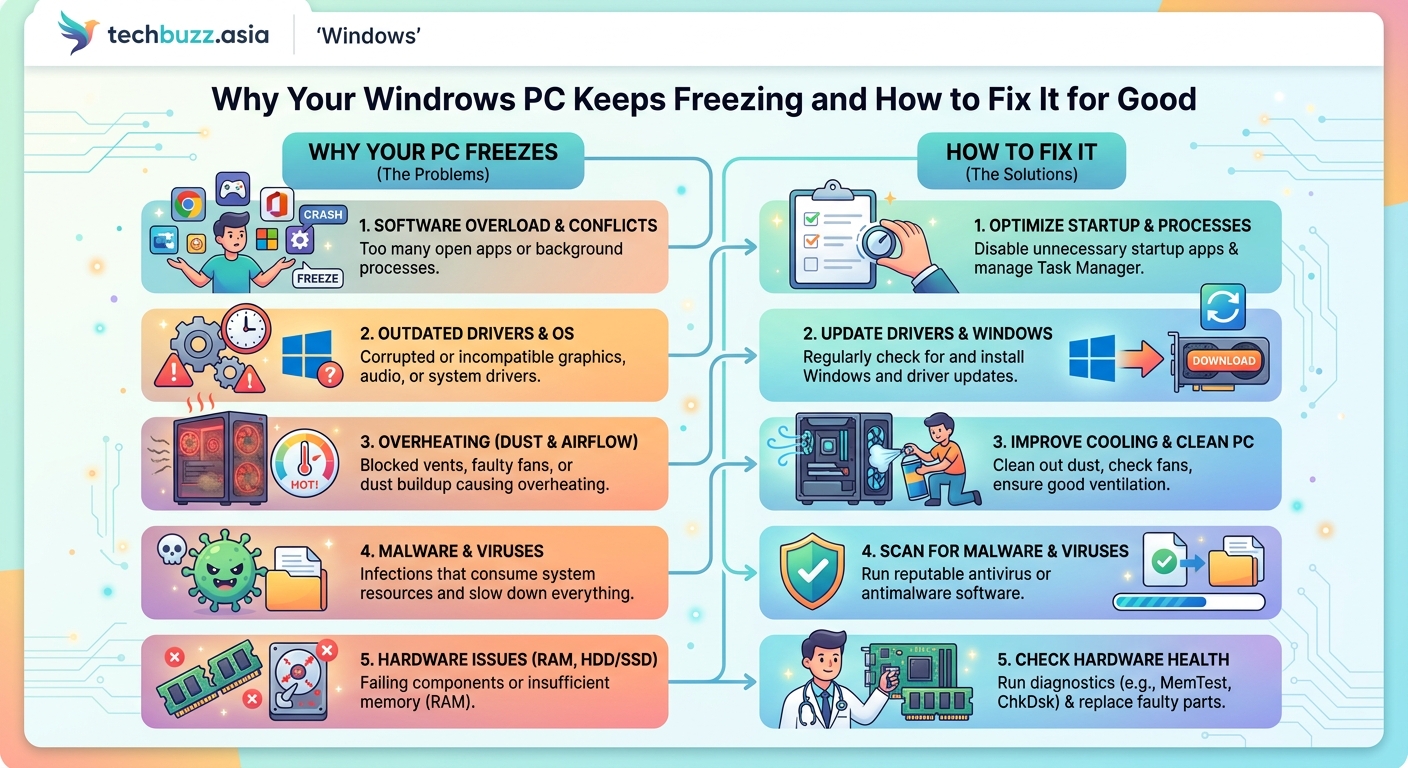
System freezes happen when Windows can’t process information fast enough or encounters a critical error. Your screen locks up because the operating system has hit a roadblock it can’t work around.
Hardware conflicts top the list of freeze triggers. When your graphics card driver clashes with a Windows update, your system grinds to a halt. Overheating components force your PC to slow down or stop entirely to prevent damage.
Software issues create just as many problems. A single misbehaving program can consume all available memory. Background processes you didn’t even know were running can pile up and overwhelm your system resources.
Corrupted files in Windows itself often fly under the radar. One damaged system file can cause freezes that seem random but follow a pattern you haven’t noticed yet.
Immediate Steps When Your Screen Locks Up
Don’t reach for the power button right away. Give your PC 30 seconds to recover. Sometimes Windows just needs a moment to finish a demanding task.
If nothing changes, try these steps in order:
- Press Ctrl + Shift + Esc to open Task Manager
- Look for any program using excessive CPU or memory (above 80%)
- Click the problem program and select “End Task”
- Wait another 30 seconds for the system to respond
Task Manager often opens even when everything else is frozen. It’s your first line of defense.
When Task Manager won’t open, press Ctrl + Alt + Delete. This interrupt signal gets Windows’ attention even during severe freezes. Select “Sign Out” if possible, which saves your other work.
Only use the physical power button as a last resort. Hold it for 5 seconds until the PC shuts down completely. This hard shutdown can corrupt files if done repeatedly.
Testing Your Hardware for Problems
Physical components fail over time. Testing them systematically helps you pinpoint exactly what’s wrong.
Check your temperatures first. Download a monitoring tool and watch your CPU and GPU temps during normal use. Above 80°C under light load signals a cooling problem. Dust buildup in fans and vents is the usual suspect.
Open your case and look inside. Thick dust layers block airflow. Use compressed air to clean fans, heatsinks, and vents. Do this outside or in a garage because you’ll create a dust cloud.
Run Windows Memory Diagnostic next. Press Windows + R, type “mdsched.exe”, and hit Enter. Choose “Restart now and check for problems.” This test takes 20 minutes and catches failing RAM sticks.
Bad memory causes freezes that seem completely random. One day your PC runs fine. The next day it freezes three times. Memory errors don’t follow predictable patterns.
Test your hard drive health. Open Command Prompt as administrator and type “wmic diskdrive get status”. A result of “OK” means your drive passes basic checks. For deeper analysis, use the manufacturer’s diagnostic tool.
Failing drives cause freezes when Windows tries to read corrupted sectors. The system waits for data that never arrives.
Regular hardware testing catches problems before they cause data loss. Monthly temperature checks and quarterly memory diagnostics prevent most freeze-related emergencies.
Driver Updates That Actually Matter
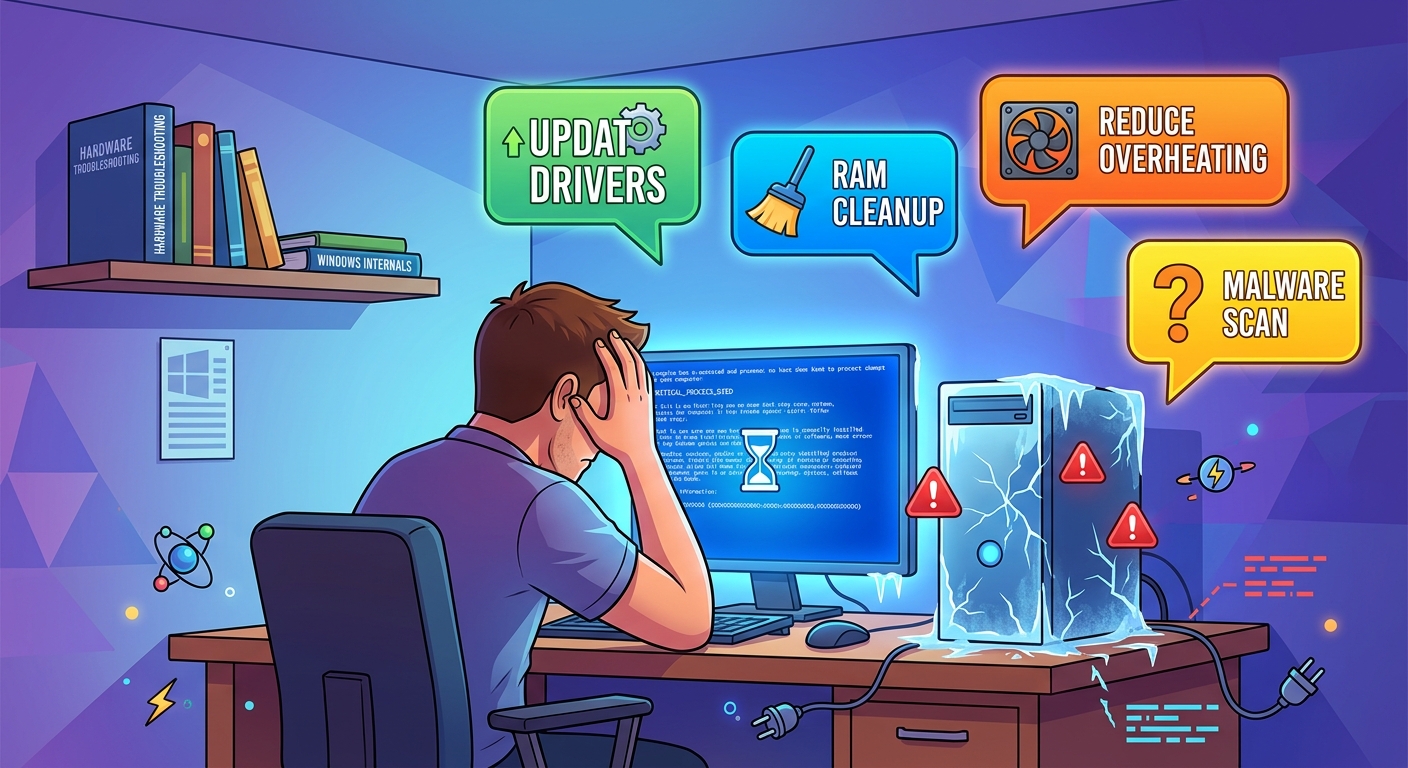
Outdated drivers cause more freezes than most people realize. Your graphics card, chipset, and storage controllers all need current drivers to work properly with Windows updates.
Graphics drivers deserve special attention. Visit your GPU manufacturer’s website directly. Don’t rely on Windows Update for graphics drivers because it often installs older, more stable versions instead of the latest release.
For NVIDIA cards, download GeForce Experience. For AMD, get the Adrenalin software. Both programs notify you about new driver releases and install them correctly.
Chipset drivers connect your motherboard components to Windows. Go to your motherboard manufacturer’s support page. Enter your exact model number. Download the latest chipset driver package.
Storage controller drivers matter more than you’d think. An outdated SATA or NVMe driver can cause freezes during file operations. These drivers usually come in the chipset package.
Network adapter drivers rarely cause full system freezes, but they can create temporary lockups during heavy downloads or streaming.
Here’s a practical update schedule:
- Graphics drivers: monthly or when new games release
- Chipset drivers: every three months
- BIOS/UEFI firmware: only when experiencing specific problems
- Storage drivers: every six months
Software Conflicts You Need to Resolve
Multiple antivirus programs running simultaneously will freeze your PC. Windows Defender counts as an antivirus. If you installed third-party security software, make sure Windows Defender is properly disabled to avoid conflicts.
Startup programs accumulate over time. Every program that launches with Windows consumes memory and processing power.
Press Ctrl + Shift + Esc and click the “Startup” tab. Look at the “Startup impact” column. Disable anything marked “High” that you don’t use daily. You can always launch these programs manually when needed.
Browser extensions cause freezes too. Each extension runs code in the background. Twenty extensions can slow your entire system.
Open your browser settings and review installed extensions. Remove anything you haven’t used in a month. Keep only the essentials.
Background Windows services sometimes malfunction. Press Windows + R, type “services.msc”, and hit Enter. Sort by “Status” to see what’s running. Unless you know exactly what a service does, don’t disable it. Focus on third-party services from programs you recognize.
Conflicting software often shows up in Event Viewer. Press Windows + X and select “Event Viewer.” Check under “Windows Logs” and “Application.” Look for red error entries that appeared right before your last freeze.
System File Repairs That Fix Corruption
Windows includes built-in repair tools most people never use. These tools fix corrupted system files that cause mysterious freezes.
Run SFC (System File Checker) first:
- Right-click Start and select “Command Prompt (Admin)” or “Windows PowerShell (Admin)”
- Type “sfc /scannow” and press Enter
- Wait 15-30 minutes for the scan to complete
- Restart your PC after it finishes
SFC compares your system files against a clean copy stored on your PC. It automatically replaces corrupted files.
If SFC finds problems it can’t fix, run DISM next. This tool repairs the underlying Windows image that SFC uses as a reference.
DISM repair process:
- Open Command Prompt as administrator again
- Type “DISM /Online /Cleanup-Image /RestoreHealth” and press Enter
- Wait 20-40 minutes (this takes longer than SFC)
- Run “sfc /scannow” again after DISM completes
- Restart your computer
These tools work together. DISM fixes the repair source, then SFC uses that fixed source to repair your actual system files.
Memory and Storage Solutions
Insufficient RAM causes freezes when you run multiple programs. Windows uses your hard drive as “virtual memory” when RAM fills up. This swap process is much slower than real RAM.
Right-click your taskbar and select “Task Manager.” Click “Performance” and then “Memory.” Watch the memory usage while you work normally. If it regularly exceeds 80%, you need more RAM.
Adding RAM is the single most effective upgrade for freeze problems. 8GB is the minimum for Windows 11. 16GB handles most workloads comfortably. 32GB is overkill unless you edit video or run virtual machines.
Storage space affects performance too. Windows needs at least 20GB of free space on your system drive to function properly. Less than 10GB free causes serious slowdowns and freezes.
Check your storage: open Settings, click “System,” then “Storage.” If your C: drive shows red or has less than 15% free space, you need to clean up files.
Delete these first:
- Temporary files (Settings > System > Storage > Temporary files)
- Old Windows Update files (same location)
- Downloads folder contents you don’t need
- Programs you haven’t used in six months
Consider moving large files like videos and photos to an external drive or cloud storage. Your system drive should stay lean.
Advanced Troubleshooting Techniques
When basic fixes don’t work, these advanced methods often solve stubborn freeze problems.
Clean boot testing isolates software conflicts. This starts Windows with minimal drivers and startup programs. If freezes stop during clean boot, you know a third-party program or service is causing the problem.
To perform a clean boot:
- Press Windows + R and type “msconfig”
- Click the “Services” tab
- Check “Hide all Microsoft services”
- Click “Disable all”
- Click the “Startup” tab and click “Open Task Manager”
- Disable all startup items
- Restart your PC
Use your computer normally for a day. If freezes stop, re-enable services and startup items one at a time until freezes return. That identifies the culprit.
Power settings can cause freezes. Windows’ power management sometimes conflicts with hardware. Open Control Panel and search for “Power Options.” Select “High performance” instead of “Balanced.” This prevents the system from aggressively powering down components.
BIOS/UEFI updates fix hardware-level bugs. Visit your motherboard manufacturer’s website and check if a newer BIOS version is available. Read the release notes. Only update if the notes mention stability improvements or freeze fixes.
BIOS updates carry some risk. Follow the manufacturer’s instructions exactly. Don’t interrupt the update process.
Common Mistakes That Make Freezes Worse
People often try fixes that actually create new problems. Avoid these common errors.
| Mistake | Why It’s Bad | Better Approach |
|---|---|---|
| Installing multiple driver updater tools | These programs conflict with each other and install wrong drivers | Update drivers manually from manufacturer websites |
| Running registry cleaners | They delete important entries and rarely fix anything | Use built-in Windows tools only |
| Disabling Windows Update | You miss critical security and stability patches | Configure updates for off-hours instead |
| Adding more antivirus programs | Multiple security programs fight for control | Choose one good antivirus and stick with it |
| Overclocking to “speed up” the PC | Unstable overclocks cause freezes and crashes | Return to default clock speeds first |
Don’t assume you need new hardware immediately. Most freeze problems are software-related. Replacing components without proper testing wastes money.
Avoid “PC optimizer” software. These programs promise to speed up your computer but often install unwanted toolbars and change settings that cause problems. Windows includes all the optimization tools you need.
Don’t ignore Windows updates. Yes, updates sometimes cause temporary issues. But they fix far more problems than they create. Postpone updates during busy work periods, but install them within a week.
Prevention Strategies for Long-Term Stability
Preventing freezes beats fixing them. These habits keep your system running smoothly.
Restart your PC at least once a week. This clears memory leaks and resets services that gradually degrade. Don’t just put your PC to sleep every night.
Keep Windows updated automatically. Set active hours so updates install when you’re not working. This ensures you get stability fixes as soon as Microsoft releases them.
Maintain at least 20% free space on your system drive. Set a calendar reminder to check storage monthly. Clean up before space gets critically low.
Monitor temperatures during summer months. Room temperature affects PC cooling. If your office gets hot, your PC works harder to stay cool. Consider improving case ventilation or room airflow.
Uninstall programs you don’t use. Every installed program creates registry entries and background processes. A lean system is a stable system. Similar to how you’d free up space on your phone, regular cleanup prevents problems.
Create a system restore point before major changes. Before installing new hardware or updating critical drivers, create a restore point. If something goes wrong, you can roll back.
When to Consider Professional Help
Some freeze problems require expert diagnosis. You might need professional help if:
- Freezes continue after trying all troubleshooting steps
- Hardware tests show failing components you can’t replace yourself
- Freezes started immediately after a Windows update that won’t uninstall
- Your PC is under warranty and hardware appears defective
Tech support decisions become easier when you’ve documented everything you’ve tried. Keep notes about what fixes you attempted and what happened.
Before paying for repairs, get a second opinion. Many computer shops offer free diagnostics. Compare their findings with your own testing results.
Sometimes the fix costs more than a replacement PC. If your computer is over five years old and needs a new motherboard or processor, buying new might make more sense financially.
Getting Back to Smooth Performance
Your PC keeps freezing for specific, fixable reasons. Start with the simple solutions: update your drivers, check your temperatures, and scan for corrupted files.
Work through each troubleshooting step systematically. Don’t skip ahead to advanced fixes until you’ve ruled out common causes. Most freeze problems resolve with driver updates, memory upgrades, or software cleanup.
The time you invest in proper troubleshooting pays off in stable, reliable performance. Your computer should work for you, not against you. These fixes get you back to productive work without the frustration of random freezes interrupting your day.

Post Comment