Should You Upgrade to Windows 11 Pro? Comparing Features That Actually Matter
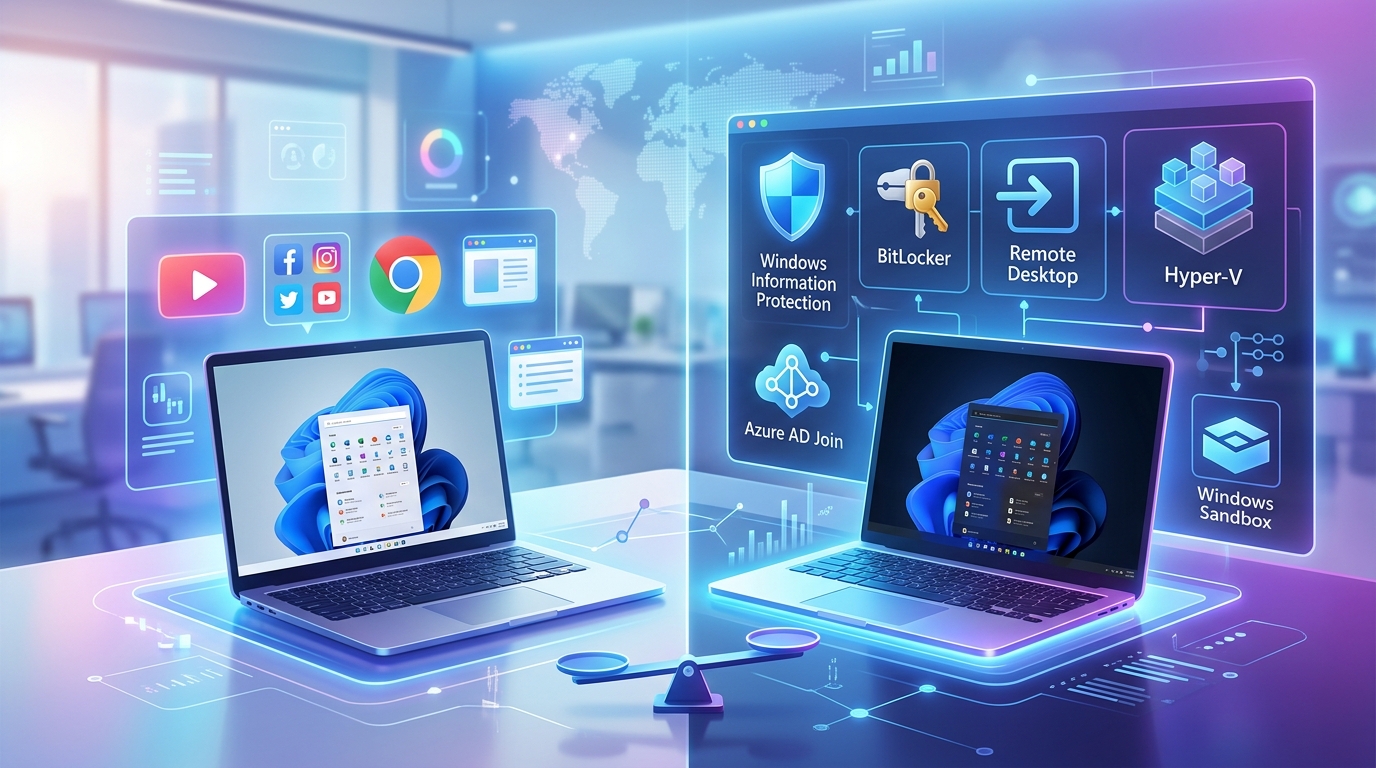
You’re about to spend money on a new Windows 11 license, and Microsoft wants you to believe Pro is the obvious choice. But is it really? The price gap between Home and Pro hovers around $100, and that’s not pocket change. Before you click “buy,” you need to know what you’re actually paying for.
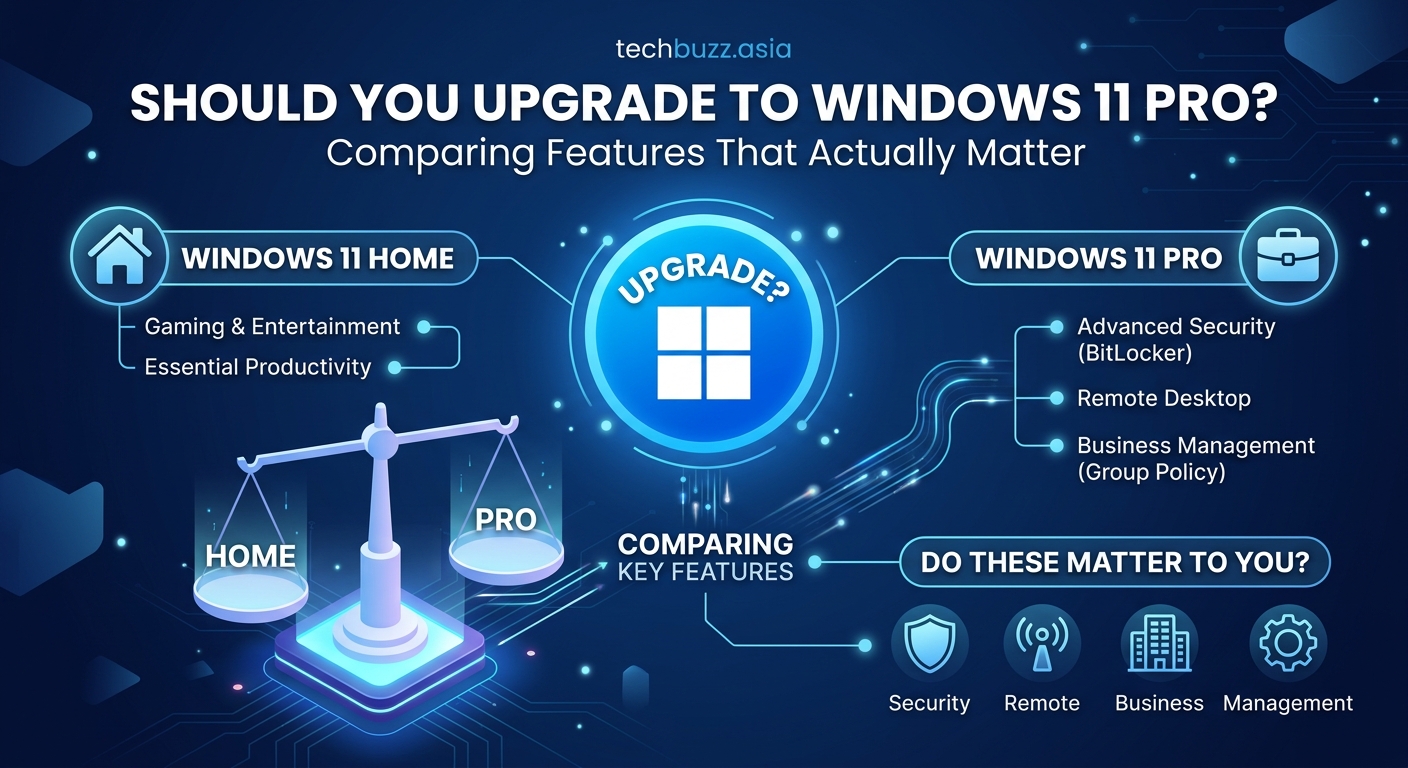
Windows 11 Pro adds BitLocker encryption, Remote Desktop hosting, Hyper-V virtualization, and domain join capabilities. Home edition covers most consumer needs perfectly well. The Pro upgrade makes sense for small business owners, remote workers who need advanced security, or tech enthusiasts running virtual machines. For everyday users browsing, streaming, and working from home, Home edition delivers everything necessary without the premium price tag.
The features both editions share
Let’s start with what you get regardless of which version you choose. Both Home and Pro run on the same Windows 11 foundation. You get the redesigned Start menu, Snap Layouts for window management, DirectX 12 Ultimate for gaming, and the new Microsoft Store.
Security basics are identical too. Windows Defender comes standard in both editions, protecting against malware and viruses. You also get Windows Hello for biometric login, Secure Boot, and firewall protection. These aren’t watered down in Home.
Performance is the same. The code running under the hood doesn’t change between editions. Your games won’t run faster on Pro. Your browser won’t load pages differently. The operating system kernel is identical.
Both support up to 128 GB of RAM, which is more than most people will ever install. The days of Home editions being crippled with low RAM limits are long gone.
Security features where Pro pulls ahead
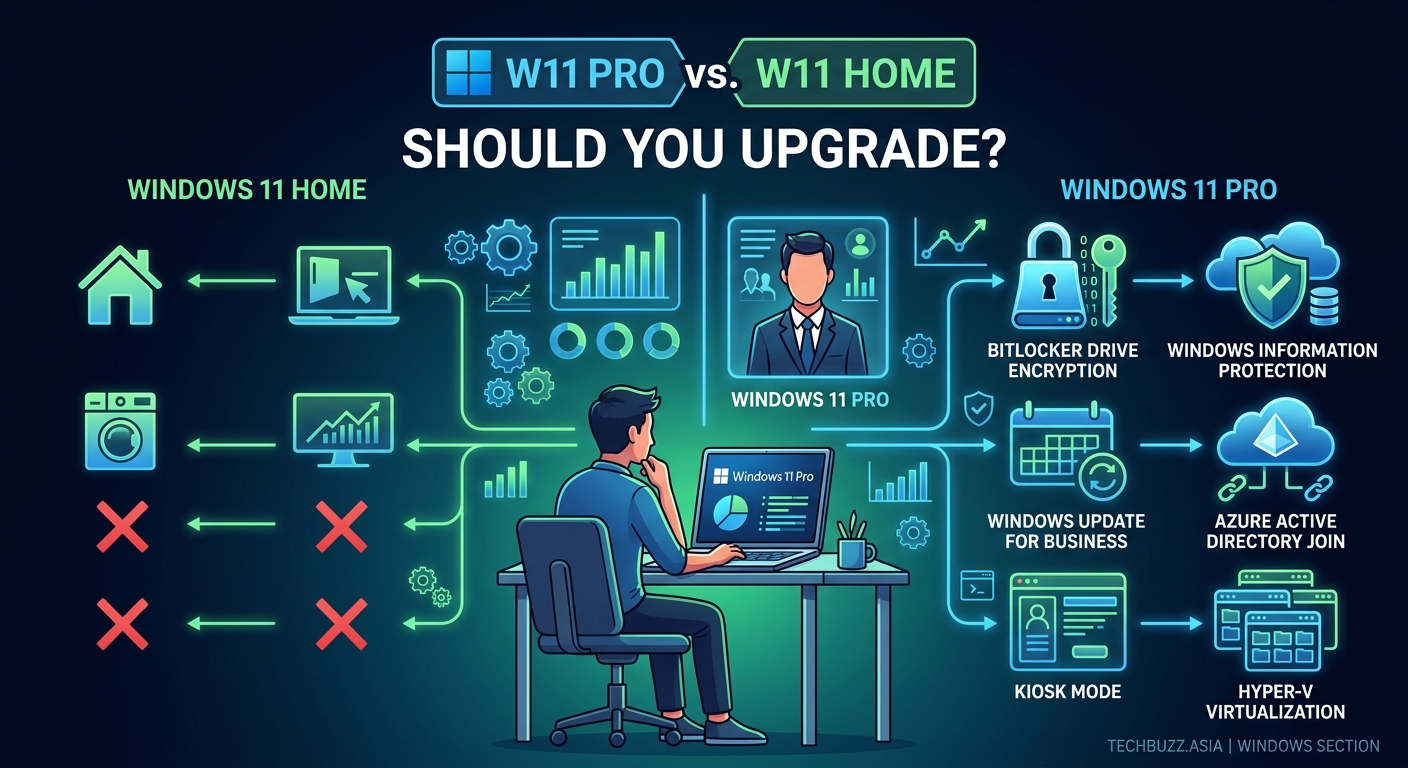
BitLocker is the headline security feature in Pro. This full-disk encryption protects your data if someone steals your laptop or pulls your hard drive. When BitLocker is active, your files are unreadable without your password or recovery key.
Home edition doesn’t include BitLocker at all. You can use third-party encryption tools, but none integrate as smoothly with Windows. For business laptops that leave the office, BitLocker isn’t optional.
Windows Information Protection (WIP) is another Pro exclusive. It separates personal and work data, preventing accidental leaks. If you copy a work document to a personal cloud folder, WIP can block it. Small businesses handling customer data need this kind of control.
Group Policy Editor gives IT administrators granular control over security settings. You can disable USB drives, block specific websites, or enforce password complexity rules. Home users manage settings through the regular Settings app, which offers fewer options.
Here’s a comparison of security capabilities:
| Feature | Home | Pro |
|---|---|---|
| BitLocker encryption | No | Yes |
| Windows Information Protection | No | Yes |
| Group Policy Editor | No | Yes |
| Windows Defender | Yes | Yes |
| Windows Hello | Yes | Yes |
| Firewall | Yes | Yes |
Remote work capabilities that matter
Remote Desktop is where Pro becomes genuinely useful for many people. With Pro, you can access your PC from anywhere. You’re at a coffee shop and need a file from your desktop? Connect through Remote Desktop and grab it.
Home edition can only connect to other computers. It cannot host Remote Desktop sessions. You can’t remote into a Home PC from outside your network. Third-party tools like TeamViewer exist, but they lack the integration and security of the built-in solution.
For anyone working remotely who needs to access their office computer, this feature alone justifies the Pro upgrade. It’s reliable, encrypted, and works across different networks without complex setup.
Domain join is critical for businesses but useless for home users. It lets your PC connect to a corporate network managed by Active Directory. Your IT department can push updates, enforce policies, and manage your computer remotely. Home edition can’t join domains, period.
If your workplace requires domain join, you have no choice. You need Pro. But if you’re buying a personal computer, you’ll never use this feature.
Virtualization for developers and tinkerers
Hyper-V lets you run virtual machines directly in Windows. Want to test Linux without dual booting? Spin up an Ubuntu virtual machine. Need to run an old program that only works on Windows 7? Create a Windows 7 VM.
This feature is exclusive to Pro. Home edition users need third-party virtualization software like VirtualBox or VMware. These work fine but don’t integrate as deeply with Windows.
Developers love Hyper-V for testing apps across different environments. You can run multiple operating systems simultaneously, each in its own sandbox. If something breaks, you delete the VM and start fresh.
Most consumers never touch virtualization. If you don’t know what a virtual machine is, you don’t need Hyper-V. But for software developers, IT professionals, or tech enthusiasts, it’s invaluable.
Windows Sandbox is a lighter virtualization feature also limited to Pro. It creates a temporary, isolated Windows environment for testing suspicious files. When you close Sandbox, everything inside disappears. It’s perfect for opening sketchy email attachments safely.
If you regularly need to access your work computer from home, or if you handle sensitive client data that requires encryption, Pro pays for itself through productivity and security. For everyone else, Home does the job without the premium.
Who actually needs Pro
Small business owners should seriously consider Pro. BitLocker protects customer data. Remote Desktop enables flexible work arrangements. Group Policy helps enforce security standards. These aren’t luxuries when you’re responsible for other people’s information.
Remote workers who need to access their office PC benefit from Remote Desktop hosting. Yes, you can use third-party tools, but the native solution is more reliable and doesn’t require monthly subscriptions.
Tech professionals and developers need Hyper-V for testing and development work. Running virtual machines is part of the job. Paying for VMware licenses costs more than upgrading to Pro.
Students and casual users should stick with Home. You’re browsing the web, writing papers, watching videos, and playing games. None of these activities require Pro features. Save the $100 for something that actually improves your experience, like more RAM or better peripherals.
Gamers don’t need Pro either. Gaming performance is identical between editions. DirectStorage, Auto HDR, and Game Mode work the same way. Your frame rates won’t change.
Making the upgrade decision
Here’s how to think through this purchase:
- List the Pro features you’ll actually use weekly. Not features that sound cool, but ones you’ll genuinely rely on.
- Research if free alternatives exist for those features. BitLocker alternatives include VeraCrypt. Remote Desktop has TeamViewer and Chrome Remote Desktop.
- Calculate the cost difference over your computer’s lifespan. That $100 premium matters more on a $500 laptop than a $2,000 workstation.
If you can’t name two Pro features you’ll use regularly, buy Home. You can always upgrade later if your needs change. Microsoft sells upgrade licenses that convert Home to Pro without reinstalling Windows.
The upgrade path exists because Microsoft knows most people buy Home and later realize they need specific Pro features. Don’t let that pressure you into spending more upfront. Buy what you need today.
Some manufacturers bundle Pro with business laptops by default. If you’re getting Pro at no extra cost, great. But don’t seek out Pro models that cost significantly more unless you know why you need them.
Common misconceptions about editions
Many people believe Pro runs faster. It doesn’t. The performance difference is zero. Both editions use the same scheduler, memory management, and file system. Benchmarks show no measurable gap.
Some think Pro gets updates first. Also false. Microsoft rolls out updates to all editions simultaneously. Security patches arrive on the same schedule. Feature updates follow the same timeline.
The myth that Home is less secure persists. While Pro has additional security tools, Home includes all the fundamentals. Windows Defender, firewall, and Secure Boot protect you equally well. BitLocker is the only major security gap, and most home users don’t need full-disk encryption.
People worry about future-proofing. “What if I need Pro features later?” The upgrade license costs the same as buying Pro upfront. You’re not saving money by purchasing Pro preemptively. Wait until you have a specific need.
Real-world scenarios to guide your choice
Scenario one: You run a small consulting business from home. You store client contracts and financial records on your laptop. You sometimes work from coffee shops or client offices. You need Pro for BitLocker encryption. The risk of data exposure is too high otherwise.
Scenario two: You’re a college student studying graphic design. You use Adobe Creative Suite, browse the web, and stream entertainment. Home handles everything perfectly. The extra $100 buys nothing useful for your workflow.
Scenario three: You’re a software developer building web applications. You test your code across different browsers and operating systems. Pro’s Hyper-V feature lets you run Linux and older Windows versions for compatibility testing. The upgrade is a business expense that saves time.
Scenario four: You work remotely three days a week. Your employer provides a VPN to access company resources, but you don’t need to remote into your home PC. Your work laptop (which has Pro) handles everything. Your personal computer runs Home just fine.
Scenario five: You manage a five-person marketing agency. Everyone needs to access shared files and printers. You need basic network management. Home edition supports workgroups and file sharing perfectly well for small teams. Domain join is overkill until you hit 20+ employees.
The pricing reality check
Windows 11 Home retails for around $139. Pro costs approximately $199. That $60 difference is the official gap, but real-world pricing varies. OEM licenses bundled with new computers often show a $100 gap.
For a $400 budget laptop, that’s a 25% price increase. For a $1,500 gaming rig, it’s less than 7%. Context matters when evaluating value.
Microsoft offers free upgrades to Pro for education customers through some programs. Students should check if their school provides licenses before purchasing. Many universities include Windows licenses in technology fees.
Businesses can buy volume licenses at lower per-seat costs. If you’re equipping multiple computers, talk to a Microsoft partner about licensing options. Never pay retail for business deployments.
The upgrade license from Home to Pro typically costs the same as the price difference between editions. There’s no penalty for upgrading later. This removes the pressure to choose correctly upfront.
Performance optimization works the same way
Both editions benefit from the same performance tweaks. Disabling startup programs speeds up boot times equally. Clearing temporary files frees up storage identically. Optimizing your system doesn’t care which edition you’re running.
Gaming performance depends on your hardware, not your Windows edition. GPU, CPU, and RAM determine frame rates. Pro doesn’t unlock hidden performance. The same game runs identically on both editions with identical hardware.
Battery life on laptops is the same. Power management features work identically. Sleep, hibernate, and battery saver modes function the same way. Your laptop won’t last longer on Pro.
Storage management tools are identical too. Disk Cleanup, Storage Sense, and compression options work the same. Pro doesn’t give you more efficient file systems or better storage optimization.
Features that don’t matter as much as marketing suggests
Assigned Access lets you lock down a PC to run only one app. It’s marketed as a Pro feature, but Home includes Kiosk mode through different settings. Unless you’re setting up public-facing kiosks, you won’t use either version.
Dynamic Provisioning simplifies setting up new PCs in bulk. It’s useful for IT departments deploying dozens of computers. Individual users and small businesses won’t touch it.
Windows Update for Business gives granular control over update timing. You can delay feature updates or schedule installations. Home users get similar controls through the regular Settings app, just with fewer options. The difference matters for large organizations, not individuals.
Microsoft Desktop Optimization Pack includes advanced diagnostic tools. IT professionals use these for troubleshooting enterprise deployments. Home users rely on built-in troubleshooters that work perfectly well for common problems.
Making peace with your choice
If you bought Home and later wish you had Pro, the upgrade is straightforward. You don’t reinstall Windows or lose files. You buy an upgrade license, enter the key, and restart. Your apps and settings remain intact.
If you bought Pro but only use Home features, you didn’t waste money. You have capabilities available if your needs change. Think of it as insurance rather than a mistake.
The edition you choose doesn’t define your computing experience. Your hardware, internet connection, and how you maintain your system matter far more. A well-maintained Home PC outperforms a neglected Pro machine every time.
Focus on what you’ll actually do with your computer. Browse your typical workflow. Check email, edit documents, video chat, manage photos, play games. Which edition supports these tasks better? Usually, the answer is “both equally.”
When the choice makes itself
Sometimes the decision is obvious. Your employer requires domain join? You need Pro. You’re a student who only checks email and writes papers? Home is plenty. You’re a developer running virtual machines daily? Pro pays for itself.
The gray area exists for small business owners and remote workers. These groups genuinely benefit from Pro features but might get by with Home and third-party tools. The question becomes whether integrated solutions are worth the premium over cobbled-together alternatives.
Integrated tools save time. BitLocker is simpler than VeraCrypt. Remote Desktop is more reliable than free alternatives. Group Policy beats manually configuring settings on each computer. For businesses, time is money. The Pro premium often costs less than the hours spent managing workarounds.
For personal use, the calculation flips. Your time configuring free tools doesn’t have a dollar value. Spending a Saturday setting up VeraCrypt costs nothing but time. The $100 saved buying Home can upgrade your monitor or buy a better mouse.
Your next steps based on actual needs
Start by honestly assessing your situation. Write down what you do on your computer daily. Be specific. “Work stuff” doesn’t count. “Edit client presentations and access my office desktop remotely” does.
Match your tasks against the Pro-exclusive features. BitLocker, Remote Desktop hosting, Hyper-V, domain join, and Group Policy. If none of these appear in your daily workflow, you don’t need Pro.
Check if your workplace provides licenses. Many employers offer Windows licenses to remote workers. Some professional associations include software licenses in membership benefits. Verify before purchasing.
Consider your budget realistically. If $100 is meaningful to you, don’t spend it on features you won’t use. If you’re already spending $2,000 on a computer, the percentage difference is small enough to choose Pro for peace of mind.
Remember that Windows editions aren’t permanent decisions. The upgrade path exists. Your needs might change. A promotion might mean handling sensitive data. A side business might require remote access. You can always upgrade when circumstances change.
The verdict for different users
The typical home user needs Windows 11 Home. You’re covered for everything from casual browsing to serious gaming. The interface is identical. Performance is the same. Security fundamentals are included. Save your money.
Small business owners should budget for Pro. The security and management features protect your business and simplify operations. BitLocker alone justifies the cost if you handle customer data. Remote Desktop enables flexible work arrangements without monthly subscription fees.
Remote workers fall into a middle ground. If your employer provides equipment, the edition doesn’t matter. If you’re buying your own computer for remote work, consider whether you need to host Remote Desktop sessions. Many remote workers only connect to their office, not from it, making Home sufficient.
Developers and IT professionals need Pro for Hyper-V. Virtual machines are essential tools. While third-party virtualization works, the integrated solution saves time and money. Consider it a cost of doing business.
Students should stick with Home unless their program specifically requires Pro features. Computer science students might benefit from Hyper-V, but most academic work runs fine on Home. Check if your school provides licenses before purchasing anything.
Finding the right fit for your computing life
The windows 11 home vs pro debate isn’t about which edition is better. It’s about which edition fits your actual needs. Pro isn’t a superior product. It’s a specialized version with features most people never use.
Think of it like buying a car. A pickup truck isn’t better than a sedan. It’s different. If you haul lumber weekly, you need the truck. If you commute to an office, the sedan works better. Neither choice is wrong. They serve different purposes.
Your computing needs are probably simpler than Microsoft’s marketing suggests. Most people browse the web, manage email, edit documents, video chat, stream entertainment, and play games. Windows 11 Home handles all of this perfectly. The Pro features sit unused, consuming hard drive space and nothing else.
But if you’re running a business, managing sensitive data, or working remotely in ways that require hosting connections, Pro features become daily tools rather than theoretical capabilities. The upgrade cost becomes an investment rather than an expense.
Make your choice based on what you’ll actually do this week, not what you might theoretically do someday. Your wallet and your workflow will both thank you for the honesty.

Post Comment