10 Productivity Apps That Actually Save Time Instead of Wasting It
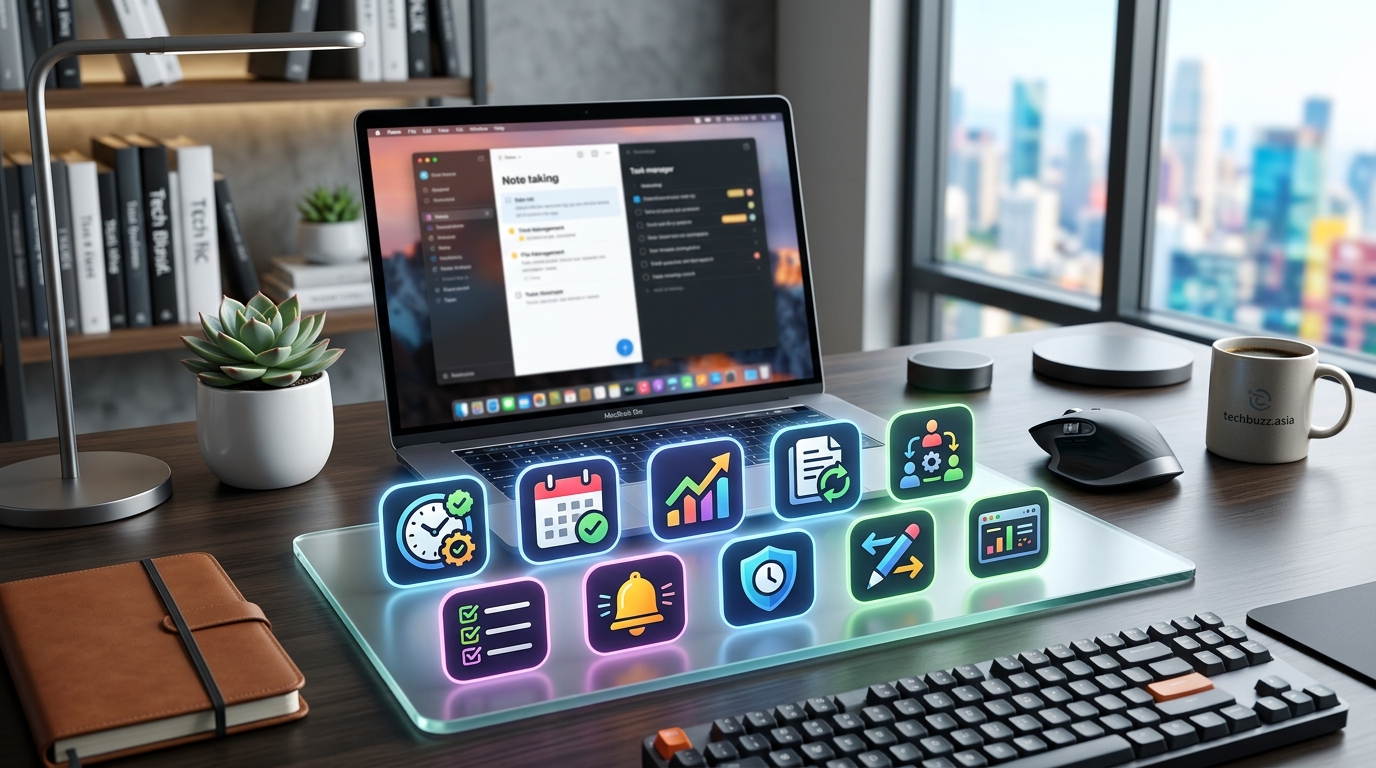
You’ve downloaded six productivity apps this month. Three are still sitting on your home screen, unopened since Tuesday. One sends you notifications you ignore. Another requires a tutorial longer than most movies.
Sound familiar?
The app store promises efficiency, but most tools add more friction than they remove. Between setup time, learning curves, and feature overload, many apps waste more hours than they save. That’s why we tested dozens of options to find the ones that actually deliver on their promises.
The best productivity apps share three traits: minimal setup, intuitive interfaces, and measurable time savings within the first week. This guide covers ten vetted options across task management, focus tools, and automation platforms, complete with setup instructions, common mistakes to avoid, and real-world performance data from professionals who depend on them daily.
Why most productivity apps fail you
The average person tries four new productivity apps per year. Only one makes it past the three-month mark.
The problem isn’t you. It’s the apps.
Most tools suffer from feature creep. Developers add complexity to justify premium tiers. Simple task lists become project management suites. Note-taking apps morph into databases. Before long, you need a productivity app just to manage your productivity apps.
The second issue is platform lock-in. You invest hours migrating data, then discover the mobile app lacks critical features. Or the desktop version requires a subscription while the web app stays free. Inconsistent experiences across devices kill momentum.
Third, many apps ignore the reality of how people work. They assume you’ll maintain perfect organizational systems. They expect daily reviews and weekly planning sessions. But real life involves interruptions, changing priorities, and days when you barely have time to check email.
The tools that actually work respect these constraints. They automate repetitive tasks. They sync seamlessly. They get out of your way when you need to focus and surface information exactly when you need it.
Task management that actually sticks
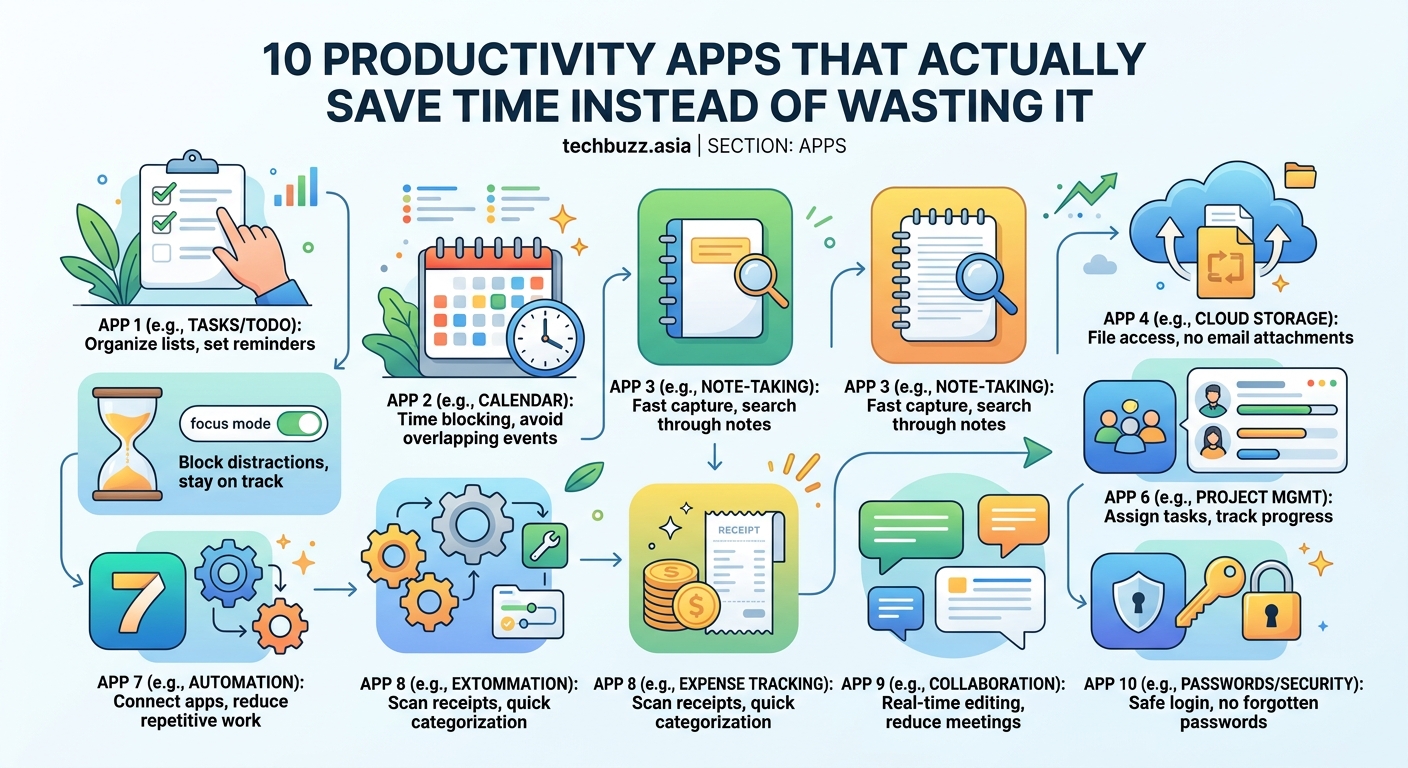
Todoist for structured thinkers
Todoist handles complexity without feeling complicated. Natural language input lets you type “meeting with Sarah tomorrow at 2pm” and it automatically sets the date and time.
The app shines in three areas. First, project hierarchies make sense. You can nest tasks three levels deep without losing track. Second, recurring tasks work reliably. Set something to repeat “every third Monday” and it just works. Third, filters and labels create custom views without requiring database knowledge.
Setup takes under ten minutes:
- Create three projects labeled Work, Personal, and Waiting On.
- Add five tasks to each project using natural language.
- Set up one recurring task (like weekly review or monthly bills).
- Install the browser extension and mobile app.
- Enable notifications for priority one tasks only.
The free tier handles most needs. Premium adds reminders, labels, and attachments. Business tier includes team features and admin controls.
One caveat: Todoist doesn’t include time blocking or calendar integration in the free version. If you need those features, check the premium tier or pair it with your existing calendar app.
TickTick for visual planners
TickTick combines task management with calendar views, pomodoro timers, and habit tracking. The interface feels cleaner than competitors while packing more features.
The calendar view stands out. Unlike most task apps that bolt on calendar features as an afterthought, TickTick treats time blocking as a core function. Drag tasks directly onto your schedule. Adjust durations with a simple resize. Color-code by project or priority.
The built-in pomodoro timer integrates with your task list. Click any task and start a focus session. The app tracks which tasks consume the most time, revealing where your day actually goes versus where you think it goes.
Habit tracking feels equally natural. Daily, weekly, or custom schedules. Streak counters for motivation. Completion charts that show patterns over months.
Free tier includes unlimited tasks, basic calendar view, and two reminders per task. Premium unlocks calendar integration, duration tracking, and 299 tasks in shared lists.
Focus tools that eliminate distractions
Freedom for blocking temptation
Freedom blocks distracting websites and apps across all your devices simultaneously. Unlike browser extensions that stop working the moment you switch browsers, Freedom operates at the system level.
Create custom block lists. Schedule recurring sessions. Start blocks manually when you need emergency focus. The nuclear option locks you out completely. The gentler approach shows a reminder but lets you proceed after a five-second delay.
The cross-device sync makes it effective. Block Instagram on your phone and it’s also blocked on your laptop and tablet. No loopholes. No switching devices to check “just one thing.”
Locked mode prevents you from disabling Freedom during an active session. Even restarting your device won’t end the block early. This sounds extreme until you realize how often you’ll try to bargain with yourself at 3pm when focus wavers.
Pricing runs $6.99 monthly or $39.99 annually. The investment pays for itself if it saves you from one afternoon of distracted browsing per month.
Forest for gamified concentration
Forest takes a different approach to focus. Plant a virtual tree. Stay focused and it grows. Leave the app and it dies. Your focus sessions create a forest over time.
The gamification works because it’s simple. No complex point systems. No confusing achievements. Just trees that live or die based on your attention.
The app partners with Trees for the Future. Spend virtual coins earned through focus sessions to plant real trees. Over 1.5 million real trees planted so far. Your productivity literally helps reforest the planet.
Social features add accountability without feeling invasive. Share forests with friends or coworkers. Compete on focus time. Celebrate each other’s streaks.
The app costs $1.99 one-time purchase. No subscriptions. No in-app purchases required (though you can buy additional tree species if you want variety).
Works best for focused work sessions of 25 to 90 minutes. Less effective for tasks requiring frequent context switching or reference checking.
Automation that works behind the scenes
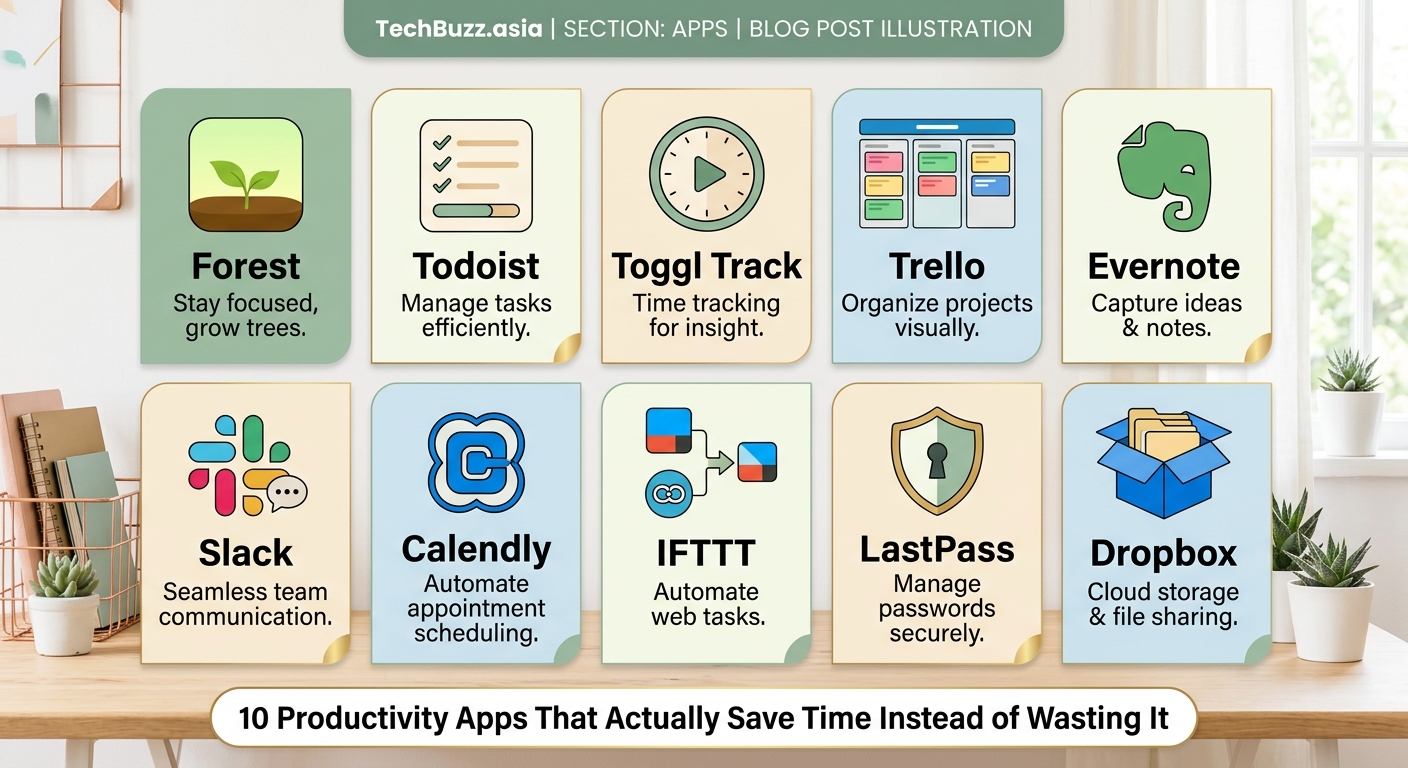
Zapier for connecting everything
Zapier connects over 5,000 apps without requiring coding knowledge. When something happens in one app, Zapier triggers an action in another app.
Common workflows that save hours weekly:
- Save Gmail attachments automatically to Dropbox
- Create Trello cards from starred emails
- Log work hours from calendar events into spreadsheets
- Post new blog articles to social media accounts
- Add newsletter subscribers to CRM systems
The free tier includes 100 tasks per month across five single-step workflows. Paid plans start at $19.99 monthly for 750 tasks and multi-step workflows.
Setup follows a simple pattern. Choose a trigger app and event. Choose an action app and what should happen. Test it once. Turn it on. Zapier handles the rest.
The learning curve exists but flattens after your first three workflows. The app includes templates for common automations. Browse by category. Click “Use this Zap.” Customize the details. Done.
Advanced users can add filters, formatters, and conditional logic. But most valuable automations require nothing beyond trigger and action.
IFTTT for smart home and mobile automation
IFTTT (If This Then That) specializes in mobile and smart home automation. While Zapier focuses on business apps, IFTTT connects consumer devices and services.
Useful automations include:
- Turn on lights when you arrive home
- Save Instagram photos you’re tagged in to cloud storage
- Get weather alerts before your commute
- Silence phone during calendar events
- Track work hours by location
The interface feels simpler than Zapier. Most applets (IFTTT’s term for automations) involve just two steps. The mobile app works particularly well for location-based triggers and phone-specific actions.
Free tier includes unlimited applets but limits you to two actions per trigger. Pro tier ($2.50 monthly) removes limits and adds faster execution, multiple actions, and conditional queries.
The service works great for personal automation. Less suited for complex business workflows or apps requiring detailed data mapping.
Note-taking that finds what you need
Obsidian for connected thinking
Obsidian stores notes as plain text markdown files on your device. No cloud lock-in. No proprietary formats. Your notes remain accessible even if the app disappears tomorrow.
The killer feature is bidirectional linking. Reference one note from another. Obsidian automatically shows all notes that link to the current note. Over time, your notes form a knowledge graph showing how ideas connect.
The graph view visualizes these connections. Clusters reveal topics you think about frequently. Isolated notes highlight orphaned ideas worth developing or deleting.
Templates speed up common note types. Meeting notes. Project plans. Daily journals. Create once. Reuse forever.
The base app is free. Sync costs $10 monthly if you want official cloud backup across devices. Publish costs $20 monthly for hosting notes as a website. But you can sync using Dropbox or iCloud for free if you’re comfortable with third-party solutions.
Obsidian rewards long-term use. The more notes you create, the more valuable the connections become. Expect a month before the system clicks. After that, it becomes indispensable.
Notion for structured databases
Notion combines notes, databases, wikis, and project management into one workspace. The flexibility lets you build exactly the system you need.
Databases are the secret weapon. Create a table of books you’ve read. Add properties for author, rating, genre, and completion date. View the same data as a calendar, gallery, or board. Filter by any property. Sort by multiple criteria. Group related items.
Templates provide starting points. Personal wiki. Team workspace. Content calendar. Class notes. Job search tracker. Modify any template to match your workflow.
The free tier includes unlimited pages and blocks. Personal Pro ($4 monthly) adds unlimited file uploads and version history. Team plans start at $8 per user monthly.
Learning curve is steeper than simpler note apps. Budget a weekend to build your initial workspace. The investment pays off through years of use.
Notion works best for people who enjoy building systems. If you want something that works immediately without customization, try Obsidian or even Apple Notes instead.
Communication that respects your time
Superhuman for email efficiency
Superhuman rebuilds email from scratch. Keyboard shortcuts for everything. Split inbox for important versus everything else. Scheduled sending. Read receipts. Undo send.
The app feels absurdly fast. Messages load instantly. Search returns results before you finish typing. Switching between emails takes milliseconds instead of seconds.
Keyboard shortcuts eliminate mouse usage. Archive with E. Reply with R. Forward with F. Schedule with Cmd+Shift+H. After a week, your hands move faster than your thoughts.
The split inbox surfaces important messages automatically. Everything else gets filed for later review. You process what matters first. Batch process the rest when you have time.
Cost is steep at $30 monthly. The target audience is people who receive 50+ emails daily and value every saved minute. If email isn’t a major time sink, stick with free alternatives.
Currently supports Gmail and Outlook. Works on Mac, Windows, iOS, and Android. Requires invitation to join (though waitlist moves fast now).
Slack for team coordination
Slack reduces email volume by moving conversations into channels. Create channels for projects, teams, topics, or anything else worth discussing.
Threads keep conversations organized. Reply to a specific message. The conversation branches off without cluttering the main channel. Everyone can follow along or ignore threads that don’t concern them.
Integrations connect your other tools. Get notifications when code deploys, when customers submit support tickets, when someone schedules a meeting. Everything flows into one place instead of fragmenting across email, texts, and app notifications.
The free tier includes 90 days of message history and ten integrations. Pro tier ($7.25 per user monthly) removes limits and adds advanced features like user groups and voice calls.
Slack works well for teams of 5 to 500. Smaller teams might find it overkill. Larger organizations often need enterprise features and dedicated support.
The app can become a distraction if not managed carefully. Set notification preferences aggressively. Mute channels during focus time. Use status indicators to show when you’re available versus heads-down working.
Comparing approaches to common productivity problems
| Problem | Traditional Solution | App-Based Solution | Time Saved Weekly |
|---|---|---|---|
| Forgetting tasks | Paper to-do list | Todoist with reminders | 2-3 hours |
| Email overload | Inbox zero method | Superhuman + filters | 5-7 hours |
| Distracted browsing | Willpower alone | Freedom blocking | 4-6 hours |
| Switching between apps | Manual copying | Zapier automation | 3-5 hours |
| Finding old notes | Folder organization | Obsidian linking | 1-2 hours |
| Meeting scheduling | Email back-and-forth | Calendly booking | 2-4 hours |
Setting up your productivity stack
Start with three apps maximum. More than that and you’ll spend time managing apps instead of getting work done.
Choose one from each category:
- Task management (Todoist or TickTick)
- Focus tool (Freedom or Forest)
- Automation (Zapier or IFTTT)
Spend one week with each app before adding another. Learn the keyboard shortcuts. Build your workflows. Let muscle memory develop.
After a month, evaluate what’s working. Double down on apps that save measurable time. Cut anything that adds friction.
Common mistakes to avoid:
- Migrating all your data immediately (start fresh instead)
- Enabling every notification (choose three max)
- Customizing extensively before using defaults (learn the system first)
- Paying for premium before testing free tier (most people never need paid features)
- Using apps exactly as designed (adapt to your workflow)
The best productivity system is the one you actually use. Perfect organization that requires daily maintenance beats imperfect simplicity that runs on autopilot.
Making apps work with your existing tools
Most people already use email, calendar, and cloud storage. The best productivity apps enhance these tools rather than replacing them.
Integration matters more than features. An app with 50 features but no calendar sync creates more work. An app with five features that connects to your existing calendar saves time immediately.
Check integration support before committing:
- Does it sync with Google Calendar or Outlook?
- Can it import from your current task manager?
- Does it export data in standard formats?
- Are there browser extensions for your preferred browser?
- Does the mobile app match desktop functionality?
Platform consistency prevents frustration. If you primarily work on Windows, verify the Windows app gets the same updates as the Mac version. If you live on your phone, make sure mobile isn’t an afterthought.
“The best productivity app is the one that disappears into your workflow. You shouldn’t think about the tool. You should think about the work.” — productivity researcher studying app adoption patterns
When to skip the app entirely
Sometimes the best productivity tool is no tool at all.
Paper notebooks work better for some people. The physical act of writing improves memory. No notifications interrupt your thoughts. No updates break your workflow. No subscriptions drain your wallet.
Simple text files beat elaborate apps for certain tasks. Keep a running list in a .txt file. No formatting. No features. Just words. Open it in any text editor on any device forever.
Built-in tools often suffice. Apple Notes syncs across devices and handles basic organization. Google Keep captures thoughts fast. Your phone’s built-in reminders work for simple recurring tasks.
The question isn’t “what’s the best app?” The question is “what’s the simplest solution that actually works?”
Add complexity only when simplicity fails. Start with paper or built-in tools. Upgrade when you hit clear limitations. Skip straight to advanced apps only if you’ve already outgrown the basics.
Measuring whether apps actually help
Track time saved, not features used. An app with 100 features that saves zero hours is worthless. An app with three features that saves five hours weekly is invaluable.
Measure before and after:
- How many emails sit unread in your inbox?
- How often do you miss deadlines?
- How many hours per week do you spend on focused work?
- How frequently do you forget important tasks?
- How much time goes to repetitive manual work?
Use these numbers as your baseline. Install an app. Wait two weeks. Measure again. If the numbers improve, keep the app. If nothing changes, delete it.
Beware vanity metrics. “I processed 500 tasks this month” means nothing if they were all trivial. “I completed three major projects ahead of schedule” indicates real improvement.
The goal isn’t productivity theater. The goal is getting important work done with less stress and wasted time.
Some apps deliver value that’s hard to measure. Forest doesn’t show up in time tracking. But if it helps you focus for two hours instead of checking your phone every ten minutes, it’s working.
Trust both data and gut feeling. If an app feels like it’s helping even when metrics stay flat, keep using it. If metrics improve but you hate using the app, find an alternative.
Building habits that outlast any app
Apps amplify good habits. They can’t create them from nothing.
If you don’t currently review your tasks, Todoist won’t magically make you start. If you constantly give in to distractions, Freedom will feel like a prison. If you never take notes, Obsidian’s linking features don’t matter.
Start with the habit. Use the simplest possible tool. Add sophisticated apps only after the habit solidifies.
For task management, begin with a paper list for one week. Write tasks each morning. Cross them off throughout the day. Review what you accomplished each evening.
After that week, if you’re consistently using the paper list, upgrade to an app. The app will enhance your existing habit rather than trying to create one from scratch.
The same pattern applies to focus sessions, note-taking, and email management. Prove you can do it manually first. Then let apps handle the tedious parts while you focus on the work itself.
Many people find they need fewer apps than expected once habits solidify. The app served as training wheels. The habit now runs on autopilot.
Why your productivity stack will keep changing
Your needs evolve. Apps that worked perfectly last year might not fit this year’s workflow.
Career changes often require different tools. Students need different apps than freelancers. Freelancers need different apps than team managers. Managers need different apps than executives.
Personal life shifts demand new solutions. Having kids changes your available focus time. Moving to a new city disrupts location-based automations. Starting a side project adds complexity to task management.
Apps themselves change. Updates add features you need or remove features you depend on. Pricing changes make affordable tools expensive. Companies get acquired and products get shut down.
Review your productivity stack quarterly. Ask three questions:
- Which apps did I actually use this month?
- Which tasks still feel harder than they should?
- What changed in my work or life that might need different tools?
Don’t be afraid to switch apps. The sunk cost of learning a tool doesn’t justify keeping it if something better exists. Export your data. Try the alternative for two weeks. Commit or rollback.
The productivity landscape changes constantly. New apps launch. Existing apps improve. What seemed impossible five years ago now comes standard. Stay curious about new tools while remaining skeptical of hype.
Getting started without getting overwhelmed
Pick one app from this guide. Just one.
Download it today. Spend 15 minutes setting it up. Use it for one week without adding anything else.
If it saves you time, keep it. If it doesn’t, try a different one next week.
Productivity isn’t about having the perfect system. It’s about making steady progress on work that matters while maintaining your sanity. Apps can help with that, but only if you use them intentionally rather than collecting them compulsively.
The best productivity apps fade into the background. They handle the tedious parts of staying organized so you can focus on creating, building, and solving problems. Start simple. Add complexity only when needed. Measure results honestly. Your future self will thank you for the time you saved and the stress you avoided.



Post Comment