How to Remove Bloatware from Your Android Phone Without Rooting
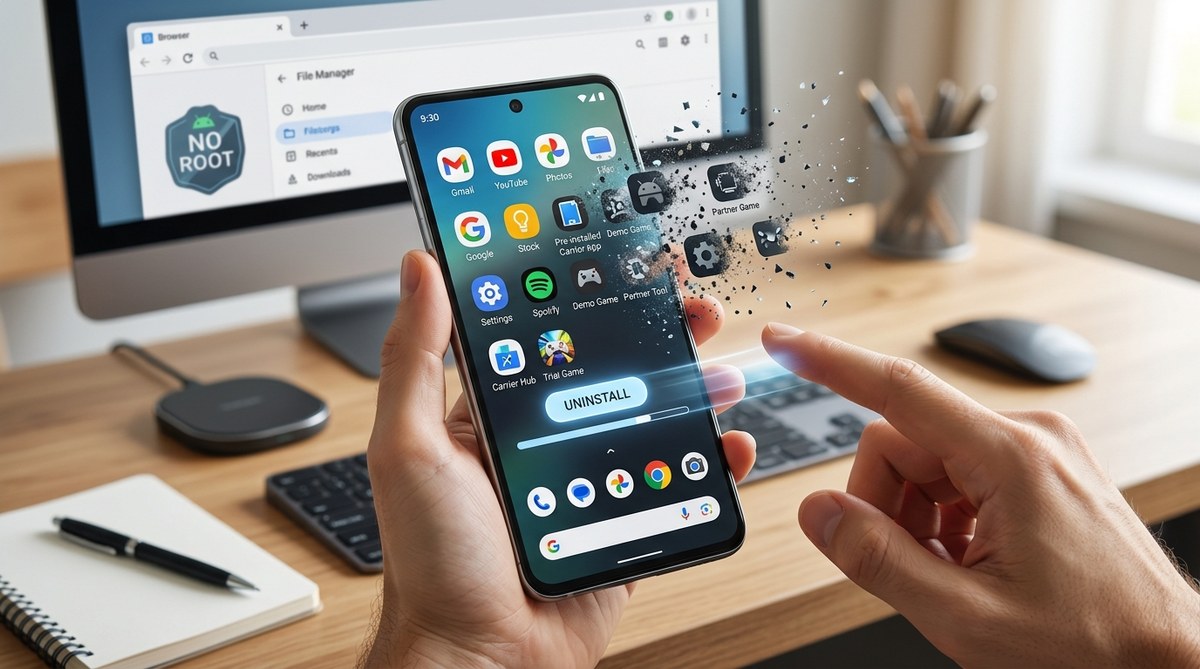
Your shiny new Android phone should feel like yours. Instead, it arrives with a half-dozen apps you never asked for, from a random game to a duplicate messaging app that sits there draining storage and battery. Manufacturers and carriers stuff these pre-installed programs onto devices to push their services or earn a little extra cash. The worst part? You can’t simply uninstall them through the normal Settings menu. The “disable” button is often grayed out or, worse, just hides the app without reclaiming space.
That frustration is real. But here’s the good news: you don’t need to root your phone to kick that bloatware to the curb. Rooting voids warranties, complicates security updates, and can brick your device if you mess up. In 2026, there are safe, warranty-friendly ways to remove bloatware without root that work on Samsung, Google Pixel, OnePlus, Xiaomi, and almost every Android phone running Android 11 or newer. This guide walks you through the best methods step by step.
You can remove most pre-installed apps from your Android phone without root by using Android Debug Bridge (ADB) commands from a computer, or by pairing Shizuku with a tool like Canta directly on your device. Both methods are safe, reversible, and keep your warranty intact. This article covers both approaches step by step, along with a list of commonly safe bloatware to remove.
Why You Shouldn’t Root Just to Remove Bloatware
Rooting used to be the only path to deleting system apps. But rooting has major downsides. It trips Knox on Samsung phones, breaks Google Pay and banking apps, and stops over-the-air updates from installing. For most people, the trade-off isn’t worth it.
The alternatives today are just as effective. Google’s ADB (Android Debug Bridge) tool lets your computer talk to your phone and execute removal commands. For even more convenience, apps like Shizuku and Canta give you a graphical interface to pick and choose bloatware right from your device, no PC needed after the initial setup.
Both methods use the same underlying permission: pm uninstall -k --user 0. This command removes an app for the current user profile without requiring root. Because the app stays in the system partition, you can always reinstall it later if needed. That’s a safety net you don’t get with root.
Method 1: Using ADB Commands (Works on Every Phone)
This is the most reliable way to remove bloatware without root. It works on any Android device, regardless of brand or Android version. You’ll need a computer (Windows, Mac, or Linux) and a USB cable.
Step 1: Enable Developer Options and USB Debugging
- Open Settings and go to About phone.
- Tap Build number seven times until you see “You are now a developer.”
- Go back to Settings and open Developer options.
- Toggle on USB debugging.
Step 2: Install ADB on Your Computer
- Windows: Download the platform-tools from Google’s developer site. Extract the ZIP, then open a command prompt in that folder.
- Mac: Use Homebrew (
brew install android-platform-tools) or download the platform-tools ZIP. - Linux:
sudo apt install adbor equivalent.
Step 3: Connect and Authorize
Plug your phone into the computer. Accept the RSA fingerprint prompt on your phone. Then run:
adb devices
Your device should appear as “unauthorized” first, then “device” after you accept. If not, check your USB cable and driver settings.
Step 4: Find the Package Names
You need to know the exact package name of the app you want to remove. Run this command to list all installed packages:
adb shell pm list packages
Scroll through the list, or filter by brand. For Samsung, use:
adb shell pm list packages | grep samsung
Common bloatware packages include:
* com.facebook.katana (Facebook)
* com.samsung.android.bixby.wakeup (Bixby Voice)
* com.google.android.apps.maps (Maps, if you prefer alternatives)
* com.microsoft.skydrive (OneDrive)
Step 5: Uninstall the App
The command format is:
adb shell pm uninstall -k --user 0 <package.name>
For example, to remove Facebook:
adb shell pm uninstall -k --user 0 com.facebook.katana
Each line removes one app. Repeat for each package you want gone.
Pro tip: Write down the package names before you remove anything. If you later decide you need an app back, you can reinstall it with
adb shell cmd package install-existing <package.name>. Most bloatware can be restored this way.
Method 2: Using Shizuku and Canta (No Computer After Setup)
If you prefer a graphical interface and don’t want to keep a cable plugged in, Shizuku plus Canta is the best solution. This combo lets you remove bloatware without root right from your phone.
Step 1: Install Shizuku and Canta
Step 2: Activate Shizuku
Shizuku can be activated via wireless debugging (Android 11+) or ADB. For the wireless method:
- Go to Developer options > Wireless debugging and enable it.
- Open Shizuku, tap “Pairing,” and enter the pairing code shown on your phone.
- After pairing, tap “Start.”
If your phone doesn’t support wireless debugging, use the ADB method from Method 1 with this command:
adb shell sh /storage/emulated/0/Android/data/moe.shizuku.privileged.api/files/start.sh
Step 3: Use Canta to Remove Apps
Open Canta. Grant Shizuku permission when prompted. You’ll see a list of every installed app, including system ones. Each app shows a “safe to remove” rating, based on community feedback. Tap an app, then tap the trash icon to uninstall it.
Canta also has a batch uninstall option and a search bar to find packages by name. It highlights dangerous packages in red, so you can avoid breaking core system functions.
Which Method Should You Choose?
| Method | Requires PC | Visual Interface | Best For |
|---|---|---|---|
| ADB commands | Yes (initial) | No (terminal) | Users comfortable with command lines, single session cleanup |
| Shizuku + Canta | Only for activation | Yes (graphical) | Users who want to manage apps regularly, prefer a GUI |
| Universal Android Debloater (GUI for PC) | Yes (PC) | Yes (graphical) | Users who want a simple PC tool with one-click removal |
What Bloatware Is Safe to Remove?
Not every pre-installed app is safe to delete. Removing system components like the phone dialer, settings, or the launcher can brick your device. Stick to the categories below:
- Carrier apps: My Verizon, T-Mobile TV, AT&T Navigator
- Manufacturer store apps: Samsung Shop, Xiaomi Store
- Duplicate apps: OneDrive if you use Google Drive, Facebook, LinkedIn
- Junk games and trialware: Candy Crush Saga, Booking.com, Uber pre-installed
- Voice assistants you don’t use: Bixby, Google Assistant (if you prefer another)
A good rule of thumb: if you’ve never opened it and it came pre-loaded, it’s probably safe to remove.
Mistakes to Avoid
- Don’t remove everything at once. Uninstall one or two apps, reboot, and test basic functions like calls, texts, and Wi-Fi. If something breaks, reinstall immediately.
- Don’t delete the Google Play Services or Android System WebView. These are critical for app compatibility and security.
- Don’t forget to back up your list. Before uninstalling, save the package names in a note on your phone or computer. You’ll thank yourself later.
- Don’t assume “disable” is enough. Disabling an app only hides it; it still occupies storage. Use the uninstall command to free up space.
Why Bother? The Real Benefits
Removing bloatware does more than free up a few gigabytes. It can improve your daily phone experience in surprising ways. For instance, if you own a Samsung phone, trimming Bixby and Facebook can noticeably extend your battery life. Fewer background services mean less CPU wake time and fewer network pings. Storage savings also make your phone feel snappier because the system has less junk to manage.
The same principle applies to hidden features that often get buried by bloatware. Once you clear out the clutter, your phone’s true capabilities can shine.
If you’re someone who likes to keep a lean, optimized device, you might also enjoy tweaking your launcher or diving into Android’s hidden accessibility settings. Removing bloatware is just the first step toward a phone that truly works for you.
Reclaiming Your Phone Is Simpler Than You Think
You don’t need to be a developer or take risks with root to get rid of unwanted apps. Whether you use ADB on a computer for a one-time cleanup or set up Shizuku and Canta for ongoing management, the process is safe, reversible, and effective. In just 15 minutes, you can remove bloatware without root and turn your phone into a device that feels truly yours.
Start small. Pick one app that annoys you the most, remove it using the steps above, and notice how your phone responds. Once you see the difference, you’ll wonder why you put up with that junk for so long.


Post Comment