Best Custom Android Launchers to Transform Your Home Screen in 2026
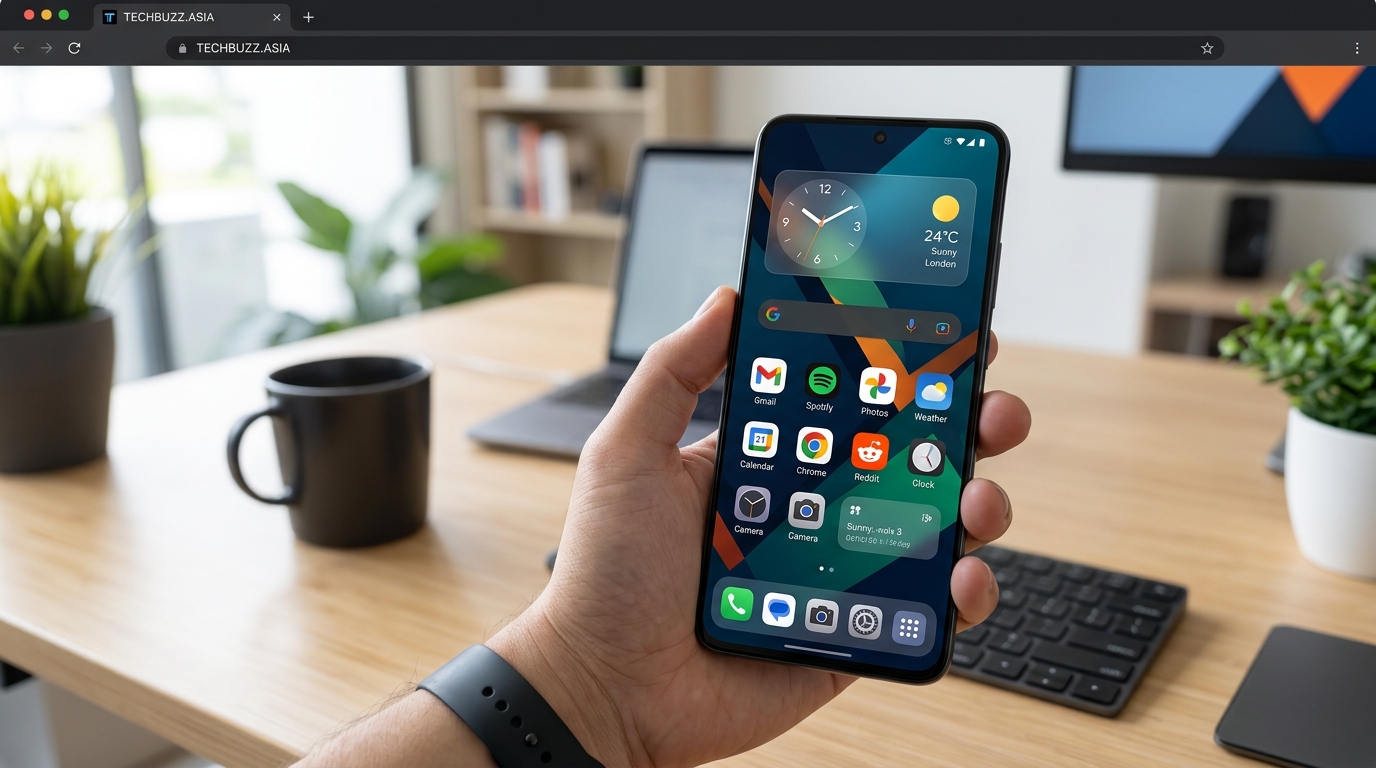
Your phone’s home screen is the first thing you see dozens of times each day. Yet most Android users stick with whatever their manufacturer decided looked good enough. That’s leaving a lot of potential on the table.
Custom launchers give you complete control over how your device looks and behaves. They can make your phone faster, more organized, and genuinely yours. The best android launchers in 2026 offer features that put stock interfaces to shame.
Android launchers replace your default home screen with customizable alternatives that offer better performance, unique gestures, and personalized layouts. The right launcher can transform how you interact with your device daily. This guide compares top options based on features, resource usage, and user experience to help you choose the perfect fit for your needs.
What Makes a Launcher Worth Installing
A launcher is essentially your phone’s entire user interface layer. It controls your home screen, app drawer, icons, widgets, and navigation gestures.
The stock launcher that came with your phone prioritizes the manufacturer’s brand identity. Custom launchers prioritize your preferences instead.
Performance matters just as much as looks. A poorly optimized launcher can drain your battery and slow down your device. The best options run lighter than stock alternatives while offering more features.
Here’s what separates great launchers from mediocre ones:
- Smooth animations that don’t stutter during normal use
- Low memory footprint that doesn’t impact other apps
- Gesture controls that actually save time
- Icon pack support for visual consistency
- Widget flexibility that goes beyond basic placement
- Regular updates that maintain compatibility with new Android versions
Nova Launcher Remains the Customization Champion
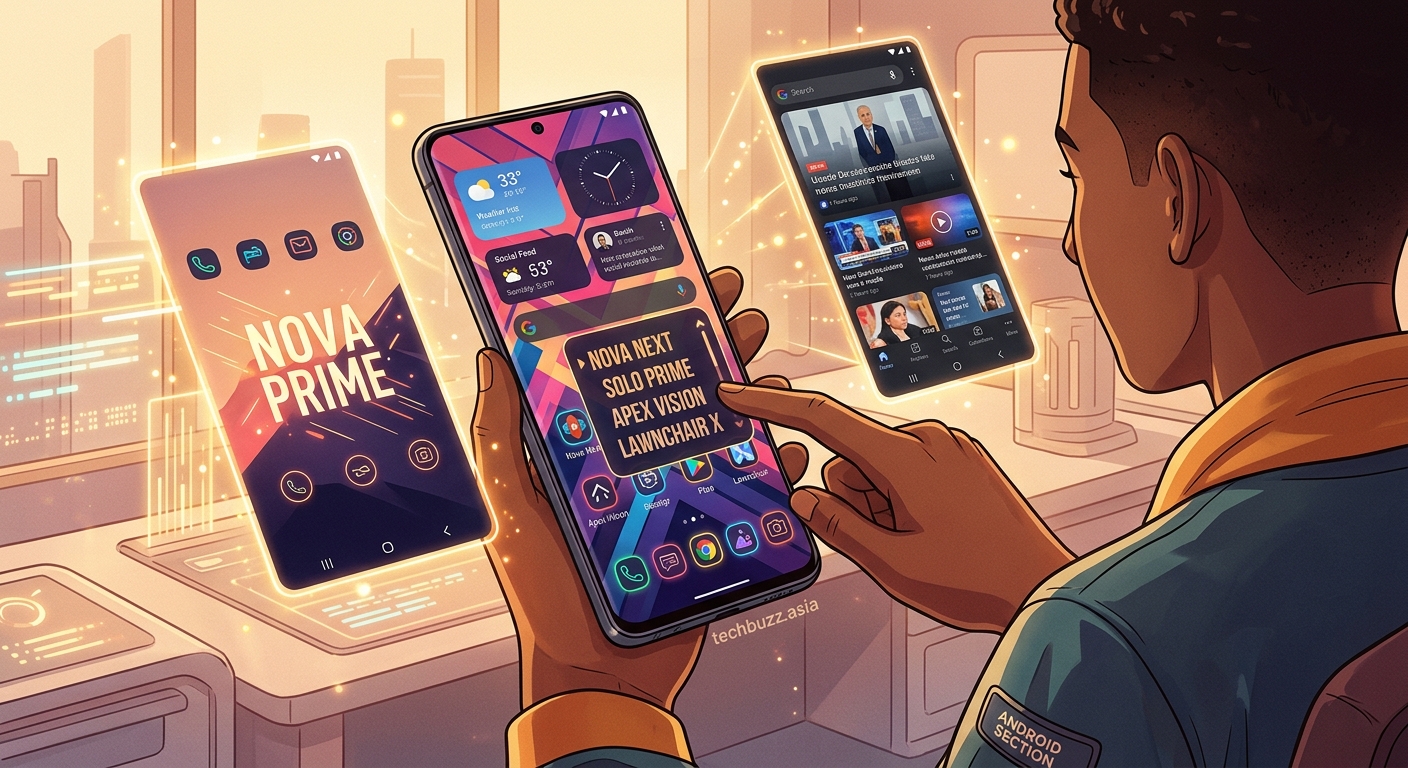
Nova Launcher has dominated the custom launcher scene for years. There’s good reason for that staying power.
It offers an absurd level of customization without feeling overwhelming. You can adjust grid sizes, icon scales, animation speeds, and gesture controls. The app drawer supports folders, tabs, and custom sorting rules.
Performance stays consistently smooth even on older devices. Nova uses less RAM than many stock launchers while providing more functionality.
The free version includes most essential features. Nova Prime unlocks gesture controls, unread count badges, and custom drawer groups. It’s a one-time purchase that costs less than a coffee.
“After testing dozens of launchers over the past decade, Nova consistently delivers the best balance between power and usability. It never gets in your way, but every feature you need is there when you want it.” – Android Central
Icon pack support is comprehensive. You can mix and match icons from different packs or set custom icons for individual apps. The adaptive icon system works with both circular and shaped masks.
Niagara Launcher Takes a Radically Different Approach
Most launchers try to improve on the traditional home screen grid. Niagara throws that concept out entirely.
It replaces your home screen with a single vertical list of favorite apps. Everything else lives in an alphabetical app list you access with a single swipe. There are no pages to flip through or folders to organize.
This minimalist approach actually makes your phone faster to use. You spend less time searching and more time doing. Muscle memory kicks in after just a few days.
Notifications appear as small dots next to app names. You can handle them without opening the notification shade. Calendar events and media controls integrate directly into the home screen.
The learning curve feels steep at first. Your brain expects a traditional grid layout. Give it three days and you’ll wonder why every launcher doesn’t work this way.
Battery impact is minimal. Niagara’s simple design means fewer animations and less background processing. Users report noticeable improvements in screen-on time compared to heavier launchers.
Lawnchair Brings Pixel Launcher Features to Any Device
Google’s Pixel launcher looks great but only runs on Pixel phones. Lawnchair recreates that experience for everyone else.
It mimics the Pixel interface almost perfectly. The Google search bar, At a Glance widget, and app drawer style all match Google’s design language. But unlike the Pixel launcher, Lawnchair lets you customize everything.
You can change icon shapes, adjust grid sizes, and modify the app drawer. It supports icon packs, custom fonts, and gesture controls. The Pixel look is just a starting point.
Performance matches stock launchers. Lawnchair doesn’t add bloat or unnecessary features. It focuses on doing the basics exceptionally well while staying lightweight.
The project is open source and completely free. There are no premium features locked behind paywalls. Updates come from community contributions rather than corporate priorities.
Smart Launcher Organizes Apps Automatically
Most launchers make you organize your apps manually. Smart Launcher does the work for you.
It automatically sorts apps into categories like social, games, productivity, and media. The home screen shows category flowers that expand when tapped. You never need to create folders or remember where you put things.
The adaptive interface learns your usage patterns. Frequently used apps appear in a favorites bar. Apps you only use at specific times show up in contextual suggestions.
Widgets integrate into category pages rather than cluttering your home screen. Your weather widget lives with weather apps. Music controls appear with media apps. Everything has a logical place.
The automatic organization works surprisingly well out of the box. You can manually adjust categories if the algorithm gets something wrong. Most users never need to.
Resource usage sits comfortably in the middle range. It’s not as light as minimalist launchers but far from bloated. The automatic features require some background processing but nothing excessive.
Action Launcher Emphasizes Speed and Efficiency
Action Launcher builds around the concept of getting things done faster. Every feature serves that goal.
Covers let you replace app icons with resizable widgets. Tap an icon to open the app. Swipe up to see the widget. You get widget functionality without sacrificing home screen space.
Shutters hide folders inside app icons. Swipe on an icon to reveal related apps. Your main messaging app might contain shutters for email, SMS, and chat apps. One icon does the work of an entire folder.
The Quicktheme feature automatically generates a color scheme from your wallpaper. Your entire interface matches your background without manual tweaking. Change your wallpaper and the theme updates instantly.
Performance optimization focuses on reducing friction. Animations are snappy but not flashy. Loading times disappear. Everything responds immediately to touch input.
The free version includes core features. Action Launcher Plus adds Quicktheme, icon pack support, and custom drawer settings. It’s reasonably priced for what you get.
Microsoft Launcher Integrates With Your Digital Life
Microsoft Launcher makes sense if you use Microsoft services. It connects your phone to your Windows PC and Microsoft 365 account.
Your timeline syncs across devices. Documents you opened on your PC appear in your phone’s feed. Continue reading where you left off without manual syncing.
The feed shows calendar events, to-do items, news, and recent documents. Everything lives one swipe away from your home screen. You don’t need to open multiple apps to see your day.
Customization options match other major launchers. You can adjust layouts, gestures, and themes. Icon pack support works with standard Android icon packs.
Performance is solid but not exceptional. The feed features require background syncing that uses more battery than minimal launchers. The trade-off makes sense if you actually use the Microsoft ecosystem.
Cross-device features only work with Windows PCs. Mac and Linux users won’t benefit from the integration. If you’re all-in on Microsoft services, this launcher saves genuine time every day.
How to Choose Your Perfect Launcher
Different launchers solve different problems. The right choice depends on what frustrates you about your current setup.
Pick Nova if you want maximum customization without complexity. It handles every use case well and never gets in your way.
Choose Niagara if you’re tired of cluttered home screens and want radical simplification. The learning curve pays off with genuine speed improvements.
Go with Lawnchair if you love the Pixel aesthetic but don’t own a Pixel phone. You get Google’s design with actual customization options.
Select Smart Launcher if organizing apps feels like a chore. Let the algorithm handle categorization while you focus on using your phone.
Try Action Launcher if you want clever features that actually save time. Covers and shutters reduce home screen clutter without sacrificing functionality.
Consider Microsoft Launcher only if you’re deep in the Microsoft ecosystem. The integration features justify the extra resource usage for those users.
Installing and Setting Up Your New Launcher
Getting started with a custom launcher takes just a few minutes. The process is straightforward and completely reversible.
- Download your chosen launcher from the Google Play Store.
- Open the launcher app and follow the initial setup wizard.
- Press your home button and select the new launcher when prompted.
- Choose “Always” to make it your default or “Just once” to test it first.
- Spend 10 minutes adjusting settings to match your preferences.
- Import your current home screen layout if the launcher offers that option.
Most launchers include setup wizards that walk you through basic configuration. You don’t need to understand every setting immediately.
Start with the default configuration and adjust as you find things that annoy you. Trying to perfect everything on day one leads to decision fatigue.
Give yourself at least a week before switching launchers. The first few days always feel awkward as you build new muscle memory. Real productivity gains appear after the adjustment period.
You can always switch back to your stock launcher through Settings > Apps > Default apps > Home app. Nothing is permanent. Your phone’s original launcher never actually disappears.
Common Launcher Mistakes and How to Avoid Them
| Mistake | Why It Hurts | Better Approach |
|---|---|---|
| Installing too many widgets | Drains battery and slows performance | Stick to 2-3 essential widgets maximum |
| Using live wallpapers | Constant animation wastes resources | Choose static wallpapers for better battery life |
| Enabling every gesture | Creates confusion and accidental triggers | Start with 2-3 gestures you’ll actually remember |
| Maxing out icon density | Makes everything harder to tap accurately | Use default grid sizes or slightly larger |
| Ignoring backup features | Lose all customization when changing phones | Back up your layout monthly |
| Switching launchers too often | Never build efficient muscle memory | Commit to one launcher for at least a month |
The biggest mistake is over-customizing immediately. You end up with a cluttered mess that’s worse than stock. Start simple and add features only when you identify specific needs.
Performance Optimization Tips
Even the best launcher can slow down if you’re not careful. A few simple adjustments keep everything running smoothly.
Disable animation scales in your launcher settings. Faster animations feel snappier even if actual load times don’t change. Most launchers default to medium speed. Try setting them to 0.5x or even turning them off completely.
Limit home screen pages to three or fewer. Every additional page increases memory usage. Most people only use their first page anyway. 7 hidden android features that will change how you use your phone can help you reduce reliance on multiple pages.
Clear your app drawer cache monthly. Over time, launcher databases accumulate orphaned entries from uninstalled apps. This bloat slows down searches and scrolling.
Avoid icon packs with animated icons. They look cool but drain battery constantly. Static icons with good design work just as well without the performance hit.
Turn off gesture animations if you prioritize speed over visual polish. Instant responses feel better than smooth transitions once you’re used to them.
When Your Launcher Might Be Causing Problems
Sometimes launcher issues masquerade as general phone problems. Knowing the signs helps you troubleshoot effectively.
Frequent app crashes often point to launcher conflicts rather than the apps themselves. Try switching to your stock launcher temporarily. If crashes stop, your custom launcher is the culprit.
Excessive battery drain from “Android System” usually means your launcher is working too hard. Check if reducing widgets or simplifying your setup helps.
Keyboard lag specifically on the home screen suggests launcher performance issues. The keyboard itself works fine everywhere else.
Random reboots can result from memory pressure caused by heavy launchers. Older devices with limited RAM struggle more with feature-rich options.
If you notice these issues, try a lighter launcher before assuming your phone is dying. Why your smartphone battery degrades faster than it should covers other potential causes worth checking.
Icon Packs Transform Visual Consistency
Stock Android apps follow Material Design guidelines. Third-party apps do whatever they want. The result is visual chaos on your home screen.
Icon packs solve this by replacing every icon with consistently designed alternatives. Your home screen suddenly looks like it was designed by a single team.
Popular icon pack styles include:
- Minimalist line art for clean, modern aesthetics
- Neumorphic designs with subtle shadows and highlights
- Retro pixel art for nostalgic vibes
- Gradient-heavy modern looks
- Hand-drawn artistic styles
Most quality icon packs include 5,000+ icons. They cover virtually every popular app. Many also include automatic generation for apps they don’t explicitly support.
Installing an icon pack is simple. Download it from the Play Store, then select it in your launcher’s icon settings. The change applies instantly to your entire home screen and app drawer.
Mix and match isn’t usually possible within launcher settings. But you can manually set individual app icons if you want to combine elements from different packs. It’s tedious but gives you complete control.
Free icon packs exist but usually include fewer icons. Premium packs cost a few dollars and receive regular updates as new apps launch.
Gesture Controls That Actually Save Time
Every launcher touts gesture controls. Most people never use them because the defaults don’t match natural movements.
The key is mapping gestures to actions you perform constantly. Swiping up to open your app drawer makes sense because you do it dozens of times daily. Swiping down for notifications feels natural because that’s how the notification shade works system-wide.
Effective gesture mappings:
- Double tap to lock screen (saves wear on power button)
- Swipe up on dock icons to open related apps (messaging app opens contacts)
- Pinch in to show all home screens at once (faster navigation)
- Swipe down on home screen for search (faster than opening app drawer)
- Two-finger swipe for recent apps (more reliable than button navigation)
Avoid complex multi-finger gestures. They’re hard to remember and often trigger accidentally. Stick to simple, single-finger movements that feel intuitive.
Practice new gestures deliberately for three days. Use them even when the old method would be faster. After that adjustment period, muscle memory takes over and speed improvements become real.
Widgets Worth Using
Widgets can make your home screen more functional or turn it into a cluttered mess. The difference comes down to choosing widgets that actually save time.
Calendar widgets let you see upcoming events without opening an app. But only if you keep them small. Full-screen calendar widgets waste space showing information you don’t need at a glance.
Weather widgets make sense if you check weather multiple times daily. If you only care about rain forecasts, a simple icon with temperature is enough.
Music control widgets are useful if you frequently switch between streaming services. But if you only use one app, its notification controls work just as well.
Task list widgets help if you actually maintain task lists. Most people create tasks and never look at them again. In that case, the widget just takes up space.
News widgets rarely work well. Headlines without context aren’t useful. You end up opening the app anyway. Just skip the widget and open the app when you want news.
Battery widgets are pointless on modern Android. The system battery indicator shows everything you need. Third-party widgets just drain more battery to tell you about battery usage.
Backup and Migration Strategies
You spent hours perfecting your home screen layout. Don’t lose it when you switch phones or factory reset.
Most premium launchers include cloud backup. Enable it and your layout syncs automatically. Nova, Action Launcher, and Smart Launcher all offer this feature.
For launchers without cloud backup, use the local backup option. Save the backup file to cloud storage manually. It’s an extra step but prevents data loss.
Backup your icon pack separately. Launchers backup layout but not the icon pack itself. Note which pack you’re using so you can reinstall it on your new device.
Take screenshots of your home screens before major changes. Visual references help you recreate layouts if backups fail. Store them in a dedicated folder so they’re easy to find.
Test your backup before you need it. Restore to a second device or after a minor reset. Discovering backup issues during an emergency is too late.
Your Home Screen Should Work for You
The default launcher your phone shipped with was designed for millions of users. It’s optimized for nobody specifically.
Custom launchers let you build an interface that matches how you actually use your device. That might mean radical simplification with Niagara or deep customization with Nova. Both approaches are valid if they solve your specific frustrations.
Start with one launcher and give it a fair shot. A week of daily use reveals whether it actually improves your workflow or just looks different. The best android launchers disappear into the background while making everything feel faster and more intuitive.
Your home screen is the gateway to everything your phone does. Making it work exactly how you want pays dividends every single day.

Post Comment