Everything New in iOS 18: Features You Need to Know About
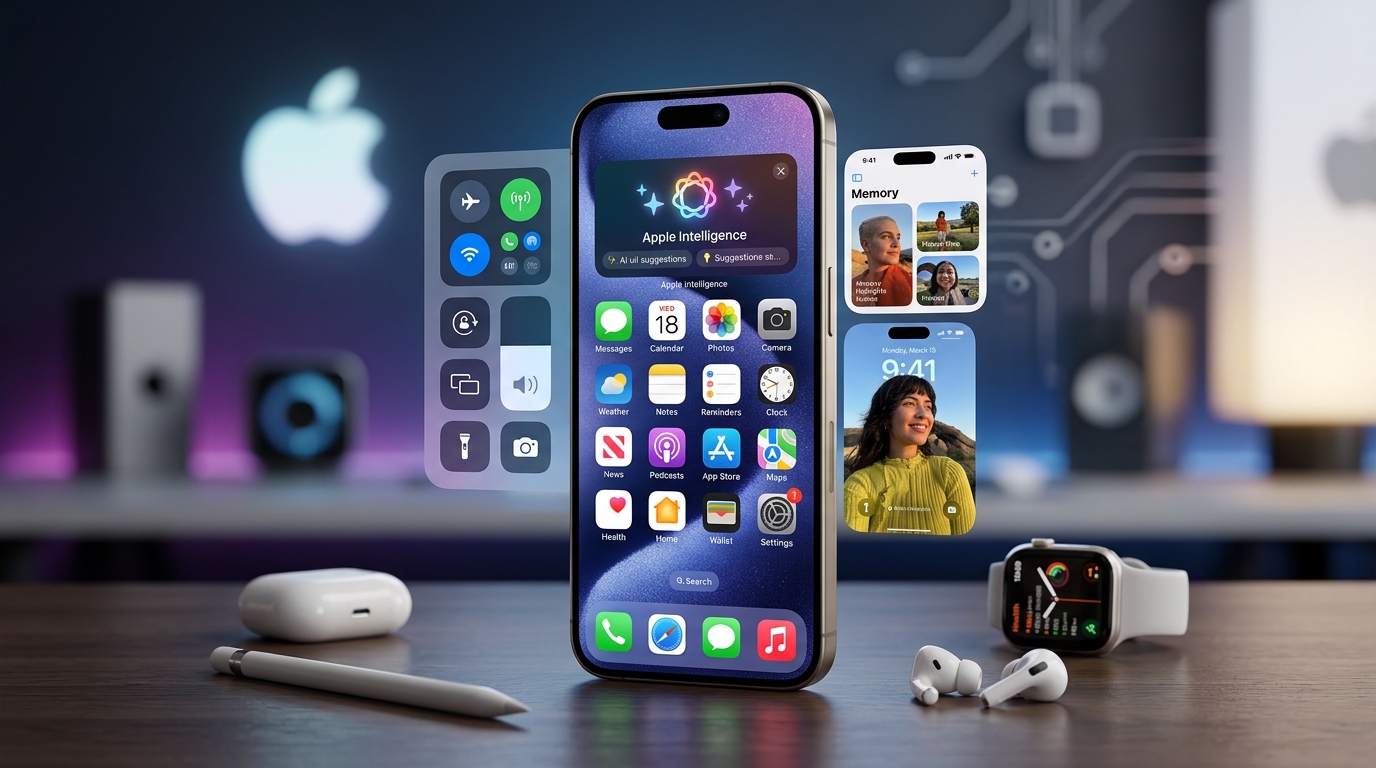
Apple just dropped iOS 18, and your iPhone can do things it never could before. The update brings customization options Android users have enjoyed for years, plus messaging improvements that finally let you text your non-iPhone friends without those green bubbles causing problems.
iOS 18 introduces home screen customization with app icon placement anywhere, dark and tinted themes, redesigned Control Center with multiple pages, RCS messaging support for better Android communication, smarter Photos app organization, new Passwords app, and enhanced privacy controls. Most features work on iPhone XS and newer models, though some require iPhone 15 Pro or later.
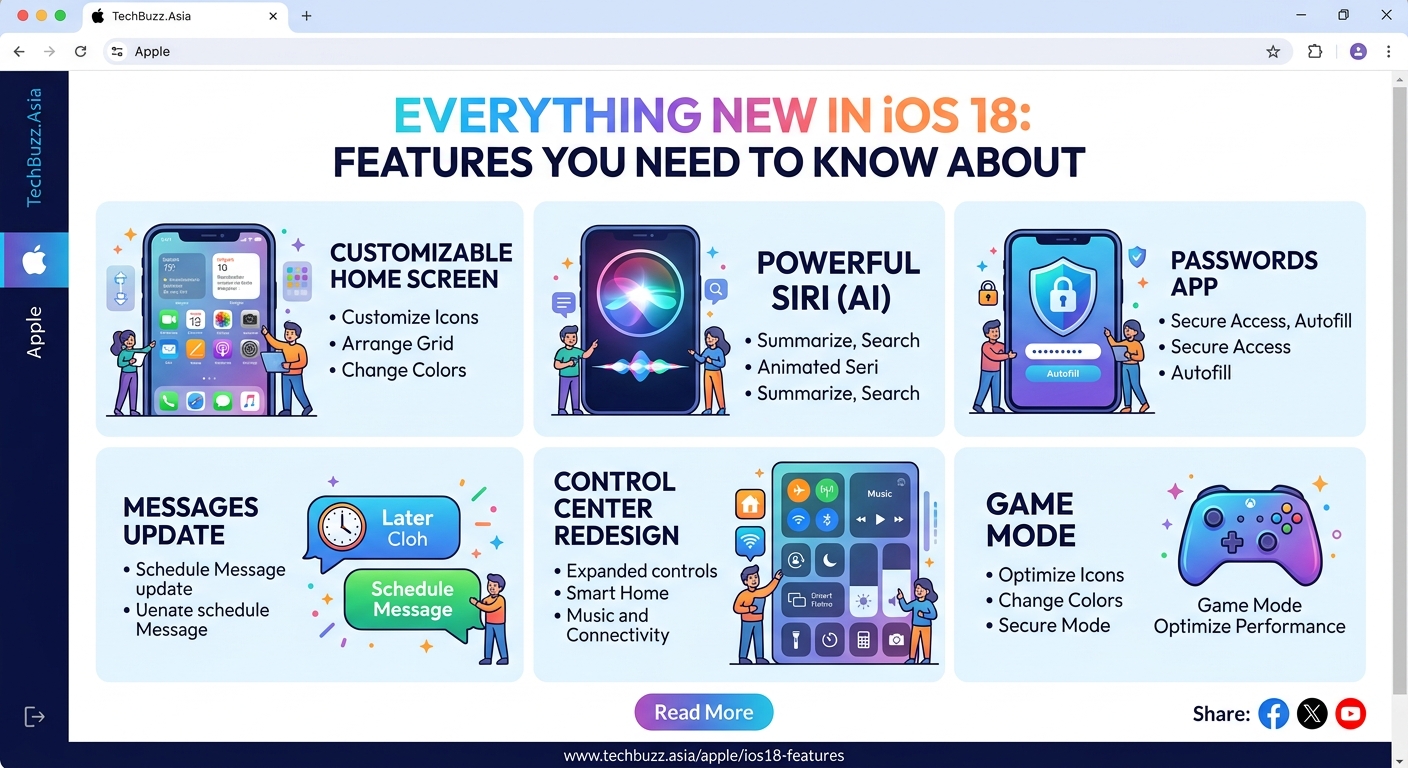
Customize your home screen like never before
For the first time, you can place app icons anywhere on your home screen. No more forced grid alignment. Want your most-used apps at the bottom for easy thumb access? Done. Prefer a clean look with icons framing your wallpaper? Go for it.
The new customization goes beyond placement. You can now apply dark mode to all your app icons, creating a cohesive nighttime aesthetic. Or choose a tinted look that pulls colors from your wallpaper and applies them across every icon.
Here’s how to set it up:
- Long press on your home screen until apps start jiggling
- Tap “Edit” in the upper left corner
- Select “Customize” from the menu
- Choose between Light, Dark, or Tinted appearance
- Drag apps to any position you want
The widget system got smarter too. Widgets now sit alongside apps without forcing everything into rigid rows. You can finally build a home screen that looks the way you actually want it to.
Control Center gets a complete overhaul
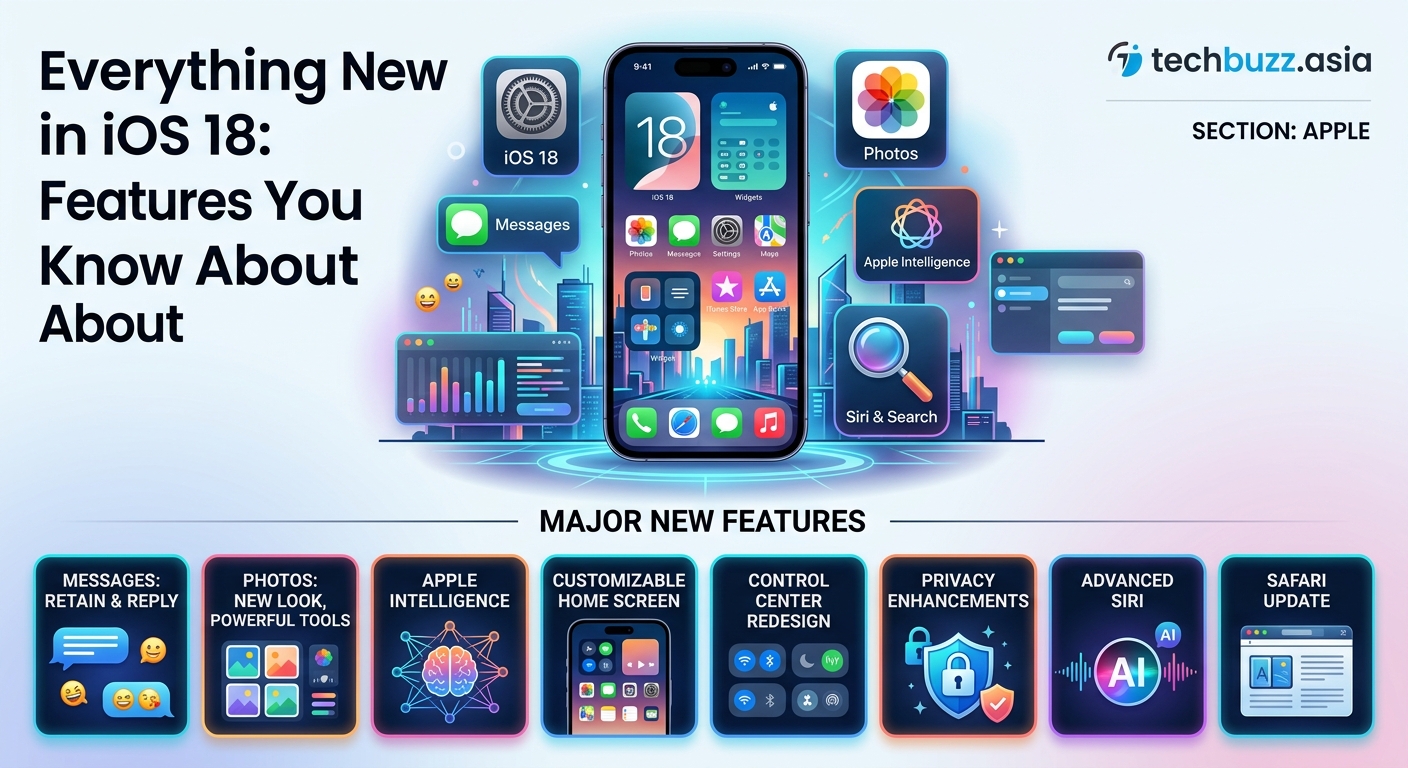
The Control Center now spans multiple pages instead of cramming everything into one scrollable panel. Swipe left to access different control groups. Music controls live on one page. Smart home devices on another. Your most-used toggles on the main screen.
You can add, remove, and resize controls. Third-party apps can now place their own controls here too. Your favorite camera app can add a shortcut. Your smart home system can create custom toggles.
Popular Control Center customizations:
- Move flashlight and camera buttons to different positions
- Add calculator and voice memo shortcuts to the main page
- Create a dedicated page for all smart home controls
- Resize music controls to take up more space
- Add third-party app shortcuts for faster access
The lock screen got similar treatment. You can replace the flashlight and camera buttons with different actions. Set one to open your most-used app. Make the other launch a specific shortcut.
RCS messaging finally arrives
Green bubble messages just got better. iOS 18 supports RCS (Rich Communication Services), the modern messaging standard that Android phones have used for years.
This means texting Android users now includes:
- Read receipts that actually work
- Typing indicators
- Higher quality photos and videos
- Better group chat functionality
- Messages sent over Wi-Fi when cellular is weak
Your Messages app still shows conversations with Android users in green bubbles. But those chats now work more like iMessage. You can see when someone’s typing. Photos don’t arrive compressed into pixelated messes. Group chats don’t fall apart when someone with an Android phone joins.
One catch: your carrier needs to support RCS. Most major carriers already do, but check your settings under Messages > RCS Messaging to confirm it’s enabled.
Photos app learns new organizational tricks
The Photos app got its biggest redesign since iOS launched. The new layout groups your photos into automatically generated collections based on people, places, and themes.
Collections you’ll find:
- Recent Days (photos from the past week organized by day)
- People & Pets (faces the app recognizes)
- Trips (photos grouped by location and date)
- Featured Photos (images the app thinks are your best)
You can pin collections you use often to the top. Hide ones you never check. The app learns from what you interact with and adjusts what it shows.
The search function got smarter too. Type “beach sunset 2024” and it finds those specific photos. Search for “mom wearing red” and it pulls up matching images. Natural language search actually works now, similar to how smartphone battery management has become more intelligent over time.
Passwords get their own dedicated app
Apple pulled password management out of Settings and gave it a standalone app. The new Passwords app works across iPhone, iPad, and Mac.
| Feature | Old Location | New Experience |
|---|---|---|
| Saved passwords | Settings > Passwords | Dedicated Passwords app |
| Password sharing | Limited functionality | Share with family or groups |
| Security alerts | Buried in settings | Front and center notifications |
| Passkey management | Hard to find | Organized alongside passwords |
The app flags weak passwords, alerts you to data breaches, and suggests strong replacements. You can share passwords with family members or trusted contacts without texting them in plain text.
Passkeys, the password replacement technology that uses biometric authentication, get better organization here too. You can see all your passkeys in one place and manage which sites use them.
Privacy controls get more granular
iOS 18 adds new ways to control what apps can access. You can now lock individual apps behind Face ID or Touch ID. Someone borrowing your phone to make a call can’t accidentally open your banking app or read your messages.
Locked apps don’t show notifications on your lock screen. They don’t appear in search results. They’re essentially invisible unless you unlock them first.
The new app locking feature gives you control over privacy without creating separate user profiles. You decide which apps need extra protection, and iOS enforces it consistently.
Contact sharing got smarter too. When an app requests access to your contacts, you can now share only specific contacts instead of your entire address book. Finally.
Messages app adds text effects and scheduling
You can now schedule messages to send later. Write a birthday text at midnight. Set it to send at 9 AM. The message sits in your outbox until the scheduled time.
Text formatting arrived too. Make text bold, italic, or ~~strikethrough~~ right in Messages. Add underlines. These effects work in any conversation, not just iMessage.
New text effects let you make words bigger for emphasis or add animated effects that play when someone opens your message. Think of them like emoji reactions but for entire words.
Safari gets smarter about distractions
Reader mode now works automatically on supported sites. Safari detects article pages and can switch to clean, ad-free reading view without you tapping anything.
The new Highlights feature pulls key information from web pages. Looking at a restaurant website? Safari shows you the address, hours, and menu right at the top. Reading an article about an event? It displays the date and location prominently.
Tab groups got more powerful. You can now share tab groups with other people. Perfect for planning trips, coordinating projects, or sharing research with classmates.
New ways to use your iPhone hands-free
Eye tracking lets you control your iPhone by looking at different parts of the screen. This accessibility feature uses the front camera to detect where you’re looking and moves the cursor accordingly.
Music Haptics adds vibrations that match the rhythm of songs. If you’re deaf or hard of hearing, you can now feel the beat through your phone. Works with Apple Music and other supported apps.
Vocal Shortcuts let you create custom voice commands that trigger specific actions. Say a word or phrase you choose, and your iPhone performs a task. Different from Siri because you pick the exact phrase and it works offline.
Game Mode reduces background activity
Turn on Game Mode and iOS prioritizes your game above everything else. Background downloads pause. Notifications stop appearing. AirPods get lower latency audio.
Your iPhone dedicates more processing power to the game. Frame rates stay more consistent. Controller response time improves. The difference is subtle on most games but noticeable during intense multiplayer matches.
Game Mode activates automatically when it detects you’re playing a game, or you can toggle it manually from Control Center. Just like optimizing device performance matters for longevity, Game Mode ensures your iPhone performs when it counts.
Mail app finally gets organized
The Mail app now automatically sorts your inbox into categories. Primary for important messages. Transactions for receipts and confirmations. Updates for newsletters. Promotions for marketing emails.
You can turn off automatic sorting if you prefer the traditional inbox. But the categorization works well enough that most people will appreciate the cleaner organization.
Email summaries appear at the top of long messages. Instead of scrolling through a lengthy email, you get a brief overview of the key points. Tap to read the full message if you need details.
Maps adds topographic trails and offline access
Apple Maps now shows topographic details for hiking trails. You can see elevation changes, trail difficulty, and points of interest along the route. Download maps for offline use before heading into areas without cell service.
Custom route creation lets you plan specific paths instead of just picking a destination. Add waypoints. Avoid highways. Choose scenic routes. Save your custom routes to use again later.
Trail information includes user-submitted photos, reviews, and condition reports. Similar to how hikers share information on dedicated trail apps, but built right into Maps.
Journal app learns from your routine
The Journal app, introduced in iOS 17, got smarter in iOS 18. It now suggests prompts based on your activities, location, and photos. Went to a concert? Journal suggests writing about it and includes relevant photos automatically.
Mood tracking lets you log how you’re feeling throughout the day. The app looks for patterns over time and can show you what activities or situations correlate with different moods.
You can lock your journal with Face ID. Entries stay private and encrypted. Nobody can access them without your biometric authentication, even if they have your device passcode.
What you need to run iOS 18
Most features work on these models:
- iPhone 15 series (all models)
- iPhone 14 series (all models)
- iPhone 13 series (all models)
- iPhone 12 series (all models)
- iPhone 11 series (all models)
- iPhone XS and XS Max
- iPhone XR
- iPhone SE (2nd generation and later)
Some advanced features require iPhone 15 Pro or Pro Max. Apple Intelligence features, coming in later updates, need the A17 Pro chip found only in iPhone 15 Pro models.
Battery life takes a temporary hit right after updating. Your iPhone needs to reindex photos, rebuild search databases, and optimize apps for the new system. Give it a day or two. Battery performance returns to normal once background processes finish, though understanding battery health helps maintain long-term performance.
Making iOS 18 work for you
The update gives you more control over how your iPhone looks and works than any previous version. Start with home screen customization. Move your most-used apps to comfortable positions. Try the dark icon theme if you use your phone at night.
Set up app locking for anything sensitive. Bank apps, health apps, private messages. The extra security step takes seconds but prevents awkward situations when someone borrows your phone.
Turn on RCS messaging if you text Android users regularly. The improvement in photo quality alone makes it worthwhile. Your group chats with mixed iPhone and Android users will actually function properly now.
Take ten minutes to organize your Photos app. Pin the collections you check often. Hide the ones you don’t. The app gets better at showing you relevant photos as you use it. Give it feedback by interacting with collections you like and hiding ones you don’t.
iOS 18 isn’t a revolutionary update. But it fixes annoyances that have frustrated iPhone users for years. Your phone now works more like you want it to, not just how Apple thought it should.

Post Comment