How to Completely Disable Telemetry and Protect Your Privacy in Windows
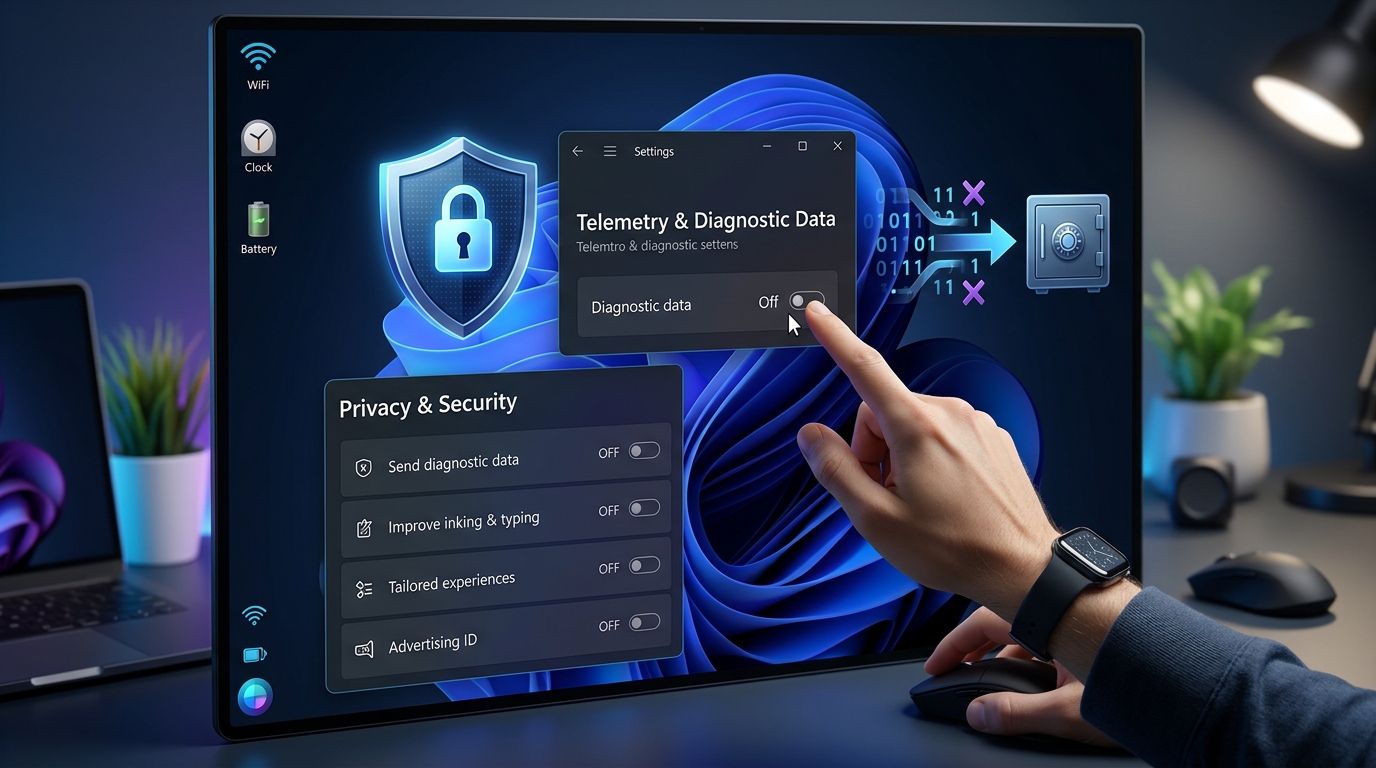
Windows collects more data about your computing habits than most users realize. Every search query, app launch, and system error gets bundled into telemetry reports and sent back to Microsoft’s servers. While the company claims this data improves product quality and security, many privacy-conscious users want complete control over what leaves their machine.
Windows telemetry can be significantly reduced through Group Policy Editor, Registry modifications, and specialized tools. While Windows 10 Home limits some options, Pro and Enterprise editions offer comprehensive control. Complete elimination requires multiple techniques applied together, including service disabling, scheduled task removal, and firewall rules. Third-party tools like O&O ShutUp10++ automate many steps but require careful configuration to avoid breaking system functionality.
Understanding what Windows telemetry actually collects
Microsoft categorizes telemetry into three levels: Basic, Enhanced, and Full. The Basic level gathers hardware specs, quality metrics, and compatibility data. Enhanced adds detailed crash dumps, performance statistics, and usage patterns. Full includes everything plus additional diagnostic data that varies by feature.
Windows 10 Home users cannot disable telemetry completely through built-in settings. The lowest option available sends Basic telemetry. Windows 10 Pro, Enterprise, and Education editions can set telemetry to Security level, which Microsoft claims only sends critical security data.
The actual data transmitted includes:
- Device configuration and hardware specifications
- Application usage frequency and duration
- Error reports and crash dumps
- Browsing history from Microsoft Edge
- Voice data from Cortana interactions
- Inking and typing patterns
- Location data when services request it
Some of this collection happens even when you disable individual privacy settings. The Connected User Experiences and Telemetry service runs continuously in the background, bundling data for transmission.
Disabling telemetry through Group Policy Editor
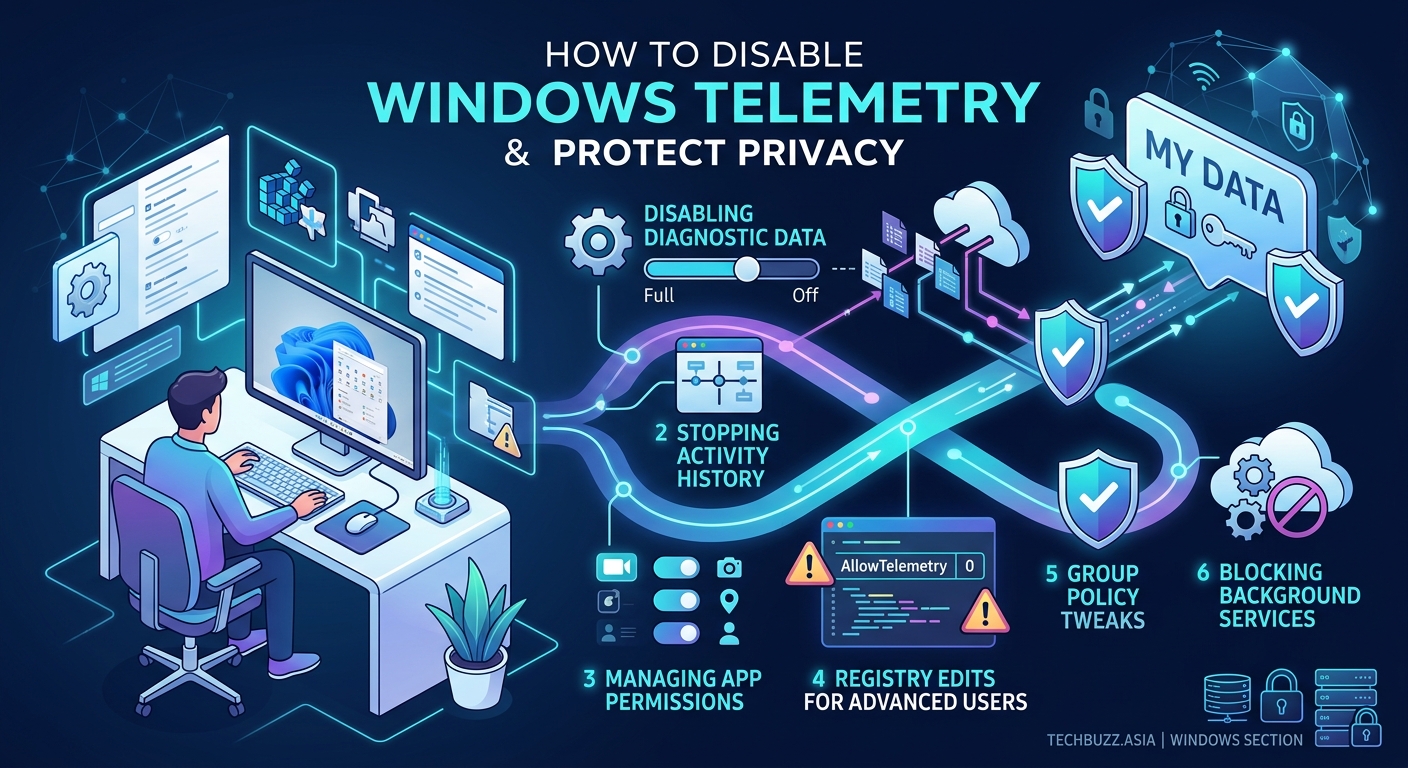
Group Policy Editor provides the most reliable method to disable Windows telemetry on Pro and Enterprise editions. This approach modifies system-level policies that override user settings.
- Press Windows + R, type
gpedit.msc, and press Enter to open Group Policy Editor. - Navigate to Computer Configuration > Administrative Templates > Windows Components > Data Collection and Preview Builds.
- Double-click “Allow Diagnostic Data” (or “Allow Telemetry” in older Windows versions).
- Select “Enabled” and set the dropdown to “0 – Security [Enterprise Only]” or “1 – Basic” depending on your edition.
- Click Apply, then OK.
Additional policies worth configuring:
- Disable pre-release features or settings: Set to Enabled to prevent experimental feature telemetry
- Do not show feedback notifications: Prevents Windows from asking for user feedback
- Toggle user control over Insider builds: Set to Disabled to block preview build telemetry
After applying these policies, restart your computer for changes to take effect. Group Policy settings override Registry changes, making this the most persistent method.
For users who want to speed up their Windows 11 PC alongside improving privacy, combining telemetry reduction with performance optimization creates noticeable improvements.
Registry modifications for Home edition users
Windows 10 Home lacks Group Policy Editor, but Registry modifications achieve similar results. This method requires administrator access and careful attention to detail.
- Press Windows + R, type
regedit, and press Enter. - Navigate to
HKEY_LOCAL_MACHINE\SOFTWARE\Policies\Microsoft\Windows\DataCollection. - Right-click DataCollection, select New > DWORD (32-bit) Value, and name it
AllowTelemetry. - Double-click AllowTelemetry and set the value to
0. - Create another DWORD named
MaxTelemetryAllowedand set it to0.
Additional Registry locations to modify:
Disable Customer Experience Improvement Program:
– Path: HKEY_LOCAL_MACHINE\SOFTWARE\Microsoft\SQMClient\Windows
– DWORD: CEIPEnable
– Value: 0
Disable Application Telemetry:
– Path: HKEY_LOCAL_MACHINE\SOFTWARE\Policies\Microsoft\Windows\AppCompat
– DWORD: AITEnable
– Value: 0
Disable Steps Recorder:
– Path: HKEY_LOCAL_MACHINE\SOFTWARE\Policies\Microsoft\Windows\AppCompat
– DWORD: DisableUAR
– Value: 1
Always create a system restore point before modifying the Registry. Incorrect changes can cause system instability or prevent Windows from booting properly.
Stopping telemetry services and scheduled tasks
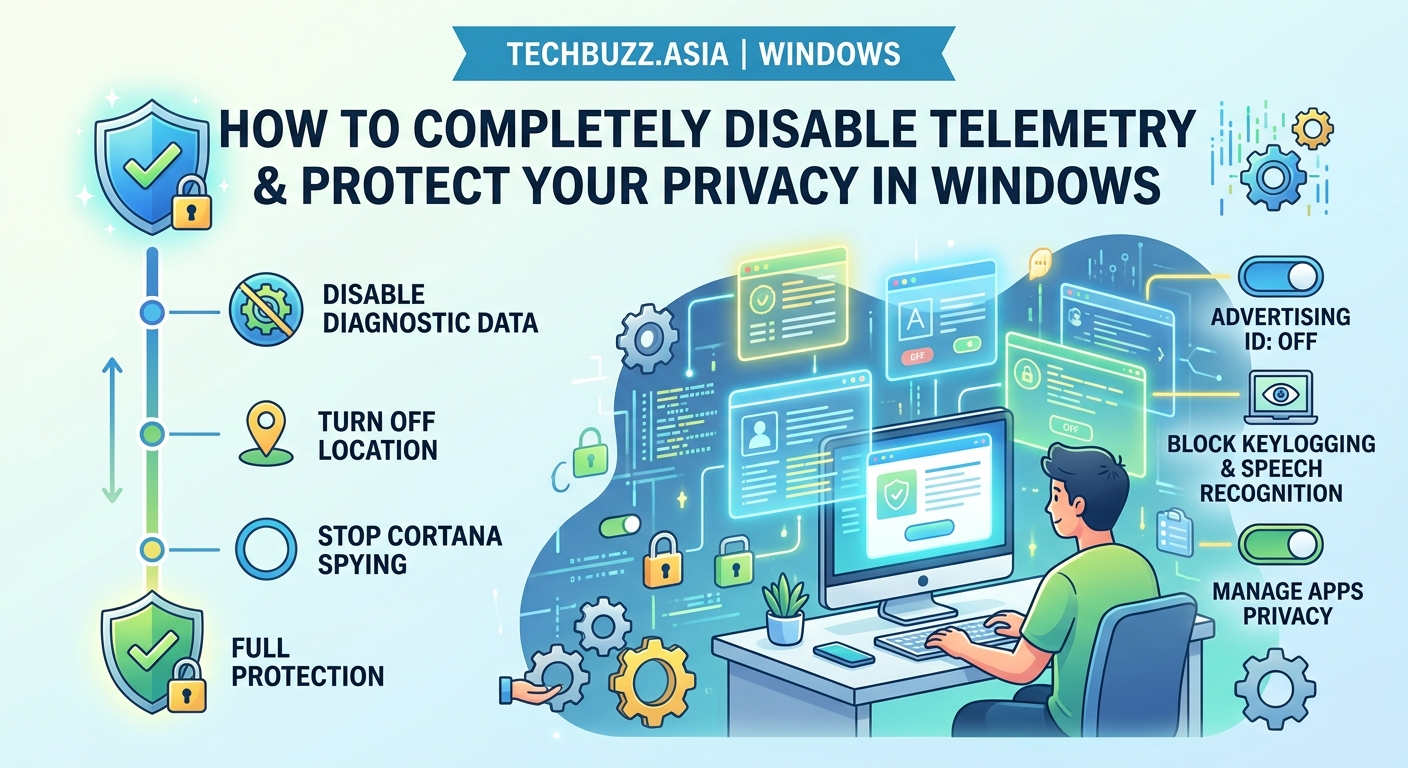
Windows runs multiple services dedicated to data collection. Disabling these services prevents telemetry transmission even if policy settings get reset during updates.
Services to disable:
- Connected User Experiences and Telemetry (DiagTrack)
- Diagnostic Policy Service
- dmwappushservice
- Windows Error Reporting Service
To disable each service:
- Press Windows + R, type
services.msc, and press Enter. - Find the service in the list and double-click it.
- Set Startup type to “Disabled.”
- Click Stop if the service is currently running.
- Click Apply, then OK.
Windows also uses scheduled tasks to collect and transmit data. Open Task Scheduler (search for it in the Start menu) and disable these tasks:
- Microsoft > Windows > Application Experience > Microsoft Compatibility Appraiser
- Microsoft > Windows > Application Experience > ProgramDataUpdater
- Microsoft > Windows > Autochk > Proxy
- Microsoft > Windows > Customer Experience Improvement Program > Consolidator
- Microsoft > Windows > Customer Experience Improvement Program > UsbCeip
- Microsoft > Windows > DiskDiagnostic > Microsoft-Windows-DiskDiagnosticDataCollector
Right-click each task and select Disable. Windows updates sometimes re-enable these tasks, so periodic checks ensure they stay disabled.
Blocking telemetry through Windows Firewall
Even with services disabled, some telemetry can slip through during system updates or when services temporarily restart. Firewall rules provide an additional barrier by blocking outbound connections to Microsoft’s telemetry servers.
Common telemetry endpoints to block:
- vortex.data.microsoft.com
- vortex-win.data.microsoft.com
- telecommand.telemetry.microsoft.com
- oca.telemetry.microsoft.com
- sqm.telemetry.microsoft.com
- watson.telemetry.microsoft.com
- redir.metaservices.microsoft.com
- choice.microsoft.com
- df.telemetry.microsoft.com
- reports.wes.df.telemetry.microsoft.com
You can block these through Windows Firewall or by editing your hosts file. The hosts file method is simpler and survives firewall resets.
- Open Notepad as administrator.
- Open
C:\Windows\System32\drivers\etc\hosts. - Add these lines at the end:
0.0.0.0 vortex.data.microsoft.com
0.0.0.0 vortex-win.data.microsoft.com
0.0.0.0 telecommand.telemetry.microsoft.com
0.0.0.0 oca.telemetry.microsoft.com
0.0.0.0 sqm.telemetry.microsoft.com
0.0.0.0 watson.telemetry.microsoft.com
0.0.0.0 redir.metaservices.microsoft.com
0.0.0.0 choice.microsoft.com
0.0.0.0 df.telemetry.microsoft.com
0.0.0.0 reports.wes.df.telemetry.microsoft.com
Save the file and restart your computer. These entries redirect telemetry requests to localhost, effectively blocking them.
For advanced users comfortable with firewall configuration, create outbound rules in Windows Defender Firewall that block these domains entirely. This method works better than hosts file blocking if Microsoft changes IP addresses.
Using third-party privacy tools
Several specialized tools automate the telemetry disabling process and provide user-friendly interfaces. These tools combine multiple techniques into single-click solutions.
O&O ShutUp10++
This free tool from O&O Software provides detailed control over Windows privacy settings. It covers telemetry, Cortana, Windows Update behavior, and app permissions. The interface categorizes settings by function and includes recommended configurations.
Download from oo-software.com, run the executable (no installation required), and apply the recommended settings. The tool creates a restore point automatically before making changes.
W10Privacy
W10Privacy offers granular control over telemetry and includes network monitoring to show active connections. The tool can disable telemetry services, scheduled tasks, and create firewall rules simultaneously.
The interface shows which settings are currently enabled and allows one-click disabling of entire categories. Advanced users can customize individual settings rather than using presets.
WPD (Windows Privacy Dashboard)
WPD focuses specifically on privacy rather than general system tweaking. It disables telemetry, removes bloatware, and blocks tracking through multiple methods.
The dashboard displays current privacy status and highlights areas needing attention. Unlike some tools, WPD explains what each setting does before you change it.
Using privacy tools requires understanding what each setting controls. Disabling the wrong services can break Windows Update, Microsoft Store, or system activation. Always review changes before applying them and keep system restore enabled.
Comparing telemetry disabling methods
| Method | Effectiveness | Difficulty | Survives Updates | Reversible |
|---|---|---|---|---|
| Group Policy | High | Medium | Yes | Yes |
| Registry edits | Medium | High | Sometimes | Yes |
| Service disabling | Medium | Low | No | Yes |
| Hosts file blocking | Medium | Low | Yes | Yes |
| Firewall rules | High | Medium | Yes | Yes |
| Third-party tools | High | Low | Varies | Yes |
The most effective approach combines multiple methods. Group Policy or Registry changes set the foundation, service disabling prevents background collection, and firewall rules block transmission attempts that slip through.
No single method guarantees complete telemetry elimination. Windows updates sometimes reset services or re-enable scheduled tasks. Monthly verification ensures your privacy settings remain active.
Privacy settings that complement telemetry disabling
Beyond telemetry-specific settings, Windows includes numerous privacy options that reduce data collection. These settings live in the Windows Settings app under Privacy.
General privacy settings:
- Disable “Let apps use advertising ID”
- Turn off “Let websites provide locally relevant content”
- Disable “Let Windows track app launches”
- Turn off “Show me suggested content in Settings app”
Location tracking:
Disable location services entirely unless specific apps require them. When enabled, review which apps have location access and revoke permissions for unnecessary apps.
Diagnostic feedback:
Set diagnostic data to “Basic” (the lowest available option in Settings). Set feedback frequency to “Never” to stop Windows from requesting user feedback.
Activity history:
Disable “Let Windows collect my activities from this PC” and clear existing activity history. This prevents Windows from building a timeline of your computer usage.
App permissions:
Review permissions for Camera, Microphone, Notifications, Account info, Contacts, Calendar, Phone calls, Call history, Email, Tasks, Messaging, Radios, and Background apps. Revoke permissions apps don’t need for core functionality.
Many users concerned about Windows privacy also worry about what happens when tech giants stop supporting their devices, since older Windows versions receive fewer privacy-focused updates.
Cortana and web search telemetry
Cortana collects voice data, search queries, and usage patterns even when you don’t actively use the assistant. Disabling Cortana requires separate steps from general telemetry reduction.
Disable Cortana through Group Policy:
- Open Group Policy Editor (gpedit.msc).
- Navigate to Computer Configuration > Administrative Templates > Windows Components > Search.
- Enable “Allow Cortana” and set it to Disabled.
Disable Cortana through Registry (Home edition):
- Navigate to
HKEY_LOCAL_MACHINE\SOFTWARE\Policies\Microsoft\Windows\Windows Search. - Create DWORD
AllowCortanawith value0.
Disable web search in Start Menu:
Web search in the Start Menu sends every search query to Bing, creating a detailed log of your searches. Disable it through Registry:
- Navigate to
HKEY_CURRENT_USER\SOFTWARE\Microsoft\Windows\CurrentVersion\Search. - Create DWORD
BingSearchEnabledwith value0. - Create DWORD
CortanaConsentwith value0.
After disabling Cortana and web search, the Start Menu only searches local files and installed applications. This significantly reduces data leaving your computer during normal use.
Microsoft account vs. local account privacy implications
Using a Microsoft account for Windows login creates additional telemetry channels. Microsoft syncs settings, preferences, and activity data across devices when you use their account system.
Local accounts provide better privacy because they don’t sync data to Microsoft servers. To switch from Microsoft account to local account:
- Open Settings > Accounts > Your info.
- Click “Sign in with a local account instead.”
- Enter your current Microsoft account password.
- Create a local username and password.
- Sign out and sign back in with the local account.
Trade-offs of local accounts:
- Cannot use Microsoft Store for app downloads
- Windows Hello face/fingerprint recognition unavailable
- OneDrive integration disabled
- Settings don’t sync across multiple devices
- Some built-in apps require Microsoft account
For users who need Microsoft Store access while maintaining privacy, create a Microsoft account specifically for app downloads and use a local account for daily computing. Sign into the Store app separately without making it your system account.
Monitoring telemetry after disabling it
After implementing telemetry controls, verify they’re working by monitoring network traffic. Several tools reveal whether Windows still contacts telemetry servers.
Wireshark captures all network packets and allows filtering by destination. Look for connections to microsoft.com domains, particularly those containing “telemetry,” “vortex,” or “watson.”
GlassWire provides a simpler interface than Wireshark and shows which applications make network connections. Watch for “Connected User Experiences and Telemetry” or “Compatibility Telemetry Runner” in the connection list.
Windows Resource Monitor (built into Windows) shows active network connections. Press Windows + R, type resmon, press Enter, and click the Network tab. Look for connections to Microsoft domains you blocked.
Regular monitoring catches telemetry that resumes after Windows updates. Major feature updates sometimes reset privacy settings and re-enable disabled services.
Common mistakes when disabling telemetry
| Mistake | Why It Happens | How to Avoid |
|---|---|---|
| Disabling Windows Update | Fear that updates re-enable telemetry | Disable telemetry after updates instead |
| Breaking Microsoft Store | Blocking too many domains | Only block confirmed telemetry endpoints |
| Corrupting system files | Incorrect Registry edits | Create restore points before changes |
| Losing activation | Blocking activation servers | Don’t block all microsoft.com domains |
| Disabling security features | Confusing telemetry with Windows Defender | Keep Windows Defender active |
The most common mistake involves blocking Windows Update entirely. While updates sometimes reset privacy settings, they also include critical security patches. A better approach applies telemetry controls after each major update.
Some users disable Windows Defender thinking it’s part of telemetry collection. Windows Defender does send malware samples to Microsoft, but this serves legitimate security purposes. Disabling it leaves your system vulnerable to threats.
Similar to how users research whether Windows Defender is good enough, understanding which services provide genuine value versus unnecessary data collection helps make informed decisions.
Maintaining privacy settings through Windows updates
Windows updates frequently reset privacy settings and re-enable telemetry services. Major feature updates (released twice yearly) cause the most disruption to privacy configurations.
After each update:
- Verify Group Policy settings remain applied
- Check that disabled services haven’t restarted
- Confirm scheduled tasks stay disabled
- Review Privacy settings in Windows Settings
- Test hosts file entries still redirect telemetry domains
Create a checklist of your privacy configurations and review it after updates. This takes 10 minutes but ensures your privacy measures remain effective.
Some users delay feature updates to avoid frequent reconfiguration. Windows 10 Pro allows deferring feature updates up to 365 days through Windows Update settings. This gives time to research whether updates break privacy tools before installing them.
Windows Update Group Policy settings:
Configure automatic updates to notify before downloading to maintain control over when updates install. This prevents surprise updates from resetting your privacy configuration while you’re away from your computer.
Taking control of your Windows privacy
Disabling Windows telemetry requires multiple approaches working together. No single setting eliminates all data collection, but combining Group Policy changes, service disabling, firewall rules, and privacy settings dramatically reduces what Microsoft receives.
The process demands initial time investment and ongoing maintenance after updates. For users serious about privacy, this effort provides meaningful control over personal data. Regular monitoring confirms your settings remain active and effective.
Start with the methods matching your Windows edition and technical comfort level. Group Policy provides the most reliable foundation for Pro users, while Home edition users should begin with Registry modifications and hosts file blocking. Add third-party tools if manual configuration feels overwhelming.
Your privacy configuration should balance data protection with system functionality. Test each change to ensure Windows still performs essential tasks like updates and activation. The goal is reducing unnecessary telemetry while maintaining a stable, secure system that serves your needs.



Post Comment