How to Maximize Battery Life on Your iPhone in 2026
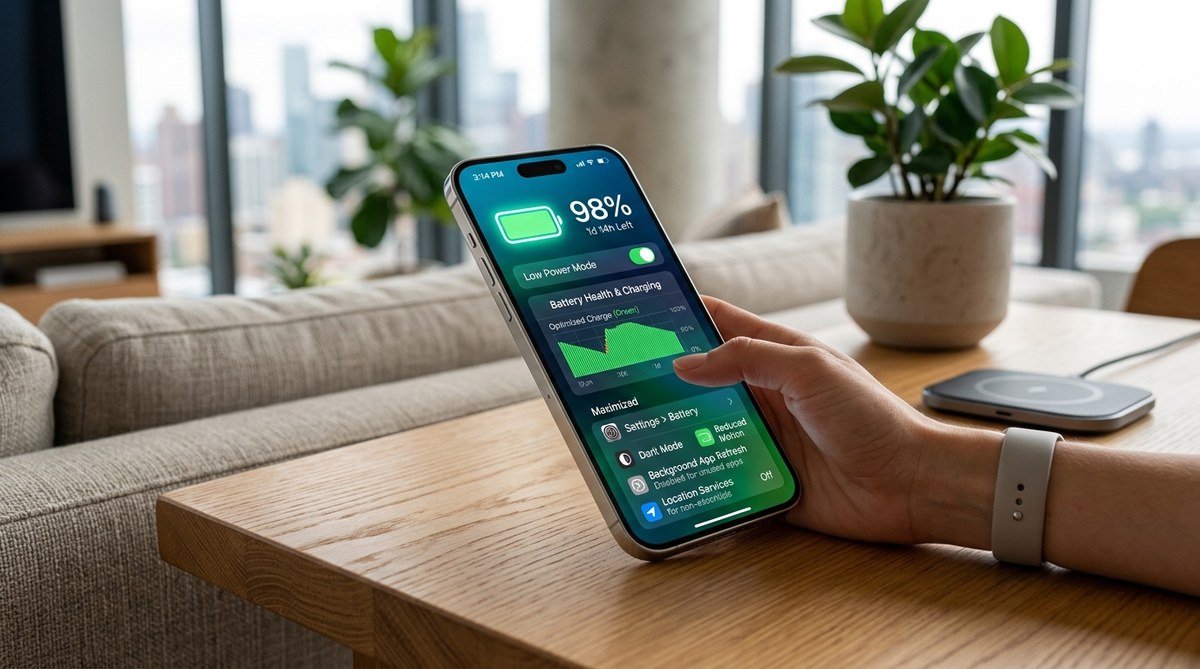
Your iPhone used to last all day. Now it barely makes it to dinner.
You’re not imagining it. Between iOS updates, aging hardware, and power-hungry apps running in the background, your battery takes a beating. The good news? You don’t need a new phone or an expensive battery replacement to see real improvement. A few smart settings changes and daily habits can add hours back to your battery life.
Extending iPhone battery life requires adjusting display settings, managing background activity, and optimizing connectivity features. Turn off always-on display, enable auto-brightness, disable background app refresh for unused apps, and switch to Wi-Fi over 5G when possible. Low Power Mode and Adaptive Power features can add several hours of use during critical moments without sacrificing essential functionality.
Turn Off Always-On Display
The always-on display looks sleek, but it drains your battery constantly. Even when your phone sits face-down on your desk, the screen stays partially lit.
Go to Settings, then Display & Brightness. Scroll down and toggle off Always On Display. Your lock screen will still show notifications when you tap it or pick up your phone. You just won’t burn battery keeping pixels lit 24/7.
This single change can add 1-2 hours of battery life per day, especially if you’re someone who checks their phone frequently but doesn’t always unlock it.
Adjust Screen Brightness Settings
Your display is the biggest battery drain on any smartphone. Keeping it at maximum brightness all day is like leaving your car’s headlights on.
Here’s how to optimize it:
- Open Settings and tap Display & Brightness
- Enable Auto-Brightness so your iPhone adjusts to ambient light
- Manually lower the brightness slider to around 40-50% as your baseline
- Let your eyes adjust for a few hours before deciding it’s too dim
Auto-brightness learns your preferences over time. If you consistently turn it up in certain lighting conditions, iOS remembers and adapts. Give it a week to calibrate to your habits.
Manage Background App Refresh
Apps love to refresh content in the background, even when you’re not using them. Social media apps, news readers, and email clients constantly check for updates, draining battery in the process.
Go to Settings, then General, then Background App Refresh. You’ll see a list of every app with background access.
Turn it off completely for apps you rarely use. For apps you check daily, leave it on but set it to Wi-Fi only. This prevents apps from using cellular data and extra battery when you’re out.
- Social media apps: turn off unless you need instant notifications
- Email: keep on for your primary account, off for others
- News and weather: off (you can manually refresh when you open them)
- Banking and shopping: definitely off
- Fitness and health: keep on if you track workouts
Switch from 5G to LTE
5G speeds are impressive, but they come at a cost. Your phone works harder to maintain a 5G connection, especially in areas with weak coverage.
Most daily tasks like messaging, social media, and even video streaming work perfectly fine on LTE. You won’t notice the difference unless you’re downloading large files.
Here’s how to switch:
- Open Settings and tap Cellular
- Tap Cellular Data Options
- Tap Voice & Data
- Select LTE instead of 5G
If you need 5G occasionally, you can temporarily switch back. But for everyday use, LTE provides the best balance between speed and battery life.
Enable Low Power Mode Strategically
Low Power Mode isn’t just for emergencies. It’s a powerful tool you can use proactively to extend battery life during long days.
When enabled, it reduces background activity, disables automatic downloads, and lowers screen brightness. Mail fetch switches to manual, and visual effects get toned down.
Go to Settings, then Battery, and toggle on Low Power Mode. Your battery icon turns yellow to remind you it’s active.
“I enable Low Power Mode every morning during my commute. It adds 2-3 hours to my battery life without affecting anything I actually need during the day. Emails still come through, messages work fine, and apps open normally.” – Tech support specialist with 8 years of iPhone experience
The mode automatically turns off when you charge above 80%, but you can manually enable it anytime.
Use Adaptive Power Mode on Newer Models
If you have an iPhone 15 Pro or newer, Adaptive Power Mode learns your usage patterns and adjusts power consumption accordingly.
It knows when you typically charge your phone and manages battery drain to get you through your routine. During periods of light use, it conserves more aggressively. When you’re actively using your phone, it provides full performance.
Enable it in Settings under Battery. Toggle on Adaptive Power and let it run for a week. The feature needs time to learn your patterns, so don’t judge it after just one day.
Disable Keyboard Haptics and Sounds
That satisfying click when you type feels nice, but it activates the haptic engine dozens of times per minute. Those tiny vibrations add up over a full day of texting, emailing, and searching.
Go to Settings, then Sounds & Haptics, then Keyboard Feedback. Turn off both Sound and Haptic options.
You’ll adapt to typing without feedback within a day or two. The battery savings might seem small, but combined with other adjustments, every bit helps.
Manage Location Services
Apps request location access constantly. Weather apps, social media, shopping apps, and even games want to know where you are. Each location ping uses GPS, cellular data, and battery.
Go to Settings, then Privacy & Security, then Location Services. Review each app individually.
Change settings to these options:
- Never: for apps that don’t need location at all
- Ask Next Time: for apps you use occasionally
- While Using: for maps and navigation
- Never: for social media (they don’t need constant location tracking)
Scroll to the bottom and tap System Services. Disable options like Significant Locations, iPhone Analytics, and Popular Near Me unless you specifically use those features.
Turn Off Raise to Wake
Raise to Wake lights up your screen every time you pick up your phone. If you check your phone frequently or move it around a lot, your display activates dozens of extra times per day.
Go to Settings, then Display & Brightness, and toggle off Raise to Wake. You’ll need to press the side button or tap the screen to see your lock screen, but you’ll save significant battery.
This is especially helpful if you carry your phone in your hand while walking or if it sits in a cup holder that vibrates while driving.
Check Battery Health and Usage
Understanding what’s actually draining your battery helps you make informed decisions about which changes matter most.
Go to Settings, then Battery. Scroll down to see Battery Usage by App. This shows which apps consumed the most battery in the last 24 hours or 10 days.
If you see unexpected apps at the top, investigate why. Maybe an app is stuck refreshing, or perhaps you’re using it more than you realized. You can adjust settings for specific apps or delete ones you rarely use.
Tap Battery Health & Charging at the top to see your battery’s maximum capacity. If it’s below 80%, your battery has degraded significantly and might need replacement. Understanding why your smartphone battery degrades faster than it should can help you prevent future damage.
Optimize Charging Habits
How you charge matters as much as how you use your phone. Keeping your battery between 20% and 80% most of the time extends its lifespan.
Enable Optimized Battery Charging in Settings under Battery, then Battery Health & Charging. This feature learns when you typically charge overnight and delays charging past 80% until you need it.
Avoid letting your phone die completely. Deep discharges stress the battery more than frequent top-ups. If you’re going to be away from a charger for an extended period, charge to 80-90% before leaving rather than waiting until you’re at 5%.
Use a genuine Apple charger or certified third-party option. Cheap cables and adapters can damage your battery over time and actually reduce overall battery life.
Review Notification Settings
Every notification lights up your screen, plays a sound, or triggers a vibration. If you receive hundreds of notifications daily, that’s hundreds of small battery drains.
Go to Settings, then Notifications. Go through each app and ask yourself: do I really need instant alerts for this?
Turn off notifications for:
- Promotional emails and marketing apps
- Social media likes and comments (check them when you open the app)
- Game achievements and rewards
- News apps (unless you need breaking news alerts)
- Shopping apps
Keep notifications on for:
- Messages and communication apps
- Calendar reminders
- Banking and security alerts
- Delivery tracking when expecting packages
Disable Dynamic Wallpapers and Widgets
Live wallpapers and constantly updating widgets look great, but they require processing power and screen refreshes throughout the day.
Choose a static wallpaper instead of a dynamic or live one. Go to Settings, then Wallpaper, and select a still image.
Review your home screen widgets. Remove ones you don’t check regularly. Weather widgets that update every hour, stock tickers, and news feeds all consume battery to stay current.
Keep only the widgets you actually use multiple times per day. Everything else can be accessed by opening the app.
Common Battery Mistakes vs. Effective Solutions
| Mistake | Why It Hurts Battery | Better Approach |
|---|---|---|
| Closing all apps constantly | iOS manages memory efficiently; force-closing can cause apps to use more power restarting | Let iOS manage background apps naturally |
| Keeping brightness at 100% | Display is the largest battery drain | Use auto-brightness and keep manual setting around 40-50% |
| Leaving Wi-Fi and Bluetooth off to save battery | Phone works harder searching for networks when you need them | Keep both on; iOS manages them efficiently |
| Charging to 100% every night | Keeping battery at full charge degrades it faster | Use Optimized Battery Charging to limit charge to 80% until needed |
| Using battery-intensive apps while charging | Generates excess heat, damaging battery health | Let phone cool down before heavy use while plugged in |
Update to the Latest iOS Version
Software updates often include battery optimization improvements. Apple regularly tweaks power management in iOS updates based on real-world usage data.
Go to Settings, then General, then Software Update. If an update is available, install it when you have time and a stable Wi-Fi connection.
Read the update notes. Sometimes Apple specifically mentions battery improvements or fixes for known drain issues. Recent iOS 26 updates included better power management for 5G connectivity and improved background task handling.
Back up your phone before updating, just in case. Updates occasionally introduce new bugs, but Apple typically fixes those within a week or two with follow-up patches.
Consider Your Usage Patterns
Battery optimization isn’t one-size-fits-all. Your ideal settings depend on how you actually use your phone.
If you work from home with constant Wi-Fi access, you can be more aggressive with background refresh and location services. If you commute two hours daily, you need different priorities.
Track your battery percentage at key points during the day. Note what you were doing when it dropped significantly. This helps identify your personal battery drains.
Some people need notifications for work. Others can batch-check apps every few hours. Optimize for your life, not some theoretical perfect setup.
Making These Changes Stick
Start with the biggest impact changes first. Turn off always-on display, enable auto-brightness, and switch to LTE. Those three adjustments alone can add 3-4 hours of battery life.
Then tackle background app refresh and location services over a few days. Going through every app takes time, but you only need to do it once.
Set a reminder to check your battery usage stats weekly for the first month. This helps you spot new problem apps or settings that drifted back to defaults after an update.
Battery life improves gradually as you implement these changes. Don’t expect overnight miracles, but within a week, you should notice your phone lasting significantly longer between charges. Your iPhone can make it through a full day again without scrambling for a charger by mid-afternoon.

Post Comment