How to Seamlessly Switch from Windows to Mac Without Losing Your Mind
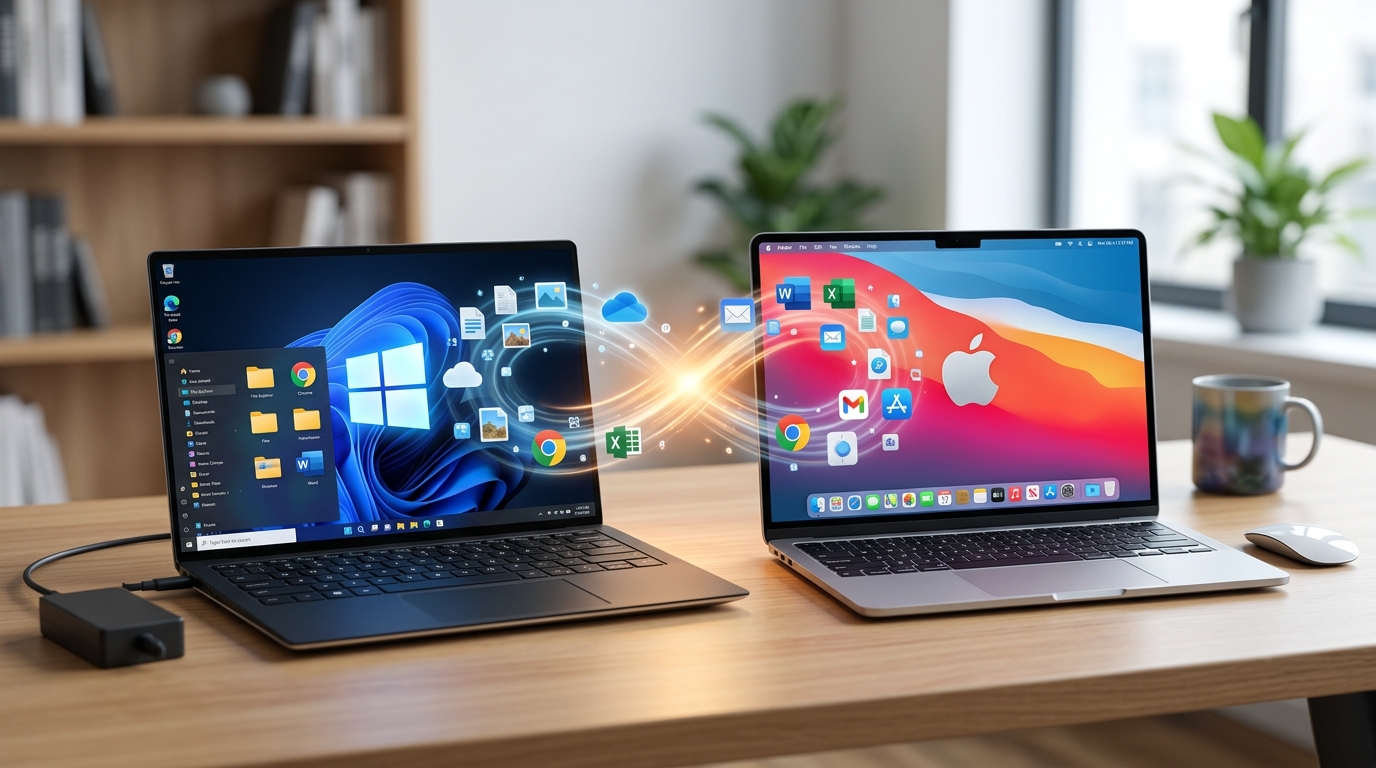
You’ve bought your first Mac. The box sits on your desk, gleaming with promise. But inside your head, a quiet panic builds. Years of Windows muscle memory. Folders organized just right. Software you depend on. What if you lose something important? What if nothing works the way you expect?
Switching from Windows to Mac doesn’t have to feel like learning to drive on the opposite side of the road. Thousands of people make this transition every month, and most wonder why they waited so long. The secret isn’t about memorizing every difference between the two systems. It’s about having a clear plan, the right tools, and realistic expectations.
Moving from Windows to Mac requires three main steps: preparing your data with cloud storage or external drives, learning macOS navigation through keyboard shortcuts and gestures, and finding equivalent apps for your workflow. Most transitions take one to two weeks of adjustment, but proper preparation eliminates data loss and reduces frustration significantly.
Preparing your files before the switch
The biggest fear most people have is losing their files. Photos from the past decade. Work documents. That one password spreadsheet you probably shouldn’t have but definitely need.
Start by taking inventory of what matters. Create a simple list of folders you access regularly. For most people, this includes Documents, Photos, Downloads, Desktop files, and browser bookmarks.
Cloud storage makes this transition painless. If you already use Google Drive, Dropbox, or OneDrive, you’re halfway done. Install the Mac version of your cloud service, let it sync, and your files appear exactly where you left them.
For files not in the cloud, an external drive works perfectly. Modern Macs read most Windows formatted drives without complaint. Copy your important folders to the drive, then copy them to your new Mac. Simple, reliable, and you have a backup.
The single best piece of advice I give new Mac users is to get comfortable with iCloud before you switch. Set it up on your Windows PC first, let your photos and documents upload, then sign in on your Mac. Everything just appears. It feels like magic, but it’s just good planning.
Don’t forget these often overlooked items:
- Browser bookmarks and passwords
- Email account settings and local mail folders
- Software license keys and activation codes
- Custom fonts you’ve installed
- WiFi passwords saved in Windows
- Printer drivers and scanner software
Understanding macOS basics without losing your mind

The first hour with a new Mac feels weird. The menu bar sits at the top of the screen, not inside each window. There’s no Start menu. Right clicking works differently. The window controls are on the left, not the right.
These differences aren’t bugs. They’re just different choices. Give yourself permission to feel awkward for a few days.
The Dock replaces your taskbar. It shows running apps, favorite apps, and minimized windows. Click an app to open it. Right click for options. Drag apps in or out to customize it. That’s 90% of what you need to know.
Finder is your File Explorer replacement. It looks different but works similarly. Press Command + N for a new window. Command + T opens a new tab. The sidebar shows your favorite locations. You can drag folders there just like Windows.
Spotlight search might become your favorite feature. Press Command + Space, type anything, and macOS finds it. Apps, files, calculations, definitions, weather. It’s faster than clicking through menus.
Keyboard shortcuts that actually matter
Windows users live on Ctrl. Mac users live on Command. That’s the main mental shift.
| Windows Shortcut | Mac Equivalent | What It Does |
|---|---|---|
| Ctrl + C | Command + C | Copy |
| Ctrl + V | Command + V | Paste |
| Ctrl + Z | Command + Z | Undo |
| Alt + Tab | Command + Tab | Switch apps |
| Ctrl + W | Command + W | Close window |
| Windows + E | Command + Space, type “Finder” | Open file manager |
| Ctrl + Alt + Delete | Command + Option + Escape | Force quit apps |
Your pinky finger will hit the wrong key for about a week. This is normal. Your brain will adapt faster than you expect.
Learning 7 mac keyboard shortcuts that will transform your productivity can speed up this adjustment period significantly.
Finding Mac versions of your essential software
Most popular Windows software has a Mac version. Microsoft Office, Chrome, Spotify, Slack, Zoom. Download them from the official websites, sign in, and continue working.
Some Windows apps don’t make the jump. Here’s where you need alternatives.
For Windows only work software, check if a web version exists. Many enterprise tools now run entirely in browsers. Problem solved.
For specialized software, search “[software name] Mac alternative” and read recent reviews. The Mac ecosystem is mature. Someone has built what you need.
Common swaps that work well:
- Notepad becomes TextEdit (built in) or Sublime Text
- Paint becomes Preview (built in) or Pixelmator
- Windows Media Player becomes QuickTime (built in) or VLC
- Task Manager becomes Activity Monitor (built in)
- Snipping Tool becomes Screenshot tool (Shift + Command + 4)
For gaming, be realistic. Macs aren’t gaming machines. Some games run fine. Many don’t. If gaming matters, keep your Windows PC or consider cloud gaming services.
The step by step migration process
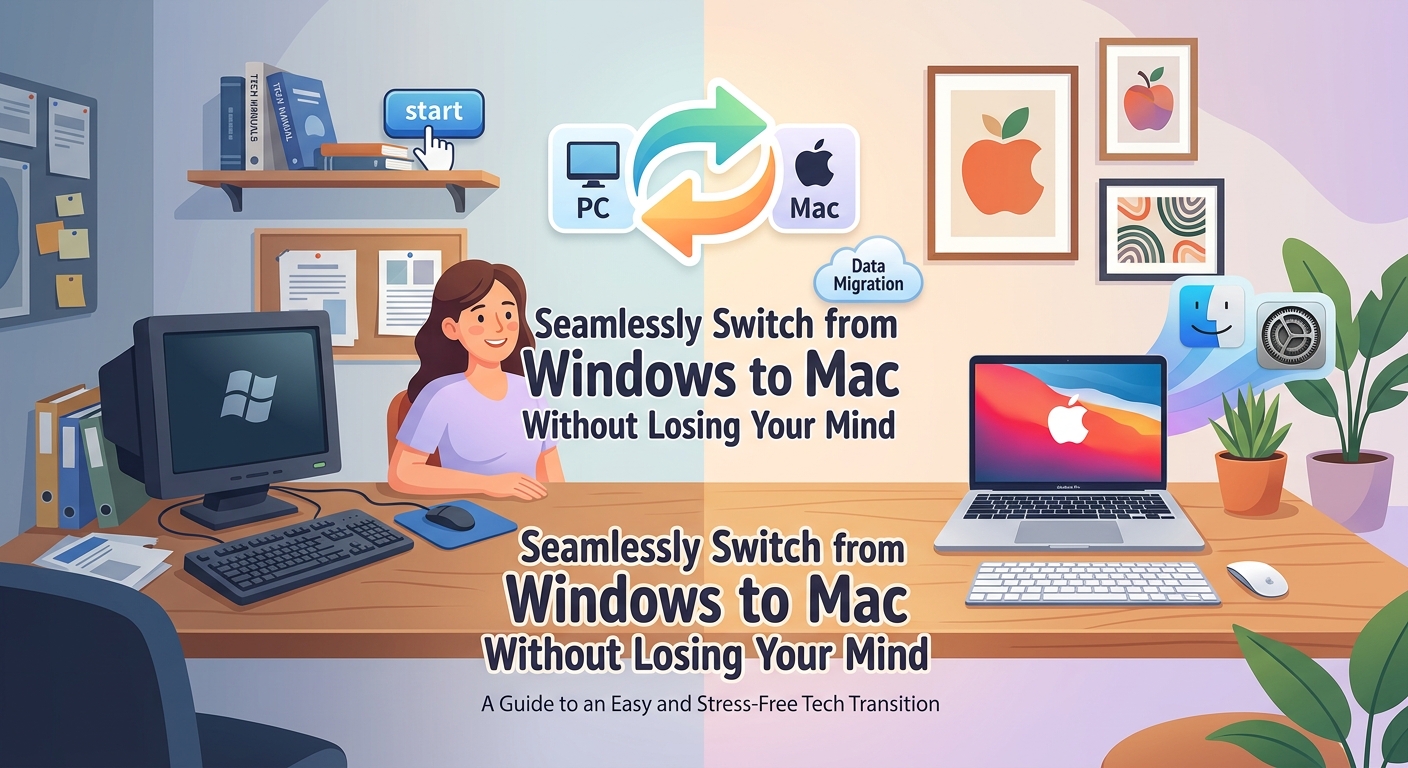
Here’s the actual sequence that works:
-
Back up your Windows PC completely. Use Windows Backup or copy everything to an external drive. Don’t skip this. Things go wrong sometimes.
-
Set up your Mac while keeping Windows running. Don’t wipe your old computer yet. Run them side by side for at least a week.
-
Install your essential apps first. Browser, email, messaging, cloud storage. Get your communication tools working before anything else.
-
Transfer files in batches. Start with your most important documents. Test that they open correctly. Then move photos, then everything else.
-
Configure your accounts and services. Email, calendar, cloud storage, streaming services. Sign in everywhere you need access.
-
Customize settings to match your workflow. Trackpad speed, display resolution, notification preferences. Make the Mac feel like yours.
-
Keep Windows available for two weeks. Some forgotten file always turns up. Having access to your old system removes stress.
Common mistakes that create unnecessary problems
People rush. They assume everything will work identically. They don’t test before committing fully.
Mistake number one is reformatting the Windows PC immediately. Keep it running until you’re certain everything transferred correctly. You can always wipe it later.
Mistake number two is expecting Mac to behave like Windows. It won’t. Different doesn’t mean worse. Give the Mac way a fair chance before fighting it.
Mistake number three is not learning gestures. Mac trackpads are phenomenal, but only if you use gestures. Two finger scroll, pinch to zoom, three finger swipe between apps. Spend ten minutes in System Preferences learning these. Your efficiency will double.
Mistake number four is buying Windows formatted external drives. Macs can read them, but can’t always write to them without reformatting. Buy drives formatted as exFAT or reformat them on your Mac for full compatibility.
Mistake number five is ignoring iCloud. If you’re joining the Apple ecosystem, iCloud integration saves enormous hassle. Documents sync between devices. Photos back up automatically. Find My Mac helps if you lose it.
Adapting your workflow to the Mac way
Windows and Mac handle multitasking differently. Windows shows everything. Mac hides what you’re not using.
Mission Control (swipe up with three fingers or press F3) shows all open windows at once. This replaces Alt + Tab for visual people. You see everything, click what you want.
Spaces let you create multiple desktops. One for work, one for personal stuff, one for creative projects. Swipe left or right with three fingers to switch between them. This keeps your screen uncluttered.
Split View puts two apps side by side in full screen. Hover over the green window button, choose “Tile Window to Left of Screen,” then pick another app for the right side. Great for research while writing or comparing documents.
Your Windows habits will fight these features at first. Stick with them for three days. Most people find the Mac approach cleaner once they adjust.
If you’re also adapting other devices, understanding how to maximize battery life on your iphone in 2026 helps create a consistent Apple experience.
Handling the frustration of relearning
You’ll have moments where you want to throw the Mac out a window. A simple task takes three times longer because you can’t find the setting. Your fingers hit the wrong keys. Nothing feels natural.
This is temporary. Your brain is rewiring decades of patterns. That takes time.
Set realistic expectations. The first week will feel slow. The second week will feel better. By week three, most tasks feel natural again. By week four, you’ll forget you ever used Windows.
Keep a notes file of things that confuse you. When you figure them out, write down the solution. You’ll reference this less and less, but having it reduces stress.
Join Mac user communities online. Reddit’s r/mac and Apple’s support forums have people who remember being new. They’ll answer basic questions without judgment.
Consider this adjustment period an investment. You’re not just learning a new computer. You’re gaining flexibility to use any system. That skill has value.
Deciding if you need to keep Windows around
Some people need both systems. Video editors who rely on specific Windows software. Gamers with large Steam libraries. Professionals with industry tools that never made the Mac jump.
Virtualization software like Parallels lets you run Windows inside macOS. You get both systems on one machine. Performance takes a hit, but for occasional use, it works fine.
Boot Camp (on Intel Macs) lets you install Windows natively and switch between operating systems. You have to restart to change systems, but both run at full speed.
Cloud desktops like Windows 365 give you a Windows computer you access through a browser. You’re paying monthly, but you’re not managing hardware.
For most people, these workarounds become unnecessary after a month. You find Mac alternatives or realize you didn’t need that software as much as you thought. But knowing the options exist removes the fear of being trapped.
Making peace with a different computing philosophy
Windows gives you control over everything. You can modify, customize, and break things in creative ways. Power users love this freedom.
Mac makes choices for you. It hides complexity. It assumes you want things to just work without configuration. This frustrates tinkerers but delights people who view computers as tools, not hobbies.
Neither approach is correct. They serve different preferences.
If you chose Mac for the hardware, ecosystem integration, or because work required it, accept that you’re also choosing a philosophy. Fight it less. Trust it more. See where that leads.
Many Windows converts end up preferring the Mac approach once they stop comparing everything to Windows. Some never do. Both outcomes are fine.
Your computer should serve your needs. If Mac doesn’t after a genuine effort, that’s valuable information. But give it a real chance before deciding.
Understanding broader tech transitions, like what happens when tech giants stop supporting your device, provides perspective on why staying flexible with different systems matters.
Your first month with Mac
Week one feels like being in a foreign country where you almost speak the language. You’ll accomplish basic tasks, but everything takes longer. You’ll miss Windows features. You’ll question your decision.
Week two brings small victories. You’ll discover a Mac feature that’s genuinely better. Spotlight search. Preview’s annotation tools. AirDrop between Apple devices. These moments build confidence.
Week three is where muscle memory starts shifting. Your fingers find Command instead of Ctrl without thinking. You stop translating “Windows does this, so Mac probably does that” and just do things the Mac way.
Week four usually marks the turning point. Tasks flow naturally again. You’re productive. You might even defend Mac in conversations with Windows users. You’ve crossed over.
The transition isn’t about one system being superior. It’s about adapting to different tools. You’re expanding your capabilities, not replacing them.
Making the switch work for you
Switching from Windows to Mac succeeds when you prepare properly, adjust expectations, and give yourself time to adapt. Your files will transfer safely if you use cloud storage or external drives. Your productivity will return once you learn basic shortcuts and gestures. Your frustration will fade as new habits replace old ones.
The Mac sitting on your desk isn’t a Windows replacement. It’s a different tool with different strengths. Approach it with curiosity instead of resistance. Most people who make this switch successfully aren’t the ones who memorized every difference before starting. They’re the ones who stayed patient through the awkward phase and trusted the process.
Your Windows knowledge isn’t wasted. It’s a foundation. Now you’re building on it. Give yourself a month. By then, you’ll know if Mac fits your workflow. And you’ll have the skills to adapt to any system that comes next.



Post Comment