Should You Root Your Android Phone? Pros, Cons, and Alternatives Explained

Rooting your Android phone sounds like the ultimate power move. You get complete control, remove bloatware, install custom ROMs, and tweak everything down to the last pixel. But before you start searching for rooting tools, you need to understand what you’re actually getting into. The reality is messier than the YouTube tutorials suggest.
Rooting gives you admin-level control over your Android device, letting you customize everything and remove restrictions. However, it voids warranties, breaks banking apps, blocks security updates, and creates serious security vulnerabilities. Most users can achieve their goals through safer alternatives like custom launchers, ADB commands, and developer options without the risks that come with rooting.
What rooting actually means for your phone
Rooting grants you superuser access to your Android operating system. Think of it like getting the administrator password on a computer you’ve only been using as a guest.
Out of the box, Android restricts what you can modify. Google and manufacturers lock down system files to prevent accidental damage and maintain security. Rooting removes those guardrails entirely.
You can delete pre-installed apps that normally won’t budge. You can overclock your processor for better performance or underclock it to save battery. You can install apps that require deep system access, like ad blockers that work across every app and custom kernels that change how your phone manages resources.
But here’s the thing: those restrictions exist for good reasons.
The actual benefits you get from rooting
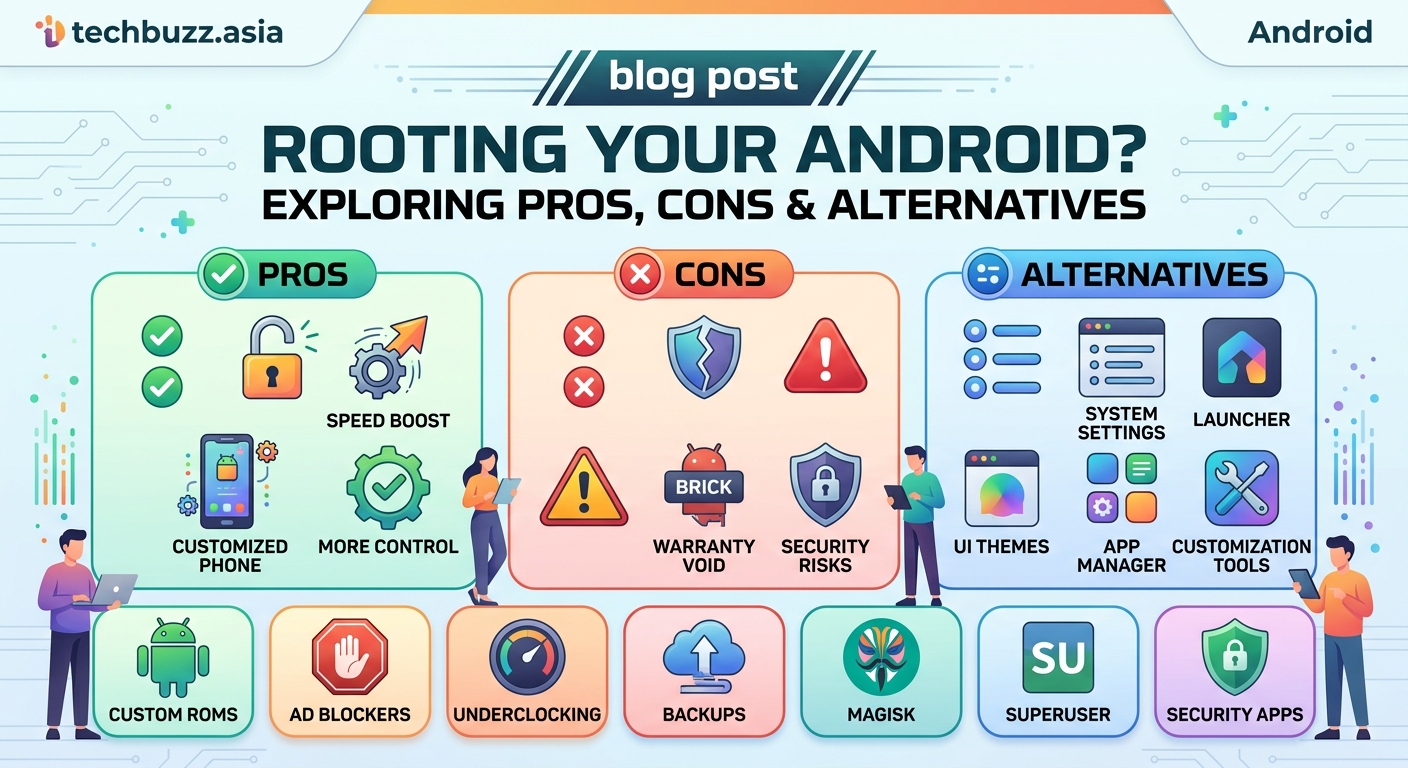
Let’s be honest about what rooting delivers.
Complete bloatware removal: Manufacturer apps you never use eat up storage and run in the background. Rooting lets you delete them permanently. We’re talking about duplicate gallery apps, carrier software, and those pre-installed games you’ll never touch.
Custom ROMs and interfaces: You can install completely different versions of Android. LineageOS, Pixel Experience, and other custom ROMs give older phones new life with updated features and cleaner interfaces.
Advanced backup options: Root access enables full system backups. You can save every setting, app data, and configuration, then restore everything exactly as it was.
Performance tweaking: Kernel managers let you adjust CPU speeds, change how your phone handles memory, and modify dozens of performance parameters. Some users see real battery improvements or smoother performance.
Ad blocking at the system level: Root-level ad blockers work everywhere, including inside apps and games. No more video ads interrupting your mobile gaming sessions.
Automation beyond normal limits: Apps like Tasker gain superpowers with root access. You can automate system-level changes that regular Android won’t allow.
These benefits are real. But they come with costs that most tutorials conveniently skip.
The risks nobody mentions until it’s too late
Rooting breaks things. Sometimes immediately, sometimes months later.
Your warranty vanishes the moment you root. Manufacturers can detect root access even if you try to hide it. Drop your phone and need a repair? You’re paying full price. Battery swelling after a year? Not covered.
Banking apps stop working. Most financial apps detect root and refuse to open. They see rooted phones as security risks. You can try hiding root with Magisk, but banks constantly update their detection methods. It becomes a cat-and-mouse game you’ll eventually lose.
Security updates become your responsibility. Once you root, official over-the-air updates usually fail. You’ll need to manually install updates, assuming custom ROM developers even provide them for your device. Miss a critical security patch and your phone becomes vulnerable to known exploits.
Bricking is a real possibility. One wrong step during the rooting process can turn your phone into an expensive paperweight. Recovery is sometimes possible, but not guaranteed. What happens when tech giants stop supporting your device becomes your problem to solve alone.
Google Pay and other payment services break. The same security concerns that block banking apps affect mobile payment systems. Contactless payments at stores? Gone. In-app purchases? Complicated.
If you root your phone, you’re taking full responsibility for everything that happens to it. That includes security vulnerabilities, broken apps, failed updates, and hardware issues that would normally be covered under warranty. Make sure you’re ready for that commitment.
Common rooting mistakes that cause problems
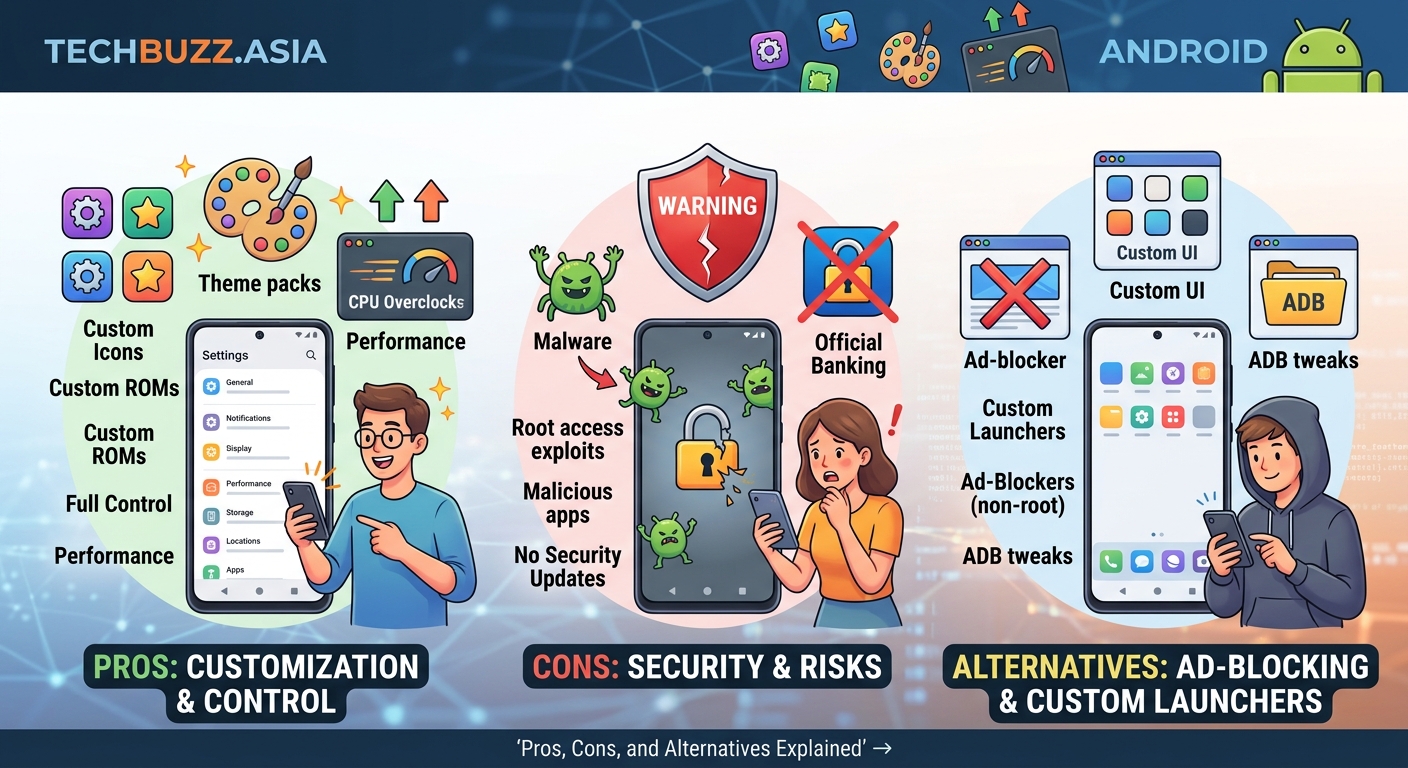
People rush into rooting without preparation. Here are the errors that cause the most headaches:
| Mistake | Why it’s bad | Better approach |
|---|---|---|
| Not backing up first | Lose all photos, messages, and data if something goes wrong | Full backup to computer and cloud before starting |
| Using outdated rooting tools | Old methods brick newer phones or fail completely | Research current methods for your specific phone model and Android version |
| Skipping bootloader unlock | Some phones require separate unlocking steps before rooting | Check manufacturer requirements and unlock bootloader properly |
| Installing random root apps | Malicious apps with root access can steal everything | Only install trusted apps from verified sources |
| Forgetting to re-lock bootloader | Leaves phone vulnerable even if you unroot later | Properly reverse all steps if you change your mind |
| Not testing SafetyNet status | Breaks apps without realizing until you need them | Test banking and payment apps immediately after rooting |
The biggest mistake? Assuming you can easily reverse the process. Unrooting isn’t always clean. Traces remain that apps can detect.
Safer alternatives that solve most rooting use cases
Most people want to root for specific features. You can usually get those features without rooting.
For removing bloatware: ADB (Android Debug Bridge) lets you disable pre-installed apps through your computer. They stay on your phone but become invisible and inactive. No root required. Connect your phone via USB, run a few commands, and bloatware disappears from your app drawer.
For customization: Custom launchers transform your home screen completely without root access. Nova Launcher, Lawnchair, and others provide more customization than most rooted setups. You can change everything from icon shapes to gesture controls.
For better battery life: Android battery optimization works through built-in settings. Developer options (tap build number seven times in settings) unlock advanced power controls. Adaptive battery and app standby do most of what root-level battery managers accomplish.
For automation: Tasker and similar apps handle complex automation without root. Sure, you lose some advanced triggers, but most practical automations work fine. Location-based profiles, time-based settings changes, and app-triggered actions all function without root.
For ad blocking: DNS-based blockers like Blokada or AdGuard work system-wide without root. They’re not as thorough as root-level solutions, but they catch most ads across apps and browsers.
For advanced features: Hidden Android features already built into your phone often match what people root to achieve. Developer options alone unlock dozens of tweaks.
When rooting might actually make sense
Some situations genuinely justify rooting.
You own an old phone that manufacturers abandoned years ago. Installing a modern custom ROM gives it new life. Security updates continue through community developers. The phone becomes useful again instead of e-waste.
You’re a developer testing apps that require root access. Professional need justifies the risks.
You’re a privacy enthusiast willing to maintain a custom ROM that removes Google services entirely. You understand the tradeoffs and accept the maintenance burden.
You have a backup phone and want to experiment. Learning about Android internals through hands-on tinkering has value. Just don’t do it on your daily driver.
You need specific accessibility features that only root-level apps provide. Some disability accommodations require deep system access that standard Android doesn’t offer.
Notice the pattern? These are edge cases. Most people don’t fall into these categories.
The rooting process if you decide to proceed
If you’re certain rooting fits your situation, here’s the general process. Specifics vary by phone model.
-
Research your exact phone model and current Android version. Rooting methods differ dramatically between devices. A tutorial for Samsung Galaxy won’t work on a Pixel. Even different model numbers of the same phone line need different approaches.
-
Back up everything to multiple locations. Cloud backup, computer backup, and external storage. Assume you’ll lose everything and prepare accordingly. Free up storage space first if needed to ensure backups complete.
-
Unlock your bootloader through official channels. Most manufacturers provide bootloader unlock tools. This step alone often voids your warranty. Some carriers block bootloader unlocking entirely.
-
Install a custom recovery like TWRP. Recovery mode lets you flash the files needed for root access. This requires specific recovery images for your phone model.
-
Flash Magisk or your chosen root solution. Magisk is currently the most popular because it includes tools to hide root from apps that detect it. SuperSU is older and less maintained.
-
Test everything immediately. Open your banking apps, try Google Pay, check if OTA updates still work. Problems are easier to fix right after rooting than weeks later.
The process takes anywhere from 30 minutes to several hours depending on your phone and experience level. Expect to spend additional time troubleshooting.
What happens to your phone after rooting
Your daily experience changes in ways you might not expect.
Every app update becomes a potential problem. Apps that worked yesterday might detect root today and refuse to open. You’ll spend time in forums searching for workarounds.
System updates require manual intervention. You can’t just tap “install update” anymore. You’ll download files, boot into recovery, and flash updates yourself. Miss a step and you might brick your phone.
Battery life often gets worse before it gets better. Root apps running in the background consume resources. Yes, you can optimize later, but the initial impact surprises people.
Selling your phone becomes complicated. Buyers pay less for rooted phones. You’ll need to fully unroot and relock the bootloader to get fair market value. That process isn’t always successful.
Security becomes your full-time job. You’re responsible for staying current with patches, avoiding malicious apps, and monitoring for suspicious behavior. One compromised root app can access everything on your phone.
Making the decision that’s right for you
Should you root your android phone? For most people, the answer is no.
The risks outweigh the benefits unless you have specific needs that safer alternatives can’t meet. Custom launchers, ADB commands, and developer options deliver most desired features without voiding warranties or breaking banking apps.
If you’re still considering it, wait. Use your phone stock for another month. Try the alternatives mentioned earlier. See if they solve your problems.
Still want to root after that? At least you’ll make an informed decision instead of an impulsive one based on a YouTube video.
Your phone is probably the most important piece of technology you own. It holds your photos, messages, financial apps, and daily tools. Treat the decision to root it with the seriousness it deserves.
Start with the safe options. Root only if nothing else works. And if you do root, accept full responsibility for everything that follows.




Post Comment