The Ultimate Guide to Android Gaming: Settings, Accessories, and Performance Tweaks
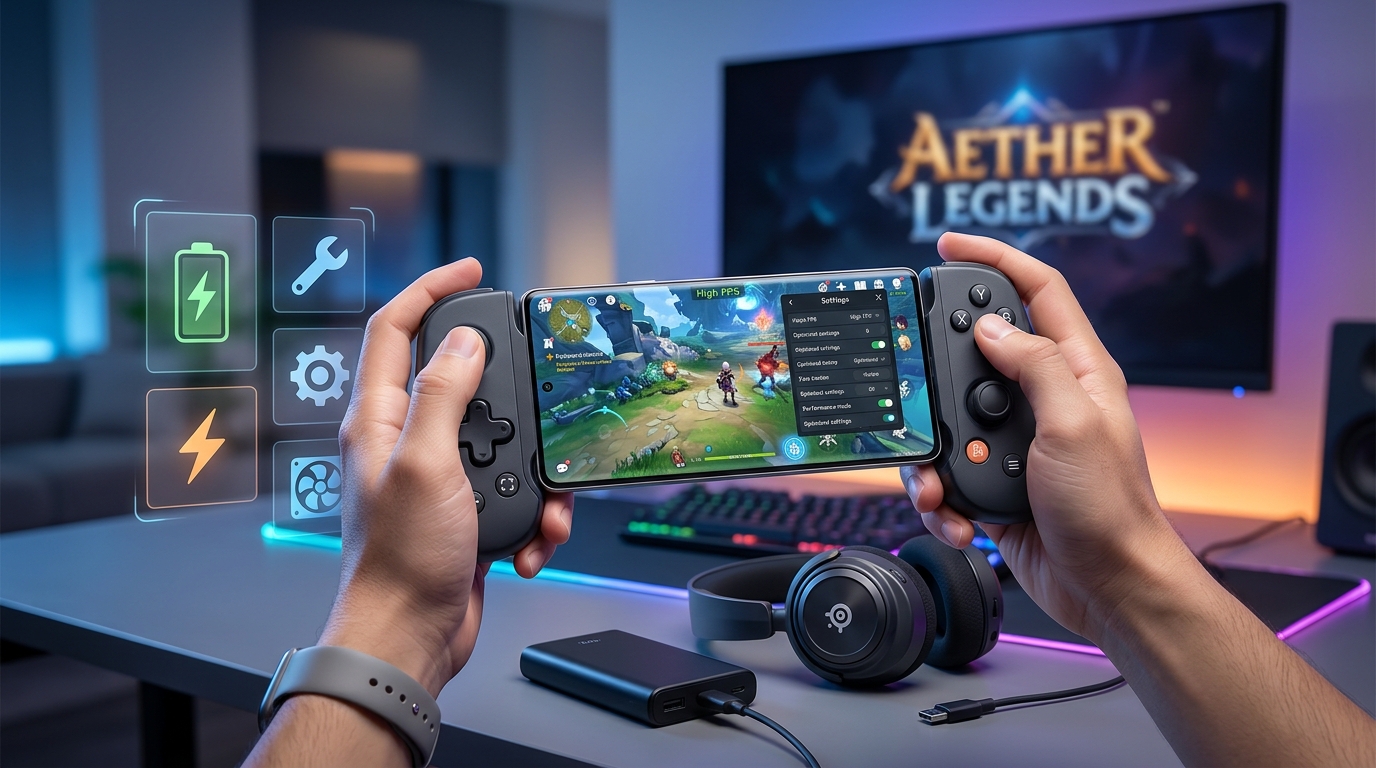
Your favorite mobile game stutters during crucial moments. You miss shots because of lag. Your phone heats up like a toaster after twenty minutes.
These problems aren’t random. They’re fixable.
Most Android phones ship with settings that prioritize battery life over performance. Background apps steal resources. Animations slow everything down. Your phone doesn’t know you’re gaming, so it treats Call of Duty Mobile the same way it treats your email app.
You can optimize Android for gaming through built-in performance modes, closing background apps, adjusting display settings, cooling accessories, and game-specific tweaks. These changes reduce lag, improve frame rates, and extend play sessions without requiring technical expertise or expensive hardware upgrades. Most improvements take under five minutes to implement.
Turn on performance mode first
Every modern Android phone includes a performance or gaming mode buried somewhere in settings. Samsung calls it Game Booster. OnePlus names it Gaming Mode. Google Pixel phones use Performance Mode.
These modes do three things. They allocate more processor power to your active game. They block notifications that would interrupt gameplay. They prevent the system from throttling performance to save battery.
Finding your phone’s performance mode takes different paths depending on manufacturer:
- Open Settings and search for “game” or “performance”
- Look under Display, Battery, or Advanced Features sections
- Enable the mode and add your gaming apps to the priority list
Some phones let you customize what happens when performance mode activates. You can choose whether to block calls, disable auto-brightness, or lock the navigation buttons.
The difference shows up immediately in demanding games. Frame rates stabilize. Touch response improves. Load times shrink.
Stop background apps from stealing resources
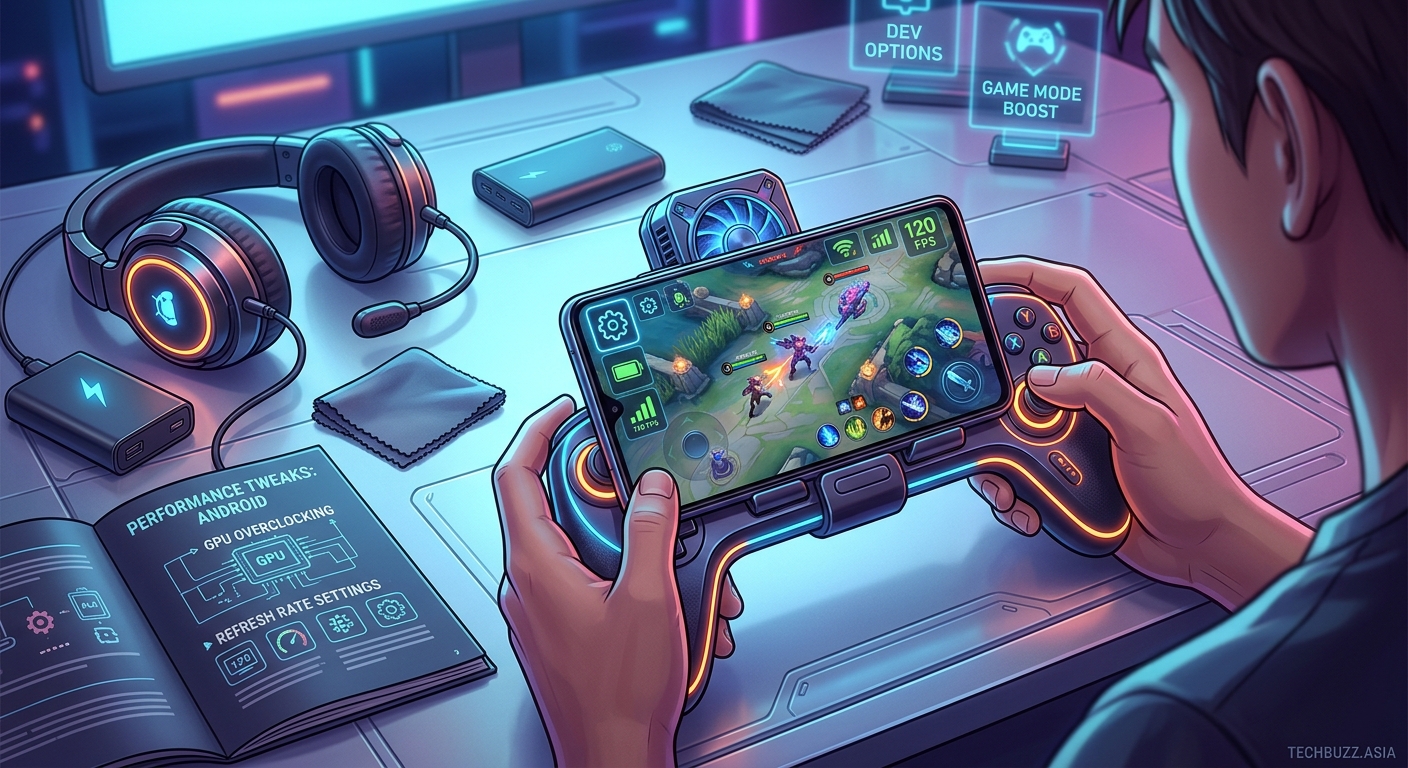
Your phone runs dozens of processes you never see. Social media apps refresh feeds. Email clients check for messages. System services update in the background.
Each process consumes a slice of your processor, RAM, and battery. During gaming, these background tasks create stuttering and frame drops.
Closing apps before gaming makes a measurable difference:
- Open your recent apps menu and swipe away everything except your game
- Check Settings > Apps > Running Services to see what’s actually active
- Disable auto-sync for email, photos, and cloud storage during play sessions
- Turn off automatic app updates in the Play Store settings
Some apps restart themselves automatically. Facebook, Instagram, and messaging apps love doing this. You can restrict background activity for specific apps through Settings > Apps > [App Name] > Battery > Background Restriction.
This doesn’t break the apps. They still work normally when you open them. They just stop running processes when you’re not actively using them.
Gaming performance depends more on available RAM than raw processor speed. Freeing up memory by closing background apps often delivers bigger improvements than overclocking your CPU.
Adjust display settings for smoother gameplay
Your screen refresh rate determines how many frames per second you can actually see. A 60Hz display maxes out at 60 FPS. A 90Hz or 120Hz screen can display higher frame rates if your game supports them.
Many phones default to 60Hz to save battery. You need to manually enable higher refresh rates:
- Navigate to Settings > Display > Screen Refresh Rate
- Select the highest available option (usually 90Hz, 120Hz, or 144Hz)
- Some phones offer an adaptive mode that switches automatically
Games like PUBG Mobile, Call of Duty Mobile, and Genshin Impact support high refresh rates. The difference between 60 FPS and 90 FPS feels dramatic. Movement looks smoother. You can track targets more easily. Response time improves.
Touch sampling rate matters too. This measures how often your screen checks for finger input. Higher sampling rates (240Hz or 360Hz) reduce the delay between touching the screen and seeing a response.
Most phones set touch sampling automatically, but gaming-focused devices like ASUS ROG Phone or RedMagic let you adjust it manually.
Reduce visual effects that slow performance
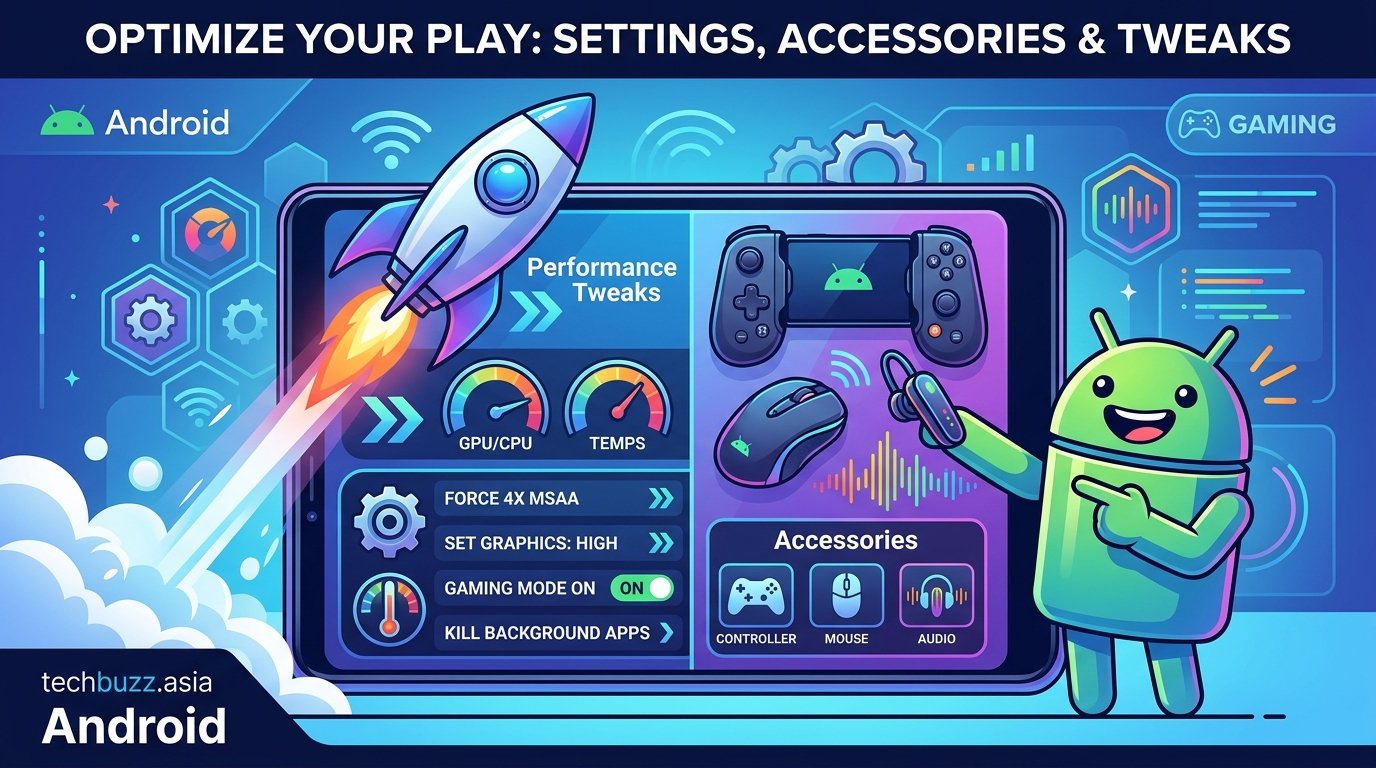
Android’s animations look pretty but waste processing power. Every transition, every fade, every sliding menu consumes resources that could go toward your game.
Developer options let you speed up or disable these animations:
- Open Settings > About Phone
- Tap Build Number seven times to enable Developer Options
- Go back to Settings > System > Developer Options
- Find Window Animation Scale, Transition Animation Scale, and Animator Duration Scale
- Set all three to 0.5x or turn them off completely
Your phone will feel snappier instantly. Apps open faster. Menus respond immediately. Games load without waiting for fancy transitions.
Some people dislike the abrupt feel of disabled animations. The 0.5x setting offers a good middle ground between smoothness and performance.
Keep your phone cool during long sessions
Heat kills performance. When your phone’s temperature rises above safe levels, the processor automatically throttles itself to prevent damage. Your smooth 60 FPS gameplay drops to 30 FPS or lower.
Gaming generates heat faster than almost any other phone activity. The processor works hard rendering graphics. The screen stays bright. The battery discharges rapidly.
Cooling strategies that actually work:
- Remove your phone case before gaming sessions (cases trap heat)
- Play in a cool room with good air circulation
- Take five-minute breaks every 30 minutes to let components cool
- Lower screen brightness to reduce heat from the display
- Use a phone cooling fan or clip-on cooler for extended sessions
Phone cooling accessories range from $15 clip-on fans to $50 thermoelectric coolers. The cheap fans work surprisingly well. They attach to your phone’s back and blow air across the heat-generating components.
Avoid putting your phone in the refrigerator or freezer. Rapid temperature changes create condensation inside the device. That moisture damages electronics.
Clear storage space for better performance
Full storage slows everything down. Android needs free space to create temporary files, cache game data, and manage memory efficiently.
When storage fills up past 90%, you’ll notice longer load times, stuttering during gameplay, and apps crashing unexpectedly. If you need help managing storage without losing important files, check out how to free up storage space on your Android phone without deleting photos.
Target at least 10GB of free space for optimal gaming performance:
- Delete unused apps through Settings > Apps
- Clear cache for individual apps (especially large games)
- Move photos and videos to cloud storage or a computer
- Use Files by Google to identify and remove large or duplicate files
Games cache enormous amounts of data. Call of Duty Mobile can accumulate 5GB of cached assets. PUBG Mobile stores multiple gigabytes of temporary files. Clearing this cache doesn’t delete your progress or settings. It just removes temporary data that the game will recreate as needed.
Disable auto-brightness and set manual levels
Auto-brightness constantly adjusts your screen based on ambient light. This creates two problems for gaming.
First, the brightness changes distract you during gameplay. Your eyes need to constantly readjust. Second, the light sensor and adjustment process consume processing power and battery.
Setting manual brightness improves consistency:
- Pull down your notification shade
- Turn off auto-brightness
- Set brightness to 70-80% for indoor gaming
- Adjust lower for longer battery life or higher for outdoor play
Some games have built-in brightness recommendations. Competitive shooters benefit from higher brightness because you can spot enemies hiding in shadows. Battery-intensive games like Genshin Impact might suggest lower brightness to extend play time.
The right brightness level depends on your environment and game type. Test different levels to find what works best for your eyes and battery life.
Turn off haptic feedback and vibration
Haptic feedback feels nice but drains battery and creates tiny performance delays. Every vibration requires power from the haptic motor. The system needs to process when to trigger vibrations. These micro-delays add up during fast-paced games.
Disabling haptics extends battery life and slightly improves response time:
- Open Settings > Sound & Vibration
- Turn off Touch Vibration and Haptic Feedback
- Disable vibration for notifications and calls during gaming
Most competitive mobile gamers disable all haptics. The tactile feedback doesn’t provide useful information in most games. You’re watching the screen, not feeling for cues.
Some rhythm games like Beat Saber or Guitar Hero-style games use haptics as gameplay feedback. Keep vibration enabled for those specific titles if it helps your timing.
Use Do Not Disturb to block interruptions
Nothing ruins a ranked match like a phone call or notification. The interruption breaks your focus. Some games pause automatically when notifications appear. Others keep running, leaving you vulnerable while you’re distracted.
Do Not Disturb mode blocks all interruptions:
- Swipe down from the top of your screen
- Tap the Do Not Disturb icon
- Configure exceptions for emergency contacts if needed
You can schedule Do Not Disturb to activate automatically during typical gaming hours. Set it to turn on at 8 PM and off at 11 PM if that’s when you usually play.
Some gaming modes activate Do Not Disturb automatically. Check your phone’s game settings to see if this feature exists. Samsung’s Game Booster, for example, can automatically enable Do Not Disturb when you launch specific games.
Compare optimization techniques and common mistakes
| Technique | Performance Impact | Battery Impact | Difficulty |
|---|---|---|---|
| Enable performance mode | High | High drain | Easy |
| Close background apps | Medium | Low drain | Easy |
| Increase refresh rate | High (if game supports it) | Medium drain | Easy |
| Disable animations | Low | Minimal | Medium |
| Use cooling accessories | Medium | None | Easy |
| Clear storage | Medium | None | Easy |
| Disable haptics | Low | Low savings | Easy |
Common mistakes that hurt gaming performance:
- Leaving dozens of browser tabs open in Chrome or Samsung Internet
- Running screen recording or streaming apps during gameplay
- Using battery saver mode (severely limits performance)
- Installing “game booster” apps that promise miracles (most are scams)
- Keeping Bluetooth, GPS, and NFC enabled when not needed
Battery saver mode deserves special mention. It dramatically reduces processor speed, limits background processes, and lowers screen brightness. Never enable battery saver during gaming unless you’re desperate to finish a match before your phone dies.
Consider gaming accessories that make a difference
Hardware accessories can solve problems that software can’t fix. Not every accessory delivers value, but a few categories genuinely improve the gaming experience.
Gaming controllers transform how certain games feel. Bluetooth controllers like the Razer Kishi or Backbone One add physical buttons and joysticks. First-person shooters, racing games, and platformers become dramatically easier to control.
Trigger attachments clip onto your phone and add physical buttons for shooting games. They cost $10 to $30 and work by pressing your screen’s fire buttons. The tactile feedback improves accuracy compared to tapping the screen.
Cooling fans keep temperatures down during marathon sessions. Clip-on fans cost $15 to $25. More expensive thermoelectric coolers ($40 to $60) actively pull heat away from your phone’s processor.
External battery packs extend gaming time without slowing performance. A 10,000mAh power bank provides enough juice for several hours of gaming. Look for models that support fast charging to minimize downtime. For recommendations on reliable options, see the best portable power banks for fast charging your laptop and phone simultaneously.
Gaming triggers, controllers, and cooling fans all attach to your phone. Make sure accessories fit your specific phone model before buying. Phone cases often interfere with gaming accessories, so you might need to remove your case during play.
Network optimization for online gaming
Lag in online games usually comes from network issues, not phone performance. A fast processor can’t fix a slow internet connection.
Wi-Fi almost always beats mobile data for gaming. Even 5G connections introduce more latency than good Wi-Fi. When possible, play on Wi-Fi networks.
Improving your Wi-Fi connection for gaming:
- Move closer to your router during play sessions
- Switch to the 5GHz band if your router supports it (less interference, faster speeds)
- Disconnect other devices that might be consuming bandwidth
- Close apps that use internet in the background (streaming music, cloud sync)
Some routers include Quality of Service (QoS) settings that prioritize gaming traffic. This ensures your game packets get through even when other devices are streaming video or downloading files. Learn more about hidden features in your router that could double your Wi-Fi speed.
Mobile data works in a pinch but introduces variable latency. Your connection quality fluctuates as you move or as network congestion changes. Competitive gaming on mobile data puts you at a disadvantage.
Game-specific settings that matter
Every major mobile game includes graphics and performance settings. Default settings rarely optimize for your specific phone.
Most games offer graphics presets like Low, Medium, High, and Ultra. Your phone might run Ultra settings, but Medium often delivers better frame rates with minimal visual difference.
Key settings to adjust in most games:
- Graphics Quality: Set one level below maximum for best balance
- Frame Rate: Enable 60 FPS or higher if available
- Anti-Aliasing: Turn off or set to low (minimal visual impact, big performance cost)
- Shadows: Reduce quality or disable (huge performance drain)
- Particle Effects: Lower settings reduce visual clutter and improve performance
Some games let you choose between “Smooth” and “Balanced” modes. Smooth prioritizes frame rate. Balanced tries to maintain visual quality. For competitive gaming, always choose Smooth.
Download game resources over Wi-Fi before playing. Many games offer HD texture packs or additional content. Downloading these files during gameplay causes stuttering and lag.
Battery management for longer gaming sessions
Gaming drains batteries faster than any normal phone use. A full charge might last four hours of web browsing but only 90 minutes of intensive gaming.
Extending battery life without sacrificing too much performance:
- Lower screen brightness to 60-70%
- Disable 5G and use LTE when gaming on mobile data
- Turn off location services unless the game requires them
- Use wired headphones instead of Bluetooth
- Enable battery optimization for all apps except your games
Some phones let you set custom battery profiles. Create a gaming profile that balances performance with reasonable battery consumption. Samsung phones offer this through Game Booster settings.
Charging while gaming keeps your battery topped up but generates extra heat. The combination of gaming heat plus charging heat can damage your battery long-term. If you must charge while playing, use a slower charger (not fast charging) to reduce heat generation. For more details on protecting your battery, read about why your smartphone battery degrades faster than it should.
When software optimization isn’t enough
Sometimes your phone simply lacks the hardware to run demanding games smoothly. No amount of optimization will make a budget phone from 2020 run Genshin Impact at high settings.
Signs your phone needs an upgrade:
- Games crash frequently even after optimization
- Frame rates stay below 30 FPS on lowest settings
- Your phone overheats within minutes of starting a game
- Games you want to play aren’t compatible with your device
Before upgrading, check if your phone supports the games you want to play. Game developers list minimum and recommended specifications. Minimum specs mean the game will run but might not be enjoyable. Recommended specs ensure smooth performance.
Gaming-focused phones like ASUS ROG Phone, RedMagic, or Lenovo Legion offer the best mobile gaming experience. They include active cooling, high refresh rate screens, extra RAM, and gaming-optimized software.
Flagship phones from Samsung, Google, and OnePlus also handle games well. They might not include gaming-specific features but offer powerful processors and quality displays.
Make your settings stick
Optimization isn’t one-and-done. Android updates sometimes reset settings. Apps update and re-enable features you disabled. Your carefully tuned setup gradually degrades.
Create a gaming checklist you run through before long play sessions:
- Verify performance mode is enabled
- Check that background apps are closed
- Confirm Do Not Disturb is active
- Make sure battery saver is disabled
- Test that your refresh rate is set correctly
Some phones let you create automation routines. You can set your phone to automatically enable performance mode, close background apps, and activate Do Not Disturb when you launch specific games. Samsung’s Bixby Routines and Android’s built-in automation features support this.
Taking five minutes to verify your settings before gaming prevents frustration mid-session. Nothing feels worse than wondering why your game suddenly runs poorly, only to discover battery saver mode activated automatically.
Your optimized gaming setup awaits
Mobile gaming doesn’t require expensive hardware or technical expertise. The settings already exist in your phone. The accessories that matter cost less than a new game. The performance improvements show up immediately.
Start with the easy wins. Enable performance mode. Close background apps. Bump up your refresh rate. These three changes take under two minutes and deliver noticeable improvements.
Then tackle the deeper optimizations. Disable animations. Clear storage. Set up Do Not Disturb automation. Each additional tweak compounds the benefits.
Your games will run smoother. Your phone will stay cooler. Your battery will last longer. And you’ll finally land those shots that lag used to steal from you.

Post Comment