Why Your Mac Runs Slower Over Time and How to Fix It
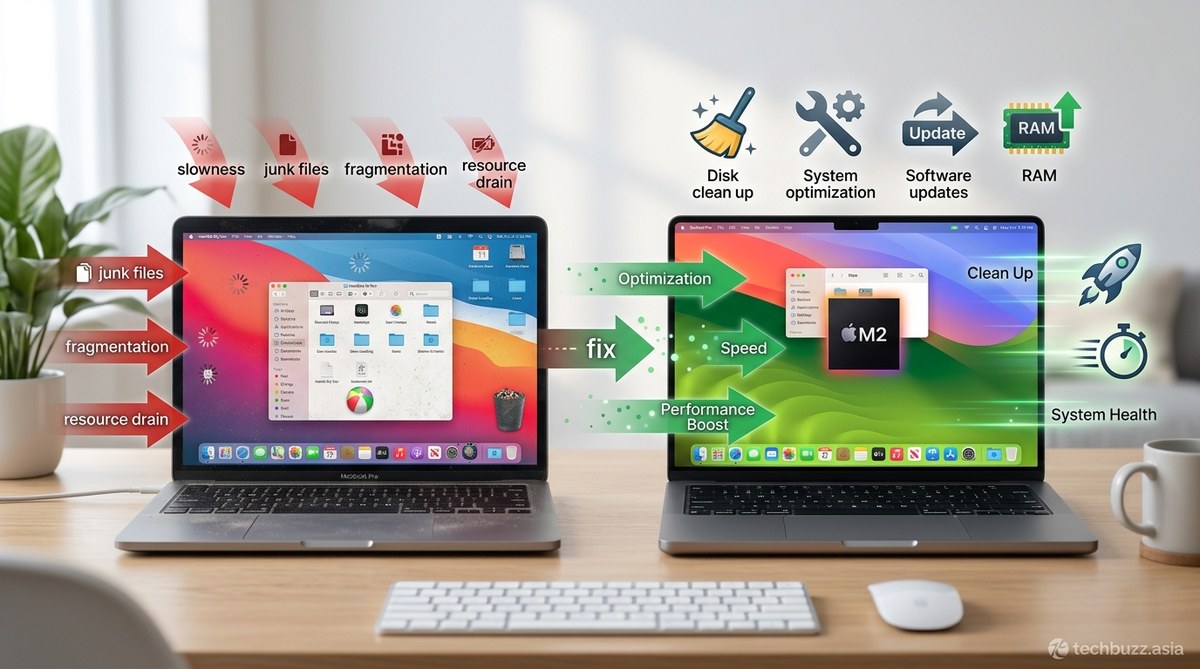
Your Mac used to fly through tasks. Now it lags when you switch apps, takes forever to boot, and sometimes the spinning wheel appears for no clear reason. You haven’t changed how you use it, but somehow everything feels heavier.
This isn’t in your head. Macs do slow down over time, and the reasons are more predictable than you might think.
Macs slow down due to startup programs, full storage, outdated software, and background processes. Most performance issues can be fixed without professional help by managing [login items](https://support.apple.com/guide/mac-help/open-items-automatically-when-you-log-in-mh15189/mac), clearing cache files, updating macOS, and monitoring Activity Monitor. Regular maintenance prevents future slowdowns and keeps your Mac responsive for years.
Too many programs launching at startup
Every app you allow to open automatically when you turn on your Mac consumes memory and processing power.
Over time, apps add themselves to your login items without asking. Some do this during installation. Others sneak in through updates.
The result is a Mac that takes minutes to become usable after you log in.
Here’s how to check what’s launching:
- Open System Settings and click on General.
- Select Login Items from the sidebar.
- Review the list of apps and services that open at login.
- Remove anything you don’t need running immediately by clicking the minus button.
You don’t need every app ready the moment you start your Mac. Most programs launch in seconds when you actually need them.
Keep only essential tools like cloud storage or security software. Everything else can wait.
Your storage is nearly full
macOS needs free space to function properly. When your drive fills up, the system struggles to manage memory, create temporary files, and cache data.
Apple recommends keeping at least 15% of your storage free. Below that threshold, performance drops noticeably.
Check your storage status:
- Click the Apple menu and select About This Mac.
- Click Storage to see what’s consuming space.
- Look for large categories like Documents, Photos, or System Data.
Common storage hogs include:
- Downloaded files you forgot about
- Old iOS backups stored locally
- Cache files from browsers and apps
- Duplicate photos and videos
- Large email attachments saved in Mail
You can reclaim space without deleting important files. Move large media libraries to external drives. Empty your Downloads folder regularly. Use the built-in storage management tool to identify and remove clutter.
Similar to how smartphone batteries degrade with poor maintenance habits, Mac performance suffers when you ignore storage hygiene.
Outdated software causing compatibility issues
Running old versions of macOS or apps creates performance problems.
Older software wasn’t optimized for current hardware. It may use more resources than necessary or conflict with newer system components.
Security updates also include performance improvements. Skipping them means missing out on speed optimizations.
Update your system:
- Click the Apple menu and select System Settings.
- Go to General and then Software Update.
- Install any available macOS updates.
After updating the system, check your apps. Open the App Store and click Updates to install the latest versions of your installed software.
Third-party apps downloaded outside the App Store need manual updates. Check each app’s preferences or visit the developer’s website.
Some people avoid updates because they fear breaking things. That’s understandable but outdated software creates more problems than it solves.
Background processes eating resources
Your Mac runs dozens of processes you never see. Most are necessary system functions. Some are apps running tasks in the background.
Problems arise when misbehaving apps consume excessive CPU or memory.
Activity Monitor shows what’s happening behind the scenes:
- Open Activity Monitor from Applications > Utilities.
- Click the CPU tab to see which processes use the most processing power.
- Check the Memory tab to identify memory hogs.
Look for apps using more than 80% CPU consistently or consuming several gigabytes of RAM.
Common culprits include:
- Web browsers with too many tabs open
- Photo or video editing apps left running
- Cloud sync services processing large uploads
- Backup software running scans
- Spotlight indexing after major changes
You can quit processes directly from Activity Monitor. Select the process and click the X button in the toolbar.
Be careful not to force quit system processes. Focus on third-party apps you recognize.
Browser extensions slowing everything down
Modern browsers are powerful, but extensions can turn them into resource monsters.
Each extension runs code, monitors web pages, and uses memory. Install enough of them and your browser becomes the slowest app on your Mac.
This matters because many people spend most of their time in a browser. If Safari or Chrome lags, your entire Mac feels slow.
Review your extensions:
- In Safari, go to Settings > Extensions.
- In Chrome, type chrome://extensions in the address bar.
- In Firefox, go to Add-ons and Themes.
Disable extensions you don’t use daily. Many people install extensions for one-time tasks and forget about them.
Test your browser’s speed after removing extensions. The difference can be dramatic.
Also clear your browser cache regularly. Cached data speeds up page loading but accumulates over time, eventually slowing things down.
Visual effects and animations
macOS includes smooth animations and transparency effects that make the interface feel polished.
These effects require graphics processing. On older Macs or systems under heavy load, they add noticeable lag.
Reducing visual effects won’t make your Mac blazing fast, but it helps with responsiveness.
Turn off transparency:
- Open System Settings and go to Accessibility.
- Select Display from the sidebar.
- Enable “Reduce transparency.”
You can also reduce motion effects in the same menu. This minimizes animations when opening apps or switching spaces.
The interface looks less flashy but responds faster.
Too many desktop files
Your desktop isn’t just a visual space. macOS treats it as an active folder that constantly refreshes.
Every file on your desktop requires system resources to display and manage. Hundreds of files create unnecessary overhead.
This is especially true if you use desktop icons to preview files. Each preview image needs to be generated and stored in memory.
Move desktop files into organized folders. Create a Documents subfolder structure or use cloud storage.
Keep your desktop clean with only a few frequently accessed items.
The performance gain is subtle but real, especially on Macs with less RAM.
Comparing common solutions and mistakes
| Solution | What It Does | Common Mistake |
|---|---|---|
| Restart regularly | Clears memory and stops stuck processes | Leaving Mac on for weeks without rebooting |
| Update macOS | Improves compatibility and adds optimizations | Ignoring updates due to fear of changes |
| Manage login items | Reduces startup time and frees resources | Allowing every app to launch at login |
| Free up storage | Gives system room for temporary files | Waiting until storage is completely full |
| Close unused apps | Releases memory and CPU cycles | Keeping apps open “just in case” |
| Clear browser cache | Removes accumulated temporary files | Never clearing cache or cookies |
| Monitor Activity Monitor | Identifies resource-hungry processes | Ignoring warning signs of high CPU usage |
Hardware limitations you can’t fix with software
Sometimes your Mac is slow because it’s old.
A 2015 MacBook Air with 4GB of RAM will struggle with modern apps no matter how well you optimize it. Software grows more demanding over time. Hardware doesn’t improve.
You can extend the life of older Macs with upgrades. Some models allow RAM expansion or SSD installation. These upgrades make a bigger difference than any software tweak.
But eventually, hardware age catches up. If your Mac is more than seven years old and you use demanding apps, slowness might be the new normal.
Understanding what happens when tech giants stop supporting your device helps you plan for replacements.
“The single most effective performance upgrade for any Mac is replacing a mechanical hard drive with an SSD. It transforms the entire experience more than doubling RAM or upgrading the processor.”
Malware and unwanted software
Macs are less vulnerable to malware than Windows PCs, but they’re not immune.
Adware, browser hijackers, and cryptocurrency miners can infect Macs. These programs run in the background, consuming resources and slowing everything down.
Signs your Mac might have malware:
- Unexpected pop-up ads
- Homepage or search engine changes you didn’t make
- New browser toolbars appearing
- Unfamiliar apps in your Applications folder
- Excessive fan noise when idle
Run Malwarebytes for Mac to scan for threats. The free version works well for occasional scans.
Also review your installed apps. Go to Applications and look for anything unfamiliar. Many adware programs disguise themselves with generic names.
Delete suspicious apps by dragging them to the Trash. Then empty the Trash to complete removal.
Disk errors and fragmentation
macOS manages storage well, but errors can develop over time.
Disk errors prevent proper file access. The system retries operations, causing delays and slowdowns.
Run First Aid to check your disk:
- Open Disk Utility from Applications > Utilities.
- Select your startup disk from the sidebar.
- Click First Aid and then Run.
The scan takes several minutes. If errors are found, Disk Utility attempts repairs.
Modern Macs with SSDs don’t need defragmentation. The file system handles optimization automatically. But older Macs with mechanical drives might benefit from it.
Third-party tools like DaisyDisk help visualize storage use and identify problems.
Indexing and Spotlight searches
Spotlight indexes your files to make searches fast. This process runs in the background, especially after major updates or when you add large amounts of data.
While indexing runs, your Mac uses significant CPU and disk resources. Everything feels sluggish.
Check if Spotlight is indexing:
- Open Activity Monitor.
- Look for a process called “mds_stores” or “mdworker.”
- If it’s using high CPU, indexing is likely running.
Indexing usually finishes within a few hours. Let it complete rather than interrupting it.
If Spotlight constantly reindexes, you can rebuild the index:
- Go to System Settings > Siri & Spotlight.
- Click the Privacy tab.
- Drag your hard drive into the list.
- Wait a moment, then remove it.
This forces a complete reindex. Performance should improve once it finishes.
Memory pressure and swap usage
RAM is your Mac’s working memory. When it fills up, macOS uses your hard drive as virtual memory through a process called swapping.
Swapping is much slower than using RAM. Heavy swap usage causes noticeable lag.
Check memory pressure:
- Open Activity Monitor and click the Memory tab.
- Look at the Memory Pressure graph at the bottom.
- Green means healthy, yellow means moderate pressure, red means critical.
If you consistently see yellow or red memory pressure, you need more RAM or should close apps.
Apps that commonly use excessive memory:
- Google Chrome with many tabs
- Adobe Creative Suite applications
- Virtual machines running other operating systems
- Video editing software
- Development tools with multiple projects open
Close apps you’re not actively using. Consider upgrading RAM if your Mac model allows it.
Just as optimizing your router settings can improve network performance, managing memory effectively boosts overall system speed.
Power settings and battery health
MacBooks on battery power run slower to conserve energy.
This is intentional. macOS reduces processor speed and dims the display to extend battery life.
Connect to power when doing demanding work. Your Mac will run at full speed.
Battery health also affects performance. Degraded batteries can’t provide enough power for peak performance. macOS may throttle the processor to prevent unexpected shutdowns.
Check battery health:
- Hold the Option key and click the battery icon in the menu bar.
- Look at the Condition line.
- “Normal” is good. “Service Recommended” means the battery needs replacement.
Replacing an old battery can restore performance on older MacBooks.
Temperature and thermal throttling
Macs slow down when they overheat. This protects internal components from damage.
Thermal throttling reduces processor speed until temperatures drop. Your Mac feels sluggish until it cools down.
Common causes of overheating:
- Blocked air vents
- Dust buildup inside the case
- Running intensive tasks in hot environments
- Faulty cooling fans
- Dried thermal paste on older models
Keep vents clear. Don’t use your MacBook on soft surfaces like beds or couches that block airflow.
Listen for fan noise. Loud fans mean your Mac is working hard to cool down. If fans run constantly during light tasks, something’s wrong.
Clean dust from vents using compressed air. For internal cleaning or thermal paste replacement, consider professional service.
When to consider a clean install
Sometimes the best fix is starting fresh.
A clean macOS installation removes years of accumulated cruft, conflicting settings, and mysterious slowdowns that resist other solutions.
This is a last resort. Back up everything first.
The process erases your drive and reinstalls macOS from scratch. You then restore your files and reinstall apps manually.
It’s time-consuming but effective. Many people report their Mac feels like new afterward.
Before going this route, try all other fixes. A clean install should only happen when nothing else works or you’re preparing to sell your Mac.
Keeping your Mac fast long term
Prevention beats troubleshooting.
Develop habits that maintain performance:
- Restart your Mac weekly
- Update software monthly
- Clear browser cache every few months
- Review login items quarterly
- Monitor storage and keep 20% free
- Run Disk Utility’s First Aid twice a year
These small actions prevent the gradual slowdown most users experience.
Think of Mac maintenance like car maintenance. Regular oil changes prevent engine problems. Regular digital hygiene prevents performance problems.
Getting back to speed
Your Mac doesn’t need to feel sluggish. Most slowdowns come from manageable causes.
Start with the easiest fixes. Restart your Mac, update your software, and check what’s launching at startup. Those three steps solve problems for most people.
If you’re still experiencing slowness, work through Activity Monitor to identify resource hogs. Clear storage space and reduce visual effects.
The goal isn’t perfection. It’s getting your Mac responsive enough that you stop noticing the delays. That’s achievable without technical expertise or expensive upgrades.
Your Mac served you well when it was new. With a little attention, it can feel that way again.


Post Comment