The Best Android Widgets You’re Not Using But Should Be in 2026
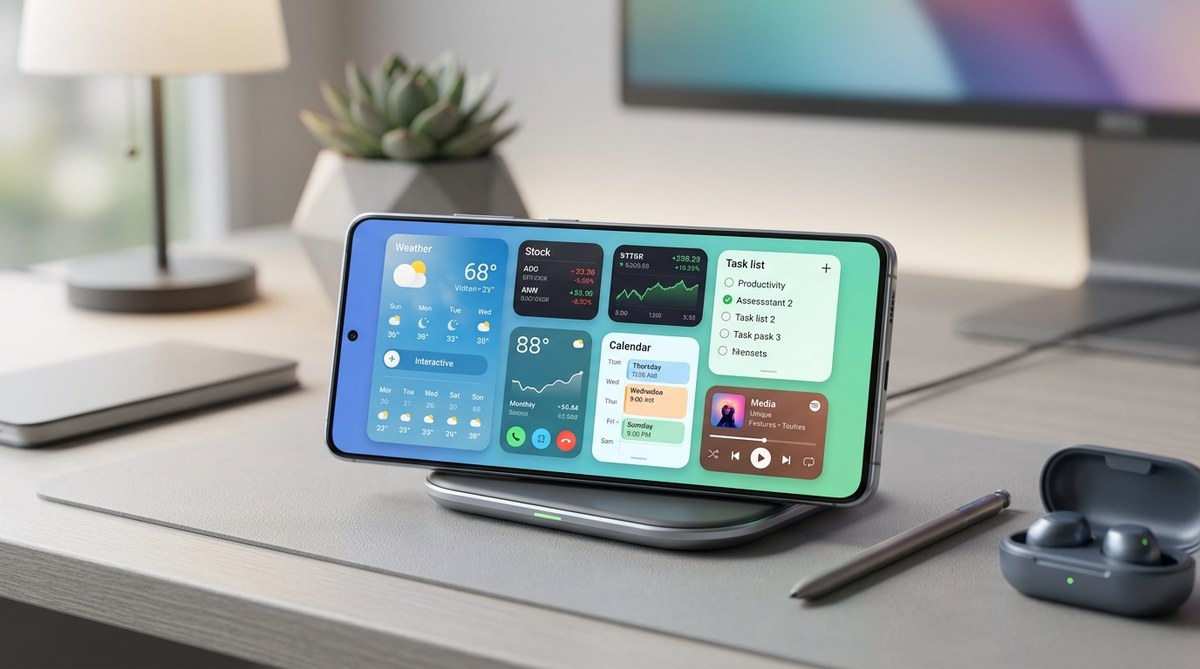
Your Android home screen probably looks pretty standard. A few app icons, maybe a clock widget, perhaps a weather forecast. But you’re missing out on some seriously useful tools that could save you time and effort every single day.
Most Android users stick with the basics because they don’t know what’s available. The Play Store is packed with widget options that go way beyond showing the time or temperature. Some can automate tasks, display critical information at a glance, or give you one-tap access to features buried deep in settings.
The best android widgets 2026 go beyond basic clock and weather displays. Smart widgets for calendar management, battery monitoring, task automation, music control, and system shortcuts can transform your home screen into a powerful control center. Most users overlook these tools, missing opportunities to save time and streamline daily phone interactions with properly configured widgets.
Calendar widgets that actually show what matters
Standard calendar widgets show a month view that’s too small to read. Better options exist.
Month Calendar Widget gives you a clear overview with color coding for different event types. You can resize it to show one week or an entire month. Tap any date to see details without opening your calendar app.
Business Calendar 2 offers even more customization. It displays upcoming events in list format with weather forecasts for each day. You can mark tasks complete directly from the widget. The agenda view shows exactly what’s coming up without wasting screen space on past dates.
For people juggling multiple calendars, these widgets become essential. Work meetings, personal appointments, and family events all appear in one glance. No more opening apps to check if you’re free Thursday afternoon.
Battery monitoring widgets that prevent surprises
Your phone’s battery indicator tells you the percentage. That’s it. Better widgets show what’s actually draining your power.
AccuBattery places a small widget on your home screen showing current battery health, charge speed, and estimated time remaining. It tracks which apps consume the most power and alerts you when charging reaches 80% to extend battery lifespan.
GSam Battery Monitor goes deeper. Its widget displays screen-on time, active processes, and power consumption per app. You can spot battery hogs immediately and decide whether to close them or adjust settings.
These widgets matter because they provide actionable information. Instead of wondering why your battery died by 3 PM, you see exactly which app drained 30% in two hours.
Task and to-do widgets for actual productivity
To-do apps are useless if you forget to check them. Widgets solve that problem by keeping tasks visible.
Microsoft To Do offers a clean widget showing your top three tasks. Check them off without opening the app. Add new items with a single tap. The widget updates across all your devices instantly.
TickTick provides more flexibility. Its widget can display tasks by list, priority, or due date. You can set it to show only today’s items or everything due this week. The 4×2 size fits perfectly above your app drawer.
Todoist takes a different approach with multiple widget styles. Choose between a simple checklist, a detailed agenda, or a minimal counter showing how many tasks remain. Each serves different needs depending on your workflow.
Keep widgets focused on immediate actions. A widget showing 47 overdue tasks becomes visual noise you’ll ignore. Limit displays to today’s priorities and you’ll actually use them.
Music and podcast control without opening apps
Switching between apps to control media playback wastes time. Proper widgets give you instant control.
Spotify’s official widget is surprisingly limited. Try Stellio Music Player instead. Its widget shows album art, track info, and playback controls in a customizable size. You can skip tracks, adjust volume, and see lyrics without leaving your home screen.
For podcast listeners, Pocket Casts offers the best widget. It displays current episode progress, playback speed controls, and a jump-forward button. The 4×1 size fits in tight spaces while remaining fully functional.
YouTube Music users should enable the built-in widget that shows your mix and recent plays. One tap starts music based on your listening history. No searching, no scrolling.
System shortcut widgets that save multiple taps
Android buries useful features in settings menus. Widgets can bring them to your home screen.
The built-in Settings shortcut widget lets you place toggles for specific features. Add buttons for mobile data, airplane mode, or battery saver. Each saves you three or four taps compared to navigating through settings.
Power Shade creates custom quick settings tiles you can access from anywhere. Its widget provides even faster access to features you use constantly. Toggle flashlight, screen rotation, or sync settings with a single tap.
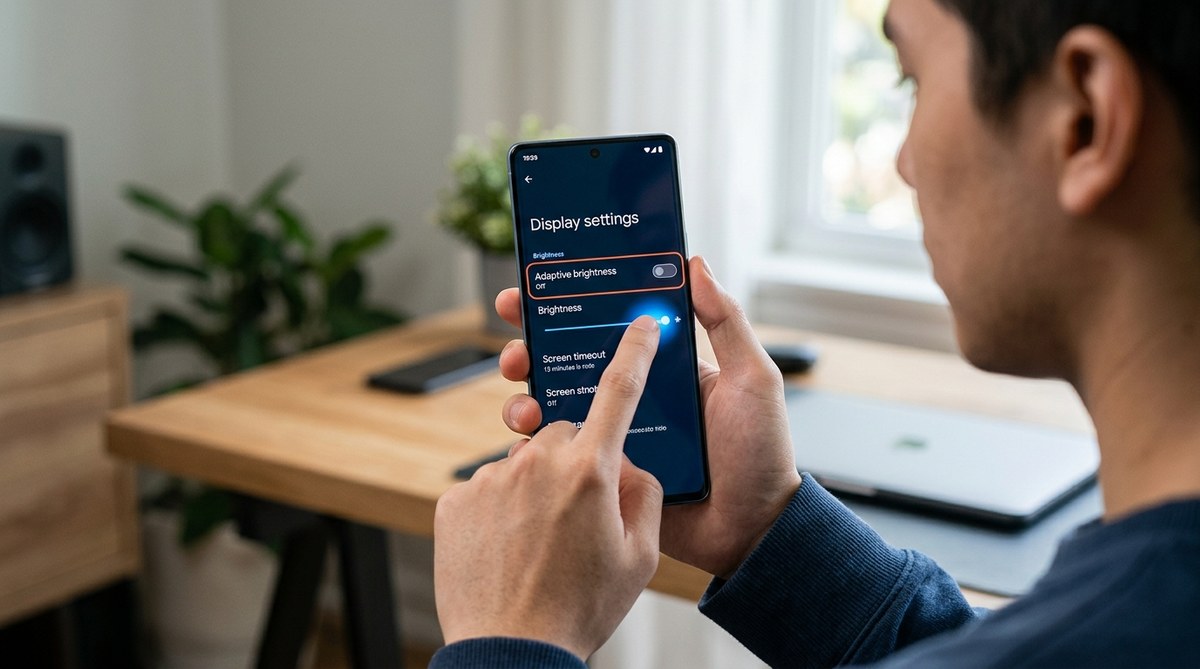
For users who frequently adjust display settings, the Twilight widget controls blue light filtering without opening the app. Slide the widget to adjust intensity or set automatic schedules based on sunset times.
Weather widgets that go beyond temperature
Most weather widgets show current conditions and a three-day forecast. That’s barely useful.
Geometric Weather displays hourly forecasts, precipitation probability, and air quality in a beautiful, readable format. The 4×3 widget shows everything you need to plan your day. It pulls data from multiple sources for accuracy.
Weather Timeline (now discontinued but still functional) remains the best option for detailed forecasts. Its widget shows temperature trends, wind speed, and UV index. You can customize which metrics appear based on your priorities.
For outdoor enthusiasts, Windy’s widget displays wind patterns, radar, and severe weather alerts. It’s particularly useful if you’re planning activities that depend on specific conditions.
Note-taking widgets for capturing thoughts instantly
Opening a notes app to jot something down takes too long. By the time you find it, you’ve forgotten what you wanted to write.
Google Keep’s widget places a notepad directly on your home screen. Tap to start typing immediately. Your note syncs across devices before you finish writing. You can create separate widgets for different note types: shopping lists, ideas, or reminders.
OneNote offers a similar widget with better formatting options. You can create bulleted lists, add images, or record voice notes without opening the full app. The widget displays your most recent notes for reference.
Simplenote takes a minimal approach. Its widget shows a single text field and your latest note. Perfect for people who want fewer features and faster performance.
Photo frame widgets that make your screen personal
Why stare at app icons when you could see photos that matter?
Google Photos offers a memories widget that displays pictures from past years. It automatically rotates through photos taken on this date in previous years. You’ll rediscover forgotten moments without any effort.
F-Stop Gallery provides more control. Its widget can show specific albums, random photos, or images tagged with certain keywords. Set it to display only favorites or pictures of specific people.
For users who want artistic displays, Muzei changes your wallpaper daily with famous artwork or your own photo collection. The widget shows the current image’s title and artist.
Fitness tracking widgets for staying active
Fitness apps are great until you forget to check them. Widgets keep your goals visible.
Google Fit’s widget displays step count, active minutes, and heart points. Seeing your progress throughout the day motivates you to move more. The compact 2×1 size doesn’t dominate your screen.
MyFitnessPal offers a calorie counter widget showing remaining calories and macronutrient breakdown. You can log meals directly from the widget using voice input or recent items.
For runners, Strava’s widget displays weekly mileage and recent activities. Tap to start a new run without navigating through menus. It integrates with smartwatch data for comprehensive tracking.
Setting up widgets the right way
Placing widgets randomly creates clutter. Follow this process for a functional home screen:
- Remove all widgets currently on your screen and start fresh.
- List the three actions you perform most frequently on your phone.
- Find widgets that enable those actions with fewer taps.
- Place the most important widget on your primary home screen.
- Group related widgets on secondary screens by category.
- Test your setup for three days and adjust based on actual usage.
This approach ensures every widget earns its screen space. If you don’t interact with a widget for a week, remove it.
Common widget mistakes to avoid
| Mistake | Why it fails | Better approach |
|---|---|---|
| Using too many widgets | Creates visual clutter and slows launcher | Limit to 3-4 essential widgets per screen |
| Choosing large widget sizes | Wastes space and limits app access | Start with smallest functional size |
| Never updating widget settings | Displays irrelevant information | Review and adjust monthly |
| Placing widgets on every screen | Makes navigation confusing | Dedicate one screen to widgets only |
| Using default widget configurations | Generic settings don’t match your needs | Customize colors, data, and refresh rates |
Widgets that work better with specific launchers
Your launcher affects widget functionality. Nova Launcher lets you resize any widget to custom dimensions and adjust padding. This flexibility helps widgets fit perfectly in your layout.
Action Launcher supports popup widgets that appear when you swipe up on app icons. This saves home screen space while keeping widgets accessible. You can attach any widget to any app icon.
Microsoft Launcher integrates widgets into a dedicated feed accessible by swiping right. This keeps your home screen clean while maintaining widget access. The feed scrolls vertically, so you can add unlimited widgets without crowding your layout.
For users who prefer minimal home screens, consider custom launchers that hide widgets until needed.
Performance considerations for widget users
Widgets consume resources. Each one runs background processes to stay updated. Too many widgets drain your battery and slow your phone.
Monitor widget impact in Settings > Battery > Battery Usage. If a widget consumes more than 2-3% daily, find an alternative or adjust its refresh rate. Most widgets let you control update frequency in their settings.
Disable automatic updates for widgets showing static information. A calendar widget doesn’t need to refresh every minute. Set it to update hourly or only when you open your home screen.
Live widgets that display constantly changing data (like real-time weather radar) consume the most power. Use these sparingly and only when their information justifies the battery cost.
Widget security and privacy concerns
Widgets display information on your lock screen by default. Anyone picking up your phone can see calendar appointments, messages, or personal notes.
Disable sensitive widgets on the lock screen in Settings > Lock Screen > Widgets. Keep only non-personal widgets like weather or music controls visible when locked.
Some widgets request unnecessary permissions. A weather widget doesn’t need access to your contacts or call logs. Review permissions in Settings > Apps and revoke anything suspicious. App permission requests have increased recently, making this check more important.
Third-party widgets from unknown developers might collect data without disclosure. Stick to widgets from established apps or open-source alternatives with transparent code.
Combining widgets with automation tools
Widgets become more powerful when paired with automation. Tasker can trigger actions based on widget interactions.
For example, tapping a custom widget could enable Do Not Disturb, launch your meditation app, and dim your screen. Another widget might activate mobile hotspot, open your laptop’s remote desktop app, and disable battery optimization for that session.
IFTTT connects widgets to web services. A button widget could log your location to a spreadsheet, send a text to family members, or post to social media. These automations turn simple widgets into powerful tools.
MacroDroid offers a middle ground between Tasker’s complexity and IFTTT’s limitations. Its widget triggers can control smart home devices, adjust phone settings, or run custom scripts.
Widgets worth paying for
Most quality widgets are free, but some premium options justify their cost.
KWGT (Kustom Widget Maker) costs $4.99 and lets you design completely custom widgets. You control every element: fonts, colors, data sources, and animations. The learning curve is steep, but the results look professional.
Month Calendar Widget Pro removes ads and adds features like week numbers, customizable colors, and multiple calendar support. The $2.99 price eliminates the main annoyance of the free version.
Overdrop Weather’s premium version ($1.99) provides hyperlocal forecasts and severe weather alerts. For people in areas with unpredictable weather, the accuracy improvement matters.
Making widgets look cohesive
Mismatched widget styles create visual chaos. A few adjustments create harmony.
Choose widgets with similar design languages. If you prefer material design, avoid widgets with skeuomorphic elements. Stick to flat colors or embrace gradients throughout, not both.
KWGT and similar tools let you theme widgets to match. Create a color palette of three to four colors and apply it consistently. Your home screen will look intentional rather than random.
Icon packs affect how widgets integrate with your layout. A minimal icon pack pairs well with simple, text-focused widgets. Detailed icons work better with rich, graphical widgets.
Widgets for specific use cases
Different lifestyles need different widgets. Students benefit from class schedule widgets showing room numbers and assignment due dates. Shift workers need widgets displaying work calendars with clock-in reminders.
Parents might prioritize family calendar widgets, location sharing controls, and emergency contact shortcuts. Travelers want currency converters, time zone clocks, and flight tracking widgets.
Think about your daily routine. Which information do you check repeatedly? Which actions do you perform multiple times? Those are the widgets you need.
Updating your widget setup seasonally
Your needs change throughout the year. Winter might require different widgets than summer.
During cold months, a weather widget showing “feels like” temperature becomes essential. In summer, UV index and pollen count matter more. Adjust which data your weather widget displays.
School seasons need homework and exam countdown widgets. Summer breaks don’t. Swap them for vacation planning or reading goal widgets during off months.
Work projects change quarterly. Update task widgets to reflect current priorities rather than letting old projects clutter your view.
Why most people never optimize their widgets
Setting up widgets takes time. Testing different options, adjusting sizes, and configuring settings requires effort. Most users stick with defaults because changing them feels like work.
But spending 30 minutes optimizing your widgets saves hours over the following months. Every time you access information faster or complete a task with fewer taps, you recover seconds. Those seconds compound into meaningful time savings.
The best android widgets 2026 aren’t necessarily the newest or most popular. They’re the ones that match your specific needs and integrate smoothly into your workflow. Start with one widget that solves a real problem you face daily. Once you see the benefit, you’ll be motivated to optimize further.
Widgets that deserve space on your screen
Your Android home screen is valuable real estate. Every element should earn its place through usefulness, not just look interesting.
The widgets mentioned here solve real problems. They provide information you need, enable actions you take frequently, and save time you’d otherwise waste navigating through apps. Test a few that address your specific pain points. Remove the ones that don’t deliver value after a week. Your home screen will transform from a simple app launcher into a personalized control center that actually helps you get things done faster.

Post Comment