Mastering Android Notifications: How to Manage Alerts for a Less Disruptive Day
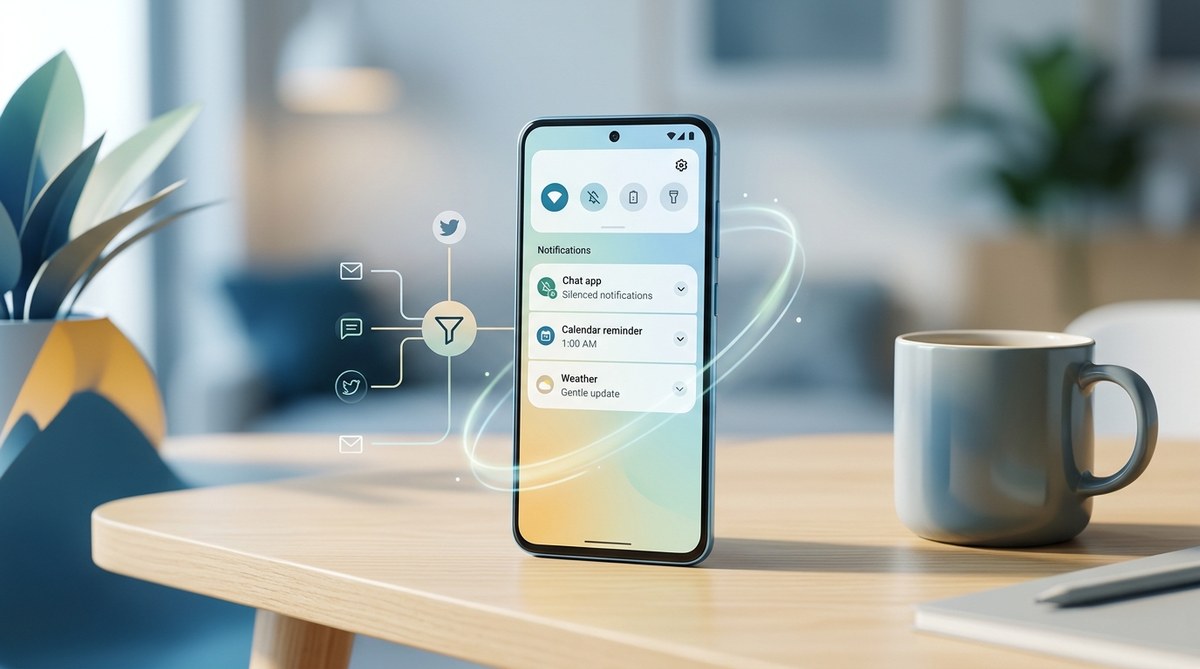
Managing notifications on your Android device can feel overwhelming. Every buzz, pop-up, or sound pulls you out of focus. But with the right settings, you can regain control. This guide walks you through how to optimize your notification management for a calmer, more productive day. Whether you want fewer interruptions or better control over important alerts, these simple strategies will help you make your Android device work for you.
Effective Android notifications management involves customizing app alerts, using system features to silence or prioritize notifications, and understanding app-specific settings. Applying these tips helps reduce distractions and improves your device’s usability, leading to a more peaceful daily routine with your Android smartphone or tablet.
Understanding Your Notification System
Android’s notification system is powerful but can become a source of constant interruptions. Apps send alerts for messages, updates, reminders, and more. While some notifications are vital, many are unnecessary or disruptive. Managing these alerts smartly can help you stay focused.
Android offers several layers of control, including system-wide settings, app-specific options, and notification categories. Knowing how each works allows you to tailor your notification experience.
How to Manage Notifications Effectively
Here are practical steps to take control of your alerts:
1. Use the Notification Shade for Quick Management
Your device’s notification shade is a central hub for managing alerts on the fly. When a notification pops up, tap and hold it to access options like:
- Silencing the app temporarily
- Turning off notifications for that app
- Adjusting notification categories if available
This method is quick for immediate adjustments, especially for apps that send frequent or intrusive alerts.
2. Customize App Notification Settings
For long-term control, dive into your device’s settings:
- Open the Settings app
- Navigate to Apps & notifications or Notifications
- Tap App notifications or Notification manager
- Select the app you want to modify
Here, you can:
- Disable notifications entirely
- Adjust notification categories
- Change alert types (sound, vibrate, pop-up)
3. Use Notification Categories for Fine-Grained Control
Many apps now support notification categories, allowing you to customize different alert types separately. For example, messaging apps might differentiate between chat messages and promotional alerts.
To manage categories:
- Open Settings
- Access Apps & notifications
- Select the app
- Tap Notifications
- Manage each category individually, turning off or customizing sounds for less important alerts
4. Set Priority and Do Not Disturb Modes
Prioritizing alerts ensures your most important notifications break through while others stay quiet.
- Go to Settings > Sound & notifications > Do Not Disturb
- Schedule quiet hours or allow exceptions
- Use Priority only to ensure essential alerts like calls or messages ring through
5. Manage Lock Screen Notifications
Decide what appears when your phone is locked:
- Open Settings
- Tap Notifications > Lock screen
- Choose to hide sensitive content or hide all notifications
This prevents unwanted alerts from showing when your device is locked, preserving privacy and reducing visual clutter.
Practical Techniques to Reduce Notification Distractions
Here are some techniques to streamline your notifications:
- Disable unnecessary app notifications: Review app list regularly and turn off alerts for apps you no longer need instant updates from.
- Use notification silencers during meetings or focus time.
- Implement scheduled quiet hours for non-urgent alerts.
- Create custom notification sounds for important contacts or apps to differentiate alerts without checking your device constantly.
- Leverage notification dots on app icons for subtle alerts instead of intrusive banners.
Common Mistakes and How to Avoid Them
| Mistake | Why it hurts | How to fix it |
|---|---|---|
| Leaving all notifications enabled | Too many distractions | Regularly review app notifications and disable what you don’t need |
| Relying solely on Do Not Disturb | Misses important alerts | Set exceptions for critical contacts or apps |
| Ignoring notification categories | Less control | Enable and manage categories where available |
| Forgetting to silence notifications during focus times | Disrupts workflow | Schedule focus hours with auto-activate DND |
Expert tip: “Taking a few minutes to customize your notification settings can significantly improve your daily focus and reduce stress. Don’t wait for an overload to start managing alerts.”
How to Create a Distraction-Free Notification Environment
- Review all installed apps and disable non-essential notifications.
- Use the Focus mode feature to pause notifications from specific apps during work or rest periods.
- Customize notification sounds to be subtle or silent for less critical alerts.
- Utilize Notification channels on newer Android versions to manage different alert types precisely.
Automating Notification Management with Third-Party Apps
For advanced control, consider apps like Notification Manager or Automate. They can help:
- Schedule auto-silence periods
- Filter notifications based on keywords or app source
- Send you summaries instead of real-time alerts
Be cautious, though. Always review app permissions and privacy policies before installing third-party tools.
When Settings Aren’t Enough
Sometimes, notifications still feel overwhelming. In such cases:
- Review your device’s battery optimization settings. Sometimes, apps send notifications because they’re not properly restricted.
- Clear app cache or reinstall problematic apps.
- Update your device to the latest Android version for improved notification controls.
Future-Proof Your Notification Experience
Android continues to improve its notification system. Keep an eye out for upcoming features like more granular notification controls and AI-powered filtering. Staying updated ensures you always have the tools to keep your device less intrusive.
Your Path to a Peaceful Device
Managing notifications doesn’t mean missing out on important alerts. It means setting boundaries and customizing your device to suit your lifestyle. Start by reviewing your app notifications today. Adjust settings for apps you use most and schedule quiet hours during work and rest times. Over time, you’ll find your device becomes a helpful tool rather than a constant distraction.
Keeping Your Android Experience Calm and Focused
Taking control of notifications is about reclaiming your time. Use the built-in settings to silence or prioritize alerts. Remember, your device is a tool meant to serve you. With a little effort, you can make it work better for your daily rhythm. Apply these tips, experiment with your settings, and enjoy a less disruptive, more focused Android experience.

Post Comment