Why Your Next Webcam Should Have AI Features Built In
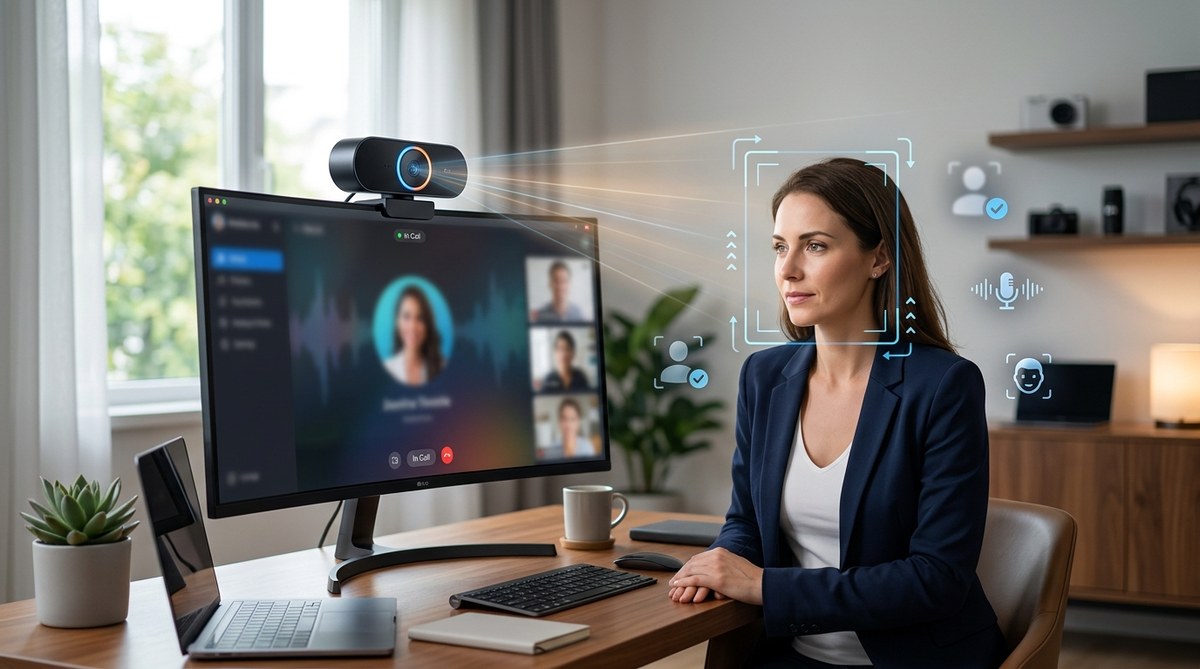
Your laptop’s built-in webcam made sense five years ago. Today, it’s the weakest link in your home office setup. While your microphone, lighting, and internet connection have all improved, that tiny lens above your screen still makes you look like you’re calling from a basement in 2015.
AI webcams change that equation completely.
Modern AI webcam features like auto-framing, intelligent lighting correction, background replacement, and noise suppression deliver professional-quality video without expensive studio setups. These cameras use on-device processing to track movement, adjust exposure in real time, and remove distractions, making them essential tools for remote workers, streamers, and content creators who need to look polished on every call.
Auto-framing keeps you centered without manual adjustments
Traditional webcams force you to sit perfectly still. Lean left to grab your coffee, and you’re halfway off screen. Stand up to show something, and you disappear entirely.
AI-powered auto-framing solves this problem using real-time subject tracking. The camera identifies your face and upper body, then digitally pans and zooms to keep you centered in the frame. This happens continuously throughout your call or recording session.
The technology works through a combination of facial recognition and motion prediction. When you move, the camera doesn’t just react. It anticipates where you’re going and adjusts smoothly, avoiding the jerky movements that plagued early tracking systems.
For content creators, this means you can move naturally while recording tutorials or presentations. For remote workers, it means you can gesture, reference notes, or shift positions without constantly checking if you’re still visible.
Most modern AI webcams offer adjustable framing modes. You can choose tight framing for head-and-shoulders shots, medium framing for desk work, or wide framing when multiple people need to appear on camera.
Intelligent lighting correction fixes terrible home office lighting
Home office lighting is rarely ideal. You might have a window behind you, overhead fluorescents creating harsh shadows, or a dim room that makes you look like a witness in a crime documentary.
AI lighting correction analyzes each frame and adjusts exposure, contrast, and color balance automatically. Unlike simple brightness adjustments, these systems identify your face specifically and optimize lighting for skin tones while maintaining natural-looking backgrounds.
The processing happens locally on the camera’s built-in chip. This means no lag, no cloud uploads, and no privacy concerns about your video being processed on remote servers.
“The difference between a $30 webcam and a $150 AI webcam isn’t the lens quality. It’s the computational photography happening between the sensor and your screen. Good AI lighting can make a basement office look like a professional studio.”
Advanced models include HDR processing that balances bright windows and dark rooms in the same frame. If you’re sitting with a window behind you, the camera won’t turn you into a silhouette. It brightens your face while preventing the background from blowing out completely.
Some cameras also offer customizable color profiles. You can warm up cool fluorescent lighting, reduce the blue tint from monitor glare, or match your skin tone to specific lighting conditions.
Background replacement and blur work better than software solutions
Virtual backgrounds in Zoom or Teams often look terrible. Your hair becomes a fuzzy mess, your hands disappear when you gesture, and the edge detection struggles with complex backgrounds.
AI webcams with built-in background processing handle this differently. Because the camera performs the segmentation before sending the video signal to your computer, the results are cleaner and more consistent.
The depth-sensing technology in premium models creates an actual depth map of your space. This allows for natural bokeh effects similar to what you’d get from an expensive DSLR with a fast lens. Your face stays sharp while everything behind you gradually blurs based on distance.
For complete background replacement, AI webcams offer several advantages over software solutions. The edge detection is more accurate because it happens at the hardware level with dedicated processing power. Your computer’s CPU isn’t struggling to separate you from your background while also running your video conferencing app, browser, and other programs.
Custom backgrounds also load faster and look more realistic. You can use office settings, abstract patterns, or branded backgrounds for client calls without the artificial look that screams “I’m using a fake background.”
Many cameras now include gesture controls for backgrounds. Wave your hand in a specific pattern, and the camera switches from your real background to a blur effect or virtual background. No need to fumble through software menus mid-call.
Noise suppression cleans up audio without external microphones
Video quality matters, but audio quality matters more. People will tolerate mediocre video, but they’ll leave a call with terrible audio.
Modern AI webcams include sophisticated audio processing that goes beyond simple noise gates. The system identifies your voice pattern and actively suppresses background noise like keyboard typing, air conditioning, traffic, or barking dogs.
This happens through neural network processing trained on thousands of hours of audio. The camera learns to distinguish between speech and non-speech sounds, then removes everything that isn’t your voice.
The technology also handles echo cancellation and room reverb. If you’re working in a space with hard surfaces that create echo, the camera removes those reflections while preserving the natural quality of your voice.
Some models include directional audio focusing. The microphone array identifies where you’re sitting and prioritizes sound from that direction while suppressing noise from other areas. This is particularly useful in shared workspaces or home offices near busy household areas.
For situations where you need better productivity tools for remote work, combining an AI webcam with the right software creates a professional setup without expensive equipment.
Setting up AI features takes minutes, not hours
One concern people have about AI webcams is complicated setup. The reality is much simpler.
Here’s the typical process:
- Connect the webcam via USB-C or USB-A to your computer
- Install the companion software (usually downloads automatically)
- Run the initial calibration, which involves sitting normally while the camera maps your space
- Choose your preferred settings for framing, lighting, and background
- Select the camera as your video source in your conferencing app
The entire process takes about five minutes. Most cameras work immediately with default settings, and you can adjust features later as you become familiar with the options.
The companion software usually includes presets for different scenarios. You might have a “Professional Calls” preset with subtle background blur and conservative framing, a “Streaming” preset with tighter framing and more aggressive lighting correction, or a “Presentation” preset that frames wider to show more of your workspace.
Many cameras also remember multiple user profiles. If you share a workspace with a partner or family member, each person can have customized settings that activate automatically through facial recognition.
Comparing AI features across different price points
Not all AI webcams offer the same features. Understanding what you get at different price points helps you choose the right camera for your needs.
| Price Range | Core AI Features | Advanced Features | Best For |
|---|---|---|---|
| Under $100 | Basic auto-framing, software background blur | Limited lighting correction, no depth sensing | Casual video calls, occasional streaming |
| $100-$200 | Full auto-framing, AI lighting, hardware background processing | Some depth sensing, basic gesture controls | Regular remote work, content creation |
| $200-$300 | Advanced tracking, HDR lighting, depth-based backgrounds | Multiple user profiles, advanced audio processing | Professional streaming, client-facing calls |
| Over $300 | All features plus 4K resolution, multiple framing modes | Custom AI training, professional color grading | Full-time content creators, broadcast quality needs |
Budget models often rely more on software processing, which means your computer does more work and you might experience lag or reduced quality. Mid-range and premium models include dedicated processors that handle AI features without impacting your computer’s performance.
The jump from budget to mid-range usually offers the biggest improvement in daily use. The jump from mid-range to premium matters most for people who need broadcast-quality output or advanced features like custom AI training.
Privacy considerations with AI processing
AI webcams raise legitimate privacy questions. These cameras are constantly analyzing your image, tracking your movements, and processing your environment.
The good news is that reputable manufacturers process everything locally. The AI chip in the camera handles all analysis without sending data to external servers. Your video stream goes directly from the camera to your computer, just like a traditional webcam.
Most cameras include physical privacy shutters. When you’re not on a call, you can close the shutter to physically block the lens. Some models also include LED indicators that light up whenever the camera is active, making it obvious when video is being captured.
The companion software typically includes privacy settings that let you control what data the camera stores. You can usually disable features like gesture recognition or user profiles if you prefer not to have the camera learn your patterns.
For corporate environments, many AI webcams offer enterprise management tools that let IT departments control which features are enabled and ensure compliance with company privacy policies. This is particularly important for organizations handling sensitive information or operating under strict data protection regulations.
If you’re concerned about app permissions and data collection, applying the same scrutiny to your webcam makes sense.
Common mistakes when choosing an AI webcam
People often focus on the wrong features when shopping for AI webcams. Here are the mistakes to avoid:
-
Prioritizing resolution over AI features: A 4K webcam without good AI processing will look worse than a 1080p camera with excellent lighting correction and framing. Most video calls compress your feed anyway, so AI features matter more than raw resolution.
-
Ignoring audio quality: Many people buy an AI webcam for video features, then realize the built-in microphone is terrible. Look for models with multi-microphone arrays and AI noise suppression, or plan to pair your webcam with a separate microphone.
-
Assuming all auto-framing works the same: Cheap auto-framing often just crops and zooms digitally, reducing your effective resolution. Better systems use predictive tracking and maintain full resolution throughout the frame.
-
Forgetting about mounting options: Some AI webcams work great on monitor clips but poorly on tripods, or vice versa. Consider where you’ll actually use the camera before buying.
-
Overlooking software compatibility: Not all AI features work with all video conferencing platforms. Check that your preferred apps support the camera’s features, or verify that the companion software can inject effects before the video reaches your conferencing app.
-
Buying for features you won’t use: If you never move during calls, advanced auto-framing adds no value. If your lighting is already good, AI correction matters less. Buy for your actual needs, not theoretical capabilities.
How AI webcams integrate with your existing setup
Adding an AI webcam to your workspace doesn’t mean replacing everything else. These cameras work alongside your current equipment.
For lighting, AI webcams complement rather than replace good physical lighting. A ring light or key light still provides better base illumination than any AI correction can create from nothing. The AI features then refine that lighting, removing harsh shadows or balancing uneven illumination.
For audio, many people pair AI webcams with dedicated microphones for the best results. The webcam’s audio processing handles background noise while a quality microphone captures clearer voice input. Some conferencing apps let you select video from your AI webcam and audio from a separate microphone simultaneously.
For multi-camera setups, AI webcams can serve as your primary camera while traditional webcams or smartphone cameras provide alternate angles. Streaming software like OBS can switch between feeds while applying the AI webcam’s processing to your main output.
The key is understanding that AI features enhance your setup rather than replacing good fundamentals. You still need decent lighting, reasonable audio, and a stable internet connection. The AI just makes everything look and sound better than it would otherwise.
Future developments in webcam AI technology
The AI webcam market is evolving rapidly. Features that required $500 cameras two years ago now appear in $150 models. Understanding where the technology is heading helps you make smarter buying decisions.
Eye contact correction is becoming more common. This feature uses AI to adjust your gaze so you appear to be looking directly at the camera even when you’re looking at your screen. Early versions looked unnatural, but newer implementations are becoming harder to detect.
Gesture-based controls are expanding beyond simple background switching. Future cameras might let you mute yourself with a hand gesture, switch between framing modes, or trigger specific actions in your conferencing software without touching your keyboard.
Multi-person tracking is improving. Current systems handle one or two people reasonably well, but struggle with larger groups. Newer cameras can identify and frame multiple participants simultaneously, making them more useful for family calls or small team meetings.
Real-time translation and captioning are being integrated at the hardware level. Instead of relying on your conferencing app to provide captions, the camera itself could generate them with lower latency and better accuracy.
Emotion detection and feedback systems are in development, though these raise significant privacy concerns. Some cameras might eventually offer real-time coaching on your presentation style, facial expressions, or speaking patterns. Whether people actually want this remains to be seen.
Making the upgrade decision
Deciding whether to upgrade to an AI webcam depends on how often you’re on camera and what you’re using it for.
If you spend more than 10 hours per week on video calls, an AI webcam pays for itself in improved professional appearance. The difference between looking polished and looking amateurish affects how clients, colleagues, and managers perceive your competence.
For content creators, the calculation is simpler. If you’re monetizing video content, better production quality directly impacts your earning potential. An AI webcam that saves you 30 minutes of editing per video while improving output quality is worth the investment.
For occasional users who join one or two video calls per week, a budget AI webcam makes sense if your current setup is particularly bad. But if you already look presentable on calls, the upgrade priority is lower.
Consider your current pain points. If you constantly adjust your position to stay in frame, auto-framing solves a real problem. If your lighting changes throughout the day and you look washed out in afternoon calls, AI lighting correction addresses that specific issue. If your background is messy and distracting, background replacement has clear value.
The upgrade also makes sense if you’re planning other workspace improvements. Pairing an AI webcam with better peripherals creates a cohesive professional setup that improves your daily work experience.
Why AI webcams represent the new baseline for remote work
Five years ago, having any external webcam was a nice upgrade. Today, as remote and hybrid work become permanent, AI webcams are becoming the expected standard for professional communication.
The technology has matured to the point where it just works. You don’t need to be technically savvy to benefit from auto-framing, lighting correction, or background blur. These features activate automatically and improve your appearance without requiring constant adjustment.
For the cost of a few nice dinners, you can look significantly more professional on every video call for years. That’s a reasonable investment in your professional image, especially if your career involves regular client interaction, presentations, or content creation.
The cameras also solve real problems that software alone can’t fix. No amount of Zoom filters will correct terrible lighting or keep you centered when you move. Hardware-based AI processing delivers results that software solutions struggle to match.
As emerging technologies continue changing how we work, having the right tools becomes increasingly important. An AI webcam isn’t a luxury gadget. It’s a practical tool that makes you look better, sound better, and feel more confident on every video call.

Post Comment