The Real Reason Your Smart Home Devices Keep Disconnecting
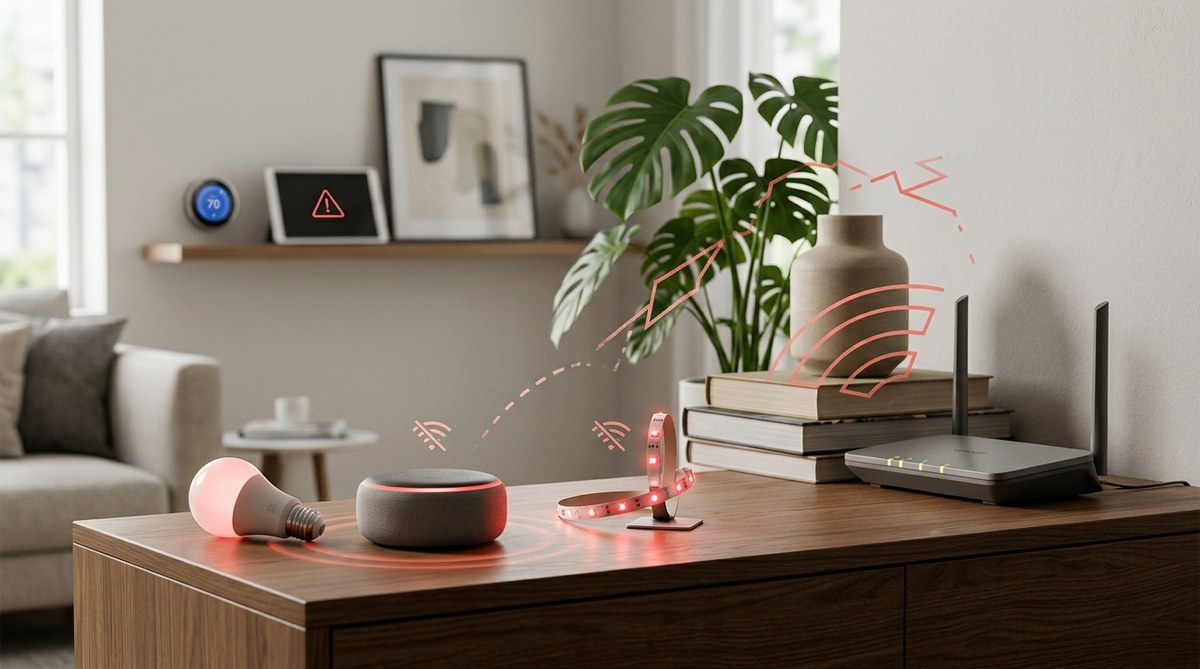
Your smart bulb went offline again during movie night. Your doorbell missed a package delivery. Your thermostat forgot its schedule.
Sound familiar? You’re not alone. Millions of smart home users face the same frustrating cycle of reconnecting devices that should just work. The problem isn’t bad luck or faulty products. It’s a perfect storm of network issues, device limitations, and setup mistakes that nobody talks about.
Smart home devices disconnect primarily due to WiFi congestion on the [2.4GHz band](https://en.wikipedia.org/wiki/2.4_GHz_radio_use), weak signal strength, router channel conflicts, outdated firmware, and IP address conflicts. Most disconnection issues stem from router configuration problems rather than device defects. Fixing these root causes creates stable connections that don’t require constant troubleshooting or device reboots.
The 2.4GHz bandwidth bottleneck
Most smart home devices only work on 2.4GHz WiFi networks. Not 5GHz. Not the newer 6GHz band. Just 2.4GHz.
This creates a massive problem. Every smart bulb, plug, camera, and sensor competes for space on the same crowded frequency. Your neighbors’ devices crowd this band too. So do Bluetooth gadgets, baby monitors, and microwave ovens.
The 2.4GHz band has only 11 channels in the US. Only three of those channels don’t overlap with each other (1, 6, and 11). When your router picks a congested channel, your devices fight for attention like shoppers at a Black Friday sale.
Here’s what happens:
* Devices send connection requests that get lost in the noise
* Router responses arrive too late or not at all
* Devices assume the connection failed and disconnect
* You see “offline” status in your app
Modern routers try to pick the best channel automatically. They often fail. Your router might scan channels at 3 AM when your neighbor’s network is quiet, then pick a channel that becomes congested by 8 AM.
Signal strength matters more than you think
WiFi signals weaken fast. Really fast.
A concrete wall can cut signal strength by 50%. Metal studs in walls block signals even more. Large appliances create dead zones. Even fish tanks interfere with signals because water absorbs radio waves.
Smart home devices typically have weaker antennas than phones or laptops. They’re designed to be small and cheap. That means they need stronger signals to maintain connections.
Most devices need a signal strength of at least negative 67 dBm to stay connected reliably. Below that threshold, connections become unstable. Below negative 70 dBm, devices disconnect constantly.
You can’t see signal strength without special tools. Your phone might show full bars in a room where your smart plug keeps disconnecting. That’s because your phone has better antennas and more powerful radios.
Distance compounds the problem. WiFi signals follow the inverse square law. Double the distance, and you get one-fourth the signal strength. A device 40 feet from your router receives 16 times weaker signal than one 10 feet away.
Router settings that kill smart home connections
Default router settings work fine for phones and computers. They often break smart home devices.
Many routers enable “band steering” by default. This feature pushes devices toward the 5GHz band for better performance. Sounds great, right? Except smart home devices can’t use 5GHz. Band steering confuses them and causes random disconnections.
Some routers combine 2.4GHz and 5GHz networks under one name (SSID). Devices connect, then the router tries to “help” by moving them to 5GHz. The device can’t follow, loses connection, and shows offline.
Access Point Isolation is another culprit. This security feature prevents devices on your network from talking to each other. Smart home hubs need to communicate with your devices. When isolation is enabled, devices connect to WiFi but can’t reach the hub.
Router firewalls sometimes block the ports smart devices use. UPnP (Universal Plug and Play) must be enabled for many devices to work properly. Disable it for security, and your devices disconnect randomly.
Network engineer here. I’ve seen hundreds of smart home setups. The single biggest issue? Users never log into their router settings. They use whatever defaults came from the factory. Those defaults aren’t optimized for IoT devices. Spend 15 minutes configuring your router properly, and 90% of disconnection problems disappear.
The IP address conflict problem
Your router assigns each device an IP address using DHCP. Think of it like assigning parking spots in a garage.
Most routers keep a pool of 50 to 100 addresses. When you have 30 smart devices plus phones, tablets, and computers, that pool fills up fast. The router starts reusing addresses from devices that appear offline.
Here’s where it breaks: Your smart bulb goes to sleep to save power. The router thinks it’s gone and reassigns its IP address to your new tablet. The bulb wakes up, tries to use its old address, finds a conflict, and disconnects.
DHCP lease times make this worse. Many routers set lease times to 24 hours or less. Devices must renew their addresses daily. If the renewal fails (maybe the device was sleeping), the device loses its address and disconnects.
Static IP addresses solve this problem but create new ones. Assign too many static addresses, and you shrink the DHCP pool. New devices can’t connect because no addresses remain available.
The DHCP reservation feature offers the best solution. It assigns the same address to each device automatically without reducing the available pool.
Firmware updates you never knew about
Smart home devices need firmware updates just like phones and computers. Unlike phones, they don’t always update automatically.
Many devices check for updates only when first powered on. After that, they run outdated firmware forever. That firmware might have bugs that cause disconnections.
Manufacturers fix connection problems in updates. They improve WiFi radio performance. They patch security vulnerabilities that interfere with normal operation. But you have to manually check for these updates in each device’s app.
Router firmware matters too. Router manufacturers release updates that improve smart home device compatibility. Most people never update their router firmware. Some don’t even know it’s possible.
Outdated firmware causes weird problems:
* Devices that worked fine suddenly disconnect after six months
* Some devices work while identical models fail
* Connections drop at the same time every day
* Devices reconnect on their own, then disconnect again
Checking for updates takes minutes. Updating firmware takes five to ten minutes per device. Do it quarterly, and you’ll prevent most firmware-related disconnections.
Network congestion from too many devices
Your router has limits. Most consumer routers handle 20 to 50 devices reliably. Beyond that, performance degrades.
Each connected device uses router resources. The router must track connections, route traffic, and manage addresses. Add 30 smart devices, and the router struggles.
Smart home devices create constant chatter. They send status updates, check for commands, and maintain connections. Even when “doing nothing,” they generate network traffic.
This traffic adds up:
* Smart bulbs ping the hub every 30 seconds
* Cameras upload motion detection alerts
* Sensors report temperature changes
* Plugs send power monitoring data
When too many devices talk at once, the router’s processor maxes out. It starts dropping packets. Devices interpret dropped packets as connection failures and disconnect.
Budget routers suffer most. They have slower processors and less memory. A $50 router might handle 15 smart devices. A $200 router handles 50 or more.
Interference from neighboring networks
Your WiFi doesn’t exist in isolation. Apartment buildings and dense neighborhoods create wireless chaos.
Scan for WiFi networks on your phone. See 20 or 30 networks? They’re all competing for the same channels. When your neighbor streams 4K video, it affects your smart home devices.
WiFi uses “polite” protocols. Devices wait for clear channels before transmitting. In congested areas, devices wait longer and longer. Eventually, they give up and disconnect.
The problem intensifies during peak hours. Between 6 PM and 10 PM, everyone streams video, games online, and uses smart devices. Network congestion spikes. Disconnections multiply.
You can see this pattern in your device history. Check when disconnections happen. If they cluster around evening hours or weekends, interference is likely the cause.
Neighboring networks on the same channel cause the worst interference. If you and three neighbors all use channel 6, your devices fight for airtime constantly.
How to diagnose your specific problem
Different symptoms point to different causes. Match your symptoms to find the root cause faster.
All devices disconnect at once: Router problem. Check for overheating, firmware issues, or ISP outages.
Specific devices disconnect repeatedly: Signal strength or device firmware issue. Check distance from router and update device firmware.
Disconnections at the same time daily: Interference or scheduled router processes. Check for automatic router reboots or peak usage times.
New devices won’t connect: IP address pool exhausted or incompatible router settings. Check DHCP pool size and band steering settings.
Devices work for days, then disconnect: Firmware bug or DHCP lease expiration. Update firmware and extend DHCP lease times.
Use a WiFi analyzer app to measure signal strength at each device location. Values stronger than negative 67 dBm indicate good signal. Weaker values mean you need better coverage.
Log into your router and check connected devices. Count them. If you’re near the router’s device limit, that’s your problem.
Check your router’s channel. If it’s using 3, 4, 5, 7, 8, 9, or 10, change it to 1, 6, or 11. These non-overlapping channels provide better performance.
Permanent fixes that actually work
Stop treating symptoms. Fix root causes instead.
1. Split your WiFi bands
Create separate networks for 2.4GHz and 5GHz. Name them differently (like “HomeNetwork-2G” and “HomeNetwork-5G”). Connect all smart home devices to the 2.4GHz network only.
This prevents band steering problems and gives you control over which devices use which band.
2. Optimize router placement
Move your router to a central location. Elevate it. Keep it away from metal objects and thick walls.
If one router can’t cover your home, add access points or a mesh system. Don’t use WiFi extenders. They create separate networks that confuse smart devices.
3. Configure DHCP properly
- Count your devices (include phones, tablets, computers, and smart home devices)
- Set your DHCP pool to twice that number
- Extend DHCP lease time to 7 days or more
- Create DHCP reservations for problem devices
4. Pick the right channel
Use a WiFi analyzer to find the least congested channel (1, 6, or 11). Set your router to that channel manually. Disable automatic channel selection.
Recheck every few months. The least congested channel changes as neighbors add or remove networks.
5. Update everything
Update router firmware first. Then update each smart home device. Check manufacturer websites or apps for updates.
Set reminders to check for updates quarterly. Many manufacturers release updates but don’t notify users.
6. Reduce network load
Not every device needs WiFi. Some smart plugs work fine with manual control. That decorative smart bulb in the guest room doesn’t need constant connectivity.
Disconnect devices you rarely use. Your network will perform better with fewer connected devices.
Understanding device quality differences
Not all smart home devices are equal. Some handle poor conditions better than others.
Cheap devices often use inferior WiFi chips. They have weaker antennas, slower processors, and buggy firmware. They disconnect more often even in perfect conditions.
Name-brand devices cost more but typically use better components. They maintain connections in weaker signal areas. They handle network congestion better. They receive firmware updates for years.
The price difference matters. A $10 smart plug might save money upfront but cost you hours of troubleshooting. A $25 plug from a reputable brand works reliably for years.
Check reviews before buying. Look for mentions of connectivity issues. If multiple reviewers report disconnections, that product has problems.
Some brands work better with specific routers. Devices that use the ESP8266 or ESP32 chips generally perform well. Devices using obscure Chinese chips often have problems.
| Device Quality Tier | Typical Price | Connection Reliability | Firmware Updates |
|---|---|---|---|
| Budget (Generic) | $5 to $15 | Poor to Fair | Rare or never |
| Mid-Range (Known Brands) | $15 to $30 | Good | Occasional |
| Premium (Major Brands) | $30 to $60 | Excellent | Regular |
| Professional (Commercial Grade) | $60+ | Outstanding | Frequent |
When to upgrade your router
Your router might be the bottleneck. Consumer routers typically last three to five years before they can’t handle modern demands.
Signs you need a router upgrade:
* Your router is more than four years old
* It doesn’t support WiFi 5 (802.11ac) or newer
* You have more than 20 connected devices
* Multiple devices disconnect simultaneously
* Router admin interface is slow or unresponsive
Modern routers designed for smart homes include features like:
* Separate IoT networks with enhanced security
* Better handling of many simultaneous connections
* Stronger processors that don’t bog down
* Improved 2.4GHz performance
* Better mobile apps for management
A good router costs $150 to $300. That sounds expensive until you calculate the time you’ve spent troubleshooting. If you’ve wasted ten hours fighting disconnections, a new router pays for itself.
Mesh systems work great for larger homes. They provide consistent coverage everywhere. Just make sure the mesh system supports dedicated IoT networks.
Some users benefit from separate routers. Put all smart home devices on one router and everything else on another. This isolates problems and reduces congestion. It requires more setup but provides better reliability.
You might find that learning about hidden features in your router that could double your WiFi speed helps you optimize your current hardware before deciding to upgrade.
The role of smart home hubs
Hubs like SmartThings, Hubitat, or Home Assistant reduce WiFi congestion. They use Zigbee or Z-Wave protocols that don’t interfere with WiFi.
These protocols create mesh networks. Devices connect to nearby devices, not directly to your router. Only the hub needs WiFi. Twenty smart bulbs create one WiFi connection instead of twenty.
Zigbee and Z-Wave also use less power. Devices stay connected longer without draining batteries. They handle interference better because they use different frequencies than WiFi.
The tradeoff? Hubs cost money and add complexity. You need compatible devices. Setup takes longer. But once configured, hub-based systems are far more reliable than WiFi-only setups.
If you have more than ten smart devices, a hub makes sense. The reduced troubleshooting time alone justifies the investment.
Device-specific troubleshooting tips
Different device types have unique problems.
Smart bulbs often disconnect because they lose power. Someone flips the physical switch, the bulb loses power, and forgets its WiFi settings. Use smart switches instead of smart bulbs when possible.
Security cameras need consistent, strong signals. They stream video constantly, using more bandwidth than other devices. Place cameras closer to access points or use wired cameras instead.
Smart thermostats usually have good WiFi chips because manufacturers know reliability matters. If your thermostat disconnects, the problem is almost always router-related, not the device.
Smart plugs vary wildly in quality. Some maintain connections in terrible conditions. Others disconnect if you look at them wrong. Stick with known brands for critical devices.
Voice assistants (Echo, Google Home) need strong connections for voice processing. They also act as hubs for some devices. Prioritize their placement and signal strength.
Battery-powered devices like sensors disconnect when batteries run low. They don’t always warn you. Check battery levels monthly.
Common mistakes that make problems worse
People try “fixes” that actually cause more problems.
Constantly rebooting devices trains them to expect reboots. Some devices enter a loop where they only work briefly after reboots.
Factory resetting repeatedly doesn’t fix network problems. It just makes you reconfigure everything. Reset once if needed, then fix the actual problem.
Adding WiFi extenders creates multiple networks with the same name. Devices get confused switching between networks. Use mesh systems or access points instead.
Disabling router security to “fix” connection problems exposes your network to attacks. Security settings rarely cause disconnections unless configured incorrectly.
Buying more devices from the same cheap brand because they’re affordable. If three devices from one brand disconnect constantly, the fourth will too.
Ignoring firmware updates because “everything works fine.” Firmware bugs often appear only under specific conditions. You won’t know there’s a problem until it manifests.
The underrated smart home gadgets that solve everyday annoyances often work better than mainstream options because they’re designed with reliability in mind.
Building a disconnect-proof network
Start fresh with a plan instead of adding devices randomly.
Map your home. Note where you need smart devices. Measure distances from your router. Identify potential interference sources.
Choose a router appropriate for your device count. Add 50% capacity for future growth. If you plan 20 devices, get a router rated for 30.
Create a dedicated 2.4GHz network for smart home devices. Use WPA2 security (not WPA3, which some older devices don’t support). Pick a clear channel.
Configure DHCP reservations as you add each device. This takes an extra minute per device but prevents future headaches.
Document everything. Keep a list of device names, MAC addresses, IP addresses, and locations. You’ll thank yourself later.
Add devices gradually. Test each one for a few days before adding the next. This helps you identify problem devices immediately.
Group devices by brand or protocol when possible. All Zigbee devices on one hub. All WiFi devices from one manufacturer on one network segment. This simplifies troubleshooting.
Monitor your network weekly at first. Check for disconnected devices. Note patterns. Adjust settings proactively instead of reactively.
Why prevention beats troubleshooting
Fixing disconnections after they happen wastes time. Preventing them saves time.
An hour spent optimizing your network saves dozens of hours troubleshooting later. Configure your router properly once. Update firmware quarterly. Choose quality devices.
Most people do the opposite. They buy cheap devices, use default router settings, and spend hours every month troubleshooting. They blame the technology instead of the setup.
Smart homes should make life easier, not create new frustrations. When devices stay connected reliably, you forget they exist. They just work. That’s the goal.
The difference between a frustrating smart home and a reliable one isn’t the devices. It’s the network foundation. Build that foundation right, and everything else falls into place.
Understanding why tech giants stop supporting your device can also help you make smarter purchasing decisions that avoid obsolescence issues down the road.
Making your smart home actually smart
You’ve spent money on devices that promise convenience. They should deliver on that promise.
Smart home technology works when properly configured. The disconnection problems you’re experiencing aren’t inevitable. They’re fixable. The fixes just require understanding root causes instead of applying temporary bandaids.
Start with your router. Log in, check settings, and optimize for smart home use. Split your bands. Pick a clear channel. Configure DHCP properly. Update firmware.
Then evaluate your devices. Replace the cheapest, most problematic ones with quality alternatives. Update firmware on everything else.
Finally, monitor and maintain. Check for updates quarterly. Watch for patterns in disconnections. Adjust as needed.
Your smart home can be reliable. It just needs the right foundation. Build that foundation, and you’ll spend your time enjoying your devices instead of troubleshooting them.




Post Comment