The Best Free Video Editing Apps That Rival Premium Software
Creating polished videos shouldn’t drain your bank account. The best free video editing software in 2026 delivers professional results without subscription fees or watermarks. You can build a YouTube channel, edit TikTok content, or produce client work using tools that rival Adobe Premiere and Final Cut Pro.
Free video editing software like DaVinci Resolve, CapCut, and Kdenlive offer professional-grade features including 4K export, color grading, and multi-track editing. These tools eliminate watermarks and subscription costs while providing enough power for YouTube creators, social media managers, and hobbyists. Choosing the right editor depends on your platform, system specs, and learning curve preferences.
What separates free editors from paid alternatives
Free video editing software has closed the gap with premium options. You get unlimited timeline tracks, keyframe animation, and advanced color correction without paying monthly fees. The catch usually involves slower render times, fewer templates, or missing cloud storage.
DaVinci Resolve stands out because it’s the free version of a $295 professional suite. You lose some AI features and collaboration tools, but keep the Hollywood-grade color grading panel. CapCut offers trend-focused effects and auto-captions that appeal to social media creators. Kdenlive brings open-source flexibility to Linux users who want full control.
Performance matters more than feature lists. A lightweight editor runs smoothly on older hardware, while resource-heavy software demands dedicated graphics cards. Your laptop specs determine which tools you can actually use for real projects.
Top free video editors worth downloading today
These applications handle everything from simple cuts to complex compositing. Each excels in specific scenarios.
DaVinci Resolve dominates professional workflows. The free version supports unlimited timeline tracks, Fusion visual effects, and Fairlight audio post-production. You can export 4K at 60fps without watermarks. The learning curve is steep, but thousands of YouTube tutorials make it manageable. Windows, Mac, and Linux users all get the same feature set.
CapCut simplifies social media editing. Auto-sync beats match your footage to music. Background removal works without green screens. The desktop version offers more precision than the mobile app, though both share cloud projects. Templates speed up production when you need content daily. Windows and Mac versions handle 4K, while the web editor caps at 1080p.
Kdenlive serves open-source enthusiasts. Proxy editing keeps projects responsive on modest hardware. The interface feels familiar if you’ve used Premiere or Vegas. Multi-format timelines let you mix 1080p and 4K clips without conversion. Linux support makes it the default choice for that ecosystem, though Windows and Mac builds work fine.
Shotcut balances simplicity and power. The single-window layout reduces clutter. Native timeline editing means no import waiting. FFmpeg integration supports nearly every codec. It’s perfect for straightforward projects that don’t need fancy effects.
iMovie remains the easiest Mac option. Drag-and-drop editing feels intuitive from the first session. Magic Movie creates rough cuts automatically. 4K support and green screen tools handle most YouTube needs. The mobile version syncs projects across iPhone, iPad, and Mac.
Choosing the right editor for your content type
Different platforms demand different workflows. Match your editor to your output.
| Content Type | Best Editor | Key Reason |
|---|---|---|
| YouTube vlogs | DaVinci Resolve | Professional color grading, unlimited length |
| TikTok/Reels | CapCut | Vertical templates, auto-captions, trending effects |
| Gaming montages | Shotcut | Fast rendering, multi-track audio mixing |
| Product reviews | iMovie | Stable performance, simple color correction |
| Tutorials | Kdenlive | Screen recording integration, annotation tools |
| Wedding videos | DaVinci Resolve | Advanced color matching, smooth transitions |
Social media creators benefit from editors with built-in aspect ratio presets. CapCut switches between 16:9, 9:16, and 1:1 with one click. DaVinci Resolve requires manual timeline settings but offers more precise framing control.
Long-form content needs reliable autosave and project backup. Kdenlive creates automatic snapshots every few minutes. Shotcut saves continuously but can corrupt files if your system crashes mid-render.
Setting up your editing workspace for maximum efficiency
Your computer specs determine which software runs smoothly. Check these requirements before installing.
- Verify your graphics card supports hardware acceleration. Most modern editors use GPU rendering to speed up effects and exports.
- Allocate at least 8GB RAM for 1080p editing. 4K projects need 16GB minimum to prevent timeline lag.
- Clear 50GB of storage space for cache files. Video editing generates massive temporary files that slow down how to speed up your Windows 11 PC without buying new hardware if your drive fills up.
- Install codec packs for format compatibility. K-Lite Codec Pack handles most video types on Windows.
- Configure proxy settings for smoother playback. Half-resolution proxies let you edit 4K footage on weaker systems.
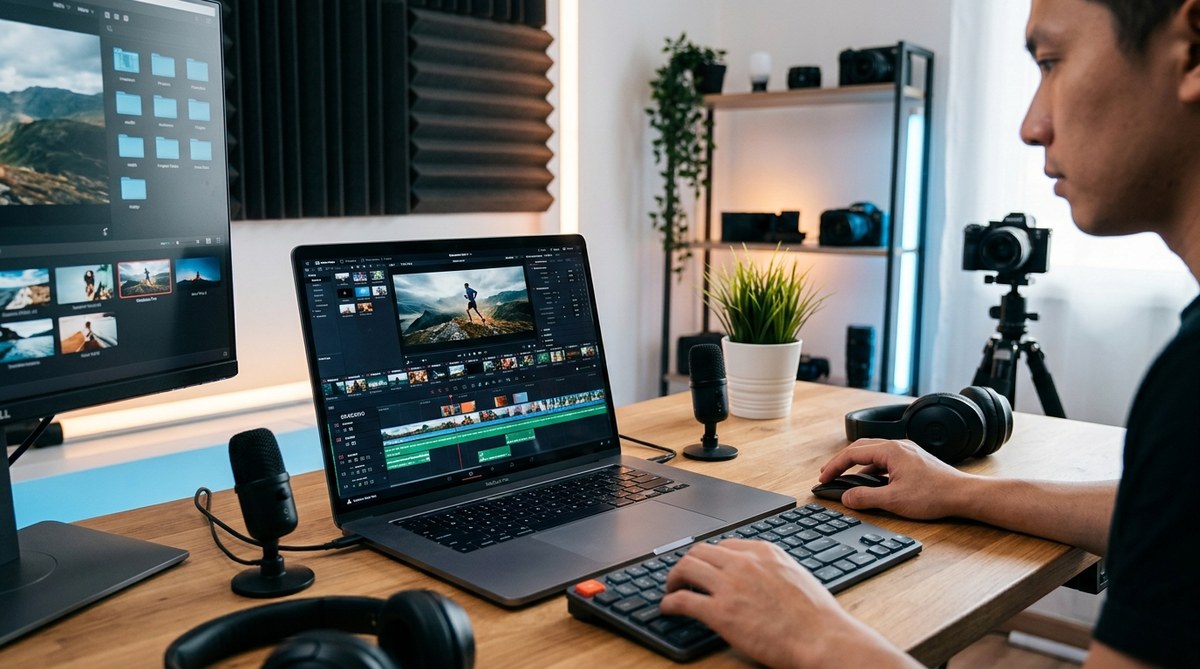
DaVinci Resolve benefits from a second monitor. You can dedicate one screen to the timeline and another to the color grading panel. CapCut works fine on a laptop display because the interface stays compact.
Keyboard shortcuts cut editing time in half. Learn the basics first:
- Spacebar for play/pause
- I and O to set in/out points
- C for the razor tool
- V for the selection tool
- Delete to remove clips
Most editors let you customize shortcuts. Map frequently used effects to single keys for faster access.
Features that actually matter for beginner creators
Fancy tools look impressive in marketing videos but rarely affect your final output. Focus on these essentials.
Color correction fixes white balance and exposure issues. Every editor on this list includes basic color wheels. DaVinci Resolve adds curves and scopes for precise adjustments. CapCut offers one-tap filters that work well for casual content.
Audio mixing separates amateur videos from professional ones. Multi-track editing lets you layer dialogue, music, and sound effects. Kdenlive and DaVinci Resolve provide full mixer panels with EQ and compression. CapCut simplifies this with auto-ducking that lowers music when you speak.
Text and titles communicate information viewers might miss. Animated lower thirds look polished. Shotcut includes basic title templates. CapCut provides trending text styles that match current social media aesthetics.
Transitions should enhance your story, not distract from it. Stick with cuts and occasional fades. The dissolve transition works for 90% of scenarios. DaVinci Resolve offers smooth morphing effects for advanced users.
Export presets save time and prevent format headaches. YouTube-optimized presets handle codec selection automatically. CapCut includes platform-specific exports for Instagram, TikTok, and Facebook.
“The best camera is the one you have with you. The best editor is the one you’ll actually learn. Start with simple cuts and add complexity as your skills grow. Viewers care about your story, not your transition effects.” – Sarah Chen, YouTube creator with 2M subscribers
Avoiding common mistakes that waste rendering time
New editors often create problems that slow down their workflow. These fixes prevent frustration.
Mismatched project settings cause quality loss. Set your timeline resolution to match your source footage. Mixing 1080p clips in a 4K timeline forces unnecessary upscaling. DaVinci Resolve detects this automatically, but other editors require manual configuration.
Unoptimized footage bogs down playback. Convert phone videos to editing-friendly codecs before importing. HandBrake transcodes files to H.264 in minutes. Your timeline will play smoothly even on older computers.
Excessive effects layers multiply render times. Each color grade, transition, and filter requires processing power. Apply effects only where they improve the shot. Delete unused tracks to keep projects lean.
Ignoring cache management fills your drive with junk. DaVinci Resolve generates optimized media that can consume hundreds of gigabytes. Clear cache folders after finishing projects. Kdenlive lets you set automatic deletion schedules.
Skipping backups risks losing hours of work. Save project files to cloud storage after each session. Export timeline snapshots before major changes. How to free up storage space on your Android phone without deleting photos applies to editing drives too.
Maximizing export quality without paid upgrades
Free software can produce broadcast-quality output if you configure settings correctly. These adjustments make a visible difference.
Bitrate controls file size and visual quality. YouTube recommends 8 Mbps for 1080p uploads. Set your encoder to VBR (variable bitrate) for better compression. DaVinci Resolve and Kdenlive expose these controls in export menus.
Frame rate should match your source footage. Converting 30fps clips to 60fps creates artificial smoothness that looks unnatural. Stick with your camera’s native frame rate unless you’re creating slow-motion effects.
Audio quality matters as much as video. Export at 320 kbps AAC for maximum compatibility. Lower bitrates introduce compression artifacts that sound tinny on headphones.
Color space affects how platforms display your video. Export in Rec. 709 for web content. HDR requires Rec. 2020, but most free editors don’t support it properly.
Test exports on multiple devices before publishing. Colors shift between monitors. Audio levels vary across speakers. Watch your video on a phone, tablet, and TV to catch issues.
Hardware acceleration tricks for faster rendering
Modern editors tap into your graphics card for speed boosts. Enable these settings to cut export times.
- NVIDIA NVENC handles H.264 encoding on GeForce cards. DaVinci Resolve and CapCut support it natively.
- AMD VCE provides similar acceleration on Radeon GPUs. Shotcut detects it automatically.
- Intel Quick Sync works on integrated graphics. Useful for laptop editors without dedicated cards.
- Apple Metal optimizes rendering on Mac systems. iMovie uses it by default.
Hardware encoding trades some quality for massive speed gains. The difference is barely noticeable for web content. A 10-minute 4K video that takes 30 minutes to render on CPU finishes in 5 minutes with GPU acceleration.
Background rendering lets you keep editing while exports process. DaVinci Resolve queues multiple videos for overnight batch processing. CapCut lacks this feature, forcing you to wait for each export.
Learning resources that actually teach editing skills
YouTube tutorials vary wildly in quality. These channels provide structured lessons.
Casey Fariis covers DaVinci Resolve fundamentals. His 30-minute beginner course explains nodes, color grading, and Fusion basics. The pacing works well for visual learners.
Justin Odisho focuses on CapCut desktop features. Weekly videos showcase new effects and trending techniques. Great for social media creators.
Film Editing Pro teaches theory alongside software skills. You learn why certain cuts work, not just which button to press.
Kdenlive’s official documentation includes video tutorials and written guides. The community forum answers specific questions fast.
Practice projects build muscle memory faster than passive watching. Edit a fake commercial using stock footage. Cut together a music video from your favorite song. Recreate a movie scene shot-for-shot.
Join editing communities for feedback. Reddit’s r/VideoEditing critiques beginner work constructively. Discord servers offer real-time help when you’re stuck on technical problems.
When free software hits its limits
Certain projects require paid tools. Recognize these scenarios before you waste time.
Multi-camera editing with more than four angles gets clunky in free software. DaVinci Resolve Studio handles 16+ cameras smoothly. The free version struggles with sync.
Advanced motion tracking needs premium features. Free editors offer basic point tracking. Object removal and 3D camera solving require After Effects or Fusion Studio.
Collaboration tools don’t exist in most free options. Team projects need cloud syncing and version control. Frame.io integration costs money.
High frame rate exports above 60fps hit artificial limits. DaVinci Resolve free caps at 4K60. The Studio version unlocks 120fps.
Commercial licensing sometimes restricts free software. Read the terms carefully if you’re editing client work. Most allow commercial use, but Avid Media Composer First has restrictions.
Upgrade when your income justifies the cost. If you’re earning money from video work, paid software becomes a business expense. Until then, free tools handle 95% of creative needs.
Why your editing software choice matters less than you think
Beginners obsess over choosing the perfect editor. The truth is simpler.
Your storytelling skills matter more than your software. A compelling narrative shot on a phone and edited in iMovie outperforms boring footage cut in Premiere Pro. Focus on pacing, music selection, and emotional beats.
Platform algorithms care about watch time, not production value. YouTube promotes videos that keep viewers engaged. TikTok rewards creativity over polish. Spend more time planning shots and less time tweaking effects.
Consistency builds skills faster than perfection. Publish weekly videos using basic cuts. You’ll improve more than someone who spends months perfecting one project.
The best free video editing software is the one you’ll actually open and use. Download DaVinci Resolve if you want professional power. Choose CapCut for social media speed. Try Kdenlive for open-source flexibility. All three can produce content that grows your audience and sharpens your craft.



Post Comment