Unlock Hidden Android Features to Boost Your Productivity in 2026
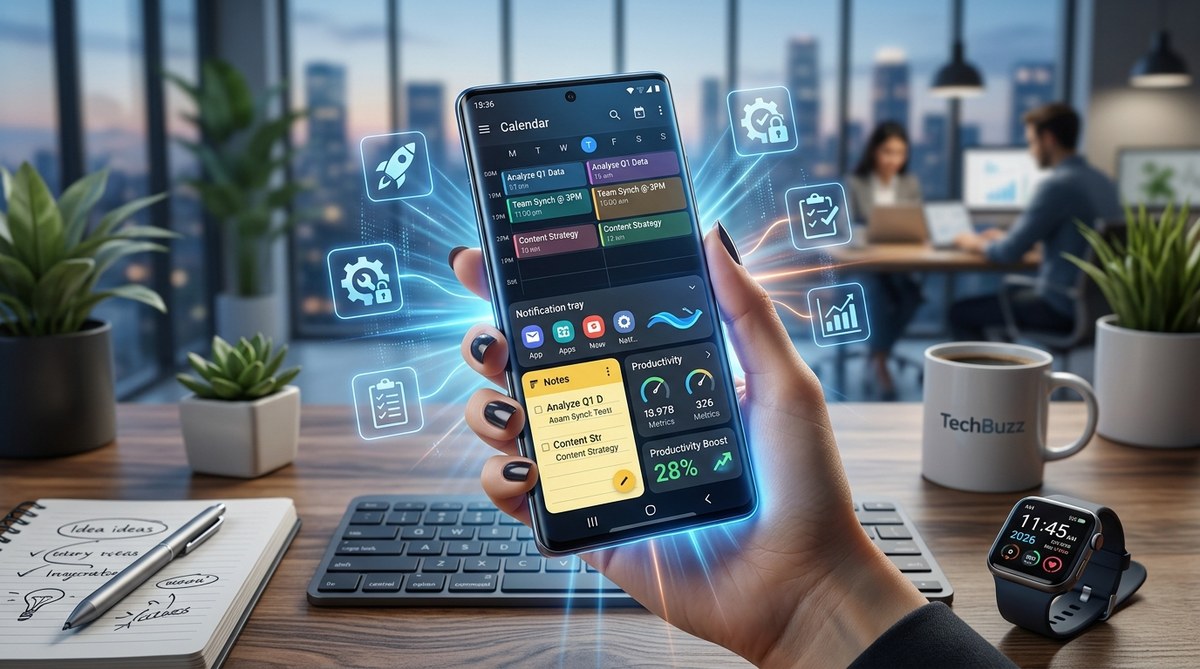
Getting the most out of your Android device in 2026 means tapping into features that often go unnoticed. These hidden tools can help you work faster, stay more private, and customize your experience without the need for extra apps or rooting. With Android’s constant updates, Google keeps adding new ways to improve your device. Knowing how to find and activate these features can turn your phone into a smarter, more efficient companion. Let’s uncover some of the best lesser-known Android features you might have overlooked.
In 2026, Android offers numerous hidden features that can significantly boost your productivity and safeguard your privacy. From multitasking tricks to smart security options, mastering these can make your device work better for you without complicated setups.
Unlocking Android’s Lesser-Known Power in 2026
Android’s interface is packed with features designed to make daily tasks easier. Many of these are buried deep in settings or hidden behind gestures. As the operating system evolves, Google adds new capabilities, some of which are not obvious at first glance. Knowing where to look and how to turn these on can give you a real edge.
Practical Ways to Access Hidden Android Features
Here are some of the top hidden Android features in 2026 that you can activate to enhance your device’s performance and your privacy.
1. Master Multitasking with Split Screen and Picture-in-Picture
Split screen mode lets you run two apps side by side. It’s perfect for multitasking, especially when working on multiple documents or comparing information. To activate it:
- Open recent apps by tapping the square or swipe-up gesture.
- Tap the app icon at the top of its preview.
- Select “Split screen” or “Open in split screen.”
- Choose the second app from recent apps or app drawer.
You can also use picture-in-picture mode for videos and video calls. When watching a YouTube video or during a video call, press the home button or swipe up, and the video shrinks into a floating window. This lets you continue browsing or messaging while keeping the video visible.
“Split-screen and picture-in-picture are game changers for multitasking. Practice toggling between apps to get comfortable with seamless workflows.” — Tech Expert Jane Doe
2. One-Handed Mode for Larger Screens
If you struggle to reach the top of your phone with one hand, Android’s one-handed mode is your friend. It shifts the interface downward, making navigation easier. To enable:
- Go to Settings > System > Gestures.
- Find “One-handed mode” and toggle it on.
- Use the designated gesture or shortcut (like swiping diagonally from a corner) to activate it.
This feature is especially helpful on devices with screens larger than 6.5 inches, making navigation less frustrating during busy days.
3. Notification History for Never Missing Alerts
Accidentally dismiss an important notification? Android now records a notification history you can review later. To access it:
- Swipe down from the top to open the notification panel.
- Tap the gear icon to go to Settings.
- Select “Notifications” and then “Notification history.”
- Turn it on.
Once enabled, you can view past notifications, helping you stay informed without missing critical updates.
4. Quick Tap and Back Tap Actions
Google has introduced gesture controls that let you double-tap or triple-tap the back of your phone to trigger actions. For example, you can set it to open your camera, toggle flashlight, or launch a specific app. To set this up:
- Visit Settings > System > Gestures.
- Select “Back Tap.”
- Assign functions to double or triple taps.
This feature makes quick actions accessible without unlocking or navigating menus, saving precious seconds during busy moments.
5. Developer Options for Advanced Customization
Enabling Developer options unlocks hidden settings to tweak performance and behavior. To activate:
- Go to Settings > About Phone.
- Tap “Build number” seven times.
- Return to Settings > System > Developer options.
Within this menu, you can enable features like “Force 4x MSAA” for better graphics in games or limit background processes to save battery. Be cautious—some settings can affect stability if misused.
6. Smart Lock for Smarter Security
Smart Lock allows your device to stay unlocked in trusted situations. For example, you can set it to remain unlocked when connected to your home Wi-Fi or when carrying a trusted device like your smartwatch. To configure:
- Open Settings > Security > Smart Lock.
- Verify your PIN or pattern.
- Choose options like “On-body detection” or “Trusted places.”
This reduces the hassle of constantly unlocking your phone while maintaining security when needed.
7. Live Caption and Transcribe for Accessibility
In 2026, live captions work offline, turning any audio into text. To activate:
- Go to Settings > Accessibility > Live Caption.
- Toggle it on.
- Play any media, and captions will automatically appear.
This feature is invaluable during meetings, when watching videos without sound, or for anyone with hearing impairments.
8. Focus Mode and Bedtime Features
Android’s Focus Mode helps you stay productive by silencing distracting apps. To set it up:
- Open Settings > Digital Wellbeing & Parental Controls.
- Select “Focus Mode.”
- Pick apps you want to pause during work.
- Schedule or activate manually.
Additionally, Bedtime mode dims your screen and limits notifications, helping you wind down for better sleep.
9. Nearby Share and Instant Wi-Fi QR Codes
Sharing files is easier than ever. Use Nearby Share to send photos or documents directly to nearby Android devices. To use it:
- Open the file or photo.
- Tap the share icon.
- Select “Nearby Share.”
- Ensure visibility is on and accept the transfer on the recipient device.
You can also generate QR codes for Wi-Fi passwords, making it easy to connect without typing long strings. Find this in your Wi-Fi settings.
10. Custom Routines with Google Assistant
Automate daily tasks with routines. For example, you can set a morning routine that turns on your smart lights, reads your calendar, and plays news. To set up routines:
- Open Google Assistant.
- Tap your profile picture and select “Routines.”
- Create a new routine or modify existing ones.
- Add actions like opening apps, adjusting settings, or playing music.
This makes your device proactive, saving you time and effort.
Techniques for Maximizing Android’s Hidden Features
| Technique | How to Do It | Common Mistakes |
|---|---|---|
| Split screen | Use recent apps > app icon > split screen | Forgetting to enable split screen in apps that don’t support it |
| Notification history | Settings > Notifications > Notification history | Not turning it on initially |
| Back tap | Gestures > Back Tap | Assigning multiple functions to the same tap |
| Developer options | Settings > About Phone > tap build number > return | Changing settings without understanding consequences |
| Smart Lock | Settings > Security > Smart Lock | Forgetting to set trusted locations or devices |
Essential Tips to Avoid Common Pitfalls
- Always review which apps have access to your privacy settings.
- Keep your device updated to access the latest hidden features.
- Test new gestures or settings in a safe environment before relying on them during important tasks.
- Back up your settings periodically, especially before making major changes.
Expert Advice on Using Hidden Android Features
“Many users miss out on powerful features because they never poke around in settings or gestures. Taking a few minutes to learn these tricks can save time and improve your device’s security.” — Tech Guru John Smith
Making Your Android Work Smarter in 2026
Being aware of these lesser-known features transforms your device from a simple gadget into a productivity powerhouse. Whether it’s multitasking with split screen, safeguarding your privacy with smart lock, or automating routines, each tip adds to a smoother, more personalized experience. Taking control of your Android device means less frustration and more efficiency, especially in a year filled with busy schedules and digital demands.
Apply these techniques gradually. Experiment with one or two features at a time. As you get comfortable, you’ll find your device responding more intuitively to your needs.
Enhance Your Android Experience with These Hidden Gems
With the right knowledge, your Android device can do more than you imagined. Embrace these lesser-known features, customize your workflow, and enjoy a more private, productive digital life. Small adjustments can make a big difference in how you work, communicate, and stay organized every day. Keep exploring and fine-tuning your device to match your lifestyle.


Post Comment