Top Android Tips and Tricks You Didn’t Know Existed in 2026

Unlocking the full potential of your Android device requires more than just the basics. In 2026, hidden features and smart tweaks can dramatically improve your user experience. Whether you’re a tech enthusiast or a power user, knowing these tips can save time, boost productivity, and make your device feel brand new. This guide dives into the most overlooked Android tricks that will transform how you interact with your phone every day.
In 2026, mastering hidden Android features can optimize performance, improve security, and enhance usability. Power users who utilize these tips stay ahead of the curve and get more from their devices every day.
Discover Hidden System Tweaks for Better Performance
Many Android users stick to the default settings without realizing the system’s full capabilities. In 2026, several hidden options can help your device run smoother and faster.
1. Enable Developer Options and Use Background Process Limits
Access Developer Options by tapping your build number seven times in Settings. Once enabled, you can limit background processes. Reducing background activity frees up RAM and CPU, leading to faster app launches and improved battery life. For example, setting background process limits to three or fewer can make your device noticeably snappier.
2. Activate Experimental Features in Accessibility Settings
Go to Accessibility in Settings, then find experimental features. Here, you might discover options like “Advanced Gesture Navigation” or “Custom Touch Feedback.” These tweaks can provide more fluid navigation or personalized haptic responses, making your experience more tailored.
3. Use System UI Tuner for Customization
Some devices allow access to a hidden UI Tuner menu. Once activated, you can customize status bar icons, disable unwanted notifications, or tweak quick settings tiles. This fine-tunes your device’s interface, decluttering your view and focusing on what matters most.
| Technique | What It Does | Common Mistake |
|---|---|---|
| Limiting background processes | Improves speed and battery | Over-limiting can cause app issues |
| Activating experimental accessibility features | Personalizes gesture controls | Not all features are stable |
| Customizing status bar icons | Declutters your screen | Removing critical icons may cause confusion |
Expert Tip: Always back up your device before experimenting with hidden settings. Some tweaks might cause instability if not used carefully.
4. Use a Custom ROM or Kernel for Advanced Optimization
For the most tech-savvy, flashing a custom ROM or kernel can unlock performance gains and additional features. This process requires rooting your device and can void warranties but offers unmatched control over your device’s behavior.
Maximize Battery Life With Smart Settings
Battery management remains vital in 2026. Here are advanced ways to extend your device’s longevity without sacrificing usability.
1. Enable Adaptive Battery and App Standby
Android’s Adaptive Battery learns your usage patterns to restrict power to seldom-used apps. Access this in Battery Settings and enable it. Additionally, activate App Standby for apps you rarely open, which helps conserve resources.
2. Use Dark Mode and Adjust Screen Refresh Rate
Set your device to Dark Mode across all compatible apps. It reduces power consumption, especially on OLED screens. Also, lower your display’s refresh rate from 120Hz to 60Hz when browsing or reading, saving battery without noticeable loss of smoothness.
3. Disable Unnecessary Connectivity Features
Turn off Wi-Fi, Bluetooth, or NFC when not in use. Consider using a quick toggle for these settings to activate only when needed. Turning off location services for background apps also prevents unnecessary drain.
| Technique | Benefit | Mistake to Avoid |
|---|---|---|
| Enabling adaptive battery | Extends battery life | Disabling it can reduce savings |
| Using dark mode | Saves power | Ignoring app compatibility issues |
| Turning off connectivity | Reduces drain | Forgetting to turn features back on for essential use |
Quote: “Smart battery management in 2026 involves fine-tuning settings and leveraging AI-powered features to ensure your device lasts longer without compromise.” – Android expert Jane Doe
Enhance Security and Privacy Features
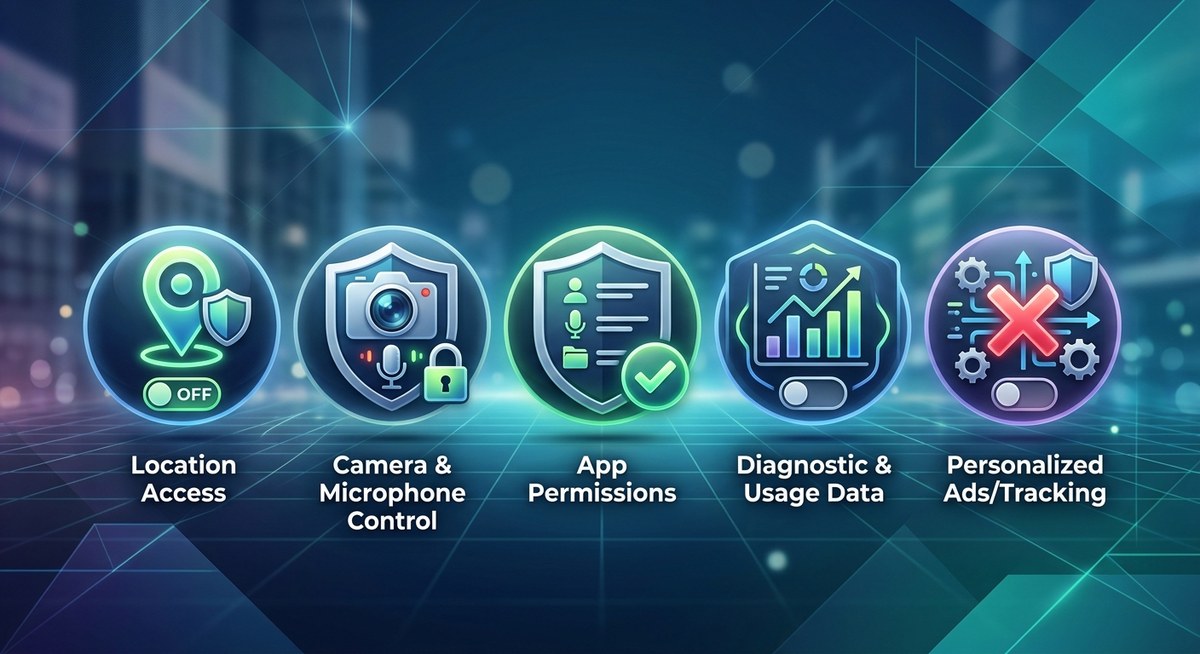
Security remains a top priority. Android in 2026 offers numerous tools to protect your data and control app permissions.
1. Use App Permissions Manager to Limit Access
Go beyond default settings by reviewing app permissions regularly. Use the new granular controls to restrict access to your microphone, camera, or location only when necessary. This prevents apps from overreaching.
2. Enable Privacy Dashboard and Notification Controls
Android’s Privacy Dashboard gives a clear overview of which apps accessed sensitive data. Use it to revoke permissions or set limits. Additionally, customize notification settings to prevent apps from revealing private info in alerts.
3. Activate Built-in VPN and Security Scanning
Many devices now have integrated VPN options. Turn on the built-in security scanner to detect malware or suspicious activity proactively. Keeping your device encrypted adds another layer of protection.
| Technique | Security Benefit | Common Mistake |
|---|---|---|
| Managing app permissions | Limits data access | Forgetting to review permissions periodically |
| Using privacy dashboard | Controls over data sharing | Ignoring app permission alerts |
| Activating VPN | Secures internet traffic | Using unreliable or unknown VPN providers |
Expert Advice: Regularly updating your Android device and reviewing permissions can prevent many security issues before they happen.
Master Multitasking and Customization
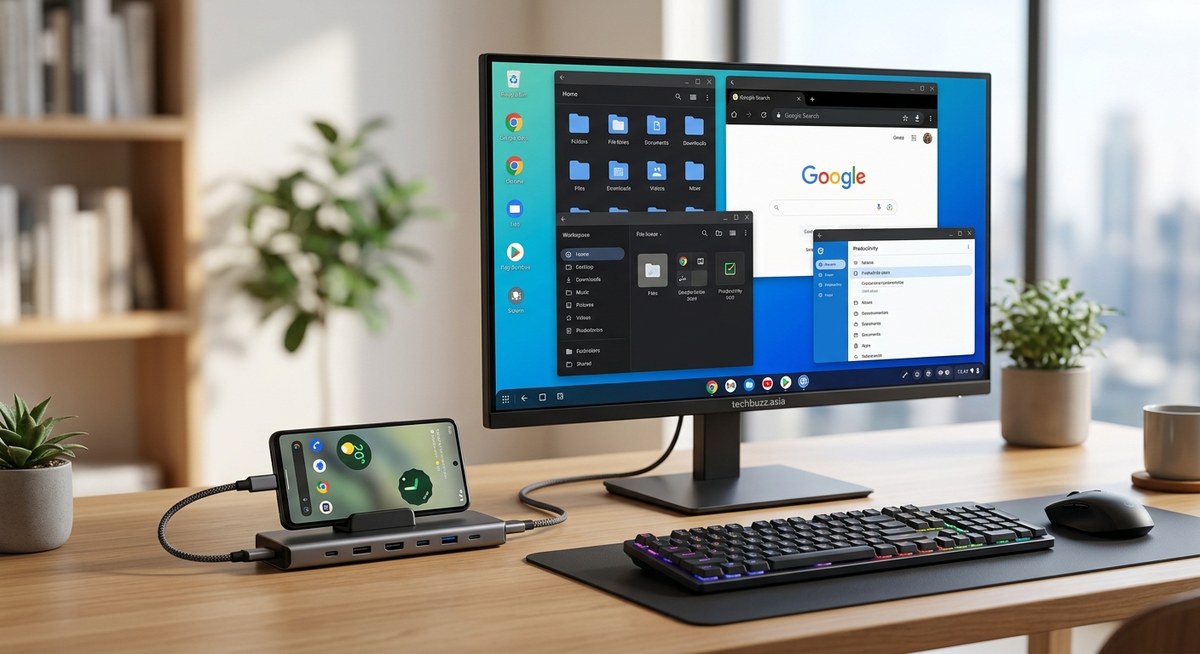
Modern Android devices support complex multitasking features that can boost your productivity.
1. Use Split Screen Mode and Picture-in-Picture
Activate split screen by holding the recent apps button or using gestures. You can run two apps simultaneously such as browsing while chatting. Picture-in-Picture mode works for videos and maps, keeping content visible while multitasking.
2. Automate Tasks with Shortcuts and Routines
Leverage the built-in automation tools. Set routines like turning on Wi-Fi and launching your favorite news app when you arrive home. Use third-party apps like Tasker for more complex workflows.
3. Customize Home Screen and Widgets
Install custom launchers or tweak your home screen layout for faster access. Add widgets for weather, calendar, or quick settings. In 2026, widget customization offers more interactive options than ever.
| Technique | Productivity Gain | Mistake to Avoid |
|---|---|---|
| Using split screen | Multitasks efficiently | Overloading your screen with too many apps |
| Routine automation | Saves time | Setting routines that conflict or run unnecessarily |
| Custom widgets | Quick info access | Cluttering your home screen with unused widgets |
Tip: Combining widgets with automation can streamline daily tasks, making your Android device an extension of your workflow.
Final Tips for Power Users in 2026
Staying ahead with Android means continuously exploring new features and tweaks. Regularly check for OS updates, as Android in 2026 introduces more AI-driven personalization and security options. Also, consider experimenting with unofficial apps or customizations, but always prioritize security and data integrity.
Make Your Android Experience Uniquely Yours
In 2026, Android offers a wealth of hidden features that can turn your device into a powerhouse tailored specifically to your needs. From performance tweaks to security enhancements, mastering these tricks ensures you’re getting the most out of your device. Keep experimenting, stay informed about updates, and enjoy a smoother, safer Android experience every day.


Post Comment