Buying a Used OLED Phone? Screen Checks to Make Before You Pay
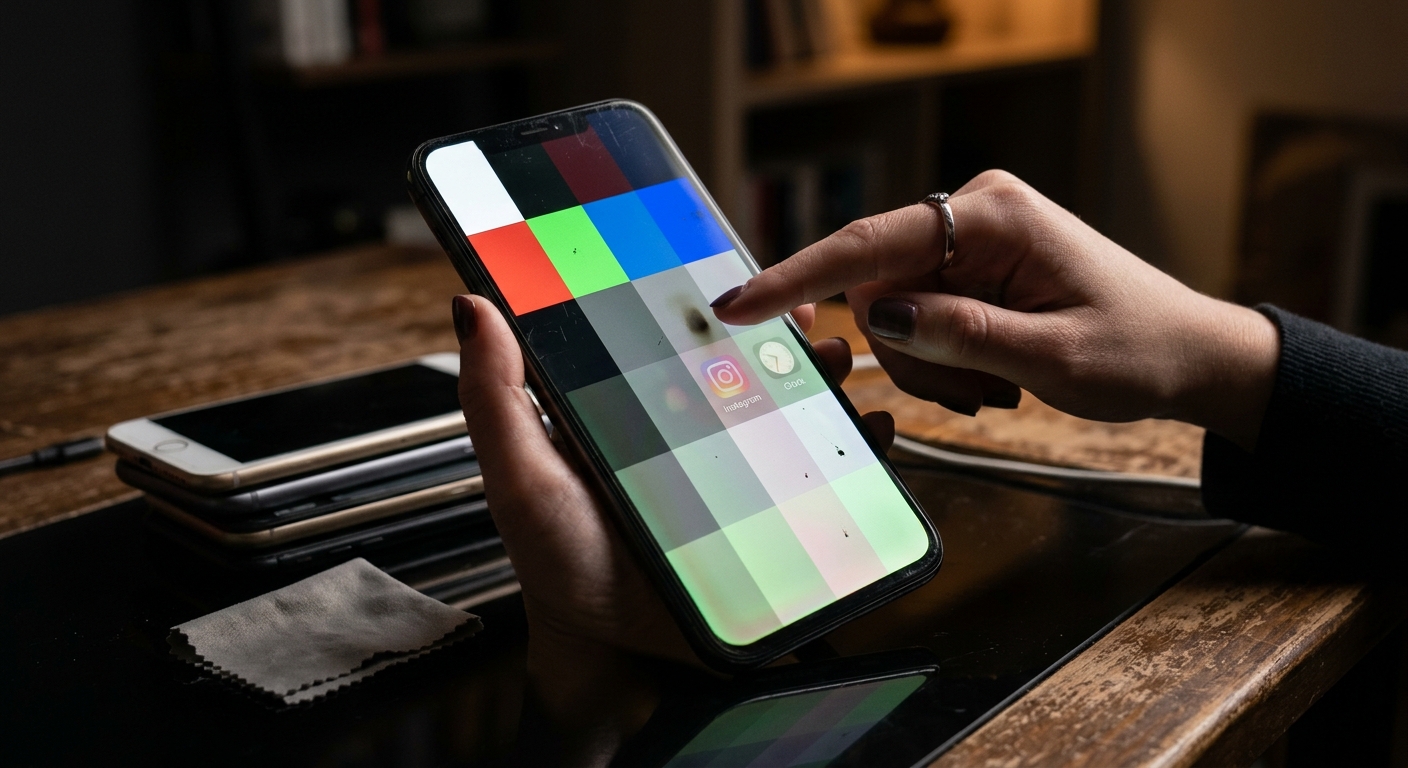
The used phone looks spotless under the shop lights. The price feels right. Then you open a plain background and notice a faint keyboard that refuses to disappear. A scratched frame is easy to spot. OLED screen problems can hide behind dark wallpapers, busy videos, and a seller who wants the deal finished before your train arrives.
Whether you are meeting a marketplace seller in Manila, visiting a resale counter in Kuala Lumpur, or browsing used handsets in Hong Kong, give the display its own inspection. You need a few plain backgrounds, several minutes, and permission to change display settings. Complete the checks before transferring money or confirming collection in an app.
A good used OLED screen should pass several different tests before you pay.
- Use black, gray, white, and solid colors to check different display faults.
- Test touch across the entire panel, including edges, keyboard keys, and gestures.
- Get written return terms that cover screen faults and identify the exact handset.
Set Up the Phone Before Judging Its Screen
Ask the seller to leave enough battery for an inspection. A nearly empty phone may enter a power-saving mode that changes brightness or display behavior. Bring your own hotspot if the handset has no working data connection. Prepare plain test images in advance where possible.
Clean the glass with a soft cloth. Fingerprints can resemble cloudy patches, while dust can look like defective pixels. Inspect any screen protector for scratches, bubbles, or tinted edges. If it prevents a fair assessment, ask the seller to remove it. Do not peel it off without permission.
Turn off automatic brightness, night filters, and adaptive color settings temporarily. Find any extra-dim setting too. These features can affect your impression of brightness and color. Start around medium brightness, then repeat relevant checks at lower and higher levels.
Shop lighting deserves attention. Strong overhead lights can conceal faint marks. Ask to move to a shaded part of the counter, while staying in a safe, visible place. For a private sale, choose a location where you can inspect the phone without rushing or handing over payment first.
Run the Display Checks in a Fixed Order
A repeatable routine helps when you are comparing several phones in one afternoon. Ask for five to ten minutes with each handset. That is enough for a useful screening, although it cannot guarantee that an intermittent fault will appear.
- Inspect the glass and fit. Look for cracks, chipped corners, lifting edges, and gaps between the display and frame.
- Check a black background. Look for persistent bright dots in dim surroundings.
- Check gray and white backgrounds. Search for ghost images, tinted patches, lines, and uneven brightness.
- Check solid colors. Use red, green, and blue to help reveal pixels that fail on particular colors.
- Test touch and normal use. Draw across the screen, type, scroll, and try gestures before reviewing the return terms.
Keep images clear of browser controls when possible. Rotate the handset and view it straight on. Reflections move when you change the viewing angle. A panel defect usually stays attached to the same physical position on the screen.
Look for Burn-In Where Everyday Apps Leave Their Marks
Burn-in is persistent uneven wear that can leave traces of earlier content. Common shapes include status icons, navigation controls, keyboard outlines, and interface elements from frequently used apps. A phone that spent long periods showing the same content deserves particular attention.
Open a neutral background and inspect the top, bottom, and center. Look for recognizable shapes rather than judging only overall brightness. A faint battery symbol or repeated row of keyboard keys can be easier to recognize once you know where to look.
Change the content and check again. Temporary image retention can resemble burn-in during a brief inspection. If a mark fades, that is useful information, but it does not establish the panel’s condition by itself. If it remains visible through several backgrounds and ordinary apps, treat it as a purchase concern.
Do not buy on a promise that a flashing video will repair the screen. A short demonstration cannot establish that persistent panel wear has been reversed. Base your decision on the display you can inspect and the remedies the seller agrees to provide.
Use Black for Bright Pixels, Then Gray and White for Wear
In a dim room or shaded inspection area, open a black screen test test and expand it to fill the display. Reduce reflections and look for tiny points that remain bright. On an OLED panel, pixels displaying true black normally emit no light, which makes a persistent bright pixel easier to notice.
Check that you are looking at the image itself rather than a browser button, notification, or reflected ceiling light. Move or hide the controls. Clean any suspicious spot and repeat the test. A bright stuck pixel remains in the same place on the panel.
A clean black result does not prove that the screen is healthy. A pixel that stays dark can disappear against black. Burn-in and uneven wear may also be difficult to see when the pixels are off.
Switch to gray next. Try a medium gray, then a darker gray at a comfortable low brightness. Look for ghosted interface shapes, broad patches, or bands. Some low-brightness variation can occur on OLED displays, so check whether the same issue is visible at your usual settings and during normal use.
Follow with white. Look for dark pinpoints, colored areas, uneven brightness, and persistent shadows. Then use red, green, and blue backgrounds. A pixel or subpixel fault may stand out on one color while being hard to see on another.
Judge the screen straight on before tilting it. Color changes at an angle are different from a fixed patch visible from your normal viewing position. Avoid treating a camera photo as the final verdict. Cameras can introduce bands or exaggerate variations that your eyes do not see.
Test Touch Across Every Part You Actually Use
A display can produce a beautiful image and still miss taps. Open a drawing or markup tool and slowly draw connected lines across the whole panel. Use horizontal and vertical strokes that reach the edges. Repeated breaks in the same area deserve another check.
Open the keyboard and type a sentence using letters near both sides. Try backspace, space, and the bottom-row keys. Watch for missed presses, repeated characters, or taps registering somewhere else. Repeat any suspicious input with a clean, dry finger.
Drag an icon or another movable item across the display. Then scroll slowly through a long page. The movement should follow your finger without repeatedly dropping the drag. Test pinch-to-zoom in a photo and the navigation gestures you expect to use daily.
Ghost touches are another reason to pause. Leave the phone untouched briefly and watch for unexpected taps or movement. If trouble appears while charging, disconnect the charger and repeat the test. A faulty accessory can complicate diagnosis. Persistent problems still need an explanation before payment.
Ask About Repairs and Try the Phone Beyond Test Images
Ask directly whether the display has been replaced. Request repair paperwork if available, and check any built-in parts or service history supported by that model. A seller’s claim that a screen is original needs more support than clean glass.
A replacement display can differ in brightness, color, touch behavior, or supported features. Test fingerprint recognition where it depends on the display. Check face authentication separately if the phone supports it. Try calls or voice playback near the earpiece, and inspect the front camera area for dust or poor alignment.
Open messages, a browser, a photo, and a video. Read small text. Scroll at your preferred refresh-rate setting. Increase brightness briefly, then return to a comfortable level. These checks help establish whether a flaw matters in actual use, beyond a plain test background.
Ask about the cost of a suitable screen replacement locally before accepting a damaged panel at a discount. Prices and parts availability vary by model and market. A cheaper handset can become an expensive purchase if the display needs immediate work.
Make the Return Policy Specific Before Sending Payment
Return terms vary between resale shops, marketplace merchants, and private sellers. A seller warranty may offer repair rather than a refund. A platform dispute process may have its own deadlines and evidence requirements. Read the terms for this transaction instead of assuming every listing follows the same rules.
Ask whether burn-in, dead pixels, touch faults, and undisclosed replacement screens qualify for a return. Find out when the inspection period starts, how to report a fault, and who pays return shipping. For cross-border purchases, confirm where the handset must be sent.
Get the answers in writing through the platform chat or on the receipt. Keep the listing, stated condition, price, and handset identifier. Do not publish the identifier publicly. Save evidence of any promised remedy before the seller edits or removes the listing.
For shipped purchases, record the package condition and your initial inspection. Follow the platform’s current reporting process promptly if a fault appears. Keep payment and communication within any channels required for buyer protection. Avoid marking an order as accepted before completing the checks that the service allows.
Pay Only When the Screen and Terms Make Sense
You do not need a flawless-looking frame to get a useful secondhand phone. You do need a screen whose condition you understand. Persistent ghost images, bright dots, missed touches, or visible lines should affect both your decision and the price.
If the seller refuses plain-background tests or pressures you to transfer money early, leave the deal. There will be other handsets. The strongest purchase is one that passes your inspection, feels comfortable in daily use, and comes with clear written terms for faults you could not catch at the counter.




Post Comment