Your Internet Speed Isn’t the Problem: Fixing High Ping and Lag in Online Games
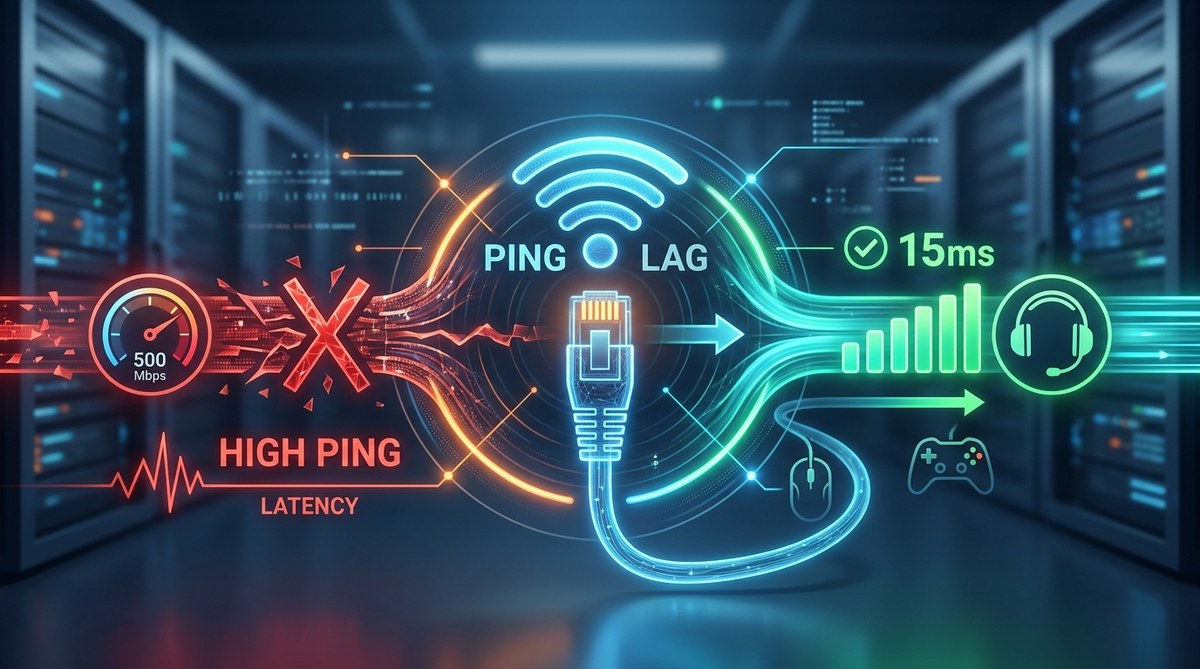
Online gaming can be frustrating when lag and high ping spoil the fun. When your game stutters or your actions lag behind what you see on screen, it ruins the experience. High ping is often blamed on your internet speed but it is rarely the whole story. Fixing high ping involves understanding what causes network delays and applying targeted solutions.
Below are proven strategies to troubleshoot and lower your ping so you can play without annoying lag. Implement these tips one by one and see what makes the biggest difference for your setup.
Reducing high ping in online games often requires optimizing your network, testing your connection, and adjusting hardware settings. Speed isn’t everything. Focus on stability, latency, and reducing congestion to improve your gameplay significantly.
Understand what causes high ping in online gaming
High ping happens when there is a delay in data transfer between your device and the game server. Several factors influence this delay:
- Network congestion or interference
- Distance from the game server
- Outdated or misconfigured hardware
- Background applications draining bandwidth
- Router or modem issues
- Internet provider limitations
Knowing which of these is impacting your connection guides your troubleshooting efforts.
How to diagnose and test your internet connection
Before making changes, check your current connection quality. Use a speed test tool like Speedtest.net to measure ping, download, and upload speeds. Focus on ping results, aiming for under 50 milliseconds for most online games.
Additionally, perform a traceroute to see the path your data takes to reach the game server. On Windows, open Command Prompt and type tracert [game server IP or hostname]. For Mac, use Terminal and the command traceroute [server]. This helps identify network hops causing delays.
Practical methods to fix high ping
- Optimize your network hardware
Your router and modem are the first places to look. Make sure they are modern and capable of handling your internet plan. Restart your router regularly to clear memory leaks. If your router settings are default, consider customizing them for gaming.
Experts recommend enabling Quality of Service or QoS on your router. This prioritizes gaming traffic over other network activities. Many routers have QoS settings accessible via their admin panel, often under “Traffic Management” or “Gaming Mode”.
- Adjust your Wi-Fi or wired setup
Wireless connections are more susceptible to interference and congestion. If possible, switch to a wired Ethernet connection. Ethernet provides a stable, consistent connection with lower latency. Use a high-quality Cat 6 or higher cable to ensure maximum performance.
If you must use Wi-Fi, optimize your setup by placing your router near your gaming device. Reduce interference from microwaves, cordless phones, or other electronics. Changing your Wi-Fi channel to a less congested one can also help.
- Limit background bandwidth usage
Applications, updates, or downloads running in the background can spike your ping. Close unnecessary programs before gaming. Check your task manager to see which processes are consuming bandwidth. On Windows, press Ctrl + Shift + Esc to open Task Manager. On Mac, use Activity Monitor.
Additionally, schedule large downloads or updates during non-gaming hours. You can also set your gaming device to prioritize gaming traffic if your router supports it.
- Update firmware and drivers
Outdated hardware drivers and router firmware can cause latency issues. Visit your router manufacturer’s website to download the latest firmware. Similarly, update your network drivers on your gaming PC or console. Proper updates ensure your device communicates efficiently and reduces lag.
- Configure game and network settings
Some games have in-game settings for network optimization. Lowering graphics quality can sometimes reduce data load. Also, disable V-Sync or limit FPS if your hardware struggles, as high frame rates can increase network load.
Adjust your DNS settings to faster servers like Google DNS (8.8.8.8 and 8.8.4.4) or Cloudflare DNS (1.1.1.1). This can decrease latency in some cases.
| Technique | Mistake to Avoid | Why It Helps |
|---|---|---|
| Using default router settings | Not enabling QoS | Prioritizes gaming traffic for lower ping |
| Wireless connection | Ignoring interference | Wired reduces latency and packet loss |
| Background apps running | Not closing bandwidth hogs | Frees up bandwidth for gaming |
| Outdated firmware | Skipping updates | Ensures optimal hardware performance |
| Using default DNS | Not customizing DNS | Can improve connection speed and stability |
Additional tips for a smoother gaming experience
- Restart your modem and router regularly.
- Use a gaming VPN only if your connection is unstable. For most, VPNs increase latency.
- Check if your ISP is experiencing outages or throttling gaming traffic.
- Consider upgrading your internet plan if high ping persists during peak hours.
- Test your connection during different times to identify patterns of lag.
Common mistakes that can worsen ping issues
- Using Wi-Fi when Ethernet is available
- Overclocking your network hardware improperly
- Ignoring firmware or driver updates
- Playing during peak internet usage hours
- Relying solely on internet speed tests without checking latency or packet loss
| Mistake | Impact | Solution |
|---|---|---|
| Wireless over Ethernet | Increases latency | Switch to wired connection |
| Ignoring firmware updates | Hardware issues persist | Keep firmware and drivers updated |
| Playing during peak hours | Congestion causes lag | Play during off-peak times |
| Using default DNS | Slower name resolution | Change to faster DNS servers |
When to seek professional help
If none of these steps improve your ping, contact your internet provider. They can diagnose line issues or suggest better packages. Sometimes, a technician visit is needed to fix line problems or upgrade your hardware.
Final thoughts on fixing high ping in online games
Achieving low and stable ping requires a combination of hardware optimization, network configuration, and understanding your connection’s limitations. Start with the basics like switching to Ethernet and closing background apps. Then, tweak your router settings and update firmware.
Remember, sometimes the problem lies outside your home network, especially during peak hours or in congested areas. Patience and systematic troubleshooting are your best tools. With these tips, you can significantly reduce lag and enjoy more seamless gaming sessions.
Keep Your Connection in Top Shape for Better Gaming
Making these adjustments can have a large impact on your gameplay. Experiment with different solutions and see what works best for your setup. Staying proactive and aware of your network health keeps lag at bay. Enjoy your games with smoother, more responsive action and less frustration. Happy gaming!


Post Comment