Why Your Android Battery Drains So Fast and How to Fix It Today
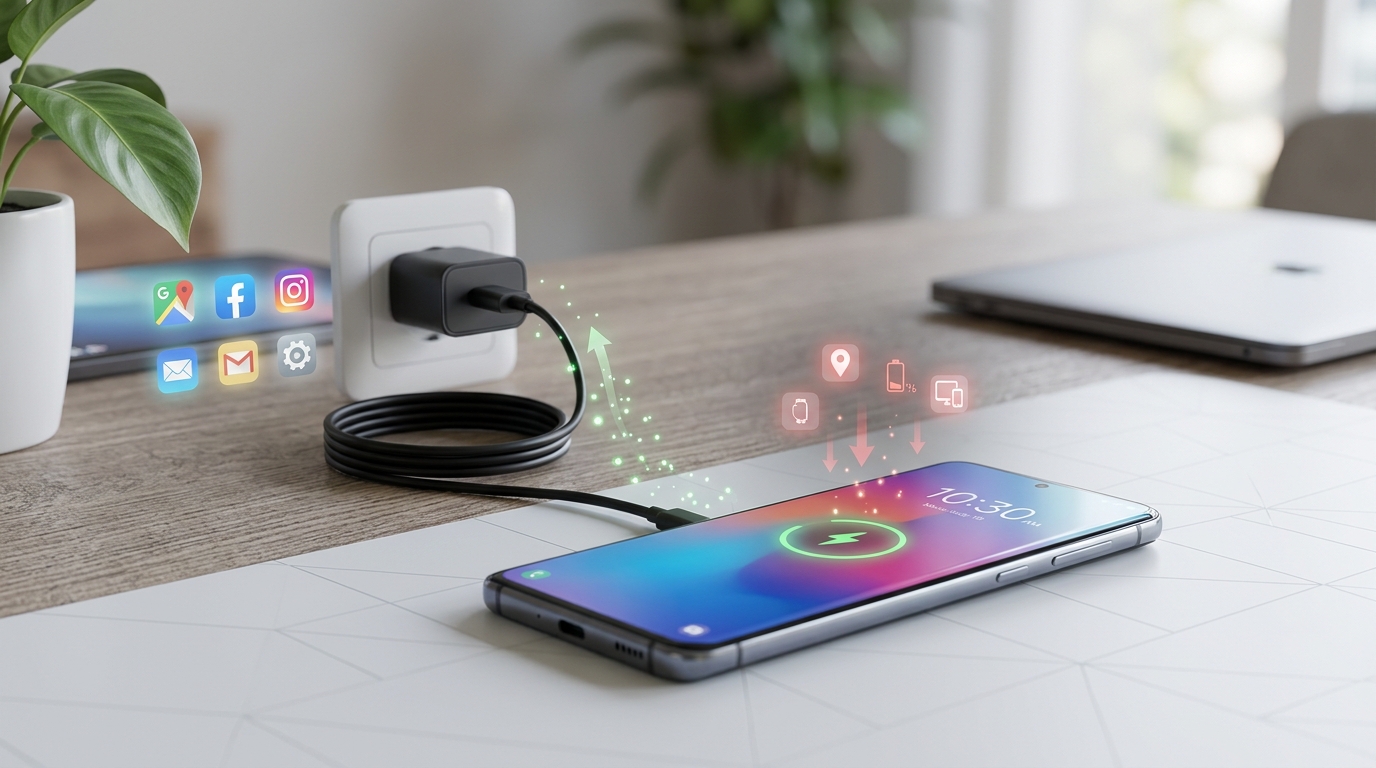
You’re barely halfway through your workday and your Android phone is already begging for a charger. Sound familiar? You’re not alone. Millions of Android users face this frustration daily, watching their battery percentage drop faster than they can refresh their email. The good news is that most battery drain issues aren’t hardware failures. They’re fixable software problems, rogue apps, or settings that need adjustment.
Android battery drain usually stems from screen brightness, background apps, poor signal strength, or outdated software. By identifying the specific culprit through your battery usage stats and applying targeted fixes like limiting background activity, reducing screen time, and updating apps, you can typically extend your battery life by 30 to 50 percent without buying new hardware or replacing your battery.
Why your Android battery drains faster than expected
Modern Android phones pack powerful processors, bright displays, and constant connectivity. Each of these features demands energy. When your battery drains abnormally fast, something in this ecosystem is consuming more power than it should.
The most common culprits include apps running in the background, screen brightness set too high, poor cellular or Wi-Fi signals forcing your phone to work harder, and outdated software that hasn’t been optimized for battery efficiency. Sometimes multiple factors combine to create the perfect storm of battery drain.
Your phone’s age matters too. Lithium-ion batteries naturally degrade over time. If you’ve had your device for more than two years, why your smartphone battery degrades faster than it should becomes a relevant factor. But even older phones can perform better with the right adjustments.
Check your battery usage statistics first
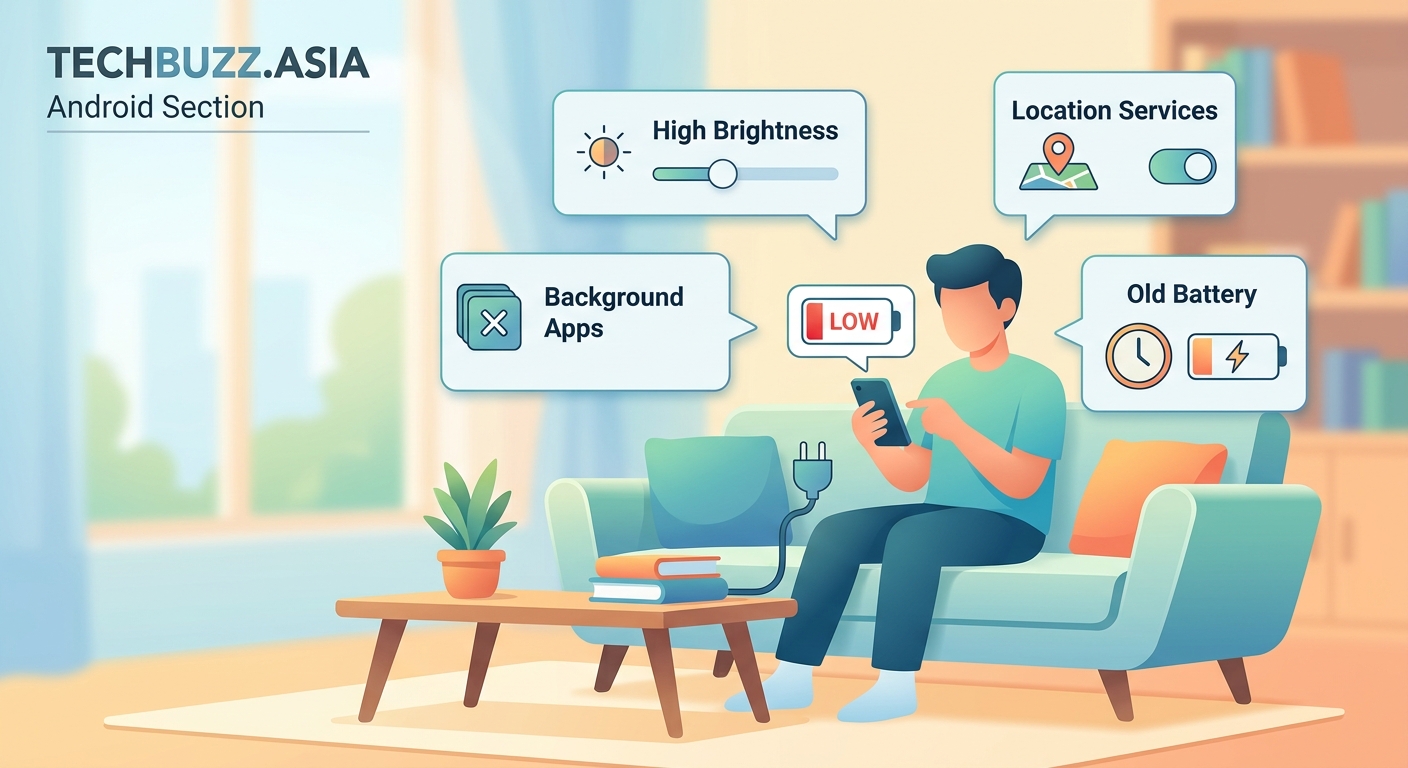
Before making random changes, you need data. Android includes built-in tools that show exactly what’s consuming your battery.
- Open your Settings app
- Tap Battery or Battery & device care (the exact name varies by manufacturer)
- Look for Battery usage or Battery consumption
- Review the list of apps and system services
This screen reveals the truth. You might find a social media app consuming 30 percent of your battery, or Android System using an unexpected amount. Some phones also show screen-on time, which helps you understand if your display is the main issue.
Pay special attention to apps you rarely use but that appear high on this list. These are prime candidates for restriction or removal.
Screen brightness is probably your biggest drain
Your display uses more battery than almost anything else. A screen set to maximum brightness can cut your battery life in half compared to moderate levels.
Most people set their brightness too high out of habit or because they adjusted it in direct sunlight and forgot to lower it. Adaptive brightness helps, but it’s not perfect.
Here’s how to optimize your screen settings:
- Lower your brightness to 40 to 60 percent for indoor use
- Enable adaptive brightness so your phone adjusts automatically
- Reduce your screen timeout to 30 seconds or one minute
- Switch to dark mode if your phone has an OLED or AMOLED screen
- Lower your refresh rate from 120Hz to 60Hz if you don’t need the smoothness
Dark mode deserves special mention. On OLED and AMOLED displays, black pixels are actually turned off, saving significant power. The difference can add an hour or more to your daily battery life.
Background apps are silent battery killers
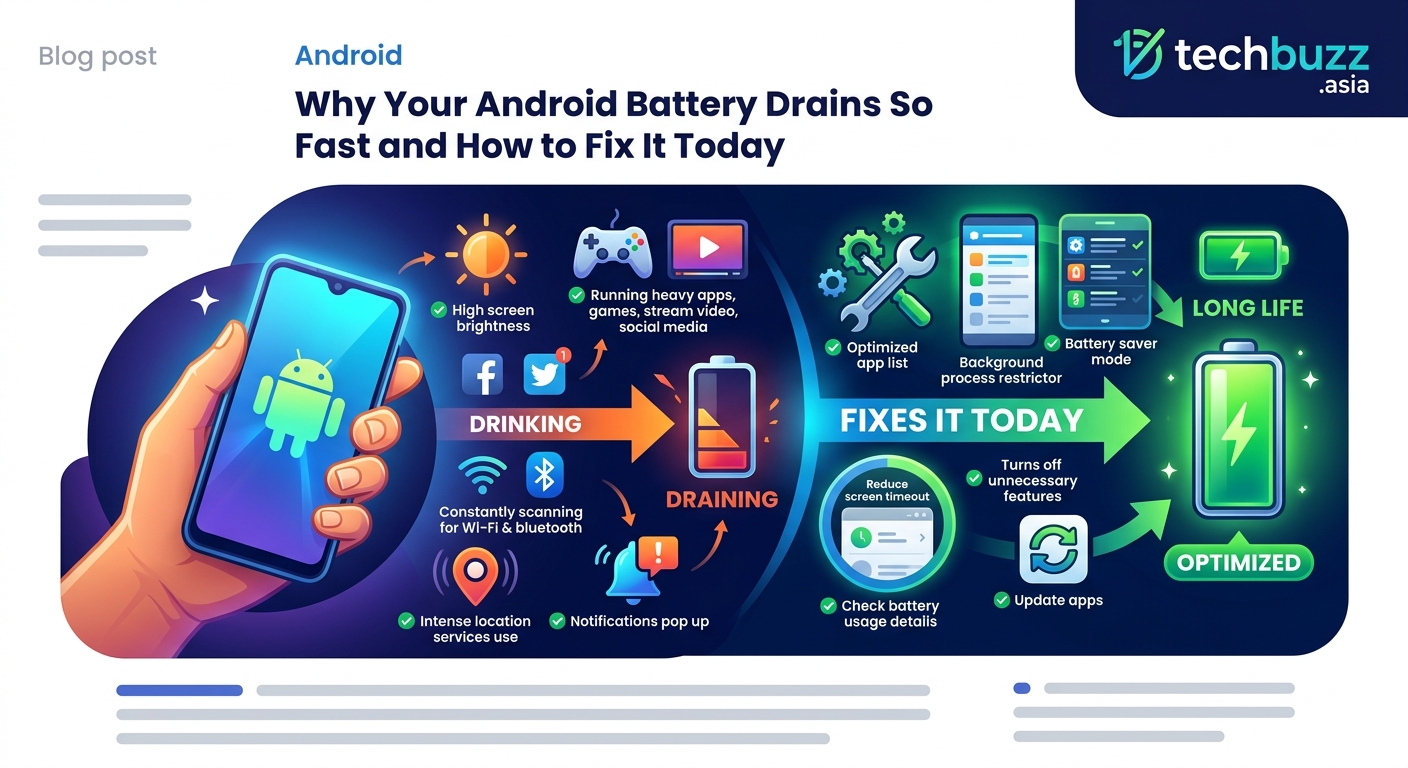
Apps don’t always close when you leave them. Many continue running in the background, syncing data, checking for updates, or tracking your location. This background activity drains your battery even when your phone sits in your pocket.
Social media apps are notorious offenders. Facebook, Instagram, TikTok, and similar apps constantly refresh their feeds and track your activity. Email apps sync every few minutes. Weather apps check conditions repeatedly.
How to restrict background activity
Android gives you granular control over background processes. Navigate to Settings, then Apps, and select any app. Look for Battery or Battery usage. You’ll see options like:
- Allow background activity (toggle this off for non-essential apps)
- Restrict background data
- Optimize battery usage
For apps you use frequently but don’t need instant notifications from, set them to restricted or optimized. You’ll still receive updates when you open the app, but they won’t constantly run in the background.
Consider removing apps you rarely use. Each installed app takes up space and may run background processes you don’t see. If you haven’t opened an app in three months, you probably don’t need it.
Location services drain battery faster than you think
GPS is power-hungry. When apps constantly track your location, your battery suffers. Many apps request location access they don’t truly need.
Check which apps have location permissions by going to Settings, then Location or Privacy, then Location services. You’ll see a list of apps with location access.
Change permissions from “Allow all the time” to “Allow only while using the app” for most apps. Only navigation apps, fitness trackers, and similar tools need constant location access. Your weather app doesn’t need to know where you are every second.
Some Android versions let you choose “Allow only this time” for temporary access. Use this option whenever possible.
Poor signal strength forces your phone to work harder
When your cellular signal is weak, your phone increases power to maintain the connection. The same applies to Wi-Fi. Constantly searching for a signal or switching between weak connections drains your battery rapidly.
If you work in a building with poor reception, your phone might spend all day struggling to connect. The solution isn’t always obvious, but you have options:
- Enable airplane mode in areas with no signal (your phone stops searching)
- Connect to Wi-Fi whenever available to reduce cellular strain
- Turn off mobile data when you don’t need it
- Consider 7 hidden features in your router that could double your Wi-Fi speed if home connectivity is the issue
Some people notice dramatic battery improvements simply by turning off cellular data during meetings or classes when they’re not actively using their phone.
Software updates often fix battery drain issues
Manufacturers regularly release updates that improve battery optimization. An outdated operating system or app version might have bugs that cause excessive battery drain.
Check for system updates in Settings under System or Software update. Install any available updates. They often include battery improvements that aren’t mentioned in the changelog.
Also update your apps through the Google Play Store. Developers frequently optimize their apps for better battery performance. An app that drained 15 percent of your battery last month might only use 8 percent after an update.
“Battery optimization is an ongoing process. What works today might need adjustment tomorrow as you install new apps or change usage patterns. Regular monitoring and tweaking will keep your Android running longer between charges.” – Battery optimization expert
Common battery drain mistakes and solutions
Understanding what not to do is just as important as knowing the fixes. Here’s a comparison of common mistakes and their solutions:
| Mistake | Why it drains battery | Better approach |
|---|---|---|
| Keeping Bluetooth on all day | Constantly searches for devices | Turn off when not using wireless accessories |
| Using live wallpapers | Animated backgrounds require constant processing | Switch to static wallpapers |
| Letting apps send constant notifications | Each notification wakes your screen and processor | Disable notifications for non-essential apps |
| Keeping vibration enabled | Motors use more power than sounds | Use ringtones instead of vibration |
| Running multiple widgets | Widgets update continuously | Remove widgets you don’t check regularly |
| Maxing out screen resolution | Higher resolution demands more processing | Lower resolution if your phone allows it |
Advanced settings for power users
If you’ve tried the basics and still need more battery life, these advanced options can help:
Enable battery saver mode manually or set it to activate automatically at 20 percent. This mode limits background activity, reduces performance slightly, and restricts location services. The battery life extension is substantial.
Disable 5G if you don’t need the speed. 5G connectivity drains battery faster than 4G LTE. Unless you’re streaming high-definition video or downloading large files, 4G is usually sufficient and much more efficient.
Turn off auto-sync for accounts you don’t need updated constantly. Gmail, Google Drive, and other services can sync manually when you open them instead of checking every few minutes.
Uninstall or disable pre-installed apps (bloatware) that you never use. These apps often run background processes you can’t see. Some can be uninstalled normally, while others require disabling through Settings.
When to consider a battery replacement
Sometimes the problem isn’t software. Batteries degrade over time. After 500 to 800 charge cycles (roughly two to three years of typical use), lithium-ion batteries lose significant capacity.
Signs your battery needs replacement include:
- Phone dies at 20 to 30 percent remaining
- Battery percentage drops rapidly, then stays stable for a while
- Phone feels hot during normal use
- Battery is physically swollen (stop using immediately if this occurs)
Many Android manufacturers offer battery replacement services. Third-party repair shops also provide this service, often at lower cost. If your phone is otherwise working well, a new battery can extend its life by another two years.
Before replacing the battery, try a factory reset. Back up your data, then reset your phone to factory settings. This eliminates any software issues that accumulated over time. Often, a fresh start solves mysterious battery drain problems.
Practical habits that extend battery life daily
Beyond settings and restrictions, your daily habits impact battery life. Small changes in how you use your phone add up to significant improvements.
Charge your phone when it drops to 20 to 30 percent instead of letting it die completely. Lithium-ion batteries last longer when you avoid full discharge cycles. Similarly, unplug at 80 to 90 percent rather than always charging to 100 percent. Some phones include settings to limit charging to 85 percent automatically.
Avoid extreme temperatures. Heat degrades batteries faster than anything else. Don’t leave your phone in a hot car or in direct sunlight. Cold weather temporarily reduces battery performance, but the effect reverses when the phone warms up.
Use original or certified chargers. Cheap third-party chargers might not regulate voltage properly, potentially damaging your battery over time. The few dollars you save aren’t worth the risk.
Close apps you’re not using instead of leaving dozens open. While Android manages memory efficiently, having 30 apps in recent memory still consumes resources. A periodic clearing of recent apps helps.
Getting through a full day without charging anxiety
Most Android users just want their phone to last from morning to night without dying. That’s a reasonable expectation, and it’s achievable with the right approach.
Start by implementing the high-impact changes: reduce screen brightness, restrict background activity for non-essential apps, and turn off location services for apps that don’t need them. These three changes alone can extend your battery life by several hours.
Monitor your battery usage stats weekly. Notice patterns. If a particular app suddenly starts consuming more battery, check for updates or consider alternatives. Sometimes a popular app becomes poorly optimized after an update, and switching to a competitor solves the problem.
Consider carrying the best portable power banks for fast charging your laptop and phone simultaneously for days when you know you’ll be away from outlets for extended periods. A small power bank provides peace of mind without requiring constant outlet hunting.
Remember that battery life varies based on how you use your phone. Someone who streams video for hours will always need to charge more frequently than someone who primarily sends texts and checks email. Adjust your expectations based on your actual usage patterns.
Making these changes stick
You’ve learned why your Android battery drains so fast and how to fix it. The challenge now is implementing these solutions consistently. Don’t try to change everything at once. That’s overwhelming and unsustainable.
Start with the three biggest battery drains: screen brightness, background apps, and location services. Make those adjustments today. Use your phone normally for a few days and check if you notice improvement. You probably will.
Then add one or two more optimizations each week. Update your software. Adjust your charging habits. Remove unused apps. Gradually, these practices become automatic. Your phone will last longer between charges, and you’ll spend less time worrying about finding the nearest outlet.
Battery drain is frustrating, but it’s almost always fixable. Take control of your Android’s power consumption, and you’ll rediscover the freedom of a phone that actually lasts all day.


Post Comment