The Complete Guide to Android Split Screen and Multitasking Like a Pro
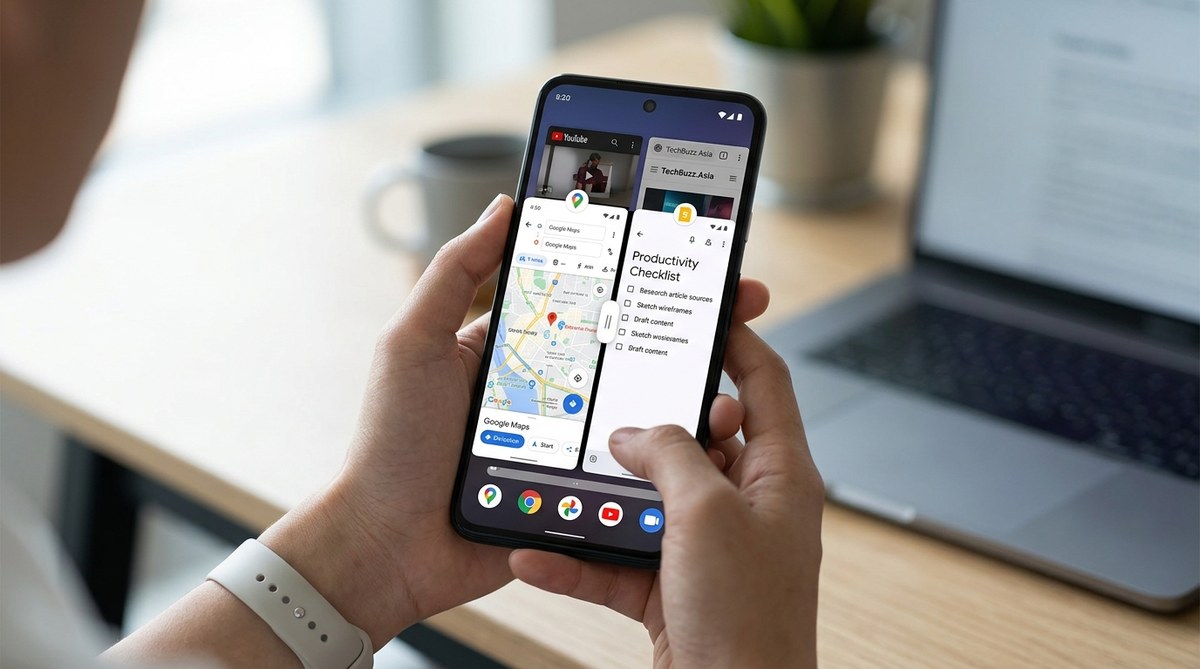
Getting the most out of your Android device often means juggling multiple apps at once. Whether you’re replying to emails while browsing the web or watching a video during a video call, split screen can transform the way you use your phone or tablet. This guide walks you through the step-by-step process of activating and managing split screen mode, helping you multitask like a pro.
Mastering Android split screen mode enhances productivity and multitasking. Follow simple steps to activate, adjust, and exit split screen on your device, making multitasking seamless and efficient.
How to activate split screen mode on Android
Getting started with split screen mode is straightforward once you know where to look. Here are the steps to begin multitasking effectively:
-
Open your recent apps menu
Depending on your device, this can be accessed by tapping the square button or swiping up from the bottom if you use gesture navigation. -
Select the first app you want to use
Find the app you wish to split the screen with. Tap on its icon or card in the recent apps view. -
Activate split screen
On most devices, you’ll see a split screen icon or a “Split screen” option when you long-press the app icon or card. Tap this option.
Note: On some Android versions, you can also tap the app’s icon at the top of its window and select “Split screen” from the dropdown menu. -
Choose your second app
After the first app snaps into the top or left side of the screen, you’ll see the app drawer or recent apps list. Select your second app by tapping on it.
Tip: You can pick any compatible app for split screen mode, but some apps may not support it. -
Adjust the divider
Once both apps are on-screen, a movable divider appears between them. Drag this divider up or down (or sideways on tablets) to resize the apps according to your preference.
Managing split screen during multitasking
Keeping your split screen sessions flexible makes multitasking more effective. Here are some tips:
-
Switching apps in split screen
Tap the app window you want to replace. Then, select a different app from the app drawer or recent apps to swap it in. -
Closing split screen mode
To exit, drag the divider all the way to the top or bottom, or tap the “Close” button (usually a small “X” or an arrow) on one side of the divider. -
Minimize or maximize split screen
Some devices allow minimizing one app to a small floating window. Tap the app icon or long-press to access options like “Picture-in-picture” mode or “Pop-up view.”
Practical tips for a smoother split screen experience
While enabling split screen is simple, these best practices can help you avoid common pitfalls:
-
Use compatible apps
Not all applications support split screen. Test your favorite apps to see if they work well in this mode. -
Be mindful of performance
Running multiple apps simultaneously can drain resources. Close unnecessary background apps to keep your device smooth. -
Adjust screen layout to fit your needs
Resizing the divider allows you to focus on one app or give equal space to both. -
Switch between apps quickly
Use the recent apps menu to jump between multitasking setups without exiting split screen.
Common mistakes and how to avoid them
| Technique / Mistake | Explanation | How to Avoid |
|---|---|---|
| Not supported apps | Some apps don’t support split screen, leading to crashes or no response. | Test apps beforehand. Use apps known for multitasking compatibility. |
| Incorrect divider handling | Dragging the divider too fast or past limits can cause glitches. | Drag slowly and carefully. Reset if needed. |
| Exiting accidentally | Swiping away or tapping the close button accidentally. | Be deliberate when closing or resizing. Use clear on-screen controls. |
| Low device resources | Multitasking can slow down older or less powerful devices. | Close background apps and keep software updated. |
“Practicing with different apps and adjusting the split screen layout allows you to find the most efficient setup for your tasks,” advises tech expert Jamie Lee.
Troubleshooting common issues
-
Split screen not appearing
Ensure your device runs Android 7.0 Nougat or higher. If it doesn’t, split screen won’t be available. -
Apps not resizing properly
Restart your device or update apps. Some apps may have bugs preventing proper scaling. -
Divider not responsive
Clear cache for the recent apps or system UI. A simple restart can fix minor glitches. -
Split screen mode missing on recent apps
Check device settings under “Multi-window” or “Advanced features.” Some manufacturers disable or customize this feature.
| Technique | Mistake | Solution |
|---|---|---|
| Activating split screen | Using unsupported app | Test app support or update apps. |
| Resizing divider | Dragging too fast | Move divider slowly. |
| Exiting split screen | Tapping the wrong button | Confirm before closing. |
| Using incompatible gestures | Gesture navigation conflicts | Switch to navigation buttons temporarily. |
Enhancing your multitasking with extra features
Many Android devices offer additional multitasking tools, such as:
-
Picture-in-picture mode
Watch videos or conduct calls in a small window while using other apps. Usually activated by pressing the home button during video playback. -
App pairs or shortcuts
Save your favorite app combinations for quick access. Some manufacturers or launchers support this feature. -
Edge panels and quick toggles
Use side panels to quickly activate split screen or picture-in-picture modes.
Final thoughts on mastering split screen
Getting comfortable with Android split screen mode unlocks a new level of efficiency. It takes a little practice to resize and switch apps smoothly. Once you do, you’ll find multitasking becomes more intuitive and less frustrating. Experiment with different app combinations and layouts to see what works best for your daily routines.
Remember, the key is to stay patient and familiar with your device’s specific gestures and options. With consistent use, split screen will become second nature, helping you accomplish more in less time.
Keep multitasking simple and effective with your Android device
Applying these steps can significantly boost your productivity. Whether you’re working, studying, or just having fun, split screen mode makes managing multiple apps a breeze. Try it out today and see how your device can work harder for you.


Post Comment