Is Your Android Auto-Brightness Driving You Crazy? Here’s How to Take Full Control
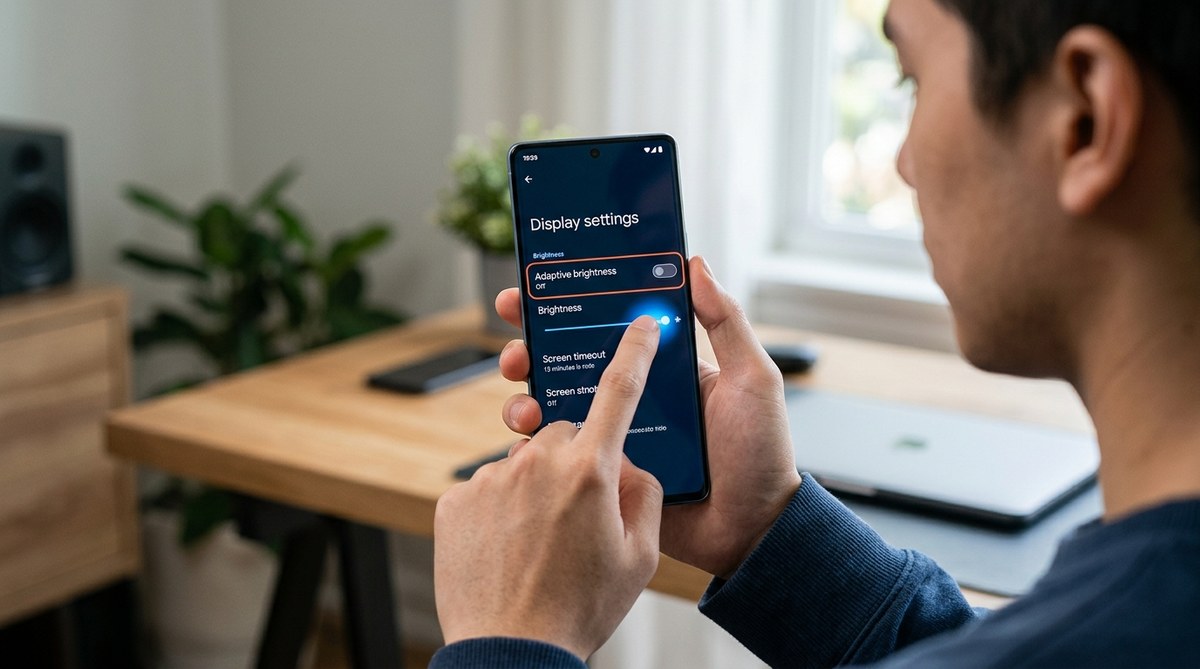
You are sitting on your couch watching a video, and suddenly your Android screen goes dark. Not a gradual fade, but an abrupt dim that makes you squint. Then you walk outside, and the screen blasts to full brightness, blinding you for a second. This is the auto brightness feature at work, and for many people, it feels less like a convenience and more like a glitch.
The good news is that you can take control. Whether you own a Samsung Galaxy, a Google Pixel, or a phone from another brand, there are settings you can change right now. This guide walks you through every method to fix the Android auto brightness issue for good.
Auto brightness on Android is usually caused by three things: an ambient light sensor, adaptive brightness software from your phone maker, or a system-level feature called Adaptive Brightness. You can disable each one through your display settings, developer options, or the camera app. On most phones, turning off auto brightness improves battery life and gives you a consistent viewing experience indoors and out. The process takes less than five minutes.
Why Your Android Screen Keeps Changing Brightness
Your phone has a tiny sensor near the front camera. It measures the light around you. When you walk from a dim room into bright sunlight, the sensor tells the screen to pump up the brightness so you can still read. When you go back inside, the screen dims to save battery and reduce eye strain.
This sounds helpful on paper. In real life, it often misreads the situation. A ceiling fan casting a shadow, a passing cloud, or even you tilting the phone can trigger a brightness change. The result is an annoying flicker that disrupts whatever you are doing.
Phone makers add their own layers of control on top of the basic Android system. Samsung calls it Adaptive Brightness. Google Pixel phones use Ambient EQ. Other brands have different names for the same feature. Each one needs a slightly different fix.
The Step-by-Step Android Auto Brightness Fix
Follow these steps in order. Stop when the problem is solved.
Step 1: Turn Off Auto Brightness in Display Settings
This is the most common fix. Open your phone’s Settings app, then tap Display. Look for a switch labeled Auto Brightness, Adaptive Brightness, or Outdoor Mode. Turn it off.
Not every phone has this exact option. If you do not see it, move to Step 2.
Step 2: Disable the Ambient Light Sensor
Some phones let you control the sensor directly. In Settings, go to Accessibility or Display. Search for terms like “light sensor,” “ambient light,” or “brightness sensor.” If you find a toggle, turn it off.
On Samsung phones, this setting is sometimes hidden inside the Advanced Settings menu under Display.
Step 3: Check Developer Options
Android has a hidden menu for developers that includes a setting called Adaptive Brightness. To access it:
- Open the Settings app.
- Tap About Phone or System.
- Tap Software Information.
- Tap Build Number seven times. This unlocks Developer Options.
- Go back to Settings and look for Developer Options.
- Find Adaptive Brightness and turn it off.
This trick works on most Android phones running version 12 or newer.
Step 4: Turn Off Auto Brightness in the Camera App
A surprising number of users find the fix inside their camera app. Open the Camera app, tap the settings gear icon, and look for a toggle called Auto Brightness or Smart Brightness. Disable it.
This setting controls the screen brightness during video recording, but on some phones it also affects the general display.
Step 5: Disable Video HDR and Tone Mapping
HDR content can cause brightness fluctuations. Go to Settings, then Display, then Advanced. Look for Video HDR or HDR Tone Mapping. Turn these off if you do not watch HDR videos often.
What to Do If the Steps Don’t Work
Some phones bury these settings deeper. Here is a table of common phone brands and their specific fixes.
| Phone Brand | Setting Name | Where to Find It |
|---|---|---|
| Samsung Galaxy | Adaptive Brightness | Settings > Display > Advanced |
| Google Pixel | Ambient EQ | Settings > Display > Adaptive Brightness |
| OnePlus | Smart Brightness | Settings > Display & Brightness |
| Xiaomi | Auto Adjust Brightness | Settings > Display > Brightness |
| ASUS | Light Sensor | Settings > Display > Sensor |
If your brand is not listed, search your Settings app for “brightness” and look for anything that says auto, adaptive, or sensor.
Common Mistakes People Make When Trying to Fix Auto Brightness
- Turning off auto brightness but leaving power saving mode on. Power saving mode can override your brightness settings. Go to Settings > Battery and turn off any power saving feature that dims the screen.
- Disabling the wrong sensor. Your phone has multiple sensors. You want the ambient light sensor, not the proximity sensor or the fingerprint sensor.
- Forgetting to restart the phone. Some changes only take effect after a restart. Reboot your phone after making adjustments.
- Assuming it’s a hardware problem. In most cases, this is software. A factory reset is rarely needed.
Expert advice: “Before you assume your phone’s screen is defective, try this simple test. Cover the top of your phone with your hand for five seconds. If the screen dims, the ambient light sensor is working. The fix is software, not hardware.” This tip comes from a phone repair specialist with over ten years of experience.
When Auto Brightness Is Actually Useful
There are moments when auto brightness helps. If you read outside in direct sunlight, the feature keeps the screen visible. If you watch a movie in a dark room, auto dimming reduces eye fatigue.
The trick is knowing when to turn it on and when to turn it off. Many users prefer to keep it enabled during the day and disable it at night. You can do this by creating a routine in the Settings app.
How to Create a Brightness Schedule
Most Android phones let you schedule brightness changes. Open Settings, go to Display, and look for Night Light or Blue Light Filter. Set it to turn on at sunset and off at sunrise. This gives you consistent brightness during the day and a warmer, dimmer screen at night without the erratic jumping that auto brightness causes.
What About Battery Life?
Auto brightness exists partly to save battery. When you disable it, your screen stays at one brightness level all the time. If you set that level high, your battery will drain faster. The solution is to find a middle ground. Set your brightness to about 60 percent. That is bright enough for most situations but not so bright that it kills your battery.
If battery life is your top concern, read our guide on why your smartphone battery degrades faster than it should. You might find other culprits draining your power.
Brightness Problems After a Software Update
Phone updates sometimes reset your display settings. If you recently updated your Android version and noticed the auto brightness came back, check your settings again. The update might have turned the feature back on. This happens most often with major updates like Android 15.
For a full list of changes in the latest version, check out our article on the Android 15 update and every new feature worth getting excited about.
The Real Reason You Should Take Control
Auto brightness is a feature designed for the average user. But you are not average. You care about how your device behaves. You want consistency. You want to decide when the screen dims, not some algorithm that misreads a cloud for sunset.
Taking five minutes to disable these settings gives you back control over your experience. It also helps you spot other hidden features you might want to adjust. If this guide helped, you might also enjoy learning about 7 hidden Android features that will change how you use your phone.
Putting Your Phone to the Test
After you make the changes, test your phone in different lighting conditions. Walk from a dark room to a bright window. Move from indoors to outside. The screen should stay at the same brightness level. If it still changes, go back through the steps and check if you missed a setting.
You can also download a brightness control app from the Google Play Store. Apps like Brightness Slider or Screen Dim give you manual control without digging through menus.
A Final Word on Screen Comfort
Your eyes adapt to light slowly. A screen that jumps between brightness levels forces your eyes to adjust over and over. This can cause headaches and eye strain over time. Setting a fixed brightness that works for your typical environment is better for your vision.
If you work in multiple locations throughout the day, consider setting two brightness profiles. One for your home office and one for your coffee shop. You can switch between them manually in seconds.
Now go ahead and make the change. Your eyes will thank you by the end of the week.

Post Comment