The Complete Guide to Apple’s Continuity Features Across All Your Devices
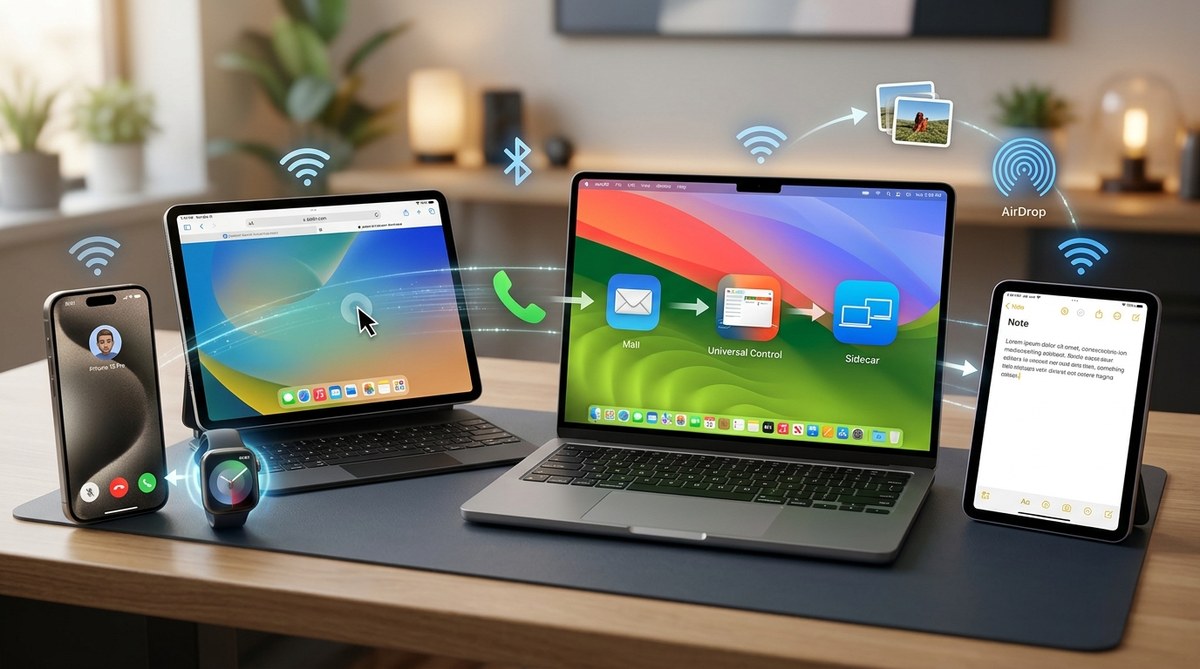
Seamless interaction between your Apple devices is no longer a luxury but a real convenience. Whether you are switching from your iPhone to your Mac or sharing content effortlessly, Apple’s continuity features make it all possible. These tools help you work smarter, stay connected, and simplify your digital life. If you own multiple Apple gadgets, understanding and using these features can significantly boost your productivity and enjoyment. This guide will walk you through every key aspect of Apple’s continuity ecosystem so you can make the most of what your devices offer.
Apple continuity features enable smooth handoffs, content sharing, and device control, transforming multiple Apple devices into a cohesive ecosystem that enhances your daily tasks and entertainment.
Understanding what Apple continuity is and why it matters
Apple continuity encompasses a set of features designed to let your devices work together naturally. This means you can start a task on your iPhone and finish it on your Mac without interruption or share files instantly. The goal is to create a seamless experience across all devices, making it feel as if they are parts of a single system rather than separate gadgets.
For instance, with automatic device switching, you can move from your iPhone to your iPad for reading without manually reconnecting. Or, you can answer a call on your Mac when your iPhone rings nearby. These features rely on proximity, synchronized accounts, and compatible hardware running the right operating system versions.
By mastering Apple’s continuity tools, you can save time, reduce hassle, and enjoy a more integrated digital life. Now, let’s explore the core features and how to activate and troubleshoot them.
Key features of Apple continuity and how they work
Apple offers a variety of features that enhance multi-device use. Here are some of the most valuable ones:
- Handoff: Start a task on one device and pick it up on another.
- Universal Clipboard: Copy content on one device and paste it on another.
- Phone Calls and SMS: Answer calls and messages on your Mac or iPad.
- Auto Unlock: Unlock your Mac with your Apple Watch.
- Continuity Camera: Use your iPhone or iPad as a webcam or for scanning documents.
- AirDrop: Instantly share files between devices.
- AirPlay: Stream content from one device to another or to an Apple TV.
- Sidecar: Extend your Mac desktop to an iPad.
Each feature depends on specific hardware, operating system versions, and settings. Let’s review how to set up and troubleshoot these functionalities.
How to activate and troubleshoot Apple continuity features
Getting your continuity features working involves a few steps. Here are practical methods to ensure everything runs smoothly:
1. Verify device compatibility and system requirements
Check that your devices support the features you want to use. For example:
- Handoff requires iOS 8 or later and macOS Yosemite or later.
- Universal Clipboard needs devices to be logged into the same Apple ID and connected via Bluetooth and Wi-Fi.
- Auto Unlock needs Apple Watch running watchOS 3 or later and Mac with macOS Sierra or later.
Using the latest software versions is essential. Update your devices through Settings (iOS/iPadOS) or System Preferences (macOS). Compatibility is crucial for flawless operation.
2. Enable necessary settings on all devices
Ensure the features are turned on:
- For Handoff, go to Settings > General > AirPlay & Handoff on iOS and System Preferences > General > Allow Handoff on Mac.
- For Universal Clipboard, verify Bluetooth and Wi-Fi are active on all devices.
- For Auto Unlock, enable Bluetooth and Wi-Fi on your Mac and Apple Watch.
3. Keep devices within proximity and connected
Most features rely on devices being near each other. For example, to answer calls on your Mac, your iPhone must be nearby and connected to the same Wi-Fi network.
4. Use the correct login credentials
All devices should use the same Apple ID and have two-factor authentication enabled. This ensures synchronization and security.
5. Troubleshooting common issues
| Technique | Mistake to avoid | Solution |
|---|---|---|
| Restart devices | Forgetting to restart after updates | Restart all devices after updating software or changing settings |
| Check network connections | Using different Wi-Fi networks | Connect all devices to the same Wi-Fi network |
| Sign out and back in | Apple ID glitches | Sign out of iCloud and sign back in to refresh syncs |
| Reset Bluetooth | Bluetooth issues | Turn Bluetooth off and on or reset network settings |
Expert tip: If continuity features still don’t work, reset network settings or contact Apple Support for deeper troubleshooting.
Practical steps to use the main continuity features
Here is a step-by-step guide to using some of the most popular features:
1. How to use Handoff
- Make sure Handoff is enabled on all devices.
- Start an email or document on your iPhone.
- On your Mac, look for the Handoff icon at the bottom of the Dock or in the App Switcher.
- Click to continue where you left off.
2. How to activate Universal Clipboard
- Copy content (text, images, or files) on one device.
- Open the app on another device and paste as usual.
- Works best when devices are close and connected properly.
3. Using Continuity Camera for video calls or scanning
- On your Mac, open a supported app like FaceTime or Notes.
- Right-click and select Import from iPhone or iPad.
- Choose Camera or Scan Documents.
- Your iPhone or iPad becomes a webcam or scanner instantly.
4. Answering calls on your Mac
- Ensure your iPhone is nearby and connected.
- When a call comes in, click the Answer button on your Mac.
- You can also make calls directly from your Mac using the Contacts app or FaceTime.
5. Sharing files via AirDrop
- Enable AirDrop on both devices (Finder > Go > AirDrop).
- Drag files into the AirDrop window.
- Select the recipient device and send.
- The file appears instantly on the receiving device.
Common pitfalls and how to avoid them
Even with the right setup, mistakes happen:
- Not updating devices can cause features to break.
- Devices not being on the same Wi-Fi network can prevent sharing.
- Logging into different Apple IDs disables some functionalities.
- Bluetooth and Wi-Fi must be active on all devices.
Techniques and mistakes at a glance
| Technique | Mistake to avoid | Best practice |
|---|---|---|
| Enabling Handoff | Forgetting to turn it on | Double-check all devices have it enabled |
| Using AirDrop | Using incompatible file types | Use supported formats for smooth transfers |
| Auto Unlock | Not wearing your Apple Watch | Wear it consistently for seamless unlocking |
| Continuity Camera | Using unsupported apps | Use apps like FaceTime and Notes for best results |
When things don’t go as planned
If you find continuity features are not functioning as expected:
“Ensure all your devices are signed into the same iCloud account, within close proximity, and running the latest software. Sometimes a simple restart can fix lingering issues.” — Apple expert advice
Try resetting Bluetooth or network settings if problems persist. Checking Apple’s support pages can also reveal specific troubleshooting steps.
Making the most of your Apple ecosystem
Using continuity features effectively transforms your Apple devices into a unified workspace. For instance, you can:
- Start a presentation on your iPad and finish it on your Mac.
- Copy a photo from your iPhone and instantly paste it into a document on your Mac.
- Answer calls or reply to messages without reaching for your iPhone.
These enhancements save time and reduce frustration, especially when managing multiple tasks or devices.
A few tips to maximize your continuity experience
- Keep all devices updated to the latest OS versions.
- Always sign in with the same Apple ID on all devices.
- Enable Bluetooth and Wi-Fi on each device.
- Place devices close enough for Bluetooth and Wi-Fi signals to reach.
- Use two-factor authentication for added security and sync reliability.
Final thoughts: making Apple work better for you
Harnessing the full potential of Apple’s continuity features is about understanding their capabilities and ensuring your devices are properly configured. Once set up, these tools can make your digital life more fluid and enjoyable. Remember, the key is keeping software current and devices connected. As you get comfortable with these features, you’ll notice how much easier it becomes to switch between tasks and devices seamlessly.
With a little setup and patience, your Apple ecosystem can become a powerful environment where your devices support each other effortlessly. Take the time to check your settings today and see how smooth your workflow can be. Your productivity and entertainment will thank you.


Post Comment