Your Windows Laptop Battery Is Dying Faster Than It Should—Here’s Why
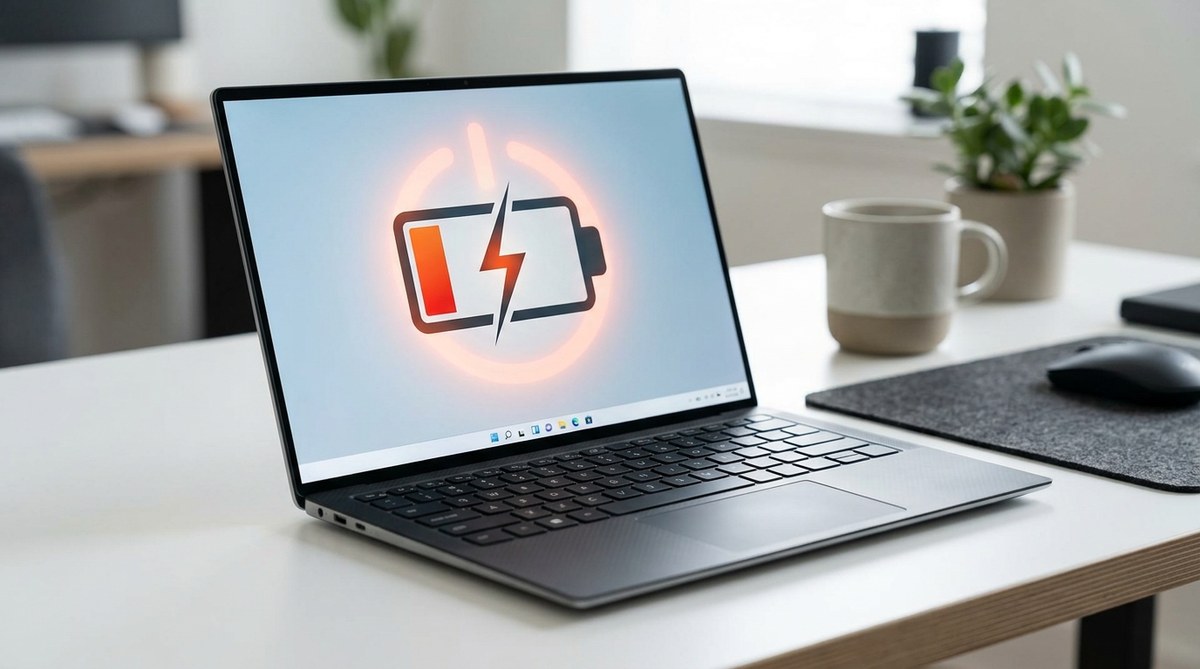
When your laptop battery loses charge faster than you expect, it can be frustrating. You might notice your device running out of juice just a few hours after unplugging it. Fortunately, there are common causes and practical solutions to help you get the most out of your battery. Understanding why your battery drains quickly allows you to troubleshoot effectively and make smarter choices to prolong its life.
Battery drain issues on Windows laptops often stem from background apps, high screen brightness, or outdated drivers. Adjusting settings and managing processes can significantly improve battery longevity.
Why your Windows laptop battery drains faster than it should
Several factors can cause your laptop’s battery to deplete quickly. Identifying the main culprits can help you decide which steps to take. Common reasons include hardware settings, software activities, and even physical battery health.
Applications and processes running in the background
Background apps and processes often consume power without your awareness. Software like cloud sync services, antivirus scanners, and auto-update tools can run silently and drain your battery faster.
Screen brightness and display settings
The display is usually the biggest power consumer on a laptop. Bright screens, high refresh rates, and lengthy timeout periods can all contribute to rapid battery loss.
Outdated drivers and system updates
Running outdated device drivers, especially graphics or chipset drivers, can cause inefficiencies. Similarly, Windows updates sometimes introduce bugs or settings that inadvertently increase power consumption.
Hardware health and battery age
Over time, batteries degrade. If your battery is several years old, it might not hold a charge as efficiently. Physical damage or excessive heat can also impact battery performance.
Power settings and configurations
Incorrect or overly aggressive power plans can cause your laptop to use more energy than necessary. Features like high-performance mode or disabled sleep settings can lead to quicker battery drain.
Practical steps to extend your laptop’s battery life
Addressing the root causes of battery drain is straightforward once you know what to look for. Here are tested methods to help your laptop last longer on a single charge.
1. Adjust power and sleep settings
Start by optimizing your Windows power plan. Switch to the battery saver mode or create a custom plan that reduces screen brightness, limits background activity, and shortens sleep time. To do this:
- Click on the battery icon in the taskbar.
- Select battery saver or go to Settings > System > Power & sleep.
- Set shorter durations for screen timeout and sleep mode.
- Enable battery saver mode during extended unplugged periods.
2. Manage background applications and processes
Close apps running in the background that are not in use. You can check active processes via the Task Manager:
- Press Ctrl + Shift + Esc to open Task Manager.
- Review processes consuming high CPU or memory.
- End unnecessary tasks, especially those that run constantly and do not need to be active.
Some applications, like file sync services or antivirus scans, can be scheduled to run when your device is plugged in.
3. Lower screen brightness and disable unnecessary hardware
Since the display consumes the most power, dimming the screen can make a big difference:
- Use the keyboard shortcuts or display settings to decrease brightness.
- Turn off backlit keyboards if not needed.
- Disable Bluetooth, Wi-Fi, or peripherals when not in use to prevent extra power draw.
4. Keep your system and drivers updated
Regularly check for Windows updates and driver releases:
- Go to Settings > Update & Security > Windows Update.
- Install available updates.
- Visit your laptop manufacturer’s website to download the latest drivers, especially for graphics and chipset components.
5. Monitor and optimize application activity
Identify apps that use excessive power:
- Use the Windows Battery Usage report found in Settings > System > Battery.
- Uninstall or disable apps that unnecessarily drain power.
- Avoid multitasking with resource-heavy applications during battery operation.
6. Maintain your battery health
If your laptop is old or the battery holds less than 80 percent of its original capacity, consider replacing it. Also:
- Avoid exposing your device to heat.
- Keep your battery charge between 20 and 80 percent when possible.
- Use manufacturer-recommended charging practices to extend battery lifespan.
Techniques that can harm your battery health and how to avoid them
| Technique | Effect | Mistake to avoid |
|---|---|---|
| Fully discharging the battery regularly | Causes wear and reduces capacity over time | Never drain your battery to zero frequently |
| Constantly charging to 100% | Accelerates aging | Unplug once it reaches full charge if possible |
| Using incompatible or cheap chargers | Risks damaging the battery | Always use original or certified chargers |
| Exposing your device to excessive heat | Damages internal components | Keep your laptop in cool, well-ventilated areas |
“Battery longevity relies on maintaining proper charging habits and avoiding extreme states of charge or heat. Regularly monitor your system’s health for optimal performance,” advises a battery expert from ecoFlow.
Troubleshooting common battery drain issues
If all your efforts still result in quick battery loss, consider these additional checks:
- Run the built-in battery troubleshooter: go to Settings > Update & Security > Troubleshoot > Power.
- Reset power plans to default settings.
- Perform a battery calibration if your device supports it, which involves fully charging and then discharging the battery.
- Check for malware or unwanted processes that may be running silently.
- Consider replacing the battery if it no longer holds a charge effectively.
Keep your laptop powered up longer
Managing your Windows laptop’s energy consumption requires attention to both software and hardware. Regularly updating your system, adjusting settings, and practicing good charging habits can help your battery stay healthy longer. If your battery is physically degraded, replacing it might be the best option.
Sharing the workload between hardware and software management makes a noticeable difference in battery life. Remember that even new batteries benefit from proper care. Staying aware of your device’s power needs ensures you stay productive without constantly hunting for an outlet.
A final tip: Regularly check your battery health
Windows provides built-in tools like the Battery Report feature to monitor capacity and usage over time:
- Open Command Prompt as administrator.
- Type
powercfg /batteryreportand press Enter. - Review the generated report for insights into your battery’s condition.
This report can reveal patterns and help you decide whether a replacement is necessary.
Keeping your laptop alive longer, naturally
Battery drain issues are common but manageable with a few simple adjustments. By controlling what runs in the background, optimizing display settings, and maintaining system updates, you can extend your laptop’s battery life significantly. Regular health checks and mindful charging practices will keep your device performing at its best for years to come.
Taking charge of your battery health doesn’t require complex tools or expensive repairs. Small, consistent habits make a big difference. Apply these tips, and you’ll notice your laptop staying powered longer, ready whenever you need it.

Post Comment