Windows 11 vs Windows 10: Real-World Performance Tests Show Surprising Results
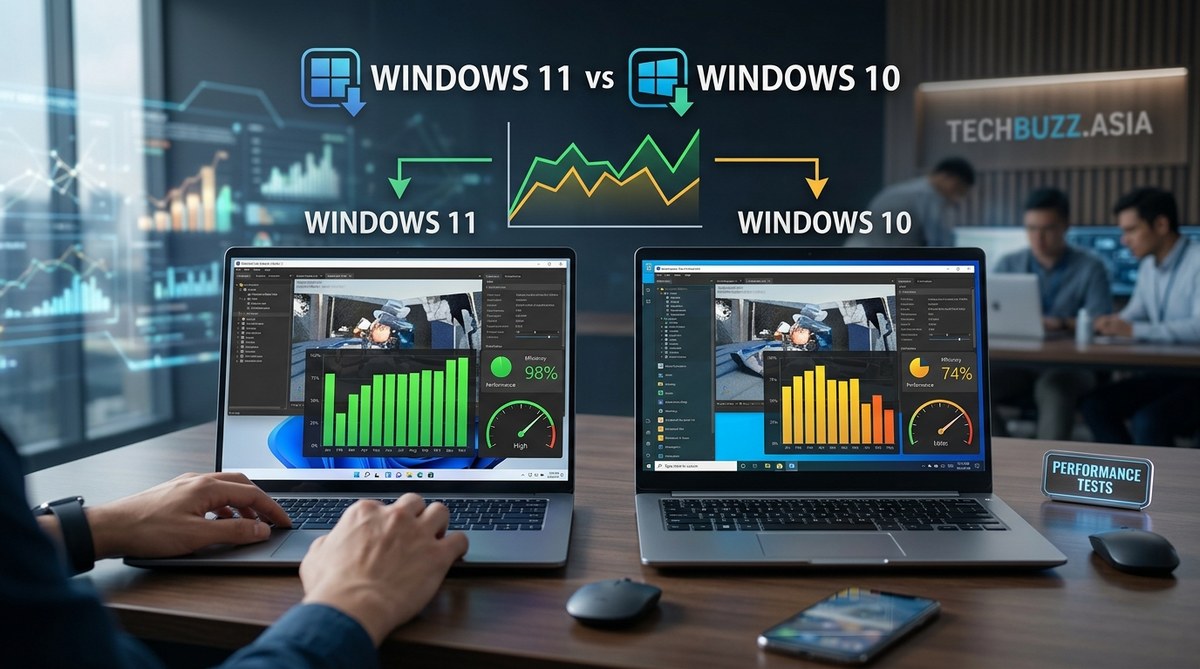
Getting a new operating system often promises better speed, smoother multitasking, and improved efficiency. But when it comes to Windows 11 versus Windows 10, the actual performance differences can be surprising. Many tech enthusiasts and IT professionals want to know if upgrading will give their hardware an extra boost or if they should stick with what they already have. To answer these questions, we’ve examined recent real-world benchmarks and tests to see how each version performs in everyday tasks.
Performance tests reveal unexpected insights
Recent performance comparisons between Windows 11 and Windows 10 challenge some common assumptions. Official benchmarks and user reports show that while Windows 11 introduces many visual and security improvements, its impact on speed and resource usage isn’t always straightforward. In some cases, Windows 10 still holds an edge in simple tasks like file copying or basic browsing. Yet, Windows 11 can excel in specific areas like gaming and modern app responsiveness.
How real-world testing influences perceptions
To truly gauge performance, tests must mirror typical user activities. Synthetic benchmarks, like those measuring raw processing power, often show minimal differences. But real-world tests involving gaming, productivity apps, multitasking, and resource management paint a clearer picture. These tests consider factors like startup time, app launches, multitasking behavior, and system responsiveness under load.
In recent tests conducted on modern hardware, some surprising results emerged. For example, Windows 11 sometimes outperformed Windows 10 in gaming due to better driver support and integrated features like Auto HDR. Conversely, Windows 10 maintained an advantage in lighter tasks, thanks to its lighter default resource footprint.
Practical steps for assessing your system
Before deciding whether to upgrade or stay put, consider these three steps:
- Benchmark your current system: Use tools like PassMark or UserBenchmark to establish a performance baseline with your existing OS. This gives you a clear picture of your hardware’s capabilities.
- Test Windows 11 on a spare partition: If possible, install Windows 11 on a separate drive or partition. Run your typical apps and tasks to see if the OS meets your needs.
- Compare resource usage and responsiveness: Pay attention to startup times, app launch speeds, and multitasking performance. Note any delays or improvements.
Common pitfalls in performance testing
| Technique or Mistake | Description | Impact |
|---|---|---|
| Relying solely on synthetic benchmarks | Synthetic tests don’t always reflect real user experience | Can mislead about actual performance differences |
| Ignoring driver updates | Outdated drivers can skew results | May underestimate Windows 11’s capabilities |
| Using incompatible hardware | Hardware incompatibilities may cause performance issues | Can falsely suggest OS inefficiency |
| Not optimizing system settings | Default settings may differ | Affects measurement accuracy |
Expert tip: Always ensure your drivers are up to date and perform tests under similar conditions. Hardware compatibility can influence results significantly.
Performance in gaming and multitasking
A notable area where Windows 11 shows promise is gaming. Improved driver support, better handling of modern graphics APIs like DirectX 12, and features like Auto HDR can boost frame rates and responsiveness. In tests involving modern titles, Windows 11 sometimes delivered smoother gameplay compared to Windows 10.
For productivity and multitasking, Windows 10 still shines in some scenarios due to its lighter resource use. If you run many background applications or use older hardware, Windows 10 might feel snappier. However, Windows 11’s Snap Layouts and virtual desktops help streamline multitasking on newer machines.
When should you consider upgrading?
- Your hardware supports Windows 11: Check if your device meets Microsoft’s requirements. If so, upgrading can unlock new features.
- Gaming performance matters: If you’re a gamer, Windows 11’s optimized graphics pipeline and driver support can improve gameplay.
- Security and future updates: Windows 11 offers enhanced security features and will receive support longer than Windows 10.
On the flip side, if your system is already performing well with Windows 10, and you don’t need the newest features, staying put makes sense. Upgrading might introduce compatibility issues or bugs, especially on older hardware.
How to make the transition smooth
Follow these practical tips:
- Backup your data: Always back up important files before any OS upgrade.
- Update drivers and BIOS: Ensure your hardware is fully compatible and optimized.
- Perform a clean install if possible: Clean installs can prevent lingering issues from previous OS versions.
- Test your essential apps: Verify that critical software runs smoothly on Windows 11 before a full switch.
The role of hardware in performance differences
Hardware plays a significant part in how these OS versions perform. A high-end gaming PC with a recent processor and SSD may see minimal differences between Windows 10 and Windows 11. Conversely, older systems might struggle with Windows 11’s higher demands.
Some users report that Windows 11 consumes slightly more memory and CPU resources at idle, which can affect responsiveness on lower-end devices. But on newer hardware, these differences often become negligible.
Final thoughts on the Windows OS debate
Choosing between Windows 11 and Windows 10 depends largely on your hardware and what you do daily. For gamers and power users with recent hardware, Windows 11 offers tangible benefits. For casual users or those with legacy systems, Windows 10 remains a reliable and efficient choice.
To get the most out of your system, test both OS versions in your typical workflow. Use benchmarking tools, monitor resource usage, and pay attention to responsiveness. This practical approach helps you make an informed decision tailored to your needs.
A practical approach to upgrading
Remember, performance is just one piece of the puzzle. Compatibility, security, and new features matter too. If your hardware supports Windows 11 and you’re eager to experience the latest improvements, give it a try. Otherwise, sticking with Windows 10 ensures stability and familiarity.
Upgrade or stay? The best choice is the one that aligns with your hardware and how you use your PC. Testing on your own system is the surest way to find out. Don’t rush—evaluate your needs, back up your data, and make a confident decision that keeps you productive and happy.
Your next step in optimizing performance
The key to making the right choice is understanding your system’s unique behavior. Run your own tests and compare the experience across both Windows versions. With a little effort, you’ll know exactly which OS suits your workflow best. Keep your drivers updated, optimize your settings, and stay informed about the latest updates for optimal performance.

Post Comment