How to Free Up Storage Space on Your Android Phone Without Deleting Photos
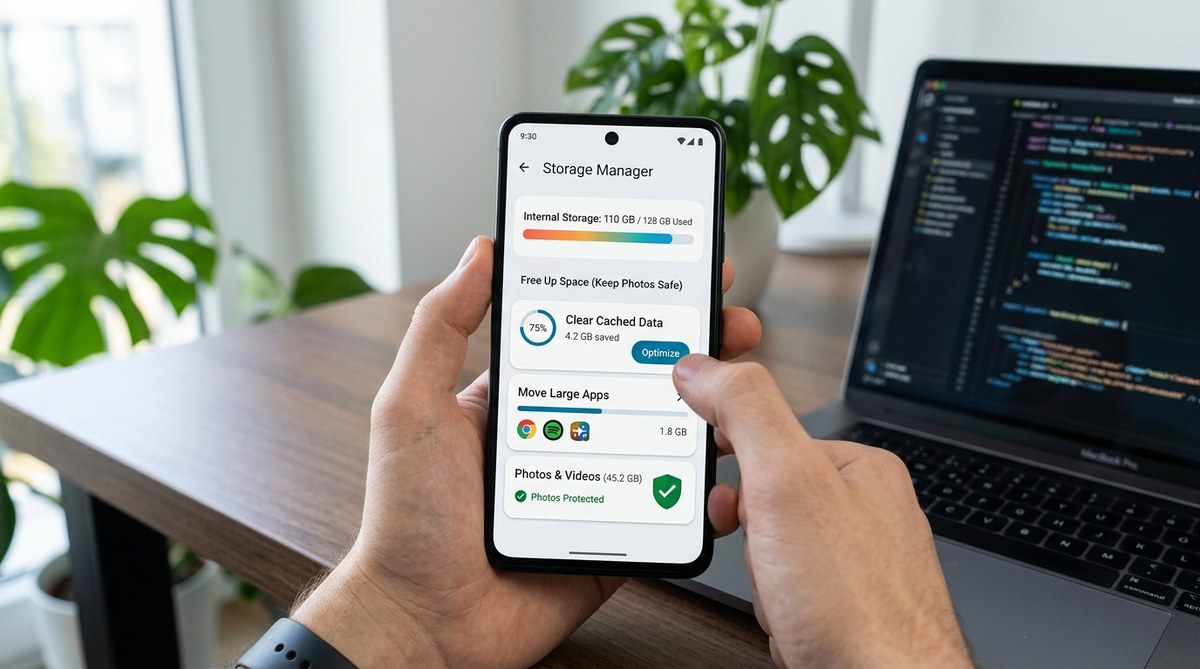
Your phone just buzzed with a notification you’ve been dreading: “Storage Almost Full.” You panic for a second, thinking about all those birthday videos, vacation snapshots, and random memes you’ve saved over the years. But here’s the good news: you don’t have to delete a single photo to get your storage back.
You can reclaim gigabytes of Android storage without losing photos by backing them up to cloud services, clearing app caches, removing duplicate files, offloading large videos, uninstalling unused apps, and managing downloads. Most users recover 3 to 10 GB using these methods, keeping every precious memory safe while making room for new ones.
Back Up Your Photos to the Cloud First
The smartest move you can make is getting your photos off your device and into cloud storage. This doesn’t mean deleting them. It means creating a backup copy somewhere safe so you can remove the local versions without worry.
Google Photos is built right into most Android phones. Open the app, tap your profile icon, and select “Turn on backup.” Once enabled, every photo and video uploads automatically when you’re connected to WiFi. After the backup finishes, you can choose “Free up space” from the app menu. This removes photos already backed up while keeping them accessible in the cloud.
Other solid options include Dropbox, Microsoft OneDrive, and Amazon Photos. If you have Amazon Prime, you get unlimited full-resolution photo storage. That’s a massive benefit many people forget they have.
Here’s what matters: always verify your backup completed before removing anything. Open your cloud app on another device or computer. Scroll through a few albums. Make sure everything uploaded correctly. This five-minute check saves you from heartbreak later.
Clear Out App Cache and Data
Apps collect junk files like a magnet attracts metal shavings. Every time you scroll through social media, stream a video, or check your email, temporary files pile up. These cache files help apps load faster, but they can balloon to several gigabytes over time.
Head to Settings, then Storage. You’ll see a breakdown of what’s eating your space. Tap “Apps” to see individual culprits. Social media apps like Facebook, Instagram, and TikTok are usually the worst offenders.
For each app:
- Tap the app name
- Select “Storage”
- Hit “Clear Cache”
This removes temporary files without logging you out or losing your settings. If an app still hogs space after clearing cache, you can try “Clear Data,” but be warned: this resets the app completely. You’ll need to log back in and reconfigure your preferences.
Some Android phones have a built-in storage cleaner that does this automatically. Samsung calls it “Device Care.” Other manufacturers use similar names. Find yours in Settings and run it weekly.
Remove Duplicate and Blurry Photos
You probably have more duplicate photos than you realize. That group shot where everyone blinked? You took seven versions. The sunset photo you couldn’t quite capture? Twelve attempts.
Apps like Files by Google can scan for duplicates and suggest which ones to remove. The app shows you side-by-side comparisons, making it painless to pick the best version and trash the rest.
The same goes for blurry or accidental screenshots. We’ve all pocket-dialed our camera app or screenshot something by mistake. These add up faster than you’d think.
Set aside 15 minutes this weekend. Grab a coffee. Scroll through your recent photos. Delete the obvious junk. You’ll be surprised how much space this frees up, and you’re still keeping all the photos that matter.
Offload Videos to External Storage
Videos devour storage like nothing else. A single minute of 4K video can consume 400 MB. Ten minutes of your kid’s soccer game? That’s 4 GB gone.
If you want to keep videos but need space now, move them to a computer or external drive. Connect your phone to a laptop with a USB cable. Your phone appears as a drive. Navigate to the DCIM folder and copy your videos elsewhere.
Another option: get a USB-C flash drive. These plug directly into your Android phone. You can move videos there and keep them in your pocket. When you want to watch something, plug it back in.
Cloud storage works for videos too, but uploads take longer. A 2 GB video might need 20 minutes on a typical home WiFi connection. Be patient and let it run overnight.
Uninstall Apps You Never Use
Look at your app drawer honestly. How many apps have you opened in the past month? How many were impulse downloads you forgot about?
The average person uses only 9 apps daily but has 40 installed. That’s a lot of wasted space.
Go to Settings, then Apps. Sort by “Last Used” or “Size.” You’ll spot the dead weight immediately. That language learning app you downloaded on New Year’s Day? The fitness tracker from 2024? The game you played once? Gone.
Some apps also install extra data after the initial download. Navigation apps download map regions. Streaming apps cache shows. Gaming apps pull in updates and assets. Removing these can free up several gigabytes.
Before you uninstall, check if you need the app for anything important. Some banking apps require specific software. Some work tools can’t be easily reinstalled. But that random photo editor you used twice? Delete it without guilt.
Manage Your Downloads Folder
Your Downloads folder is probably a disaster. Random PDFs, installation files, memes friends sent you, receipts you saved once. It all piles up.
Open your file manager and navigate to Downloads. Sort by size to find the biggest files first. You’ll likely see:
- Old APK files from manual app installs
- PDFs you’ve already read
- Images saved from messaging apps
- Zip files you extracted months ago
Delete anything you don’t actively need. If you’re worried about losing something important, move it to cloud storage first. But honestly, most of what’s in there is digital clutter.
Use Streaming Instead of Downloading
If you’re someone who downloads music, podcasts, or videos for offline use, consider whether you really need all of it stored locally.
Spotify, YouTube Music, and other streaming services let you download content, but those files take up space. Review your offline playlists. Do you still listen to that 2023 workout mix? Probably not.
The same goes for podcast apps. Some automatically download every new episode. Change the settings to stream by default and only download episodes you know you’ll listen to during a flight or road trip.
Netflix and other video apps also cache shows. Clear these from the app settings when you finish watching.
Organize With a Storage Management Table
Different methods work better depending on your situation. Here’s a breakdown to help you prioritize:
| Method | Space Saved | Difficulty | Risk Level |
|---|---|---|---|
| Clear app cache | 1 to 3 GB | Easy | None |
| Remove duplicates | 500 MB to 2 GB | Easy | Low |
| Back up and remove photos | 5 to 20 GB | Medium | None (if verified) |
| Offload videos | 3 to 15 GB | Medium | Low |
| Uninstall unused apps | 2 to 8 GB | Easy | None |
| Clean downloads folder | 500 MB to 3 GB | Easy | Low |
Start with the easy, no-risk options first. Clear cache, remove duplicates, and delete unused apps. These take minutes and immediately free up space. Then move to backing up photos and offloading videos if you need more room.
Avoid Common Storage Mistakes
Some well-meaning advice actually makes things worse. Here’s what to skip:
-
Don’t use sketchy cleaner apps. Many promise to “boost” your phone and free up space but mostly show ads and request unnecessary permissions. Stick with your phone’s built-in tools or reputable apps like Files by Google.
-
Don’t compress your photos before backing them up. Some apps offer to shrink file sizes, but this reduces quality permanently. Cloud services already handle compression intelligently.
-
Don’t ignore system updates. Yes, updates take space temporarily, but they often include storage optimizations. Skipping updates can actually waste more space long-term, much like how neglecting device maintenance affects battery life.
-
Don’t delete system files. If you’re rooting around in file manager and see folders with technical names, leave them alone. Deleting the wrong system file can brick your phone.
“The biggest storage mistake people make is waiting until their phone is completely full before taking action. By then, the phone runs slowly, apps crash, and you can’t even download a cleaner app to help. Deal with storage when you hit 80% full, not 99%.” – Android Central Storage Guide
Set Up Automatic Maintenance
Once you’ve cleaned up your phone, keep it that way with a few smart habits.
Turn on automatic photo backup in your cloud app of choice. This runs in the background, so you never have to think about it. New photos upload overnight while you sleep.
Enable automatic cache clearing if your phone offers it. Samsung and Google Pixel devices have this built in. Set it to run weekly.
Schedule a monthly reminder to review your apps and downloads. It takes five minutes and prevents storage creep.
Consider a cloud storage subscription if you take lots of photos. Google One starts at $2 per month for 100 GB. That’s less than a coffee and solves the problem permanently.
Keep Your Memories and Your Space
You shouldn’t have to choose between keeping precious photos and having a functional phone. With cloud backups, regular cleanups, and smarter storage habits, you can have both.
Start with the easiest wins: clear your cache, delete unused apps, and clean out your downloads folder. That alone might give you enough breathing room. If you need more, back up your photos and offload videos to external storage.
The key is building these habits now, before you’re staring at another “Storage Full” warning at the worst possible moment. Your future self will thank you when you can actually record that birthday video or download that important document without scrambling to delete things first.
Your photos are safe. Your phone is happy. And you’ve got room for whatever comes next.


Post Comment