Top Android Accessibility Features You’re Missing Out On in 2026
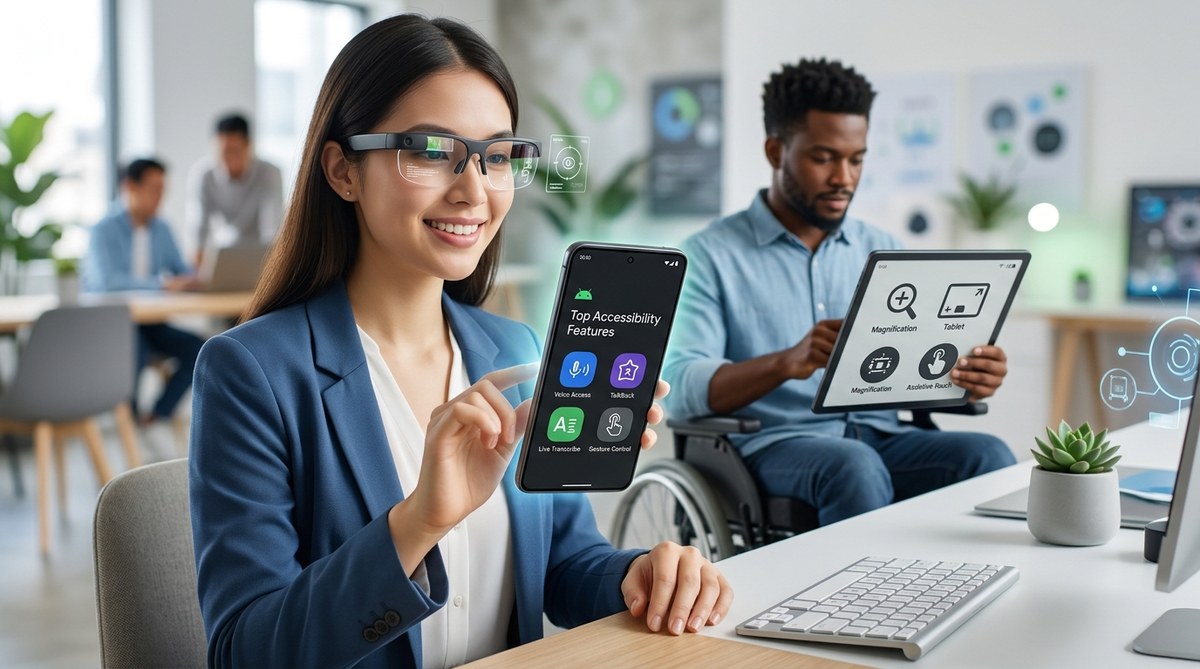
Android devices in 2026 continue to push the boundaries of accessibility, making smartphones more inclusive than ever. Whether you have a visual impairment, hearing loss, or require easier navigation, Android’s latest features aim to serve everyone. This year’s updates focus on smarter, more personalized tools that adapt to your needs, providing a seamless experience. Staying current with these innovations ensures you get the most out of your device while supporting accessibility advocacy.
In 2026, Android introduces advanced accessibility features like real-time speech-to-text, AI-powered visual assistance, and customizable gestures, making devices more inclusive and user-friendly for everyone. Staying aware of these updates helps you maximize your device’s potential and advocate for accessibility improvements across platforms.
Smarter and More Personal Accessibility Tools
Android in 2026 offers a suite of features designed to adapt to diverse needs and preferences. These tools are not just add-ons but integrated, intelligent systems that improve everyday interactions. For example, visual enhancements now leverage AI to identify objects and read text aloud, aiding users with low vision. Similarly, speech recognition has been refined to support more natural commands and multi-language input, making voice control more accurate and fluid.
How Android Is Elevating Accessibility in 2026
The core of Android’s accessibility push centers on personalization. Devices learn from your usage patterns to suggest adjustments, such as font size or contrast, automatically. Accessibility settings are now easier to access and customize, thanks to dynamic menus that adapt based on user needs. Furthermore, Android’s AI capabilities have been expanded to support real-time captioning, visual assistance, and voice commands that respond to context, making the device more intuitive.
Top Accessibility Features You Might Be Missing
Here are some of the most innovative accessibility updates in Android for 2026:
- Real-time speech-to-text with improved accuracy, supporting conversations in noisy environments.
- AI-powered visual interpreter that recognizes objects, text, and even facial expressions to assist users with visual impairments.
- Customizable gesture controls that allow users to assign specific actions to double taps, long presses, or back taps.
- Enhanced live captions that work system-wide, including on third-party apps and media.
- Haptic feedback customization for better tactile cues during navigation or alerts.
- Automatic contrast and color adjustments based on ambient lighting and user preferences.
How To Maximize These Features
Getting the most from Android’s accessibility tools involves a few simple steps:
- Personalize your settings: Dive into the accessibility menu and customize features like magnification, text size, and color schemes.
- Practice gesture controls: Spend time configuring gestures to quickly activate features like voice commands or screen reading.
- Enable real-time captioning: Turn on live captions across your device to follow media and conversations seamlessly.
- Use visual assistance tools: Activate the AI visual interpreter when you need help identifying objects or reading text.
- Stay updated: Regularly check for system updates that enhance existing tools or introduce new ones.
Practical Techniques for Using Android Accessibility Features
Mastering accessibility tools in 2026 involves understanding both what they can do and common pitfalls. Here are techniques and mistakes to watch for:
| Technique | Mistake | Advice |
|---|---|---|
| Custom gesture mapping | Overloading gestures with multiple actions | Keep gestures simple. Assign one action per gesture for clarity. |
| Using real-time speech-to-text | Ignoring ambient noise settings | Adjust noise suppression settings to improve recognition accuracy. |
| Visual interpreter | Relying solely on AI instead of manual checks | Use visual assistance as a supplement, not a replacement for careful observation. |
| Automatic contrast adjustments | Forgetting to enable adaptive settings | Enable ambient light sensors for dynamic adjustments. |
| Haptic feedback | Disabling feedback for battery saving | Balance haptic intensity to stay informed without draining power. |
Techniques In-Depth
- Configuring gestures: Navigate to accessibility controls and assign specific actions to physical or back taps. For example, double back taps can toggle magnification or activate voice control.
- Activating live captions: Enable captions in system settings and customize font size and background for better visibility.
- Using visual assistance: Open the visual interpreter when in unfamiliar environments or reading complex text. Remember that AI is improving but may still need manual verification.
- Adjusting contrast: Use the high contrast mode under display settings to make buttons, icons, and text more distinguishable.
- Haptic cues: Fine-tune haptic feedback for navigation or notifications so you stay informed without overwhelming your senses.
Common Mistakes To Avoid
- Relying only on visual cues when you are visually impaired.
- Over-customizing gestures that can conflict with each other.
- Forgetting to update accessibility apps or system software.
- Disabling feedback features to save battery mode.
- Ignoring ambient light and noise conditions that affect feature effectiveness.
Techniques and Mistakes in Accessibility Settings
| Technique | Mistake | How to Avoid |
|---|---|---|
| Custom gesture controls | Overloading gestures | Keep gestures simple and well-defined. |
| Using AI visual tools | Relying solely on AI | Validate AI results with manual checks. |
| Real-time captioning | Not enabling system-wide | Turn on captions across all media apps. |
| Adaptive display | Ignoring ambient conditions | Enable automatic adjustments for lighting. |
| Haptic feedback | Turning it off to conserve battery | Adjust intensity instead of disabling completely. |
“The future of accessibility on Android is about making tools smarter and more personalized,” says accessibility expert Jane Doe. “When devices adapt to your habits and environment, they become truly inclusive.”
Making the Most of Your Android in 2026
To leverage these advancements fully, dedicate some time to exploring your device’s accessibility menu. Experiment with different settings, see what works best for your needs, and share your insights with others. Accessibility features are here not just to assist but to empower you to use your device confidently and independently.
Remember that technology is only part of the journey. Advocating for inclusive design and sharing your experiences can help push the industry toward even better solutions. Keep your device updated regularly to access the latest improvements and innovations.
Empower Your Android Experience with Smart Accessibility
Embracing Android’s latest accessibility features in 2026 opens up new possibilities for a more inclusive digital life. Whether you are seeking better control, enhanced clarity, or smarter assistance, these tools make your device more adaptable and responsive. Take charge by customizing your settings and exploring new functionalities. Your device can become a true partner in your daily routines, supporting your independence and confidence.


Post Comment