Mastering Face ID: Tips to Unlock Your iPhone Faster and More Securely
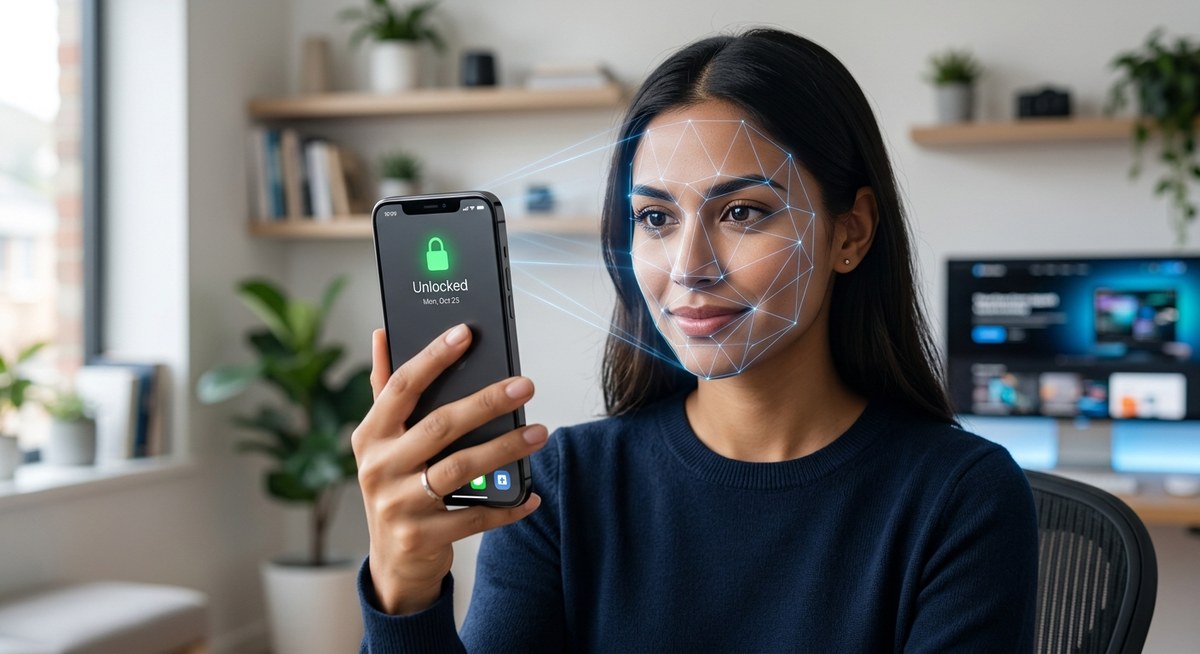
Struggling to unlock your iPhone with Face ID can be frustrating, especially when you’re in a hurry or need extra security. Fortunately, there are several ways to make Face ID work more smoothly and keep your device safe. Whether it’s fine-tuning your setup or adjusting settings, you can enhance your Face ID experience easily. Let’s look at practical tips to help you unlock your iPhone faster and more securely.
Optimizing Face ID involves proper setup, managing lighting conditions, and adjusting settings for speed and security. These simple steps can significantly improve your unlocking experience on your iPhone.
How to set up Face ID for optimal speed and security
Getting Face ID ready to serve you better starts with proper setup. When you initially configure Face ID, ensure your face is fully visible and well-lit. Follow these steps:
- Open the Settings app on your iPhone.
- Tap on Face ID & Passcode.
- Select Set Up Face ID and follow the on-screen instructions.
- Position your face within the frame, making sure to move your head slowly to capture all angles.
- Complete the setup, then consider adding an alternate appearance if you often wear accessories or change your look significantly.
This initial setup lays the foundation for quicker recognition. When your face is clearly registered, Face ID can identify you faster, reducing the need for multiple scans.
Tips to unlock your iPhone faster with Face ID
Speed and security go hand in hand. Here are practical ways to speed up unlocking your device:
1. Keep your face visible and well-lit
Lighting plays a vital role in Face ID performance. Use your iPhone in well-lit environments or avoid bright sunlight or harsh shadows. If indoors, position your face facing a natural or soft light source. Good lighting ensures the camera captures your features accurately, making recognition faster.
2. Remove accessories that can interfere
Hats, glasses, masks, or sunglasses can sometimes hinder Face ID. If possible, scan your face without these accessories for a more reliable match. If you wear glasses regularly, ensure they don’t reflect light or obscure your eyes.
3. Enable Attention Aware Features
In Settings, under Face ID & Passcode, turn on Attention Aware Features. This setting requires you to look directly at your device for unlocking, improving security. It also helps Face ID recognize you faster when you’re paying attention.
4. Keep your face updated in Face ID settings
If your appearance changes significantly over time, update your Face ID data. Go to Settings > Face ID & Passcode, then tap on Reset Face ID and set it up again. Regular updates help Face ID adapt to your current look for quicker recognition.
5. Use Face ID with Apple Pay and apps
Many apps support Face ID for authentication. Setting this up saves time when making purchases or signing in. This reduces the reliance on passcodes and speeds up your workflow.
6. Enable the “Require Attention for Face ID” setting wisely
Turning on this feature enhances security by requiring you to look at your device. However, if you find it slows down unlocking, consider disabling it temporarily when speed is a priority. Always balance convenience with security.
Common mistakes that slow down Face ID and how to avoid them
| Mistake | Effect | How to fix it |
|---|---|---|
| Wearing masks or sunglasses during setup | Recognition issues | Set up Face ID without accessories, or add an alternate appearance |
| Using poor lighting conditions | Slow or failed recognition | Use your device in well-lit environments |
| Not updating your facial data regularly | Recognition lag | Re-register your face if your appearance changes significantly |
| Blocking the camera lens | Recognition failure | Keep your camera lens clean and unobstructed |
| Relying solely on passcodes in low-light or crowded settings | Slower access | Use Face ID whenever possible for faster unlocking |
Expert tip: For environments with inconsistent lighting, consider enabling attention features for better security. But remember, this may add slight delays if your face isn’t fully visible.
Securing your Face ID for peace of mind
While making Face ID faster is helpful, security is equally important. Here are ways to ensure your device stays protected:
- Keep your device updated with the latest iOS version. Updates often include security improvements for Face ID.
- Use a strong passcode as a backup. Face ID is convenient but not foolproof.
- Enable two-factor authentication for your Apple ID to add an extra layer of security.
- Consider setting up a recovery option, like a trusted phone number, in case Face ID isn’t working properly.
Troubleshooting Face ID issues
If Face ID isn’t working as expected, try these solutions:
- Restart your iPhone. Sometimes a simple reboot resets camera functions.
- Ensure your camera lens is clean and free of dirt or smudges.
- Reconfigure Face ID by going to Settings > Face ID & Passcode and selecting Reset Face ID.
- Check for iOS updates, which can fix bugs impacting Face ID.
- Avoid using a screen protector that obstructs the TrueDepth camera.
Final touches for a smoother Face ID experience
- Keep your iOS device software up to date to benefit from the latest improvements.
- Regularly clean your camera lens to prevent recognition issues.
- Practice good lighting habits when unlocking your device.
- Re-register your face if your appearance changes significantly.
- Use Face ID in conjunction with other security measures for ultimate protection.
Making Face ID work for you every day
Enhancing your Face ID setup and habits can transform your unlocking experience. Take a few minutes to adjust settings, refresh your facial data, and maintain good lighting conditions. With these simple tips, unlocking your iPhone will become faster and more reliable. Remember, balancing speed and security ensures your device remains both convenient and safe.
Your path to faster, more secure unlocking
With a little attention to detail, Face ID can serve you better every day. By optimizing your setup and environment, you can unlock your iPhone swiftly while keeping your data protected. Try out these tips and see the difference in your daily routine. Your device is smarter than you think—make sure you’re getting the most out of it.


Post Comment