How to Turn Any Zoom Meeting Into a Searchable Text Record
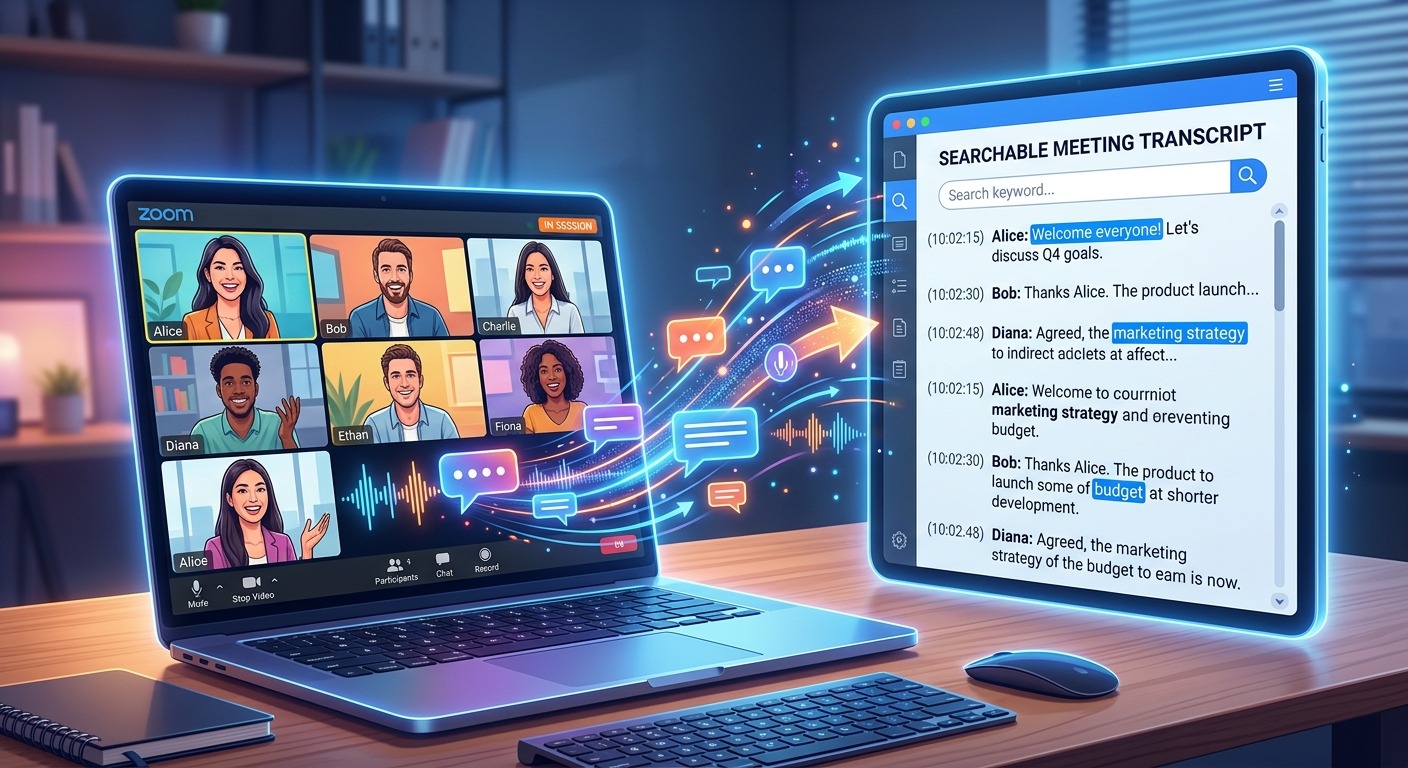
You sit through a ninety-minute Zoom call, take scattered notes, and log off feeling reasonably confident. Two days later, a colleague asks what was agreed on the project timeline. You stare at your notebook. You open the recording. You scrub through timestamps trying to find the exact moment the decision was made. This scenario plays out daily for remote workers and students across Asia, where back-to-back video calls have become as routine as morning coffee. The fix is not better note-taking during the call. It is changing the output format entirely, from video to searchable text.
Your Meeting Text Cheat Sheet
Converting Zoom calls to text is a workflow shift that delivers results fast. Rather than scrubbing through recordings or piecing together fragmented notes, you end up with a clean document you can search, copy, and share in seconds. This guide covers why Zoom’s built-in transcript falls short for most users, which third-party tools fill that gap reliably, and how to convert raw transcript output into a working action list your team can actually use.
The Real Cost of Rewatching Recordings
Video recordings are convenient at the moment they are made. Later, they become a bottleneck. Suppose a meeting runs for an hour. Finding a specific point in that recording, without knowing the exact timestamp, means scrubbing through footage, pausing, rewinding, and second-guessing yourself. Multiply that across several meetings a week and the time lost becomes substantial.
For students in Asia juggling online classes across multiple platforms, or for remote teams spread across time zones from Jakarta to Tokyo, the problem is especially acute. A student reviewing lecture recordings before exams, or an analyst trying to confirm a number mentioned in a client call, needs reference-grade material. A video file is not that. A text document is.
Text records are searchable with a keyboard shortcut. They are shareable without file size limits. They can be copied, annotated, and indexed. Turning Zoom meetings into text is not a fringe productivity habit. It is increasingly the baseline expectation in distributed teams that take documentation seriously. The gap between teams that do this and teams that do not tends to show up in the worst possible moments, like when two people remember a decision differently and neither can prove it.
What Zoom’s Built-in Transcript Feature Can and Cannot Do
Zoom does include a transcription option, but the conditions attached to it are restrictive enough that many users never actually qualify. The feature is tied to cloud recording, which means meetings recorded locally to your laptop are excluded entirely. It also requires a paid Zoom plan, putting it out of reach for free-tier users and most students.
Zoom’s official documentation on cloud recording transcription confirms that the automatic transcript is generated after the cloud recording finishes processing, not in real time. That delay means you are waiting for a file to appear in your account portal rather than having immediate access to readable text.
Accuracy is another gap. Zoom’s transcription engine performs adequately for clear, neutral-accented English. For the regional accents common across South Asia, Southeast Asia, and East Asia, the output can be rough. Technical terms, product names, and acronyms are frequent casualties. If your meeting involves a mix of English and another language, expect even more noise in the generated text.
For anyone who is not the meeting host, the built-in transcript is simply unavailable. Joining a webinar hosted by someone else, attending a company all-hands on a different account, or working from a recording that was shared with you after the fact: none of these scenarios are covered by Zoom’s native tool.
Third-Party Tools That Step In Where Zoom Stops
Dedicated transcription services were built to handle exactly the scenarios Zoom’s native feature cannot. They accept uploaded audio or video files, process them independently of your Zoom account status, and return formatted text documents you can work with right away.
For anyone starting from a downloaded Zoom recording and needing a clean, exportable result, Zoom to text is a practical starting point for converting that file into a readable transcript without needing access to the original hosting account or a specific subscription tier. The output is formatted and ready to search from the moment processing completes.
What separates third-party tools from the built-in option is portability. They work on files you have already downloaded, on recordings made in other apps, on audio exported from webinars you attended as a guest, and on content that predates your current Zoom plan entirely. The workflow stays consistent regardless of where the original recording came from, which matters a great deal when you are dealing with months of archived meetings.
Zoom Native Transcript vs. Third-Party Transcription Tools
| Feature | Zoom Native Transcript | Third-Party Transcription Tools |
|---|---|---|
| Paid Zoom plan required | Yes | No, works independently |
| Recording types supported | Cloud recordings only | Cloud, local, and uploaded files |
| Works if you are not the host | No | Yes |
| Export formats | VTT and TXT only | TXT, DOCX, SRT, PDF (varies by tool) |
| Accuracy with regional accents | Inconsistent | Generally stronger with trained models |
| Speaker identification | Basic, often inaccurate | Available on most paid tiers |
Getting a Clean Transcript From Start to Finish
The process of converting a Zoom recording to text is short enough to become a routine part of your post-meeting workflow. Once you have done it a few times, it takes less than ten minutes for most standard meeting lengths. The sequence below applies across most transcription tools and most recording types.
- Locate and export your recording. In Zoom’s desktop client, open the Recordings tab and download the MP4 from your cloud folder, or find it in your local recordings folder if you captured directly to your device.
- Open your transcription tool and upload the file. Most browser-based services accept MP4 and M4A formats through a standard upload interface with no account linking required.
- Wait for processing to complete. Depending on recording length, this typically takes between two and five minutes for a one-hour file, though shorter recordings finish faster.
- Read through the generated transcript and fix obvious errors. Pay particular attention to proper nouns, product names, acronyms, and any speaker labels that have been misidentified. This pass moves faster than it sounds.
- Export in your preferred format. Choose DOCX for collaborative editing in Google Docs or Word, or plain TXT if you only need a searchable reference file.
- File the document clearly. Name it with the meeting date and a short topic label, then save it to a shared folder that your team can access without needing to ask you for the link.
Converting Transcripts Into Action Items Your Team Will Actually Use
A raw transcript is useful on its own, but with a small amount of processing it becomes something more powerful. The goal is to compress a long document into a short summary that any team member can read in two minutes and understand what happened, what was decided, and what needs to happen next.
Start by searching the document for phrases that signal decisions. Language like “we agreed,” “the plan is,” “by Friday,” and “you will handle” tends to cluster around the moments that actually matter in any meeting. Pull those lines out and paste them into a working document separate from the full transcript.
Organize what you have collected into three categories: decisions made during the call, tasks assigned to specific people, and open questions that still need an answer. You do not need a formal template for this. A Google Doc or a Notion page with three plain headings is enough to make the output readable and shareable with the rest of the team.
If your team uses a task management tool like Asana, Jira, or Linear, paste the tasks in directly as new items and link back to the full transcript document in each item’s description field. That way, if anyone questions the phrasing or context of an assignment later, the original source is one click away rather than buried in someone’s email history.
Do this within the first hour after the meeting ends. That is the window when context is still fresh enough to catch errors in the transcript and add nuance the audio alone did not capture. After that window closes, you are reading the text cold, the same as everyone else who was not in the room.
From Forgettable Calls to a Permanent, Searchable Record
The volume of online meetings across Asia is not going to decrease. Students, freelancers, remote employees, and entrepreneurs are all spending more of their working hours on video calls, and most of those hours leave almost no usable trace behind. A recording that nobody rewatches is not documentation. It is digital dead weight.
Shifting from video recordings to text records does not require changing how you run meetings or how you behave on calls. It requires one short step after the meeting ends: converting the file and filing the result. That single change makes every call searchable, every decision traceable, and every task assignment impossible to dispute from memory alone.
The difference between a team that consistently documents meetings as text and one that relies on recordings and recollection becomes visible over time. Repeated discussions. Missed deadlines because the assignment was ambiguous. Time spent tracking down context that was captured once and never made accessible again. Text records close that gap without adding complexity to anyone’s daily routine. The meeting already happened. The only question is whether it leaves something behind worth keeping.



Post Comment