How to Transfer Everything from iPhone to Android Without Losing a Single File
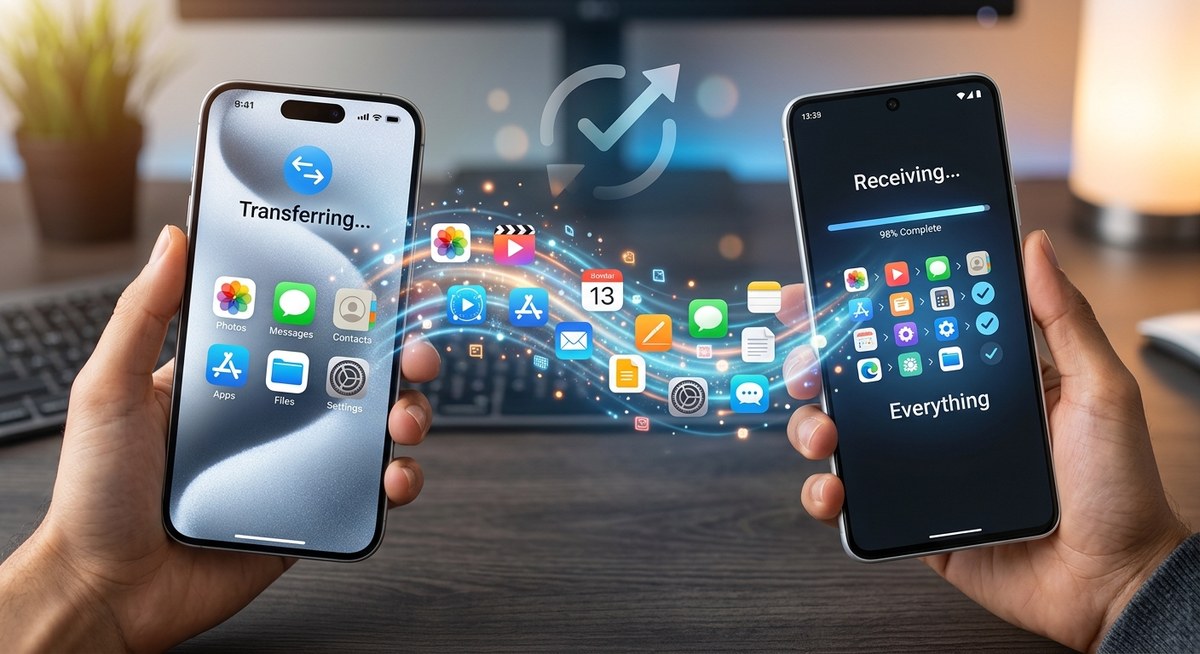
Switching from an iPhone to an Android device feels exciting but can also come with stress. You want all your photos, contacts, messages, and apps to make the move without a hitch. Fortunately, there are reliable ways to transfer your data seamlessly. This guide walks you through every step so you can switch devices with confidence and keep all your files intact. No more worries about losing important data during the switch.
How to prepare for your switch from iPhone to Android
Before jumping into the transfer process, it’s wise to get everything ready. This minimizes hiccups and ensures nothing gets lost. Here’s what to do:
- Make sure your iPhone is backed up to iCloud or your computer. Keeping a backup ensures you have a copy in case anything goes wrong.
- Charge both devices fully. Transferring data requires power, and you don’t want either device to shut down mid-process.
- Connect both devices to a stable Wi-Fi network. A reliable connection speeds up the transfer and prevents interruptions.
- Install relevant apps on your Android device. Many transfer methods rely on dedicated apps or tools.
- Gather necessary accessories, like a compatible cable or adapter if you prefer a wired transfer. Sometimes, a simple USB-C to Lightning cable makes the process faster and more secure.
Step-by-step: transferring everything from iPhone to Android
Here’s a straightforward method to move your data without losing your files:
1. Use the official “Switch to Android” app
Google offers a dedicated tool called the Switch to Android app that simplifies moving data from iPhone to Android. Here’s how to use it:
- Download and install the “Switch to Android” app on your iPhone from the App Store.
- Turn on your new Android device and connect both devices to the same Wi-Fi network.
- Launch the app on your iPhone and follow the on-screen instructions.
- When prompted, select the types of data you want to transfer. This can include contacts, message history, photos, videos, bookmarks, and calendars.
- Connect your iPhone to your Android device via a compatible cable if preferred. This wired connection can speed things up and is often more reliable.
- Wait for the transfer to complete. Keep both devices close and connected until the process finishes.
2. Transfer photos and videos manually
If some media didn’t transfer automatically, you can copy them directly:
- Connect your iPhone to your computer and export photos and videos.
- Use a file transfer tool or drag and drop files into your computer’s storage.
- Connect your Android device to the computer and copy the media files into the appropriate folders, like DCIM or Pictures.
3. Migrate your contacts and calendars
Most transfer apps handle contacts and calendar data. If not, you can:
- Export contacts from iCloud by logging into your iCloud account.
- Import contacts into your Google account.
- Sync your Google account with your Android device to see all contacts and calendar events.
4. Transfer app data and messages
App data transfer varies:
- Many Android apps support cloud backups, so ensure your data is saved in the cloud on your iPhone.
- Use apps like WhatsApp’s built-in chat backup feature to migrate chats. Check the app’s instructions for transferring chat histories between iOS and Android.
- For other apps, you might need to reinstall and sign in again.
5. Set up your new Android device
After transferring your data:
- Sign in with your Google account.
- Restore backed-up apps and settings.
- Customize your home screen and install any remaining apps.
- Adjust notification and privacy settings to match your preferences.
Techniques and mistakes to avoid during the transfer
| Technique | Mistake to Avoid | Explanation |
|---|---|---|
| Using official transfer apps | Skipping backups | Always back up your iPhone before starting to prevent data loss. |
| Connecting devices with a cable | Using unstable Wi-Fi | Wired connections are faster and more reliable for large transfers. |
| Transferring media manually | Forgetting to transfer certain folders | Double-check all media folders to ensure nothing is missed. |
| Reinstalling apps | Ignoring app-specific data | Some app data may require separate transfer steps or cloud backups. |
| Not updating your devices | Proceeding without latest updates | Keep both devices updated for compatibility and security. |
Expert tip: Always keep your devices charged during the transfer. Interruptions can corrupt data or cause transfer failures.
Common pitfalls and how to avoid them
- Data not transferring: Ensure you select all data types during the process. Sometimes, apps need manual intervention.
- Lost messages or call logs: Use specific backup and restore options within messaging apps.
- Photos not appearing: Double-check storage permissions and transfer media directly if needed.
- Compatibility issues: Some apps or features may not transfer directly. Reinstall or set them up manually.
Additional tips for a smooth transition
- Check if your new Android device supports all the transfer methods you plan to use.
- Use cloud services like Google Photos and Google Drive for easier media management.
- Keep both devices nearby and connected during the entire process.
- Patience is key. Large transfers may take some time depending on your data size.
- After the transfer, verify that all critical files are present and functioning.
Wrapping up your switch from iPhone to Android with confidence
Moving from an iPhone to an Android device does not have to be stressful. By preparing properly and using the right tools, you can transfer your files smoothly without losing anything important. Take your time, double-check each step, and enjoy your new device with all your data safely in place. Remember, a little planning goes a long way toward making your switch seamless and enjoyable.
Happy switching!

Post Comment