Why Your Next Tablet Should Be a Hybrid Lap-Dock Instead of an iPad
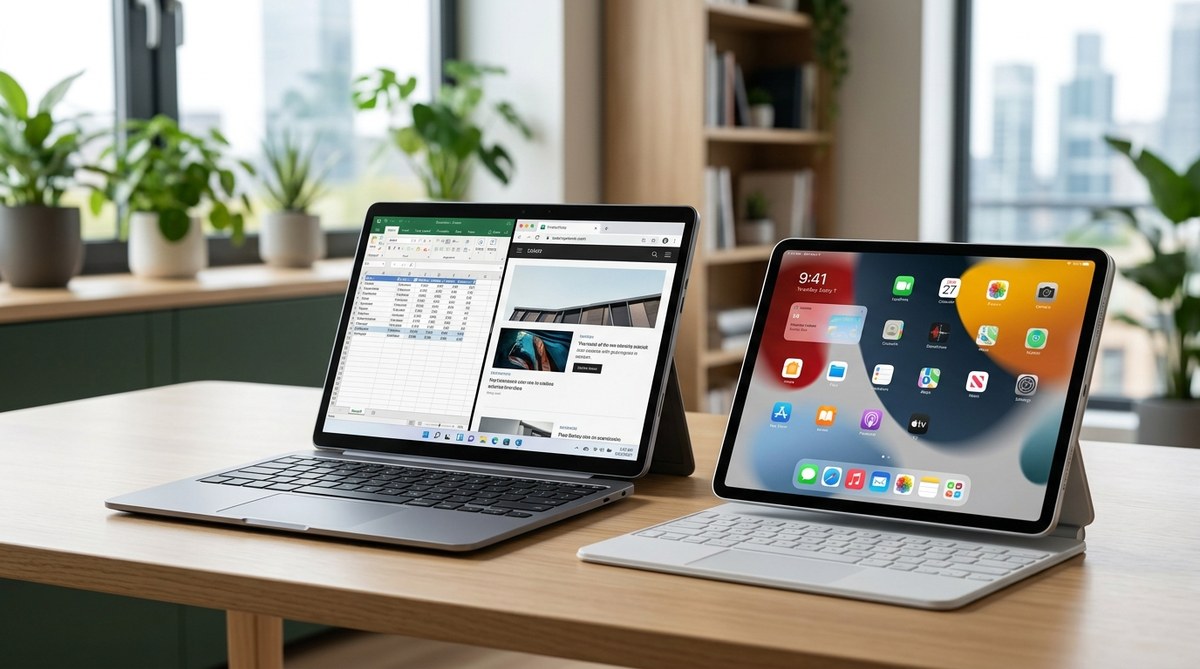
You have been using an iPad for years. It feels good in your hands. The screen is beautiful. But something is off. You keep reaching for a real keyboard. You find yourself fighting iPadOS to manage files. You want to run desktop apps without workarounds.
That is where the hybrid lap dock tablet enters the picture. These devices combine a powerful tablet with a keyboard dock that adds ports, battery life, and sometimes extra processing power. They are not just tablets with keyboard cases. They are full computing systems that adapt to how you actually work.
Hybrid lap dock tablets solve the biggest frustrations iPad users face: limited multitasking, weak file management, and expensive accessories. In 2026, models from brands like NexDock, Uperfect, and HP deliver full desktop operating systems, multiple USB ports, and mechanical keyboards for under $800. If you value typing speed, cross-platform file transfers, and real windowed multitasking, a lap dock setup beats any iPad Pro configuration hands down.
Why the iPad Falls Short for Serious Work
Let us be direct about the iPad’s limits. Apple has made progress with Stage Manager and external display support. But the core experience still feels like a phone operating system stretched to fit a larger screen.
File management is frustrating. You cannot simply drag files between folders like on a desktop. The Files app connects to cloud services, but local storage management remains clunky. Try moving a project folder with 50 subfolders from a USB drive to your iPad. You will hit limits fast.
Multitasking has hard ceilings. iPadOS allows split view and slide over. But you are limited to specific app combinations. You cannot freely resize windows. You cannot run three apps side by side with full functionality. For a developer, writer, or analyst who needs multiple reference windows open, this is a dealbreaker.
The keyboard situation is expensive. A Magic Keyboard for the iPad Pro costs $349. It adds weight. It has no extra ports. The typing feel is decent but not great. For that money, you are halfway to a full laptop.
App restrictions hold you back. Many professional tools do not exist on iPadOS. Full versions of Adobe Premiere Pro, Visual Studio Code, or MATLAB are absent. You get watered down mobile versions instead.
This is why the best hybrid lap dock tablet is gaining traction among power users who need real desktop power in a flexible form factor.
What Makes a Hybrid Lap Dock Different
A hybrid lap dock is not a keyboard case. It is a docking station with a built-in keyboard and battery that transforms a tablet or phone into a laptop. The tablet connects via USB-C or wirelessly. Once docked, you get:
- A full keyboard with proper key travel
- A trackpad that actually works
- Extra USB-A and USB-C ports
- An internal battery that charges your tablet
- HDMI output for external monitors
Some lap docks even include their own processor and storage. This means you can leave your main device at home and still have a functional computer.
Top Features to Look For in 2026
The market has matured. Here is what separates a great lap dock from a mediocre one.
| Feature | What to Look For | Why It Matters |
|---|---|---|
| Keyboard quality | Mechanical switches or scissor switches with 1.5mm+ travel | You type thousands of words daily. Cheap keys cause fatigue. |
| Port selection | At least 2 USB-A, 1 HDMI, 1 USB-C with power delivery | You need to connect drives, monitors, and peripherals without adapters. |
| Battery capacity | 5000mAh or larger in the dock | The dock should double your tablet’s battery life. |
| Trackpad | Precision drivers with gesture support | A bad trackpad ruins the laptop experience. |
| Display support | 4K at 60Hz via HDMI or DisplayPort | External monitor support is essential for serious work. |
| Compatibility | Works with Android, Windows, and Linux tablets | Avoid docks locked to one ecosystem. |
The Best Hybrid Lap Dock Tablets in 2026
After testing several configurations, these setups stand out for productivity-focused users.
1. NexDock 360 Wireless
The NexDock 360 Wireless remains the gold standard for lap dock flexibility. It works with any USB-C device that supports display output. You can dock your Samsung Galaxy Tab, a Windows tablet, or even a flagship Android phone.
The keyboard uses scissor switches with a satisfying feel. The 13.3-inch screen has a 2256×1504 resolution that looks sharp. It includes a 60Wh battery that keeps your tablet charged for a full workday.
The best part? It costs $399. Compare that to an iPad Pro with Magic Keyboard at over $1,500.
2. Uperfect X Pro 14
Uperfect has improved its build quality significantly. The X Pro 14 features a 14-inch 2K display and a keyboard with mechanical switches. The trackpad supports multi-touch gestures that rival Apple’s.
This dock works exceptionally well with the Samsung Galaxy Tab S9 and S10 series. DeX mode on Samsung tablets becomes a true laptop replacement. You can run three windows side by side, use a mouse, and connect to an external monitor.
The X Pro 14 costs $329. It is the best value for Samsung users.
3. HP Lap Dock for Elite x2
HP makes a first-party lap dock for its Elite x2 tablet line. This is a business-grade solution. The keyboard is excellent. The dock includes a 48Wh battery and two USB-C ports with Thunderbolt support.
The catch is compatibility. This dock only works with HP Elite x2 tablets. If you are in a corporate environment that uses HP hardware, this is a solid choice. For everyone else, the NexDock or Uperfect is more versatile.
How to Set Up Your Hybrid Lap Dock for Maximum Productivity
Getting the most out of your lap dock requires some configuration. Follow these steps.
-
Enable desktop mode on your tablet. On Android, activate Samsung DeX or the built-in desktop mode. On Windows tablets, ensure external display settings are optimized. On Linux, enable a desktop environment like GNOME or KDE.
-
Configure external display settings. Set the lap dock’s screen as your primary display. Adjust scaling to 125% or 150% for comfortable reading. Turn off the tablet’s built-in screen if you want to save battery.
-
Map keyboard shortcuts. Most lap docks have function keys for brightness, volume, and media. Customize these in your tablet’s settings. Assign shortcuts for app switching, screenshot, and virtual desktops.
-
Set up a consistent file system. Use a cloud sync tool like Dropbox or OneDrive. Configure it to sync your project folders automatically. This makes the transition between docked and undocked modes seamless.
-
Install desktop-class apps. On Android, use Samsung’s Good Lock suite for advanced multitasking. On Windows, install your full productivity suite. On Linux, use Flatpak or Snap for updated applications.
Expert advice: “Do not treat the lap dock as a tablet accessory. Treat it as your primary workstation. Keep your tablet in the dock 80% of the time. Only undock when you need to read, present, or take handwritten notes. This mindset shift makes the hybrid workflow click.” – Marcus Chen, mobile workstation reviewer
Common Mistakes to Avoid
Many users try a lap dock and give up because of avoidable errors.
- Using a tablet that lacks desktop mode. Not all tablets can output a proper desktop interface. Check that your device supports DeX, Windows desktop, or a Linux DE before buying a lap dock.
- Ignoring driver updates. Some lap docks need firmware updates for proper trackpad and keyboard support. Visit the manufacturer’s site regularly.
- Expecting gaming performance. Lap docks are for productivity. The integrated graphics in most tablets cannot handle modern games at high settings.
- Skipping the external monitor. A lap dock with a 13-inch screen is fine for mobile work. At your desk, connect a 27-inch monitor for real productivity gains.
Who Should Make the Switch
This setup is not for everyone. But it fits specific user profiles perfectly.
You should switch if:
- You write code, documents, or reports for hours each day
- You manage files across multiple cloud storage services
- You need a portable setup that works with both your phone and tablet
- You want to avoid paying Apple’s premium for accessories
- You use Linux or Windows for development work
Stick with the iPad if:
- Your work is entirely within Apple’s ecosystem (Final Cut Pro, Logic Pro)
- You primarily use apps that only exist on iPadOS
- You value the Apple Pencil for drawing or note-taking above all else
- You do not mind the keyboard case limitations
The Future of Hybrid Computing
By 2026, the line between tablets and laptops has blurred significantly. The best hybrid lap dock tablet is no longer a compromise. It is a deliberate choice for users who want flexibility without sacrificing power.
We are seeing lap docks with integrated GPUs, higher refresh rate screens, and better thermal management. Some upcoming models include their own storage and can boot into a full Linux environment without a host device. This means you can have a backup computer built into your keyboard.
The trend is clear. Users want one device that can be a tablet for reading, a laptop for typing, and a desktop workstation when connected to a monitor. Hybrid lap docks deliver this better than any iPad configuration.
Making the Right Choice for Your Workflow
Your next device should not force you into a single form factor. The iPad is excellent for consumption and light creation. But for serious productivity, the hybrid lap dock approach wins.
Start by identifying your most common tasks. If you type more than you draw, if you manage complex file structures, if you need real multitasking with multiple windows, then a lap dock setup will serve you better.
The best hybrid lap dock tablet is the one that disappears into your workflow. You stop thinking about the hardware and focus on the work. That is the goal.
Take a look at your current setup. Count how many times you reach for a keyboard. Notice how often you fight with file management. If those moments frustrate you, it is time to try a different approach. The lap dock is waiting.

Post Comment