How to Streamline Your Workflow with Cross-Platform Clipboard Managers
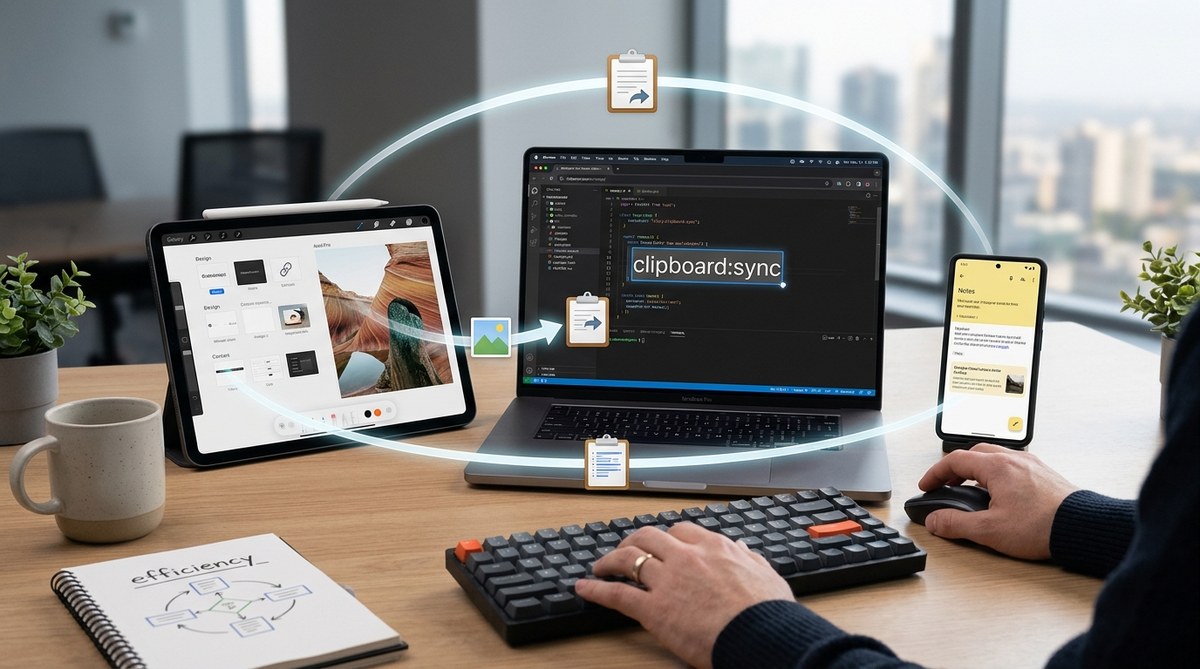
You grab a link on your Windows desktop, then walk over to your MacBook to use it. You copy a code snippet on your Linux machine, then need it on your Android phone five minutes later. For years, the workaround has been the same: email the snippet to yourself, paste it into a Slack message, or use a notes app as a middleman. It works, but it is slow, messy, and breaks your focus.
A cross-platform clipboard manager solves this completely. It keeps a running history of everything you copy and syncs that history across every device you own. Copy a block of text on your office PC, and it appears on your home Mac, your iPad, and your phone within seconds. No extra steps. No lost snippets. Just a seamless flow of information.
A cross-platform clipboard manager eliminates the friction of manual file transfers between devices. The top tools sync text, images, and files across Windows, macOS, Linux, Android, and iOS with end-to-end encryption. This guide covers five leading apps, a setup checklist, and a comparison table to help you choose the right one for your workflow.
Why Your Default Clipboard Is Holding You Back
The standard clipboard on any operating system has two major flaws. First, it only holds one item at a time. Copy something new, and the old text is gone forever. Second, it stays on the device where you copied it. A cross-platform clipboard manager fixes both problems by storing a searchable history and syncing it through the cloud.
For developers, this means you can copy an API key on your desktop and paste it into a terminal on your laptop without touching your phone. For designers, it means grabbing a color hex code from a web page on your Mac and dropping it into a mockup on your iPad. For anyone who juggles multiple machines, it saves dozens of small frustrations every day.
The 5 Best Cross-Platform Clipboard Managers in 2026
Not all clipboard managers are built the same. Some focus on raw speed, others on encryption, and a few on team collaboration. Here are the top contenders that support Windows, macOS, Linux, and mobile devices.
1. PasteNow (Best for Apple-Centric Workflows)
PasteNow started as a Mac-only app, but its 2026 update brought native Windows and Android clients. It uses iCloud or a private server for syncing, and it supports text, images, links, and file references. The search is instant, and you can create smart groups for work, personal, and project-specific clips.
Best for: Users who live inside the Apple ecosystem but occasionally use Windows or Android.
2. CopyQ (Best for Linux Power Users)
CopyQ is open source, highly customizable, and runs on Linux, Windows, and macOS. It does not offer built-in cloud syncing, but you can pair it with a service like Syncthing or a shared Nextcloud folder to get cross-device functionality. The scripting support is unmatched. You can write custom commands to transform text before pasting.
Best for: Developers and sysadmins who want total control over their clipboard data.
3. Ditto (Best for Windows-Centric Teams)
Ditto has been a favorite on Windows for years. It now offers an experimental macOS build and a companion Android app. It stores your clipboard history in a local SQLite database, and you can sync that database over a network drive or a cloud folder. The interface is simple, and the keyboard shortcuts are easy to memorize.
Best for: IT professionals and power users who work primarily on Windows machines.
4. Clipt (Best for Android Integration)
Clipt is a lightweight option that focuses on speed. It runs on Android, Chrome, Windows, and macOS. The Android app is particularly polished, with a floating clipboard bubble that you can access from any app. Syncing happens through Google Drive, so there is no separate account to manage.
Best for: Android users who need a fast, no-fuss clipboard that also works on desktop.
5. 1Clipboard (Best for Simplicity)
1Clipboard is a minimalist tool that supports Windows, macOS, and Android. It syncs through your own cloud storage (Dropbox, Google Drive, or OneDrive). There is no account registration, no subscription, and no bloat. It stores up to 100 items by default, and you can pin important entries so they never get pushed out.
Best for: Users who want a straightforward clipboard manager without extra features they will never use.
How to Set Up Your Cross-Platform Clipboard Manager
Getting started takes less than ten minutes. Follow these steps to sync your clipboard across all your devices.
-
Choose your primary tool. Pick one app from the list above that matches your operating system mix. If you use Linux heavily, CopyQ is the best choice. If you are all-in on Apple devices, PasteNow will feel the most natural.
-
Install the client on every device. Download the app on your desktop machines, then install the companion app on your phone or tablet. Most tools offer a mobile version from the official app store.
-
Configure the sync method. Some apps use their own cloud service. Others let you bring your own storage. If privacy is a concern, pick a tool that supports end-to-end encryption or a self-hosted sync option.
-
Set up keyboard shortcuts. The default shortcuts are usually Ctrl+Shift+V (Windows/Linux) or Cmd+Shift+V (Mac). You can customize these to match your muscle memory.
-
Enable clipboard history. Turn on the history feature so the app starts capturing everything you copy. You can clear the history later if needed.
-
Test the sync. Copy a block of text on your desktop, then open the clipboard manager on your phone. It should appear within a few seconds. If it does not, check your sync settings and network connection.
Key Features to Compare
| Feature | PasteNow | CopyQ | Ditto | Clipt | 1Clipboard |
|---|---|---|---|---|---|
| Windows support | Yes | Yes | Yes | Yes | Yes |
| macOS support | Yes | Yes | Experimental | Yes | Yes |
| Linux support | No | Yes | No | No | No |
| Android support | Yes | No | Yes | Yes | Yes |
| iOS support | Yes | No | No | No | No |
| Cloud sync | iCloud or private server | Manual (Syncthing, Nextcloud) | Network drive or cloud folder | Google Drive | Dropbox, Google Drive, OneDrive |
| End-to-end encryption | Yes (private server) | No (user managed) | No | No | No |
| Image support | Yes | Yes | Yes | Text only | Text only |
| Open source | No | Yes | No | No | No |
| Price | Subscription | Free | Free | Free | Free |
Common Mistakes to Avoid
Even the best clipboard manager will frustrate you if you use it the wrong way. Here are the most common pitfalls and how to avoid them.
- Using a tool that does not support all your platforms. If you switch between Windows and Linux, do not pick an app that only works on macOS. Check the compatibility table before installing.
- Ignoring security settings. Clipboard data can include passwords, API keys, and personal messages. Always enable encryption if the app offers it, and never sync sensitive data over an unencrypted connection.
- Forgetting to clear your history. Clipboard managers store everything. If you share your computer with others, set up automatic history cleanup or use a hotkey to clear sensitive entries.
- Skipping keyboard shortcuts. Clicking through a menu to paste a snippet defeats the purpose. Spend five minutes learning the shortcuts for your chosen app.
“The biggest productivity gain from a clipboard manager is not the history itself. It is the elimination of context switching. When you do not have to leave your current window to find that one link or code block, you stay in the flow state longer.”
Michael Torres, senior software engineer and workflow automation specialist
Which One Should You Pick?
Your choice depends on three factors: your operating system mix, your need for encryption, and whether you want a free tool or a paid subscription.
If you use Windows and Android most of the time, Ditto or Clipt will serve you well. Clipt is simpler, but Ditto offers better image support and a more mature desktop client.
If you are a developer who works across Windows, macOS, and Linux, CopyQ with a Syncthing backend gives you the most flexibility. You lose the convenience of built-in cloud sync, but you gain full control over your data.
If you are deeply invested in Apple devices but also use a Windows machine for gaming or work, PasteNow is worth the subscription. The sync is seamless, and the mobile experience on iOS and Android is excellent.
If you just want something that works without any setup fuss, 1Clipboard is a solid free option. It lacks image support and encryption, but for basic text snippets, it gets the job done.
Build Your Workflow Around a Unified Clipboard
A cross-platform clipboard manager is one of those tools that feels optional until you use it for a week. Then it becomes indispensable. You stop thinking about where your data lives and start thinking about what you want to do with it.
Start with the free options. Install 1Clipboard or Clipt on your main devices and see how it changes your daily routine. If you find yourself wanting more control or better security, upgrade to CopyQ or PasteNow. The time you save by not manually transferring snippets between devices adds up fast, and the mental overhead of remembering where you left that one link disappears entirely.
Give it a try for a few days. You might be surprised how much smoother your workflow becomes when your clipboard follows you everywhere.

Post Comment