5 Android Privacy Settings You Need to Enable Right Now
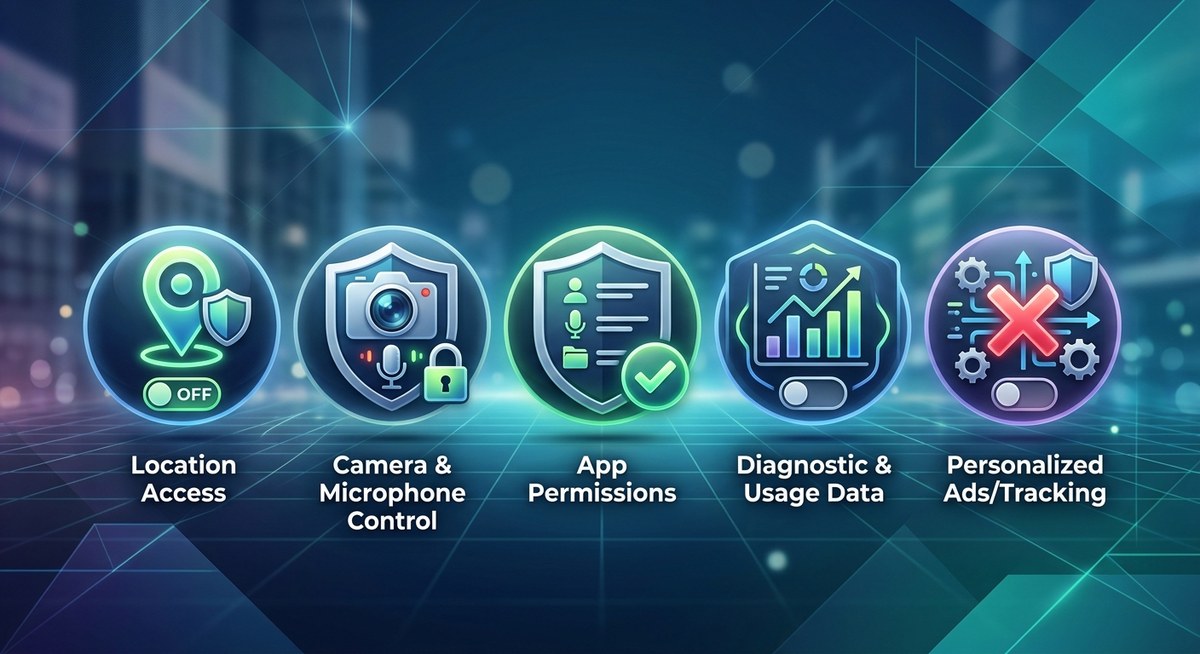
Your Android phone carries a massive amount of your life inside it. Where you go, who you talk to, what you buy, and even what you say out loud. That convenience comes with a trade off if you don’t tighten a few settings. We put together a list of the most impactful Android privacy settings you can change right now. No fluff. Just actionable steps to stop apps from snooping and keep your personal data yours. Current versions of Android in 2026 give you more granular control than ever before, but most of these powerful tools are turned off by default. Let’s fix that.
Your Android phone is a powerful tool, but out of the box, it shares a lot of data. This guide walks through five critical privacy settings: reducing app permissions, privatizing your lock screen, limiting ad tracking, managing Google’s activity logs, and securing your Wi-Fi connections. These changes take under 15 minutes total and drastically cut down the data your phone leaks to apps, advertisers, and Google itself.
Take Control of Your App Permissions
Apps ask for permissions the very first time they need a feature. Most people tap “Allow” without thinking because they just want the app to work. That habit hands over access to your microphone, camera, and location without a second thought.
Think about it. Does your wallpaper app need access to your contacts? Does your weather app need to see your exact location at all times? Probably not.
Here is how to lock down permissions across all your apps in 2026:
- Open your Settings app.
- Tap Privacy (or Security and Privacy on Samsung devices).
- Tap Permission Manager.
- Work through each category: Camera, Microphone, Location, Phone, and SMS.
- For every app that shows up, ask yourself a question. Does this app need this permission to function? If the answer is no, change it to Deny.
- For location specifically, change every app to Allow only while using the app or Ask every time. Nobody needs “Allow all the time.”
This single action kills the vast majority of data collection happening on your phone right now. If you notice an app behaving strangely after you revoke a permission, the app developer likely built it on a bad assumption that your data was theirs for the taking.
Staying safe also means knowing which apps to trust in the first place. If you are unsure about an app’s legitimacy, check our guide on how to spot fake apps before they steal your data.
Lock Down Your Lock Screen
Notifications are the easiest way for someone to steal your private information. Your phone lights up on a table, and a casual glance from a coworker or stranger reveals a two-factor authentication code, a private message, or an appointment reminder. This is a privacy gap that costs nothing to close.
Here are the most impactful changes to make right now:
- Hide sensitive notifications: Go to Settings > Notifications > Lock screen notifications. Choose “Hide sensitive notification content” or “Don’t show notifications at all” for the highest level of privacy.
- Turn off Lock screen features: On stock Android, go to Settings > Display > Lock screen. On Samsung, it is under Settings > Lock screen. Disable features like “Voice Match” (waking Google Assistant from lock screen) and “Show media controls.”
- Disable Smart Lock: Smart Lock is a convenience feature that keeps your phone unlocked when you are at home or when it detects your smartwatch. It is also a security risk. If someone steals your phone while you are near your trusted location, they bypass your PIN entirely. Consider whether the trade off is worth it.
- Block quick settings access: On many Android skins, you can disable the option to pull down the quick settings menu from the lock screen. This prevents a thief from putting your phone in Airplane Mode and tracking it remotely.
For a deeper look at managing all the noise your phone produces, including app alerts, you might find our guide on mastering android notifications helpful.
Cut Down Ad Tracking and Data Collection
Every Android phone comes with a unique piece of code called an Advertising ID. This ID is like a nametag for your phone. Advertisers use it to track you across different apps and websites. They build a profile of your interests based on everything you do.
The good news is that Google lets you delete this ID with one tap. Here is how to stop ad personalization in its tracks:
- Go to Settings > Security & Privacy > Privacy > Ads.
- Tap Delete advertising ID.
- Toggle Opt out of Ads Personalization to the on position.
Once you delete your advertising ID, apps will get a string of zeros instead of your real ID. This makes it much harder for ad networks to build a profile linked to your device. You will still see ads, but they will be generic and less creepy.
| Common Privacy Mistake | Why It Hurts Your Privacy | The Best Fix |
|---|---|---|
| Giving apps “Allow all the time” location access | Apps track your exact movements 24/7 and sell that data | Change to “While using the app” or “Ask every time” |
| Keeping default notification previews on lock screen | Anyone can read 2FA codes, chats, or emails when you step away | Turn off sensitive notifications on the lock screen |
| Leaving Wi-Fi and Bluetooth on constantly | Your phone broadcasts recognizable identifiers to nearby devices and trackers | Turn off when not in use, or disable “Scanning always available” |
| Using the default network DNS | Your ISP can log and sell your browsing history without encryption | Set up a Private DNS (explained below) |
| Keeping your Advertising ID active | Ad networks build a detailed behavior profile linked directly to your device | Delete the Advertising ID in settings |
Manage Your Google Activity Controls
Google collects a staggering amount of data by default. Your search history, location timeline (even if app permissions are off), YouTube watch history, and voice commands are all logged and stored in your account. This data helps Google make its services better, but it also creates a detailed digital diary of your life that you might not want sitting on a server somewhere.
You can take control of this from your Google Account dashboard.
- Open your Google Account settings. You can find this in the main Settings app under “Google” or by visiting myaccount.google.com.
- Tap Data & Privacy.
- Under “History settings,” tap Web & App Activity.
- Tap Turn off. You can also choose an Auto-delete option. Choosing 3 months or 18 months automatically cleans out old history so you dont have to remember to do it.
- Go back and do the same for Location History, YouTube History, and Voice & Audio Activity.
Pausing Location History is especially important. It is a separate setting from the device location permissions you adjusted earlier. Even if you deny location access to all apps, Google still records where you have been if Location History is on. Turning it off stops Google from building a map of every place you visit.
“Most privacy leaks aren’t sophisticated hacks. They happen because apps are given permissions they never needed in the first place. Taking 15 minutes to revoke unnecessary access and clean up your activity logs is the single highest impact change a user can make.” – Digital Privacy Researcher
If you are curious about the extent of the data Google collects and whether your phone is listening to everything you say, you can read more in our article on is your android phone listening to you.
Keep Your Connections Private with a Secure DNS
Every time you visit a website or use an app, your phone looks up the address using a Domain Name System (DNS) server. By default, this lookup is often unencrypted. Your internet service provider or the coffee shop Wi-Fi operator can see every site you visit.
A Private DNS encrypts these lookups so prying eyes cant see your browsing activity. Some services, like AdGuard DNS, also block trackers and ads at the network level, which speeds up your browsing and reduces data usage.
How to set up a Private DNS on Android:
- Go to Settings > Network & Internet > Private DNS.
- Select “Private DNS provider hostname”.
- Enter a hostname like
dns.adguard.com(blocks ads and trackers) or1dot1dot1dot1.cloudflare-dns.com(focuses on speed and privacy). - Tap Save.
Your phone will now encrypt all DNS queries. If you ever experience a weird issue where a website doesnt load, just go back and switch the setting to “Automatic” to see if the DNS server was the problem. It is a free upgrade to your privacy that takes about 30 seconds.
Keeping your connection private is just one part of a healthy device. If you have noticed your battery life getting worse lately, changing your DNS to block ad trackers can actually help reduce background data usage and improve battery performance. Check out our tips on why your android battery drains so fast.
Wrapping It Up: Your Yearly Privacy Tune Up
Privacy is not a set it and forget it kind of thing. Apps update, permissions reset, and your life changes. Make it a habit to run through these five Android privacy settings every few months or whenever you install a batch of new apps.
It takes less time than waiting in line for your morning coffee. But the payoff is huge. You clamp down on data leaks, stop advertisers from following you around, and keep your private messages away from prying eyes. Your phone is a powerful tool. Make sure it works for you, not against you. Start with the permission manager, clean your lock screen, and lock down your connections. You will be surprised how much calmer your digital life feels.


Post Comment