Switching From Mac to Windows: What Nobody Tells You Before Making the Jump
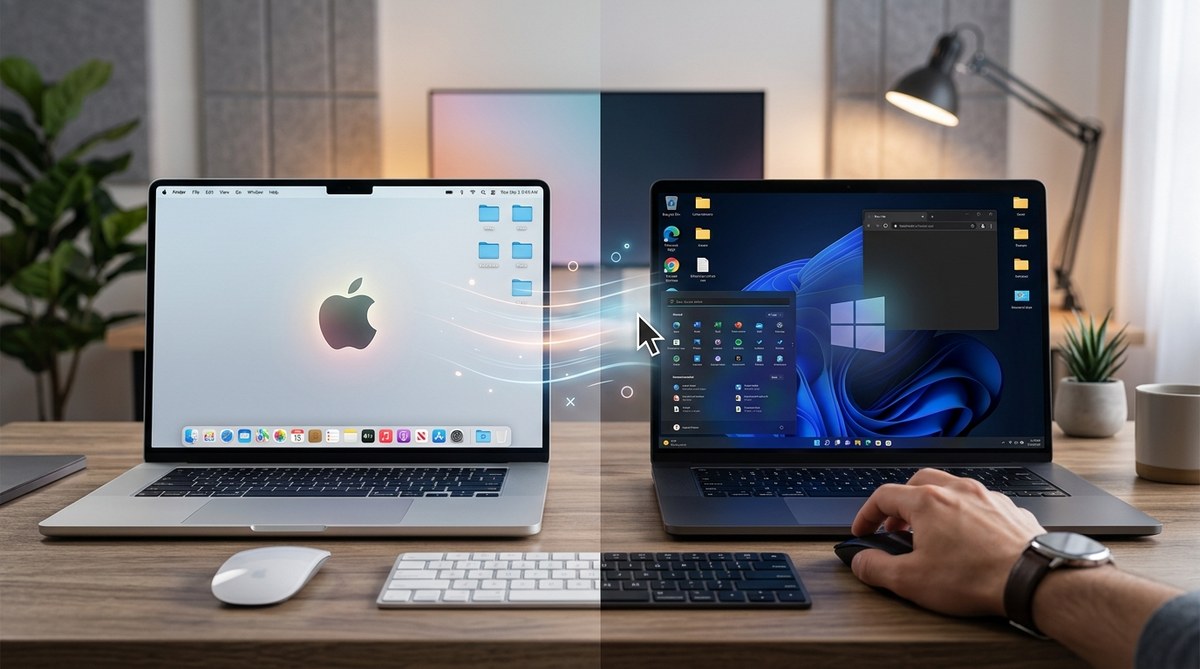
Switching from Mac to Windows can feel like stepping into a new world. After years of using Apple devices, making the jump might seem daunting. From adjusting your workflow to understanding new software, the transition has its surprises. Some things may not be obvious at first glance, and a little preparation can go a long way. Whether you’re switching for work, cost reasons, or curiosity, knowing what to expect helps you avoid common pitfalls and get productive faster.
Moving from Mac to Windows involves more than adapting to a [different interface](https://support.microsoft.com/en-us/windows). Expect to reconfigure workflows, find new applications, and adjust your habits. Planning ahead reduces frustration and helps you get up to speed quickly, making the switch smoother and more rewarding.
Understanding the Differences Between Mac and Windows
Before diving into the switch, it’s helpful to recognize the core differences between the two platforms. macOS and Windows have distinct philosophies, design choices, and ecosystems. macOS offers a clean, minimalistic interface with tight hardware-software integration. Windows, on the other hand, provides more customization options and compatibility with a broad range of hardware.
You might notice that some keyboard shortcuts differ. For instance, macOS uses Command (⌘) for most shortcuts, while Windows relies on Control (Ctrl). Your file management habits might also need adjusting because folder structures and default behaviors vary.
Preparing for the Transition: Step-by-Step
Switching smoothly requires a little planning. Here are actionable steps to help you make the move without losing productivity:
-
Backup Your Data
Ensure all your important files are safely stored. Use cloud services like OneDrive or Google Drive for easy access across platforms. Consider creating a full backup of your Mac using Time Machine or cloning your drive for safety. -
Identify Your Essential Apps
Make a list of apps you use daily. Check if they are available on Windows. For popular tools like Adobe Creative Cloud, Microsoft Office, or Chrome, you’ll find equivalents or Windows versions. For Mac-only apps, search for alternatives or web-based options. -
Transfer Your Files
Use an external drive or a cloud service to move files. For large data sets, consider a direct connection or network transfer. Keep in mind that some file formats or settings may need adjustments post-transfer. -
Learn New Shortcuts and Workflow Adjustments
Familiarize yourself with Windows shortcuts. For example, instead of Command + C for copy, it’s Control + C. Take time to customize your keyboard shortcuts if needed. Windows has tools like PowerToys that can help streamline your workflow. -
Set Up Your Environment
Install your favorite browsers, utilities, and productivity tools. Customize your desktop, taskbar, and notification settings to match your preferences. This step helps create a familiar working environment.
Common Challenges and How to Overcome Them
Making the switch isn’t without hurdles. Here are some typical issues and advice on handling them:
| Technique / Mistake | Explanation | Solution |
|---|---|---|
| Assuming shortcuts are identical | Mac and Windows share some shortcuts but differ in many. | Review a Windows shortcut cheat sheet to avoid confusion. |
| Not configuring system settings | Default settings may not suit your workflow. | Dive into Settings to customize privacy, notifications, and appearance. |
| Overlooking driver updates | Hardware may require specific drivers. | Visit manufacturer sites to download the latest drivers for peripherals. |
| Ignoring security practices | Windows is more targeted for malware. | Use a reputable antivirus, keep your system updated, and enable firewalls. |
Expert tip: “Take time to personalize your Windows environment. Small tweaks like pinning apps or customizing notifications can greatly improve your experience.” — Tech specialist Jane Doe
Practical Tips for a Seamless Switch
- Keep both devices handy during the transition. You might need to cross-reference settings or get used to new app layouts.
- Leverage cross-platform apps. Many applications like Slack, Spotify, and Evernote work smoothly on both macOS and Windows.
- Set up email and cloud accounts on your new device. Sync contacts, calendars, and notes to avoid missing important info.
- Explore Windows-specific features. For example, Snap Assist helps with window management, and virtual desktops can organize your workspace.
Addressing Software Compatibility and Alternatives
Some Mac-exclusive software has no Windows version. For these cases:
- Search for Windows alternatives. For example, if you used Final Cut Pro, consider DaVinci Resolve or Adobe Premiere.
- Use virtualization tools like VMware or Parallels to run macOS apps temporarily if necessary.
- For productivity suites, Microsoft Office is a robust choice for Windows. For creative work, Adobe’s suite covers most needs.
Managing Your Workflow and Habits
Your routines might need updating. Here are some pointers:
- Keyboard shortcuts differ, so practice the new combinations.
- File management on Windows uses File Explorer, which differs from Finder. Spend time exploring its features.
- System updates are critical. Windows Update can be configured to run automatically, keeping your system secure.
Final Thoughts and Encouragement
Switching from Mac to Windows is a journey that involves learning new tools, habits, and settings. It can be frustrating at first, but patience pays off. By preparing thoroughly, understanding key differences, and customizing your environment, you’ll find yourself productive in no time.
Remember, every transition is an opportunity to discover new workflows and improve your tech setup. Embrace the change with curiosity and a willingness to adapt. Your new Windows experience can be just as smooth and enjoyable as your Mac, once you get the hang of it.
Navigating Your New Digital Workspace
Getting comfortable on Windows takes a bit of time, but the rewards are worth it. You gain access to a vast ecosystem of hardware options, software flexibility, and customization levels. Use this chance to streamline your tasks, explore new features, and create a setup tailored to your needs.
Stay patient, keep experimenting, and don’t hesitate to seek out tutorials or community advice. With a little effort, your transition will be a success, opening doors to new productivity and possibilities.
Happy switching!


Post Comment