Turn Your Android Phone into a Desktop PC with This Hidden Feature
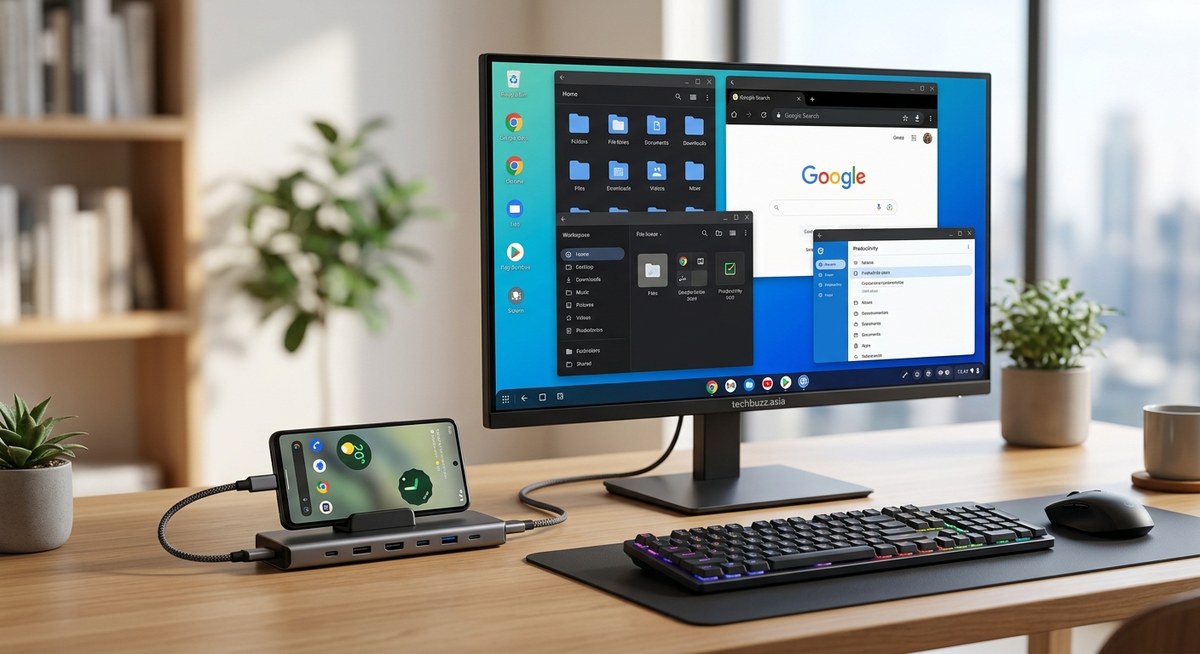
Your phone already has the power to replace your laptop. For years, manufacturers like Samsung, Motorola, and even Google have packed a secret desktop mode into Android. Most people never touch it. That’s a missed opportunity. With a simple USB-C cable and a monitor, you can turn your Android phone into a desktop PC that handles email, spreadsheets, video calls, and even light gaming. No extra PC needed. Just the device in your pocket.
Android’s hidden desktop mode lets you connect your phone to a monitor, keyboard, and mouse for a full PC experience. This guide walks you through enabling it on any device, choosing the right accessories, avoiding common mistakes, and using apps that shine in desktop view. By the end, you’ll know exactly how to turn your Android phone into a desktop PC that fits in your pocket.
What Is Android Desktop Mode and Why You Should Care
Android desktop mode is a built-in feature that changes your phone’s interface when you connect it to an external display. Instead of mirroring your phone screen, it shows a resizable window layout similar to Windows or macOS. You can open multiple apps side by side, drag files between folders, and use a mouse and keyboard with full precision.
Samsung calls it DeX. Motorola has Ready For. Google added a native desktop mode in Android 14 and improved it further in the Android 15 update. Even if your phone doesn’t have a branded version, you can often enable a generic desktop mode through developer options. The result is the same: a computer experience powered by your phone’s processor.
Why does this matter in 2026? Because flagship phones now outperform many budget laptops. The Snapdragon 8 Gen 3 and Dimensity 9300 chips handle multitasking with ease. You don’t need a separate machine for everyday work. If you already own a modern Android phone, you have a PC inside it.
How to Enable Desktop Mode on Your Android Phone
The steps vary by brand, but the general process is straightforward. Follow these numbered steps to get started.
-
Check your phone’s compatibility. Most Samsung Galaxy S series, Note series, and Z Fold series support DeX out of the box. Motorola Edge and Razr phones have Ready For. Google Pixel phones from the Pixel 8 onward include the native desktop mode. For other brands, go to Settings > Developer Options and look for “Force desktop mode” or “Enable freeform windows.”
-
Enable Developer Options if needed. Open Settings, tap About Phone, then tap Build Number seven times. Enter your PIN when prompted. You’ll see “You are now a developer.” Go back to Settings and open System > Developer Options.
-
Turn on the desktop mode toggle. On Samsung, swipe down the notification panel and tap the DeX icon. On Motorola, connect your phone to a display and choose “Ready For” from the prompt. On Pixel, scroll to “Force desktop mode” in Developer Options and switch it on. Then connect your phone to a monitor via USB-C to HDMI.
-
Connect your accessories. Use a USB-C hub that supports video output. Plug in a monitor, a Bluetooth or wired keyboard, and a mouse. Some hubs include a power passthrough so your phone stays charged. That’s important because desktop mode drains battery faster.
-
Adjust display settings. Once the desktop appears on the monitor, you can change resolution, font size, and taskbar behavior. On Samsung DeX, right-click the desktop for settings. On Pixel, go to Settings > Display > Desktop mode. Set the scaling so text is readable on larger screens.
If your phone doesn’t have a branded desktop mode, don’t worry. The developer option method works on most Android 14 and 15 devices. It won’t be as polished as DeX, but you’ll get resizable windows and a taskbar.
What You Need for a True Desktop Experience
You can’t just plug your phone into any monitor and expect magic. The right accessories make the difference between a frustrating setup and a smooth workflow. Here’s what we recommend.
- A USB-C to HDMI cable or a multiport hub. A simple cable works if your phone supports DisplayPort Alt Mode. But a hub gives you extra USB ports for a keyboard and mouse plus power delivery. Look for hubs that support 4K at 60Hz.
- A monitor or TV with HDMI input. Any modern screen works. A 24-inch 1080p monitor is great for office work. If you travel, consider a portable USB-C monitor.
- A wireless keyboard and mouse. Bluetooth pairs directly to your phone. Logitech’s Multi-Device keyboards let you switch between phone and laptop with one button. Avoid wired peripherals unless you have a hub with enough ports.
- A power adapter. Desktop mode pushes your phone’s processor hard. Plugging into a charger prevents battery drain and keeps performance consistent.
- A phone stand. You’ll want your phone’s screen visible as a secondary touchpad or for notifications. A simple stand keeps it at eye level.
Spending around $60 on a quality hub and $30 on a Bluetooth keyboard can turn your phone into a capable workstation. That’s cheaper than most laptops.
Hidden Features and Settings to Customize
Desktop mode on Android includes several tweaks that most users overlook. The table below breaks down the key techniques, what they do, and the common mistake people make.
| Technique | What It Does | Common Mistake |
|---|---|---|
| Enable freeform windows in Developer Options | Lets you resize any app window instead of forcing full screen | Leaving it off; then apps open full screen and you lose multitasking |
| Adjust DPI scaling in Developer Options | Changes how large icons and text appear on the external display | Setting it too low makes text tiny; too high wastes screen space |
| Use Samsung DeX Labs | Enables experimental features like rotating the taskbar or adding gestures on Samsung phones | Not checking for updates; DeX Labs adds new options regularly |
| Force apps to resize in desktop mode | Some apps lock to portrait; toggling “Override aspect ratio” or “Freeform” fixes that | Forgetting to restart the app after changing the setting |
| Connect to a 4K monitor | Higher resolution gives more screen real estate for multiple windows | Using an old 720p monitor that makes text blurry and limits productivity |
Most people assume desktop mode works perfectly out of the box. It doesn’t. Spend five minutes in the settings to fine-tune resolution, scaling, and window behavior. The difference is night and day.
Top Apps to Boost Your Productivity in Desktop Mode
Not every Android app handles desktop mode well. Games that rely on touch controls are frustrating with a mouse. But many productivity apps shine when you give them a big screen and a keyboard. Here are our favorites.
- Google Chrome or Firefox with desktop site mode enabled. They behave almost exactly like their PC versions.
- Microsoft Office (Word, Excel, PowerPoint) for Android. The apps support keyboard shortcuts and external mouse input.
- Termux if you need a Linux terminal. Perfect for coding and file management.
- Solid Explorer for drag-and-drop file management between internal storage and SD cards.
- AnyDesk or TeamViewer for remote access to your main PC from your phone’s desktop.
Expert advice: Stick to web apps when possible. “Progressive web apps like Google Docs, Notion, and Canva run smoothly in desktop mode and use less battery than native apps,” says mobile productivity consultant Rachel Kim. “They also update automatically, so you always have the latest features without waiting for Play Store updates.”
We also recommend reading our guide on 10 Productivity Apps That Actually Save Time Instead of Wasting It. Several of those work great in desktop mode.
Common Pitfalls to Avoid
Desktop mode isn’t perfect. Knowing the pitfalls saves you headaches.
- Using the wrong cable. Not all USB-C cables support video output. Look for cables labeled “USB 3.1 Gen 2” or “DisplayPort Alt Mode.” Cheap charging cables won’t work.
- Ignoring power delivery. Without charging, your phone battery drops fast during extended use. Always connect a power adapter through your hub.
- Trying to game on it. Desktop mode is not a gaming PC. Some casual games work, but heavy titles like Genshin Impact will stutter and overheat your phone.
- Forgetting to update software. Desktop mode improves with each Android version. Check for updates under Settings > System > Software Update. The Android 15 update brought better window snapping and app compatibility.
- Not closing background apps. Your phone’s RAM is shared between the desktop session and background apps. Close unused apps to keep things smooth.
If you run into performance issues, check out Boost Your Android Performance with These Expert Optimization Tips in 2026. A few tweaks can make your desktop mode feel much faster.
Is Your Phone Powerful Enough for Desktop Mode?
You don’t need a $1,000 flagship to use this feature. Mid-range phones from 2023 onward with at least 8GB of RAM handle basic office tasks and web browsing without lag. Phones with 12GB or more RAM let you run multiple heavy apps like Chrome with many tabs, Slack, and a video call simultaneously.
The biggest bottleneck is the processor. Snapdragon 8 series, Tensor G3 and newer, and Dimensity 8000 series chips are ideal. If your phone has a Snapdragon 680 or older, desktop mode will feel sluggish. Check your phone’s specs before investing in a hub.
Don’t forget about storage. Desktop mode encourages you to keep files locally. If your phone is nearly full, performance suffers. Consider freeing up space first. Our guide How to Free Up Storage Space on Your Android Phone Without Deleting Photos can help you reclaim gigabytes.
Make Your Phone Your Main Computer
You now know how to turn your Android phone into a desktop PC using a hidden feature that’s been sitting in your settings. The hardware is ready. The software is mature. All you need is a monitor, a keyboard, and a few minutes to set it up.
Start small. Connect your phone to a TV this weekend and try editing a document or browsing the web. Once you see how capable it is, you’ll wonder why you ever bought a separate laptop for basic tasks. Your phone is already the most powerful computer you own. Use it like one.

Post Comment