You’re Playing With Input Lag and Don’t Even Know It
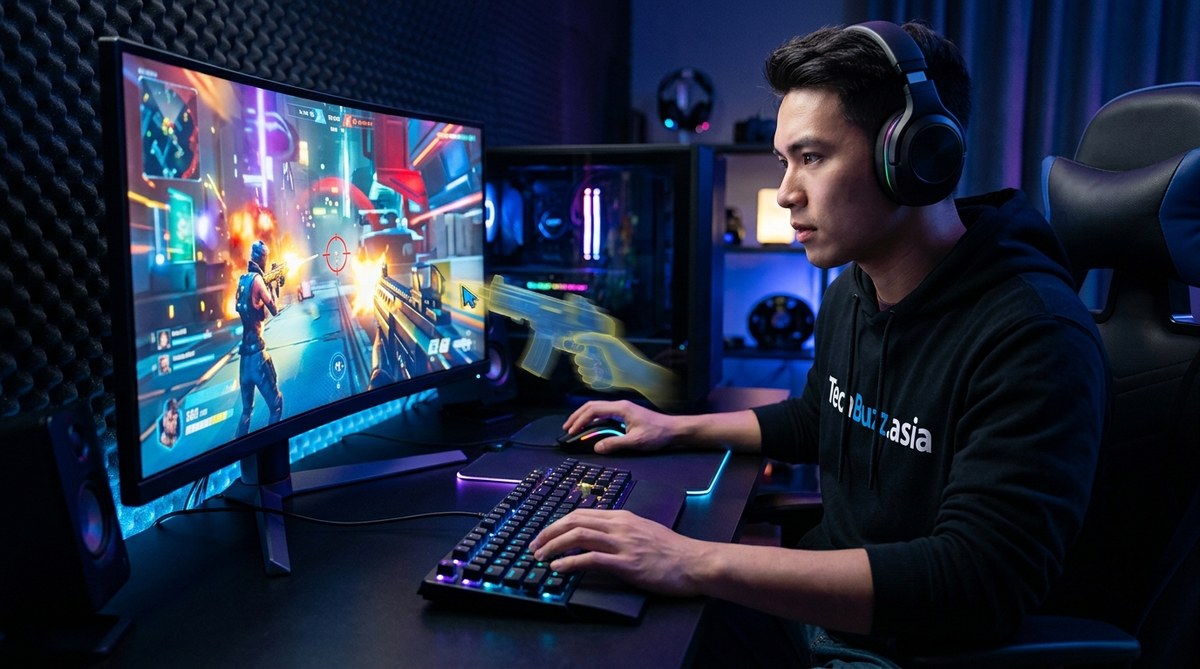
Your mouse movements feel slightly disconnected. You flick your crosshair toward an enemy, but the shot registers a beat later than it should. Or maybe you tap a key and see your character react just a hair after your brain told your finger to move. If you have blamed your reflexes, your internet connection, or even your controller, you might be missing the real problem: input lag.
It is one of the most overlooked performance killers in PC gaming. High frame rates and flashy graphics get all the attention. But none of that matters if the delay between your input and what appears on screen is too high. Many gamers live with this invisible handicap without knowing it. The good news? You can measure it, understand it, and reduce it. And once you do, everything will feel snappier.
Input lag is the total delay from a mouse click or key press to the corresponding visual change on your monitor. It is caused by a chain of components: your mouse or keyboard, your PC’s processing, your monitor’s response time, and even your display settings. Most gamers unknowingly add 30ms to 80ms of extra latency through incorrect settings. Identifying and eliminating these sources can make your controls feel instantly sharper, often without spending a dime.
What Exactly Is Input Lag?
Input lag is the time difference between when you press a button or move your mouse and when the action appears on screen. Think of it as the total system latency. It is not the same as frame rate or ping. Frame rate (FPS) is how many images your GPU renders per second. Ping is network round-trip time to a server. Input lag includes everything that happens inside your local hardware and software chain before the image even updates.
Every step in that chain adds a tiny amount of delay. Your mouse polls at a certain rate. Your CPU processes the input and feeds it to the game engine. The GPU queues frames and outputs them. Finally, your monitor receives the signal and the pixels physically change color. The sum of all those micro-delays is your real input lag.
A well tuned system can have total system latency around 20ms to 30ms. A poorly configured one can easily sit at 80ms or higher. That difference can be the margin between landing a flick shot or missing completely.
Common Sources of Hidden Input Lag
Many causes are not obvious. You might have added the delay yourself through settings that were meant to improve image quality. Here are the usual suspects:
- V-Sync (Vertical Sync): This forces the GPU to sync with your monitor’s refresh rate to prevent screen tearing. But it does so by holding rendered frames in a queue. That queueing adds 1 to 3 frames of latency. On a 60Hz display, that can be over 50ms of extra delay.
- Post-processing effects: Motion blur, depth of field, and film grain all require extra GPU work. More processing time means a longer queue. Turning them off can shave off noticeable ms.
- Wireless peripherals: Many wireless mice and keyboards use a 2.4GHz dongle and are perfectly fine. But Bluetooth connections, especially on PCs without Bluetooth 5.0 or higher, can add 5ms to 15ms of latency compared to a wired connection.
- Frame buffering: Some games set the render ahead limit to “1” or higher. Each buffered frame adds one frame time of delay. At 60fps, that is about 16.7ms per frame.
- Display processing modes: Modern monitors have “gaming” modes that disable internal image processing, but they also have default modes that enable smoothing, sharpening, and noise reduction. Those extra processing steps add delay.
- Low polling rate: Your mouse or keyboard reports its position at a polling rate (125Hz, 500Hz, 1000Hz). At 125Hz, it reports once every 8ms. At 1000Hz, it reports once every 1ms. Old or budget peripherals often default to 125Hz.
- Background software: Overlays (Discord, Xbox Game Bar, Nvidia ShadowPlay) and system monitoring tools can steal CPU cycles, causing sporadic input latency spikes.
How to Measure Your Input Lag
You cannot fix what you cannot measure. Luckily, you can get a solid estimate without expensive tools.
-
Use an online latency test: Websites like Human Benchmark or Blur Busters offer tests that measure your reaction time combined with your display’s latency. Run it several times to get a baseline. Your raw reaction time is typically 150ms to 250ms. If your total reaction test result is over 300ms, you likely have significant input lag.
-
Enable the in-game performance overlay: Games like Counter-Strike 2, Valorant, and Overwatch 2 have built-in latency counters. Look for “system latency” or “render latency” in the telemetry options. Counter-Strike 2’s “cl_showfps” can display a “SYS” value that represents input-to-display latency.
-
Use an LDAT device: Nvidia’s LDAT (Latency and Display Analysis Tool) is a small hardware dongle that uses a light sensor to accurately measure the time from a mouse click to a flash on screen. It is the most reliable consumer method. You can also find similar tools from other brands.
-
Perform a high-speed camera test: If you have a phone that captures slow motion at 240fps or higher, record your mouse click and a timer displayed on screen. Count the frames between the physical click and the screen change. Divide by the frame rate. That is your approximate input lag.
-
Check your monitor’s response time and input lag specs: Websites like RTINGS.com and TFT Central publish measured input lag for monitors. Look for a “total input lag” value in milliseconds. A good gaming monitor in 2026 should have under 10ms of total input lag at its native refresh rate.
A Quick Reference Table: Common Settings and Their Latency Impact
| Setting / Component | Typical Delay Added | How to Fix |
|---|---|---|
| V-Sync (enabled) | +20ms to +50ms | Disable V-Sync; use G-Sync or FreeSync instead |
| Frame buffering (render ahead) | +8ms to +50ms | Set render ahead to 1 in GPU control panel |
| Mouse polling rate (125Hz) | +7ms | Set polling rate to 1000Hz in mouse software |
| Bluetooth wireless mouse | +5ms to +15ms | Switch to wired or use 2.4GHz dongle |
| Monitor game mode (disabled) | +10ms to +30ms | Enable “Game Mode” in OSD settings |
| Motion blur / post-process | +2ms to +8ms per effect | Turn off in video settings |
| Windows mouse acceleration | Variable, up to +10ms | Disable “Enhance pointer precision” in mouse settings |
Expert advice: “If you only do one thing to reduce input lag, turn off V-Sync and cap your framerate 3 to 5 frames below your monitor’s max refresh rate using a framerate limiter. This gives you tear-free visuals with dramatically less latency than V-Sync. Then set your mouse polling to 1000Hz and call it a day.” Tyler “TechNerd” Grant, esports coach and hardware reviewer.
How to Optimize Your System for Minimum Input Lag
You can take a surgical approach or a broad one. Here is a bullet list of the most effective tweaks in order of impact:
- Turn off V-Sync in every game. Use a framerate limiter (like the one built into the Nvidia Control Panel or RivaTuner) to cap just below your monitor refresh rate.
- Enable G-Sync or FreeSync if your monitor supports it. This eliminates tearing without the queueing penalty of V-Sync.
- Set your monitor to its maximum refresh rate and enable its “gaming” or “fast” response time mode. Avoid “extreme” modes because they can cause overshoot and ghosting.
- Disable all post-processing effects in game settings (motion blur, depth of field, ambient occlusion, and lens flare).
- Check your mouse polling rate: Set it to 1000Hz or the highest option available. For new gaming mice in 2026, 8000Hz is becoming common, but the benefit past 1000Hz is tiny for most people.
- Disable Windows mouse pointer precision (mouse acceleration). Go to Control Panel > Mouse > Pointer Options and uncheck “Enhance pointer precision.”
- Close background apps that use GPU or CPU. Game overlays like Discord can cause sporadic spikes; try disabling hardware acceleration within Discord.
- Update your GPU drivers. In 2026, both Nvidia and AMD include “low latency mode” in their driver settings. Set Nvidia Reflex Low Latency to “On” or “Boost” inside the game if supported. For AMD, enable Radeon Anti-Lag.
- Use a wired keyboard or a low latency wireless one (e.g., Logitech Lightspeed, Razer HyperSpeed). Avoid standard Bluetooth if you can.
- Consider your monitor’s resolution and refresh rate. Lowering resolution can increase FPS, which reduces frame time and total latency. But keep it balanced so you don’t lose visibility.
Special Cases: Laptops and IGPs
If you play on a gaming laptop with a built in screen, you might be fighting one more hidden battle: the internal display path. Many laptops route the internal screen through the integrated GPU (iGPU) even when you have a discrete GPU. This adds delay because frames must travel from the dGPU to the iGPU and then to the panel. Check your laptop’s BIOS or Nvidia Control Panel for a “MUX switch” setting that lets you bypass the iGPU. If your laptop does not have one, connect an external monitor directly to the discrete GPU’s video port (usually HDMI or DisplayPort wired to the dGPU). This alone can cut input lag by 10ms to 20ms. For more details about optimizing your laptop, check out our guide on how to speed up your Windows 11 PC without buying new hardware.
The Role of Your Router and Network
Do not confuse input lag with network lag (ping). But a poor router can sometimes introduce latency that feels like input lag, especially in games with heavy netcode. Wi-Fi interference, bufferbloat, or an old router can add 5ms to 30ms of jitter. If you are on Wi-Fi, try switching to a wired Ethernet cable. If you cannot, read our article on 7 hidden features in your router that could double your Wi-Fi speed to stabilize your connection. A clean network path ensures that your low input lag translates into faster reactions online.
Stop Blaming Your Gear (Mostly)
It is easy to fall into the trap of thinking you need a $500 monitor or a $200 mouse to fix your input lag. In many cases, the problem is software, not hardware. A good 144Hz monitor from 2022 running at 144fps with V-Sync off and the right settings can feel just as responsive as a 2026 360Hz panel that is poorly configured. Before you upgrade anything, run through the checklist above. You might save hundreds of dollars.
That said, if you are shopping for a new display, prioritize models with measured input lag under 5ms. The 360Hz monitors of 2026 are amazing, but only if the rest of your chain keeps up. For a deeper look, see our comparison of are gaming monitors with 360Hz refresh rates overkill or game-changers?.
Taking Control of Your Latency
Input lag is not a mysterious problem. It is a measurable chain of delays that you can identify, reduce, and sometimes eliminate. Start with the simple software changes: kill V-Sync, disable post-processing, and set your mouse to 1000Hz. Then measure your improvement using an online test or an in-game counter. If you are still unhappy, check your monitor’s game mode and your laptop’s display routing.
The best part? Most of these fixes are free. They just require a few minutes of your time. And once you have trimmed that extra 30ms or 40ms of invisible delay, your aim will feel snappier, your movement will feel more connected, and you will wonder how you ever played with that hidden handicap.
Go ahead and test it right now. Turn off V-Sync in your favorite game and measure again. The difference is often bigger than you expect.

Post Comment