Windows 11 Keeps Restarting Randomly? Here’s the Fix
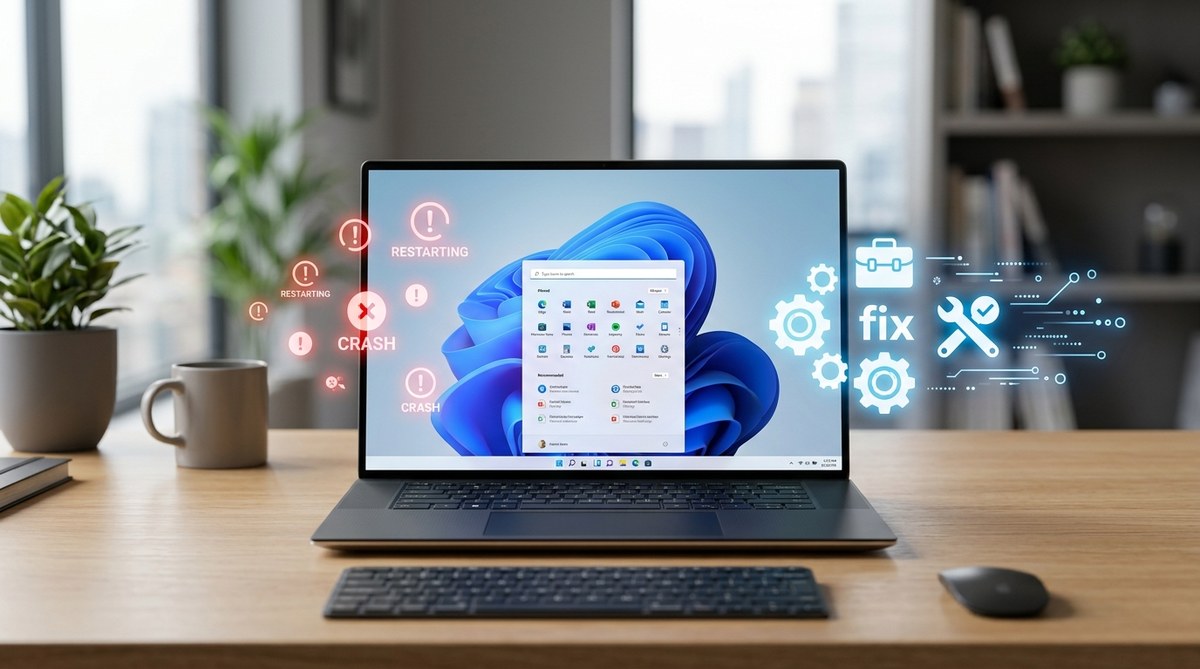
You are in the middle of a video call, and suddenly your screen goes black. The fans hum, the logo appears, and you are staring at the login screen again. It is maddening. Windows 11 keeps restarting without warning, and it is not just an inconvenience. It can mean lost work, interrupted gaming sessions, and a nagging feeling that something is seriously wrong with your machine.
If that sounds familiar, you are not alone. Thousands of Windows 11 users have reported random reboots, and the good news is that most causes are fixable without calling a repair shop. This guide walks you through every practical step to stop the restarts for good. No jargon, no fluff. Just clear, tested solutions.
Windows 11 random restarts usually come from overheating, outdated drivers, power setting glitches, or corrupted system files. You can stop them by checking your PC's airflow, updating graphics and chipset drivers, disabling the automatic restart feature (so you can read error codes), and running built in Windows tools like System File Checker. A clean boot helps isolate problematic software.
Why Does Windows 11 Keep Restarting Out of Nowhere?
Random restarts rarely happen for no reason. Something in your system throws a critical error, and Windows decides to reboot instead of showing a blue screen. The cause usually falls into one of these categories:
- Overheating: Your CPU or GPU hits a dangerous temperature, and the hardware forces a shutdown.
- Faulty hardware: A failing power supply, bad RAM stick, or dying hard drive can trigger reboots.
- Driver conflicts: Outdated or corrupt drivers (especially graphics, network, or chipset) are a top cause.
- Windows updates gone wrong: A botched update can create a loop of reboots.
- Software runaway: A program or service eats up resources until the system crashes.
The goal is to rule out each possibility methodically. Let us start with the easiest checks.
Step 1: Check for Overheating and Airflow Problems
Heat is the number one culprit behind sudden restarts. If your PC is in a tight corner, stuffed with dust, or sitting on carpet, it may not breathe properly.
How to test for overheating
- Download a free temperature monitoring tool like HWMonitor or Core Temp.
- Run it in the background while you do normal tasks.
- Watch the CPU temperature. If it hits 95�C (203�F) or higher under light load, you have a cooling issue.
- Also check the GPU temperature.
What to do if temperatures are high
- Turn off your PC and unplug it.
- Open the side panel (if it is a desktop) and blow out dust using compressed air. Pay special attention to fans and vents.
- Make sure all case fans are spinning. Replace any that are stuck or noisy.
- For laptops, ensure the intake vents on the bottom are not blocked. Use a hard surface, not a bed or couch.
If temperatures stay in a safe range (below 85�C under load), move on to the next step.
Step 2: Disable Automatic Restart So You Can See the Error
By default, Windows 11 hides the blue screen error and restarts right away. That makes it impossible to know what went wrong. Turn that off.
- Press Windows + Pause/Break to open System. Or right click the Start button and choose System.
- Click Advanced system settings on the right.
- Under Startup and Recovery, click Settings.
- Uncheck Automatically restart.
- Click OK.
Now, when Windows 11 keeps restarting again, it will show a blue screen with an error code. Write down the code (like CRITICAL_PROCESS_DIED or IRQL_NOT_LESS_OR_EQUAL). That code is a huge clue for finding the exact driver or hardware issue.
Step 3: Update Device Drivers and Windows
Outdated drivers are a common cause of random reboots. The biggest offenders are:
| Driver Type | What to Update | Where to Get It |
|---|---|---|
| Graphics (NVIDIA, AMD, Intel) | Latest Game Ready or WHQL driver | Manufacturer website or GeForce Experience |
| Chipset | Chipset driver from motherboard maker | PC or motherboard support page |
| Network (WiFi / Ethernet) | LAN driver from your PC vendor | Dell, HP, Lenovo, etc. support page |
| BIOS / UEFI | Firmware update | Motherboard or PC manufacturer site |
Do not rely solely on Windows Update for drivers. Visit the manufacturer sites directly.
How to quickly update Windows itself
Open Settings > Windows Update and click Check for updates. Install all pending updates, including optional driver updates. Then restart your PC manually.
Expert advice: If you suspect a specific driver caused the problem, open Device Manager (right click Start), find the device, right click it, choose Properties, go to the Driver tab, and click Roll Back Driver. That undoes the last update. This is a fast way to reverse a bad driver change.
Step 4: Run System File Checker and DISM
Corrupted system files can make Windows 11 restart randomly. Luckily, Microsoft includes two tools that fix those files automatically.
Run SFC (System File Checker)
- Open Start, type cmd, right click Command Prompt, and choose Run as administrator.
- Type
sfc /scannowand press Enter. - Let it finish. It may take 15 to 20 minutes.
- If it finds corrupted files and repairs them, restart your PC.
Run DISM (Deployment Image Servicing and Management)
If SFC does not fix everything, run DISM next.
- In the same administrator command prompt, type
DISM /Online /Cleanup-Image /RestoreHealthand press Enter. - Wait for the operation to complete (could be 20 to 30 minutes).
- Restart your PC and run
sfc /scannowagain to clean up any remaining corruptions.
These two commands together repair the core Windows files that often trigger random reboots.
Step 5: Perform a Clean Boot to Isolate Software Conflicts
Sometimes a third party program or service is the one making Windows 11 keep restarting. A clean boot starts Windows with only essential Microsoft services, letting you test if the problem goes away.
How to do a clean boot
- Press Windows + R, type
msconfig, and press Enter. - Go to the Services tab.
- Check Hide all Microsoft services.
- Click Disable all.
- Go to the Startup tab and click Open Task Manager.
- In Task Manager, disable every startup item.
- Click OK and restart your PC.
If the random restarts stop after a clean boot, you know a third party program was the culprit. Now you can re enable services one group at a time until the problem returns. That pinpoints the exact software causing the trouble.
Step 6: Check Power Settings and Sleep States
Power management settings sometimes interfere with hardware, causing reboots instead of normal sleep or shutdown.
Adjust the power plan
- Open Control Panel > Power Options.
- Next to your active plan, click Change plan settings.
- Click Change advanced power settings.
- Expand Processor power management > System cooling policy. Set both to Active.
- Expand Sleep and set Allow hybrid sleep to Off.
- Expand PCI Express > Link State Power Management and set it to Off.
- Click Apply and OK.
Disable fast startup
Fast Startup can cause issues on some systems.
- Open Control Panel > Power Options.
- Click Choose what the power buttons do.
- Click Change settings that are currently unavailable.
- Uncheck Turn on fast startup (recommended).
- Click Save changes.
Restart your PC after making these changes.
Step 7: Use Event Viewer to Find the Exact Cause
Event Viewer logs every system crash. If your PC still reboots, the log will tell you which process or driver triggered it.
- Press Windows + X and select Event Viewer.
- In the left pane, expand Windows Logs and click System.
- On the right, click Filter Current Log.
- In the Event level dropdown, check Critical and Error.
- In the Event sources dropdown, look for BugCheck, Kernel-Power, or Event 41 (Kernel-Power event ID 41 means an unexpected shutdown).
- Click OK and look through the filtered events.
Double click any critical event to see details. Look for a line that says something like BugcheckCode 0x0000009f or a file name like nvlddmkm.sys (that would point to NVIDIA driver). Searching that code online will give you targeted fixes.
Common Error Codes and What They Mean
Here is a table with some frequently seen blue screen codes and their likely causes.
| Error Code | Meaning | Likely Fix |
|---|---|---|
KERNEL_DATA_INPAGE_ERROR |
Problem reading from disk | Check hard drive health; replace failing drive |
DRIVER_POWER_STATE_FAILURE |
Driver fails during power transition | Update or roll back graphics / chipset driver |
PAGE_FAULT_IN_NONPAGED_AREA |
Memory or driver corruption | Test RAM with Windows Memory Diagnostic |
IRQL_NOT_LESS_OR_EQUAL |
Driver tried to access invalid memory | Update network or graphics driver |
SYSTEM_SERVICE_EXCEPTION |
Faulty driver or system file | Run SFC and DISM; update drivers |
When to Consider a Reset or Reinstall
If you have tried all the steps above and Windows 11 keeps restarting anyway, it might be time for a more drastic move. You can reset Windows without losing your personal files.
How to reset Windows 11
- Open Settings > System > Recovery.
- Next to Reset this PC, click Reset PC.
- Choose Keep my files.
- Select Cloud download (it reinstalls from Microsoft servers).
- Follow the prompts.
This option reinstalls Windows while keeping your documents, photos, and most apps. It often fixes deep corruption that nothing else touches.
If even the reset fails, the problem is almost certainly hardware: a failing power supply, swollen capacitors on the motherboard, or a bad CPU. At that point, a professional diagnosis is your best bet.
For more ways to tune up your PC, see our guide on how to speed up your Windows 11 PC without buying new hardware. And if you are considering a fresh OS, our comparison of Windows 11 vs Windows 10 may help you decide.
Getting Your PC Back to Normal
Random restarts are frustrating, but they are almost always fixable. Start with the simplest checks: temperature, power settings, and drivers. Then move to the deeper system tools. If nothing works, a reset can save the day. By working through these steps one at a time, you will find the root cause and stop Windows 11 from restarting on its own.
Take it slow. Test after each fix. Soon you will have a stable machine that stays on when you need it most.

Post Comment