How to Master Microsoft Copilot in Windows 11 for Maximum Productivity
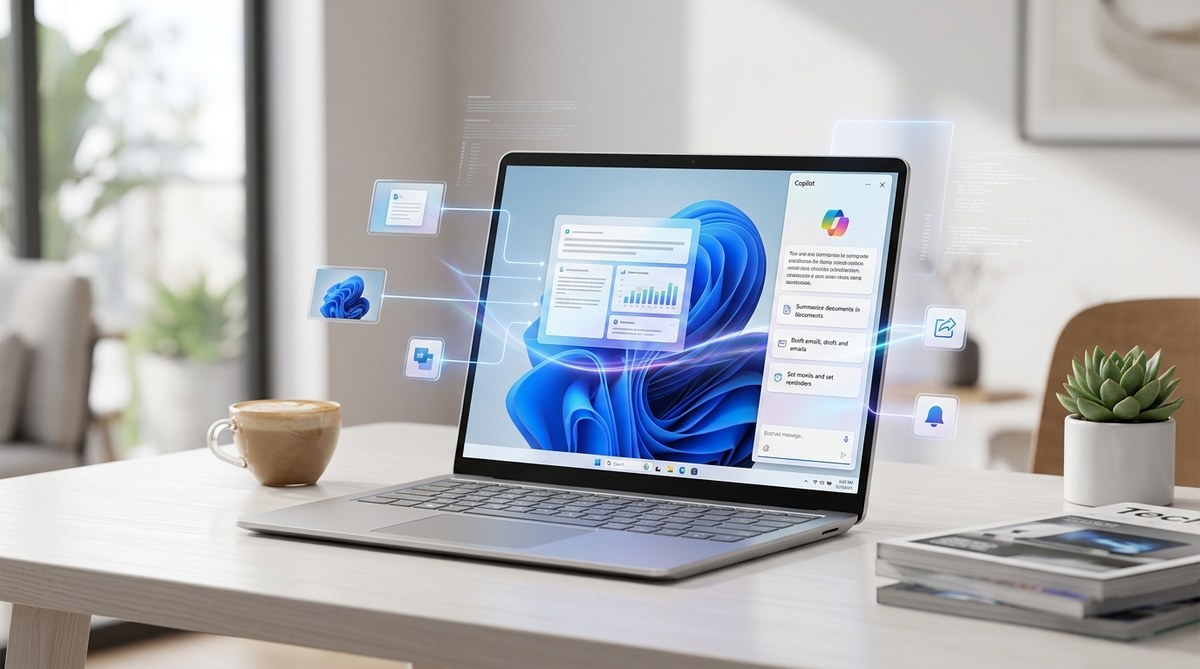
Microsoft Copilot in Windows 11 landed with a lot of buzz, but the real question is simple: can it actually make your day more productive? If you are a knowledge worker, an IT professional, or just someone who enjoys squeezing every ounce of efficiency out of your PC, the answer is a solid yes. The trick is knowing how to talk to it, what to ask, and which pitfalls to avoid. This guide walks you through exactly that, so you can stop treating Copilot like a novelty and start treating it like a genuine workflow partner.
Mastering Microsoft Copilot in Windows 11 means moving beyond simple chat. You will learn how to activate it, craft clear prompts, and integrate it with apps like Word and Outlook. This guide covers setup steps, a table of common mistakes, pro advice, and advanced automation. By the end, you will shave minutes off routine tasks and keep your focus on what matters.
Getting Started with Copilot on Windows 11
Before you can master it, you need to have it at your fingertips. Copilot is built into Windows 11 as a sidebar, accessible via the taskbar icon or the keyboard shortcut Win + C. But that is only the beginning. You also need the latest Windows 11 updates (version 23H2 or later) and a Microsoft account signed into your device. If you are part of a work or school organization, your IT admin may have turned it on or off, so check with them if the icon is missing.
Here is a numbered list to get you set up in under two minutes:
- Update Windows 11 — Go to Settings > Windows Update and install any pending updates. Copilot requires the 2023 or 2024 feature update, and by 2026 it should be fully stable.
- Enable the Copilot button — Right-click the taskbar, select Taskbar settings, and toggle the Copilot switch to On.
- Sign in with your Microsoft account — If you are using a local account, you will need to switch to a Microsoft account or link one. This unlocks the full Copilot experience, including chat history and personalized suggestions.
- Pin Copilot to your taskbar — Once it appears, you can right-click the taskbar icon and choose Pin to taskbar for one-click access.
Once that is done, press Win + C to open the sidebar. You will see a text box ready for your first prompt.
Core Techniques to Master Microsoft Copilot
Using Copilot effectively is less about knowing every command and more about phrasing your requests the right way. Think of it like giving instructions to a very smart, but literal, assistant. Here are the techniques that power users rely on:
- Be specific about context. Instead of saying “Help me write an email,” try “Write a response to a client who is asking about project delays. Keep it professional but friendly, and suggest a new deadline of next Friday.”
- Use inline references. Copilot can pull information from the current window or document. For example, in Microsoft Edge, you can say “Summarize this page” and it will read the open tab. In Word, you can say “Make this paragraph more concise.”
- Chain commands. After Copilot completes one task, you can refine it without starting over. For instance, after it drafts an email, say “Make it less formal” or “Add a bullet list of the main points.”
- Combine with Windows search. You can ask Copilot to open settings, adjust volume, or take a screenshot. It acts as a voice and text input layer over the OS.
A simple table can clarify what to do and what to avoid:
| Common Mistake | What You Should Do Instead |
|---|---|
| Asking vague questions like “Help me be more productive” | Give a specific task: “Create a to-do list for today based on my calendar events” |
| Expecting Copilot to read your mind without context | Provide the document or window name it should reference |
| Typing long, unstructured paragraphs | Break your request into short sentences or bullet points |
| Ignoring the suggestion chips that appear after a response | Click them to refine or pivot the conversation without retyping |
| Forgetting to close the sidebar when not in use | Use Win + C to toggle it off and free up screen space |
Pro advice from a Microsoft MVP I spoke with in early 2026: “The single biggest win is using Copilot in Outlook to draft replies. You can pull the full email thread into the sidebar, ask for a summary, and then dictate your response. It saves me at least 20 minutes a day on email alone.” That kind of time saving adds up fast.
Advanced Workflows That Go Beyond Chat
Once you are comfortable with basic prompts, it is time to push further. Copilot in Windows 11 is not just a chat bot. It integrates with the operating system and your apps in three key ways:
1. System-level commands. You can ask Copilot to “Turn on dark mode,” “Open Bluetooth settings,” or “Take a screenshot and save it to the Desktop.” These actions happen instantly, no need to click through menus.
2. Cross-app automation. If you are working on a report in Word and need data from a spreadsheet, you can ask Copilot to “Find the sales figures for Q3 in the Excel sheet I have open and insert them into this document.” It pulls from the active window, so keep that window front and center.
3. Meeting summaries and actions. In Microsoft Teams, Copilot can recap a meeting, list action items, and even suggest follow-up emails. This is especially useful if you missed part of a call or want a recap without watching the whole recording.
To get the most out of these workflows, treat Copilot as a command line for your PC. The more precise you are, the faster it responds. And if you hit a wall, just rephrase. The model is constantly learning, but it still needs clear input.
Common Misconceptions About Copilot in 2026
Some people still think Copilot is just Bing Chat in a different wrapper. That is not quite accurate. While it uses the same underlying AI, it is tuned for PC tasks and has special permissions to interact with your files and settings. Another myth is that it works offline. It does not. You need an internet connection for every query because the processing happens in Microsoft’s cloud. Also, Copilot does not save your conversations by default if you are using a personal account, but work accounts may retain logs for compliance.
Understanding these limits helps you rely on it at the right times. For instance, you should not ask Copilot to edit a photo or calculate complex math. Those jobs are better left to dedicated software. But for drafting, summarizing, searching, and controlling your PC, it is remarkably capable.
Putting It All Together for Daily Productivity
The goal is to weave Copilot into your existing habits rather than forcing it into every action. Start with the tasks that annoy you the most. For me, it was email triage. Now, every morning I open Outlook, press Win + C, and say “Show me unread emails from yesterday that are marked important.” Copilot lists them, I click each one, and ask “Draft a short reply that acknowledges the message and says I will respond by end of day.” Those drafts go straight into the reply window. Five minutes later, my inbox is clean.
You can apply the same principle to file management, calendar scheduling, and even research. If you frequently search for documents, ask Copilot “Find the latest project plan for Project X.” It searches your local files and OneDrive, saving you from digging through folders. And if you are curious about related Windows 11 tips, you might also enjoy our guide on 10 hidden Windows features that will change how you work.
Your Next Steps to Become a Copilot Power User
You do not need to become a prompt engineer overnight. Just start with one task today. Maybe it is drafting an email or summarizing a long article. Use the sidebar, try the techniques above, and adjust your phrasing based on what works. Over a week, you will build a mental library of effective prompts. In a month, Copilot will feel like a natural extension of your PC.
Remember, the best tool is the one you actually use. So open the sidebar, type a real request, and see how much time you save. Then come back to this guide and challenge yourself with the advanced workflows. Before long, you will have mastered Microsoft Copilot in Windows 11, and your productivity will thank you.



Post Comment