5 Apple Privacy Settings You Should Change Right Now
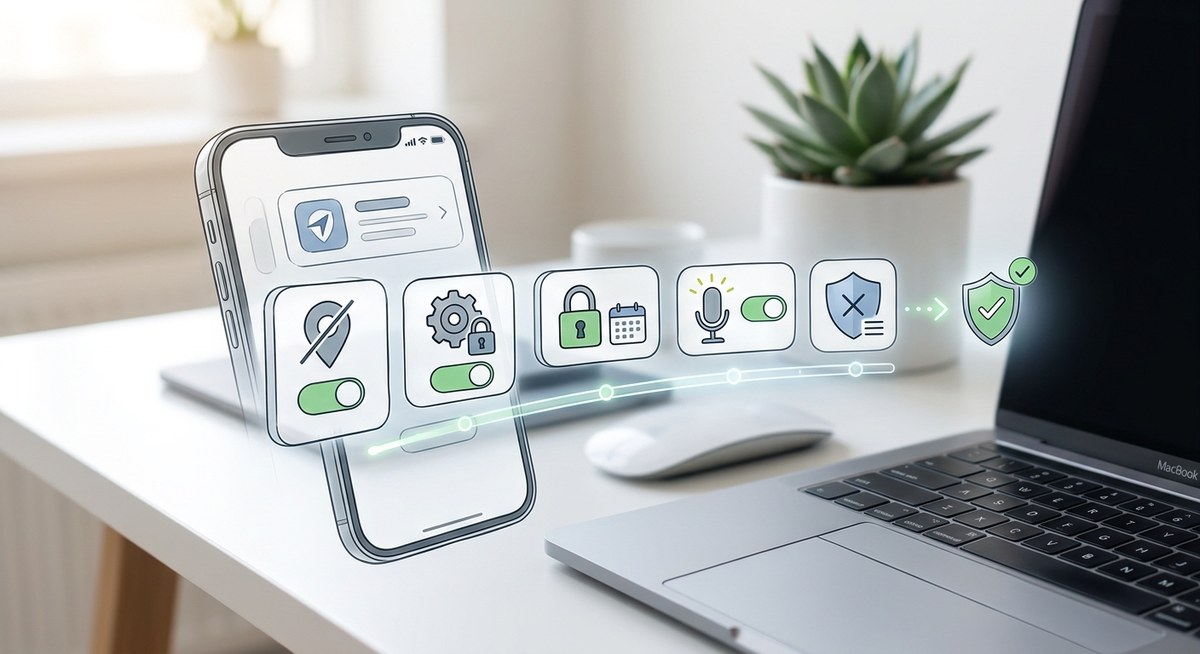
Getting your iPhone or Apple device to prioritize your privacy is easier than you might think. Apple has built-in options that let you control what apps see and share. By tweaking a few settings, you can significantly boost your privacy and keep your personal data out of reach. With more apps requesting access to sensitive info, knowing how to adjust these settings is a must. Let’s walk through some impactful Apple privacy settings you should change right now.
Adjusting your Apple privacy settings helps you regain control over your data by limiting tracking, managing app permissions, and securing location info. These simple changes can make a big difference in safeguarding your privacy on your iPhone and other Apple devices.
Understand and Review your location services
Location data is one of the most sensitive pieces of information on your device. Apple offers granular control over which apps can access your location and when. To make sure you’re not sharing more than necessary, start by reviewing these settings:
- Open the Settings app.
- Tap on Privacy & Security.
- Select Location Services.
- Review each app’s permission. Set apps to “Never” or “While Using the App” depending on your comfort level.
- Turn off Location Services entirely if you don’t need it for navigation or weather apps.
Being selective about location sharing not only protects your privacy but also saves battery life. For instance, social media apps often request your location but don’t need it to function. Disabling unnecessary access reduces tracking opportunities.
Limit app tracking and data sharing
App tracking is a major concern as many companies gather data across multiple apps and websites. Apple’s App Tracking Transparency feature helps you control this:
- When updating your iPhone, ensure that “Allow Apps to Request to Track” is turned off. Navigate to Settings, Privacy & Security, then Tracking, and disable this toggle.
- Review individual app permissions for tracking. Many apps might have default access set to “Allow,” so change them to “Ask Next Time” or “Never.”
- Use the “Limit Ad Tracking” feature to reduce targeted advertising. Find this under Settings, Privacy & Security, then Apple Advertising.
Blocking tracking reduces targeted ads and limits data sharing with third parties. It’s a powerful way to stay more private online.
Manage app permissions for sensitive data
Apps often ask for access to your camera, microphone, contacts, photos, and more. Limiting these permissions is essential:
- Open Settings.
- Tap Privacy & Security.
- Review categories like Camera, Microphone, Photos, Contacts, and Calendar.
- Disable access for apps that don’t need them.
- For apps that do need certain permissions, set them to “While Using the App” instead of “Always.”
For example, a game probably doesn’t need access to your contacts or camera. Restricting these permissions prevents apps from collecting unnecessary personal data.
Make Safari more private
Safari is your main browser on Apple devices. You can tweak its settings to enhance privacy:
- Open Settings and scroll to Safari.
- Enable “Prevent Cross-Site Tracking” to reduce third-party tracking.
- Turn on “Block All Cookies” if you want to prevent websites from storing cookies (note this may break some websites).
- Turn on “Fraudulent Website Warning” to stay protected from phishing.
- Use “Private Browsing” mode when browsing sensitive topics.
Additionally, consider using Safari’s built-in privacy report feature to see what trackers were blocked during your session.
Disable sharing of diagnostic and usage data
Apple collects diagnostic and usage data to improve its services. If you prefer to keep this data private:
- Go to Settings.
- Tap Privacy & Security.
- Scroll to Analytics & Improvements.
- Turn off “Share iPhone Analytics” and “Share iCloud Analytics.”
Blocking this sharing reduces the amount of data sent to Apple, giving you more control over your info.
Protect your pasteboard and clipboard data
Apps can access your clipboard without your knowledge. To tighten this:
- Go to Settings and Privacy & Security.
- Select “Clipboard Access” or similar (depending on iOS version).
- Disable access for apps that don’t need to read clipboard data.
This prevents apps from reading your copied info, such as passwords or sensitive texts, without your consent.
Review app permissions periodically
Permissions can sometimes change after an app update. Make it a habit to review permissions:
- Head to Settings.
- Tap Privacy & Security.
- Check each category regularly.
- Remove permissions for apps you no longer use or trust.
Regular reviews ensure your privacy stays intact as apps evolve.
Use privacy reports and app privacy labels
Apple provides transparency through privacy labels and reports:
- Check the App Store listings for privacy labels before downloading.
- Use the App Privacy Report (found in Settings under Privacy & Security) to see how apps use permissions and data.
This insight helps you decide which apps are trustworthy and which may pose privacy risks.
Expert advice on privacy settings
Adjusting your privacy settings is about making informed choices. While it might seem tedious at first, these small steps add up to a more secure experience. Take time to review permissions regularly and stay aware of new features or updates that could impact your privacy.
Common mistakes to avoid with Apple privacy settings
| Technique | Mistake | Solution |
|---|---|---|
| Ignoring app permissions | Leaving permissions at default | Review permissions after app updates or installations |
| Disabling location entirely | Losing useful features | Set to “While Using the App” instead of off |
| Forgetting to review privacy settings | Missing new permissions | Schedule monthly privacy reviews |
| Overlooking privacy labels | Downloading untrustworthy apps | Always check app privacy labels before installing |
How to keep your Apple device truly private
Fine-tuning your privacy settings on Apple devices is a continuous process. As apps and services evolve, so should your privacy controls. Regularly update your device, review app permissions, and stay informed about new privacy features Apple offers. Using these settings effectively helps you regain control over your personal information.
Remember, privacy is not a one-time setup but a habit. Set reminders to review your permissions and privacy options periodically. By doing so, you protect yourself from unwanted tracking, data leaks, and maintain your digital independence.
Stay proactive with your Apple privacy settings
Taking control of your privacy on an Apple device isn’t complicated. It’s about understanding what each setting does and making choices that align with your comfort level. Small adjustments can prevent a lot of potential privacy issues down the road. Keep your device updated, review permissions regularly, and be cautious about what data you share. Your personal info deserves respect and protection.
Protecting your privacy is a journey. Make these adjustments today and enjoy a safer, more private digital life.

Post Comment