How to Optimize Your Gaming PC for Maximum FPS in 2026
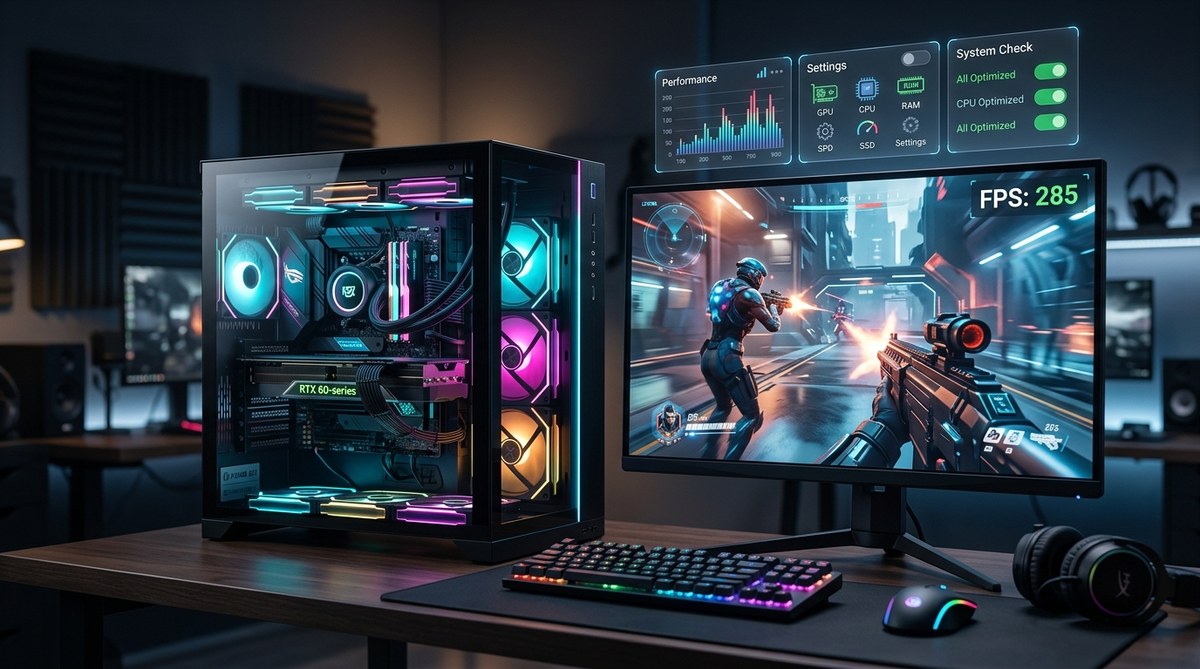
Your gaming rig is more powerful than you think. Even in 2026, with cutting-edge GPUs and CPUs, tiny software and settings bloat can cost you 20% to 30% of your frames. You might already have the hardware to run the latest titles at silky smooth frame rates, but Windows 11, background services, and default driver settings are quietly stealing performance. This guide walks you through every layer of gaming PC optimization in 2026, from operating system tweaks to BIOS adjustments, so you can squeeze every last FPS out of your machine.
Optimizing your gaming PC in 2026 doesn't require buying new parts. Start by enabling Windows 11 Game Mode and selecting the High Performance power plan. Disable startup junk, update GPU drivers, and turn off Virtual Machine Platform. Adjust your NVIDIA or AMD control panel for maximum performance. Finally, set your BIOS to prioritize RAM speed and PCIe Gen 4 or 5. These steps can gain 15-30 FPS in demanding games with zero cost.
Start with Windows 11 Basics
The biggest performance gains come from cleaning up Windows 11. Here's what to do first:
- Enable Game Mode. Go to Settings > Gaming > Game Mode and turn it on. This prioritizes CPU and GPU resources for your active game.
- Switch to the High Performance power plan. Open Control Panel > Power Options and select "High Performance" or "Ultimate Performance" if available. This prevents the CPU from downclocking.
- Turn off Hardware-accelerated GPU scheduling. Wait — this tip changed in 2026. Microsoft's latest 24H2 update now recommends disabling HAGS for most gaming scenarios because it can introduce micro-stutter. Test both on and off, but many enthusiasts now leave it off.
- Disable Virtual Machine Platform. This hidden feature is enabled by default on many 2025/2026 Windows builds. Open "Turn Windows features on or off" and uncheck Virtual Machine Platform and Windows Hypervisor Platform. This removes hypervisor overhead that can cost you 5-10% GPU performance.
For a deeper walkthrough of these changes, check out our guide on how to optimize Windows 11 for maximum gaming performance.
Trim the Junk from Your Startup
Every program that launches when you boot eats RAM and CPU cycles. Use Task Manager (Ctrl+Shift+Esc) and go to the Startup tab. Disable anything you don't need immediately — Spotify, Adobe updaters, Steam (you can launch it later), printer software, RGB control apps. Freeing up 2GB of RAM this way directly improves minimum FPS in memory-heavy titles like "Starfield" or "Cyberpunk 2077".
Graphics Driver Settings That Matter
Your GPU driver control panel is a goldmine. Follow these steps for both NVIDIA and AMD:
- NVIDIA Control Panel:
- Manage 3D Settings > Global Settings.
- Set Power Management Mode to Prefer Maximum Performance.
- Set Texture Filtering Quality to High Performance.
- Turn off Vertical Sync globally (enable per game if you need it).
- Turn on Low Latency Mode (Ultra for competitive shooters).
- AMD Software:
- Gaming > Global Graphics.
- Set Radeon Anti-Lag to Enabled.
- Set Texture Filtering Quality to Performance.
- Disable Radeon Chill.
- Enable Radeon Boost for a dynamic resolution bump.
Don't forget to check for driver updates. We've seen some gamers skip updates for months; newer drivers from late 2026 include specific optimizations for "Grand Theft Auto VI" and "DOOM: The Dark Ages". A fresh driver install can net you 5-10 FPS in those titles.
In-Game Settings for Maximum FPS
You don't need to sacrifice visuals entirely, but knowing which settings to lower makes a big difference. Here's a table of common settings and their FPS impact:
| Setting | Impact on FPS | Recommendation |
|---|---|---|
| Shadow Quality | High | Set to Medium or Low |
| Volumetric Fog | Very High | Set to Low |
| Reflections | High | Use Screen Space or Low |
| Anti-aliasing | Medium | Use TAA or lower |
| Texture Quality | Low | Keep at High (uses VRAM, not GPU compute) |
| Ambient Occlusion | Medium | Disable or Low |
| Draw Distance | Medium | Keep High only if CPU bound |
| Post-processing effects | Medium | Disable Motion Blur and Depth of Field |
Also, cap your frame rate at your monitor's refresh rate via the in-game limiter or driver. Running uncapped at 300 FPS on a 144Hz monitor wastes power and can cause frame time inconsistency.
Network Optimization for Online Games
High FPS means nothing if your ping is spiking. Simple fixes reduce lag significantly:
- Use a wired Ethernet connection instead of Wi-Fi.
- In Windows, disable "Large Send Offload" in the network adapter properties (advanced settings).
- Set your router's QoS to prioritize gaming traffic.
- Close bandwidth-hungry apps like Discord streaming, cloud backups, and video downloads while gaming.
For more detailed steps, see our article on your internet speed isn't the problem: fixing high ping and lag in online games.
BIOS and Hardware Tweaks
"Most gamers never touch their BIOS, but that's where you can unlock free performance. Enabling XMP or EXPO for your RAM speed alone often gives a 10% FPS boost in CPU-bound games." — PC builder and overclocker Sarah Chen.
Follow these numbered steps in your BIOS:
- Enable XMP (Intel) or EXPO (AMD). This runs your RAM at its rated speed. Many kits default to 2133MHz or 4800MHz. Enabling the profile can push it to 6000MHz or higher.
- Set PCIe to Gen 4 or Gen 5. Ensure your GPU slot is running at the highest generation supported by your motherboard and card. Sometimes BIOS defaults to Auto and picks a lower spec.
- Disable CSM (Compatibility Support Module). If your system uses UEFI, turn off CSM. This reduces boot time and may improve GPU allocation.
- Enable Resizable BAR (ReBAR). This lets the CPU access the full GPU memory buffer, boosting performance in modern titles.
- Check your CPU cooler profile. If it's set to "Silent" mode, switch to "Performance" or "Standard". Thermal throttling eats FPS.
Common Mistakes That Ruin Performance
I see these errors constantly in tech forums. Avoid them to keep your rig healthy:
- Using "Ultimate Performance" power plan on laptops (drains battery and doesn't improve FPS if thermal limits are hit).
- Installing game-ready drivers for a different GPU generation.
- Running antivirus real-time scanning during gaming sessions.
- Keeping Windows visual effects at "Adjust for best appearance" (turn it to "best performance" for marginal gains).
- Using DS4Windows or other controller emulation tools if you don't need them (they add input lag).
The Quick Wins Checklist
If you only have 10 minutes, do this:
- Update GPU drivers.
- Enable Game Mode and High Performance power plan.
- Disable Virtual Machine Platform.
- Turn off startup apps.
- Set GPU power management to maximum performance.
- Lower shadows and volumetric effects in your most played game.
Making Every Frame Count
Gaming PC optimization in 2026 is about removing friction, not buying new gear. Each of these tweaks is free, safe, and reversible. Start with the Windows 11 changes, then move to your driver controls, then the BIOS. Within an hour you can reclaim frames that were hiding under layers of software bloat. Your GPU will thank you, and your kill/death ratio will notice. Give it a shot tonight before you queue into your next match.



Post Comment