The 9 Best Productivity Apps for Gamers Who Want to Streamline Their Setup
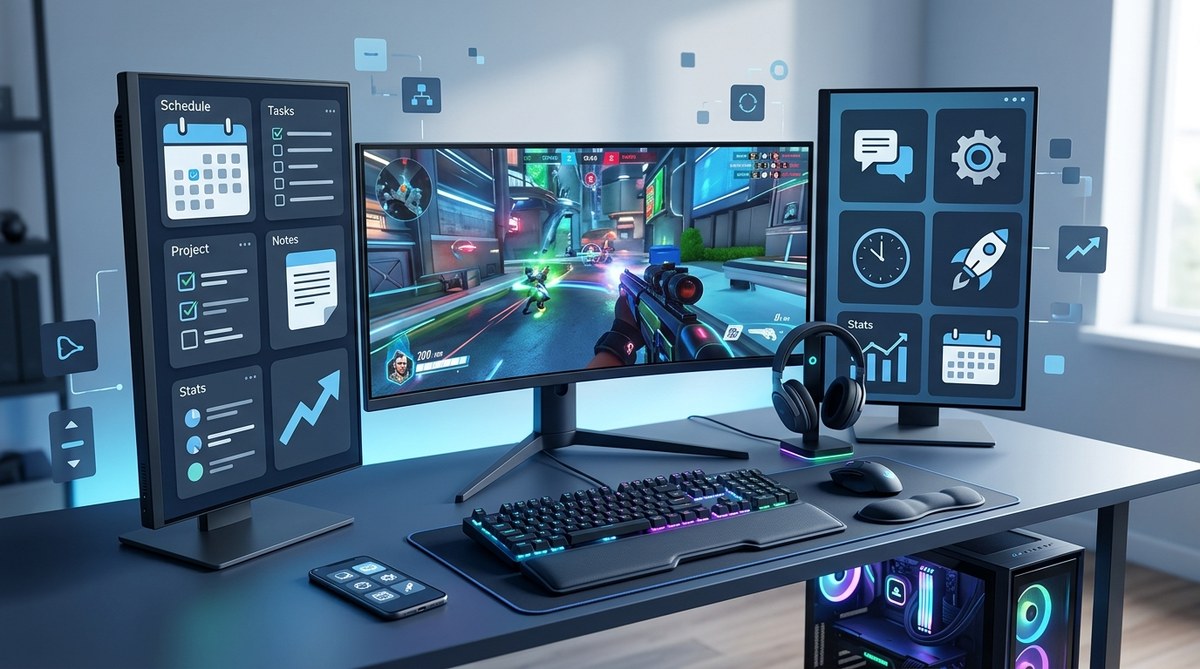
You sit down for one round of Valorant, and suddenly three hours vanish. Your gaming rig is optimized, your peripherals are top tier, but your workflow outside the game is a mess. Patch notes pile up, streaming schedules slip, and that game dev project you started in January is still sitting at 10% completion. You need tools that work as hard as your GPU.
The best productivity apps for gamers don’t just manage your time. They respect your hobby. They understand that your battle station is a command center for work, play, and creation. These apps help you keep your desktop clean, your focus sharp, and your life organized without killing the vibe.
The right productivity apps turn your gaming PC into a true command center. This guide covers nine tools that handle task management, focus sessions, note taking, and hardware monitoring. Each pick was chosen because it fits a gamer’s workflow without extra fluff or corporate nonsense.
Why Standard Productivity Apps Feel Wrong for Gamers
Most productivity software was designed for cubicles. It assumes you want to track billable hours, manage client emails, or fill out spreadsheets. That stuff is fine for an office job, but it feels alien when you are trying to balance a ranked grind with content creation or game development.
Gamers need apps that:
- Respect full screen applications without popping up annoying notifications.
- Offer dark modes that match your RGB setup.
- Track system resources alongside your tasks.
- Sync across a PC, a phone, and maybe a Steam Deck.
The nine apps below check those boxes. They are the best productivity apps for gamers because they adapt to your lifestyle instead of forcing you to adapt to them.
1. Notion for Centralized Game Notes and Project Planning
Notion is a blank canvas that can become anything. For gamers, it is perfect for tracking game wikis, planning streaming schedules, or managing a mod list. You can build a dashboard that includes a task list for your gaming blog, a database of completed games, and a page for your current build order.
Why it works for gamers:
- The database view lets you sort games by genre, completion status, or rating.
- You can embed YouTube clips or Twitch streams directly into a planning page.
- It runs on Windows, macOS, iOS, Android, and even in a browser.
Use Notion to keep a changelog for the mods you install. When a patch breaks your save file, you will know exactly what changed.
2. Obsidian for Connected Note Taking
Obsidian is a local note taking app that links ideas together. If you are a game master running a D&D campaign, a writer working on lore, or a student who also plays, this tool is a lifesaver. Every note lives on your hard drive in plain Markdown files.
The graph view shows how your notes connect. You can see that your notes on “boss mechanics” link back to “character build” and “gear progression.” It turns note taking into a mini game of discovery.
Obsidian runs offline. No internet required. No distractions.
3. Focusmate for Body Doubling Sessions
Focusmate pairs you with a stranger for a live video work session. You both work silently on your own tasks for a set time. It sounds weird, but it works. The pressure of being watched (even virtually) keeps you from tabbing out to check your inventory or browse Reddit.
This is one of the best productivity apps for gamers who work from home. You can schedule a session before your evening gaming block. Knock out your emails or code commits in 50 minutes, then log off guilt free.
“The hardest part of productivity is starting. Focusmate removes that friction by giving you a scheduled start and an audience of one.”
4. MSI Afterburner for Hardware Monitoring
This one is a classic. MSI Afterburner is not a typical productivity app, but it is essential for gamers who build their own PCs. It monitors your GPU temperature, clock speed, fan curve, and frame rate.
Overheating causes throttling. Throttling causes stutters. Stutters cause lost matches. Afterburner lets you see exactly what your hardware is doing in real time. You can adjust fan speeds to keep your system cool during long sessions.
Productivity means keeping your gear running at peak performance. This app does exactly that.
5. Speechify for Hands Free Reading
Speechify turns any text into audio. Paste a patch note article, a game design document, or a Discord guide into the app, and it reads it back to you in a natural voice.
This is huge for multitasking. You can listen to patch notes while you are cooking dinner or doing a treadmill session. It also helps with accessibility if you have eye strain from long sessions.
Speechify works as a browser extension, a mobile app, and a desktop program. It is a secret weapon for consuming information without sitting at your desk.
6. Trello for Visual Task Management
Trello uses boards, lists, and cards to organize anything. It is a kanban tool that feels like a game UI. You drag tasks from “To Do” to “Doing” to “Done.” The visual feedback is satisfying.
Gamers use Trello for:
- Tracking game development milestones.
- Planning a YouTube video schedule.
- Organizing a backlog of games to play.
You can add checklists, due dates, and attachments to each card. Share a board with your squad to coordinate raid schedules or tournament prep.
7. Cold Turkey for Focused Blocking
Cold Turkey is a website and application blocker for Windows and macOS. It is uncompromising. Once you start a block session, you cannot undo it without restarting your computer.
Set a block on Steam, Discord, and Reddit during your work hours. The app prevents you from launching those programs until the timer runs out. It is brutal, but it works.
If you have trouble staying focused during a study session or a work sprint, this tool will force you to stay on track. Pair it with a Pomodoro timer for maximum effect.
8. OneNote for Handwritten and Typed Notes
OneNote is Microsoft’s note taking app, and it supports both typed text and handwritten notes with a stylus. If you use a tablet for note taking while gaming on your main monitor, this is a solid choice.
You can organize notes into notebooks and sections. Draw diagrams for level layouts or strategize builds with a stylus. The search feature even finds text inside images and handwritten notes.
It syncs across all your devices for free. No subscription required for the basic version.
9. Steam’s Built In Notes Feature
This one is already on your PC. Steam added a notes feature a few years ago that lets you pin notes to individual games. Right click a game in your library and select “Notes.”
Use this to track:
- Keybinds you changed.
- Mod install order.
- Puzzle solutions you do not want to look up online.
It is simple, lightweight, and lives inside the platform you already use. No extra downloads needed.
How to Choose the Right App for Your Workflow
Not every app fits every gamer. Here is a table to help you match your needs to the right tool.
| Your Goal | Best App | Why |
|---|---|---|
| Organize game notes and projects | Notion | Flexible databases and templates |
| Connect ideas and lore | Obsidian | Local Markdown files with graph view |
| Stay accountable during work | Focusmate | Live body doubling sessions |
| Monitor PC performance | MSI Afterburner | Real time hardware stats |
| Read content hands free | Speechify | Text to speech with natural voices |
| Manage tasks visually | Trello | Drag and drop kanban boards |
| Block distractions completely | Cold Turkey | Unskippable focus sessions |
| Take handwritten notes | OneNote | Stylus support and OCR search |
| Track in game info | Steam Notes | Built into your game library |
Setting Up Your Productivity Workflow in 3 Steps
-
Pick one focus area. Do not install all nine apps at once. Choose the area that causes you the most friction. Is it distraction? Choose Cold Turkey. Is it organization? Choose Notion. Start small.
-
Set a daily habit. Open your chosen app at the same time every day. For example, open Notion every morning for five minutes to plan your gaming sessions and tasks for the day.
-
Audit after one week. Check if the app actually helped. Did you complete more tasks? Did you feel less scattered? If yes, keep it. If not, swap it for another app on the list.
Matching Your Tools to Your Hardware
Your productivity apps should not slow down your gaming PC. Here are some tips to keep things running smoothly:
- Close apps you are not actively using. Obsidian and Notion are lightweight, but keeping ten browser tabs open will eat your RAM.
- Use the dark mode setting in every app. It reduces eye strain during late night sessions and matches your setup.
- Set startup rules. Do not let Trello or Discord launch automatically when you boot your PC. Keep your system lean for when you want to game.
For more on optimizing your PC for gaming, check out our guide on how to optimize windows 11 for maximum gaming performance.
The One Mistake Most Gamers Make With Productivity Apps
They try to gamify everything. They turn every task into a level up, every chore into a boss fight. That works for about a week. Then the novelty wears off and you are left with a system that feels like work.
Productivity apps should be invisible. They should handle the boring stuff so you can focus on the fun stuff. If an app adds more friction than it removes, delete it.
Putting It All Together for Your Best Year Yet
Your gaming setup is already a powerhouse. You have the hardware, the peripherals, and the skills. Now you need the software to manage the parts of life that happen between sessions. These nine apps are the best productivity apps for gamers because they respect your time and your interests.
Start with one. Use it for a week. See how it feels. Then add another. Before you know it, you will have a system that handles your tasks without getting in the way of your game time.
The goal is not to become a productivity robot. The goal is to clear the clutter so you can enjoy your hobby without the background noise of forgotten tasks and missed deadlines.
Now go tweak your setup and get back to the fun stuff.



Post Comment