What Actually Happens During a Software Update and Why They Take So Long
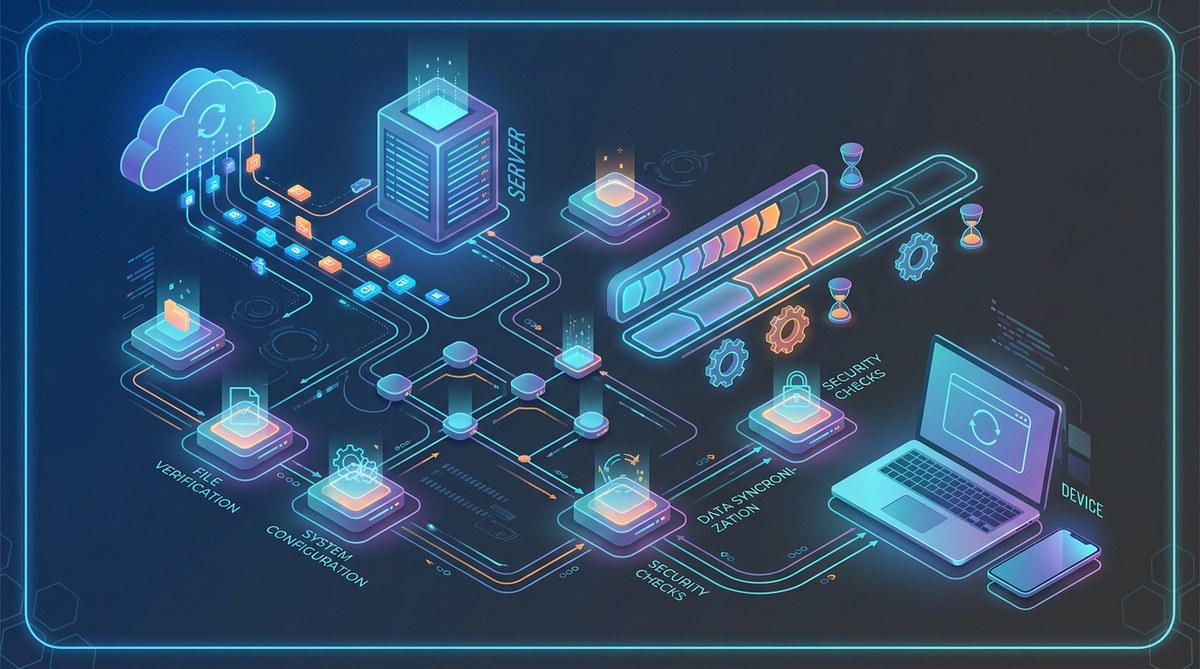
When your device prompts you to install a software update, it might seem like a quick blink. But behind the scenes, a complex series of steps unfolds to ensure your system remains secure, performs well, and gains new features. Understanding what happens during a software update can help you appreciate why these updates sometimes take longer than expected. It’s not just about downloading a file; it’s a meticulous process that involves multiple stages working together.
A software update involves multiple phases like downloading, verifying, installing, and configuring system files. These steps ensure your device remains secure and stable, which is why updates can sometimes take a considerable amount of time. Knowing this process helps you understand delays and the importance of patience during updates.
What actually happens during a software update
When you initiate a software update, your device begins a series of carefully coordinated steps. Each one plays a crucial role in making sure the update is safe, effective, and doesn’t cause issues later on.
1. Downloading the update files
The process starts with downloading update files from the server. These files contain patches, security fixes, new features, or performance improvements. Updates are often large because they include multiple components and data to replace or modify existing system files. During this stage, your device checks the integrity of the server and the files to prevent corruption or tampering.
2. Verifying the downloaded data
Once files are downloaded, your system verifies their integrity using cryptographic checksums. This step ensures that the files weren’t corrupted during transfer and match the official versions. It’s a vital security measure that prevents malicious code from being installed.
3. Preparing for installation
Before installing, your device may enter a staging phase. It creates backups of critical system files and settings. This step ensures that if anything goes wrong during installation, you can revert to the previous state. The system also prepares the environment, closing applications that could interfere with the update.
4. Installing the update
During installation, the system replaces old files with new versions. This can involve updating core operating system files, drivers, or application components. Depending on the update size and complexity, this phase can take from a few minutes to much longer. For example, major Windows feature updates or macOS upgrades can take over an hour.
5. Configuring system settings
After replacing files, the system applies new configurations. This may include updating registry entries, system policies, or device drivers. It ensures that new features work correctly and that the system remains stable.
6. Finalizing and rebooting
Once the update files are in place and configured, your device often restarts. This reboot allows the system to load the new files properly and complete the integration process. During this phase, the system performs additional checks and final setup steps.
7. Post-update cleanup and optimization
After rebooting, the system may run background processes such as cleaning temporary files, indexing new data, or optimizing system files. These activities help improve performance and prepare your device for regular use.
Why do software updates sometimes take so long?
Despite the seemingly simple process, updates can stretch out for reasons beyond just file size.
- Large updates: Major OS upgrades or cumulative updates add many files. Installing them requires more time to replace and configure each component.
- System hardware: Older hardware or limited storage speed can slow down installation. SSDs perform faster than traditional HDDs, reducing update times.
- Background activities: Other processes running on your device, like antivirus scans or disk indexing, can interfere with update speeds.
- Network issues: Slow or unstable internet connections cause delays during download and verification stages.
- Server overloads: During major updates, servers distributing updates can become congested, leading to longer download times.
- Corrupt files or conflicts: Sometimes, existing system issues or conflicting software hinder the update process, causing delays or failures.
Expert tip: To avoid potential issues, ensure your device has enough free storage, and close unnecessary applications during updates. For especially large updates, consider updating at times when network traffic is lower.
Practical steps to handle long update times
If your device is taking an unexpectedly long time during an update, here are some techniques to manage the situation:
- Check your internet connection for stability.
- Ensure your device is plugged into power and has sufficient disk space.
- Pause and resume the update to see if it speeds up.
- Restart your device if the update appears stuck.
- Use the update troubleshooter or repair tools provided by your OS.
- Wait patiently, especially during major updates, as rushing can cause issues.
| Technique | Mistake to avoid |
|---|---|
| Restarting too early | Interrupting an update can corrupt files. |
| Ignoring error messages | They provide clues for resolution. |
| Updating during peak network hours | Can slow download speeds. |
Common issues that extend update times
| Cause | What to do |
|---|---|
| Slow internet | Switch to a wired connection or move closer to your router. |
| Insufficient storage | Free up space by deleting unnecessary files or apps. |
| Conflicting software | Temporarily disable security tools during update. |
| Hardware limitations | Consider hardware upgrades if updates are consistently slow. |
How to speed up future updates
- Keep your device clean and free of unnecessary files.
- Regularly install smaller, incremental updates rather than waiting for large upgrades.
- Use wired connections during large downloads.
- Upgrade hardware components like SSDs or RAM to improve overall performance.
- Maintain updated drivers and system tools to reduce conflicts.
Final thoughts on what happens during a software update
Understanding the update process reveals that it’s about more than just downloading files. Each step safeguards your device, ensures compatibility, and prepares it for future features. While some updates can seem to take ages, patience often pays off. They are essential activities that keep your device secure, efficient, and ready for the latest innovations.
Applying good practices before updating, like clearing space and closing other programs, can minimize delays. Next time you see a progress bar, know that your device is working through a detailed process designed to keep everything running smoothly for the long haul.
Keeping Your System in Tune
Regular updates are part of good device maintenance. By understanding what happens during these processes, you can avoid unnecessary frustrations and ensure your device remains reliable. Patience, combined with proactive management, leads to a smoother experience. Take control by scheduling updates at convenient times and verifying your system health periodically. That way, your device stays current without the headaches.


Post Comment